<?xml version="1.0" encoding="UTF-8"?>
<feed xmlns="http://www.w3.org/2005/Atom" xml:lang="">
                        <id>https://fyncode.support-hub.io/feed/685</id>
                                <link href="https://fyncode.support-hub.io/feed/685" rel="self"></link>
                                <title><![CDATA[Flink WordPress App Builder Article Feed]]></title>
                    
                                <subtitle></subtitle>
                                                    <updated>2022-12-18T00:38:41+00:00</updated>
                        <entry>
            <title><![CDATA[Overview]]></title>
            <link rel="alternate" href="https://fyncode.support-hub.io/articles/overview-1312" />
            <id>https://fyncode.support-hub.io/1312</id>
            <author>
                <name><![CDATA[Fyncode Tech]]></name>
            </author>
            <summary type="html">
                <![CDATA[<p></p><p><b>What is Flink WordPress App Builder?</b></p><p>Flink Wordpress App Builder makes it possible to create the Android application of your Wordpress website &amp; blog in an easy way.</p><ul><li>Installing Android Studio or similar software to your computer and device is not necessary.</li><li>You can create your app via the WordPress plugin with one-click automatically. The “<b>.apk”</b> file of your application is sent to your email address.</li><li>You can manage your application in detail with the WordPress plugin.</li></ul><b>Requirements</b><p></p><ul><li>WordPress 4.6 or higher</li><li>PHP 5.6 or higher</li><li>OpenSSL (PHP extension) enabled</li><li>Mysqli (PHP extension) enabled</li><li>cURL (PHP extension) enabled</li><li>GD (PHP extension) enabled</li><li>Mbstring (PHP extension) enabled</li><li>Zip (PHP extension) enabled</li><li>GZip (PHP extension) enabled</li><li>Exif (PHP extension) enabled</li><li>DOMDocument (PHP extension) enabled</li><li>mod_rewrite (Apache module) enabled</li></ul><p><b>Used Plugins</b></p><ul><li><p><b>Android :</b></p>- <a href="https://github.com/JakeWharton/butterknife" target="_blank" rel="noreferrer noopener">ButterKnife</a><br />- <a href="https://square.github.io/picasso/" target="_blank" rel="noreferrer noopener">Picasso</a><br />- <a href="https://square.github.io/retrofit/" target="_blank" rel="noreferrer noopener">Retrofit</a><br />- <a href="https://github.com/ocpsoft/prettytime" target="_blank" rel="noreferrer noopener">PrettyTime</a><br />- <a href="https://github.com/greenrobot/EventBus" target="_blank" rel="noreferrer noopener">Eventbus</a><br />- <a href="https://github.com/afollestad/material-dialogs" target="_blank" rel="noreferrer noopener">Material Dialogs</a><br />- <a href="https://github.com/soarcn/BottomSheet" target="_blank" rel="noreferrer noopener">BottomSheet</a><br />- <a href="https://github.com/Plumillon/ChipView" target="_blank" rel="noreferrer noopener">ChipView</a><br />- <a href="https://github.com/Cloudist/ACProgressLite" target="_blank" rel="noreferrer noopener">AcpProgressLite</a><br />- <a href="https://github.com/bhargavms/DotLoader" target="_blank" rel="noreferrer noopener">DotLoader</a><br />- <a href="https://github.com/ArthurHub/Android-Image-Cropper" target="_blank" rel="noreferrer noopener">Android Image Cropper</a><br />- <a href="https://github.com/google/ExoPlayer" target="_blank" rel="noreferrer noopener">ExoPlayer</a><br /><br /></li><li><p><b>WordPress Plugin :</b></p>- <a href="https://www.getbootstrap.com" target="_blank" rel="noreferrer noopener">Bootstrap Framework</a><br />- <a href="https://www.jquery.com" target="_blank" rel="noreferrer noopener">jQuery Javascript Library</a><br />- <a href="https://www.jqueryui.com" target="_blank" rel="noreferrer noopener">jQuery UI</a><br />- <a href="https://developer.snapappointments.com/bootstrap-select/" target="_blank" rel="noreferrer noopener">Bootstrap Select</a><br />- <a href="https://www.chartjs.org" target="_blank" rel="noreferrer noopener">Chart JS</a><br />- <a href="https://xdsoft.net/jqplugins/Datetimepicker/" target="_blank" rel="noreferrer noopener">DateTimePicker</a><br />- <a href="https://simonwep.github.io/pickr/" target="_blank" rel="noreferrer noopener">Pickr</a><br />- <a href="https://github.com/macek/jquery-serialize-object" target="_blank" rel="noreferrer noopener">Serialize Object</a><br />- <a href="https://pid.github.io/speakingurl/" target="_blank" rel="noreferrer noopener">SpeakingURL</a><br />- <a href="https://sweetalert2.github.io/" target="_blank" rel="noreferrer noopener">SweetAlert2</a></li></ul><p><br /></p><table class="table table-bordered"><tr><td><b>Next Section <span>→</span>
</b></td></tr><tr><td><a href="https://fyncode.support-hub.io/articles/step-1-installation-1315">Step 1 - Installation</a></td></tr></table>]]>
            </summary>
                                    <updated>2022-12-17T18:55:13+00:00</updated>
        </entry>
            <entry>
            <title><![CDATA[Step 1 - Installation]]></title>
            <link rel="alternate" href="https://fyncode.support-hub.io/articles/step-1-installation-1315" />
            <id>https://fyncode.support-hub.io/1315</id>
            <author>
                <name><![CDATA[Fyncode Tech]]></name>
            </author>
            <summary type="html">
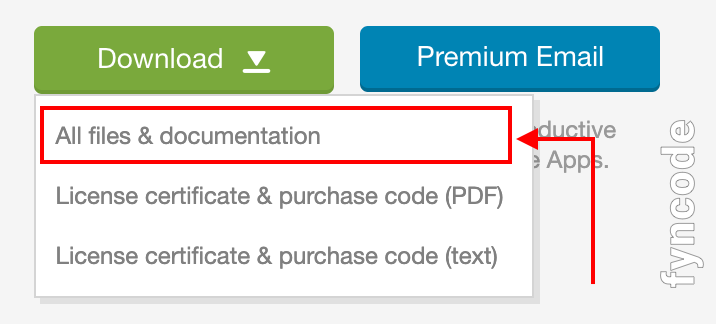
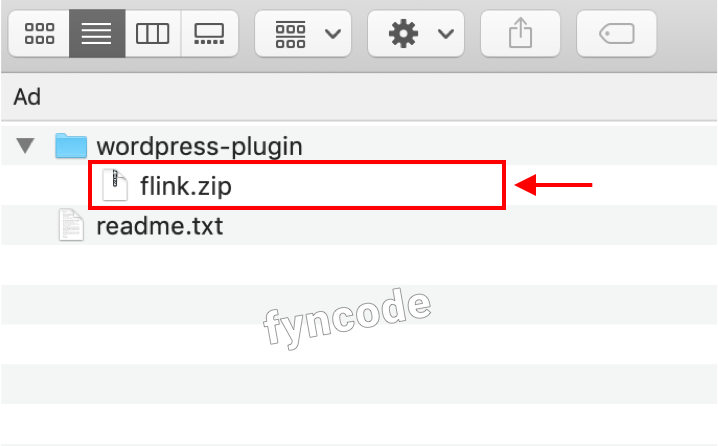
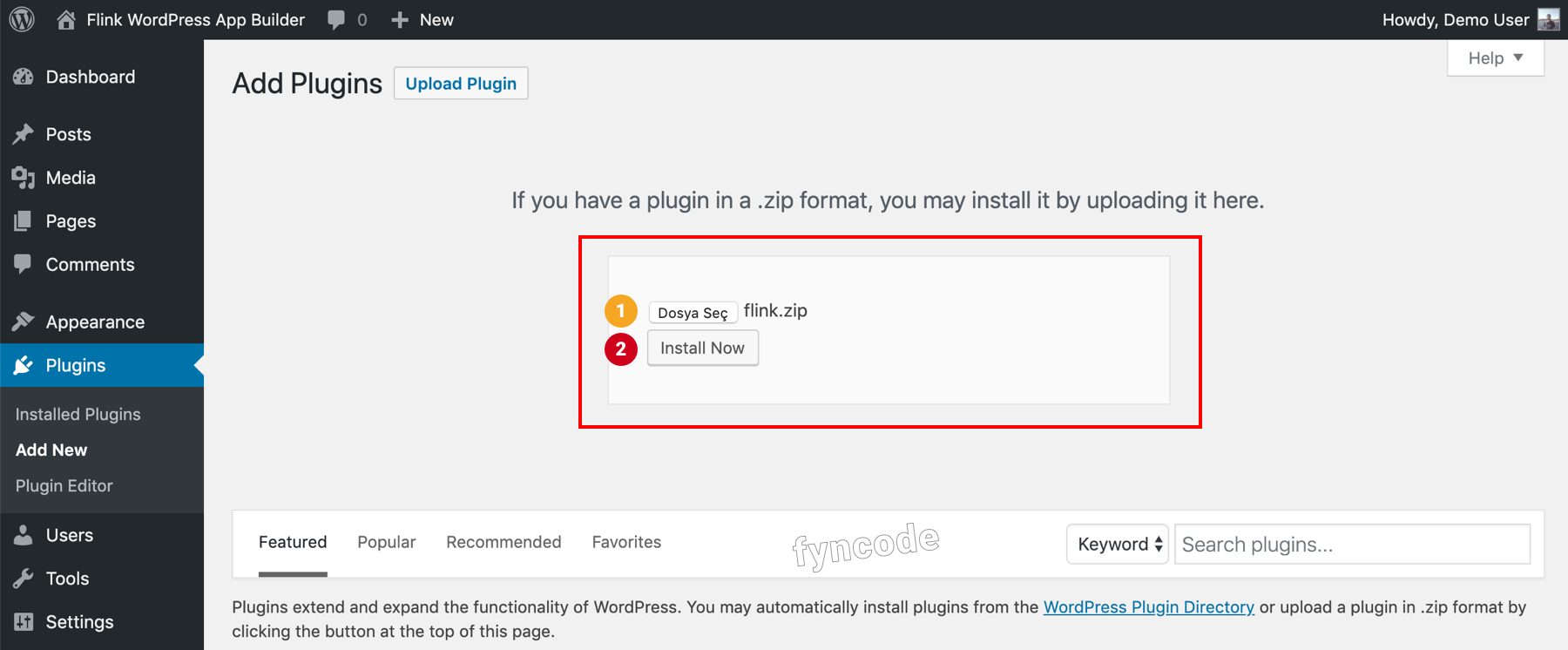
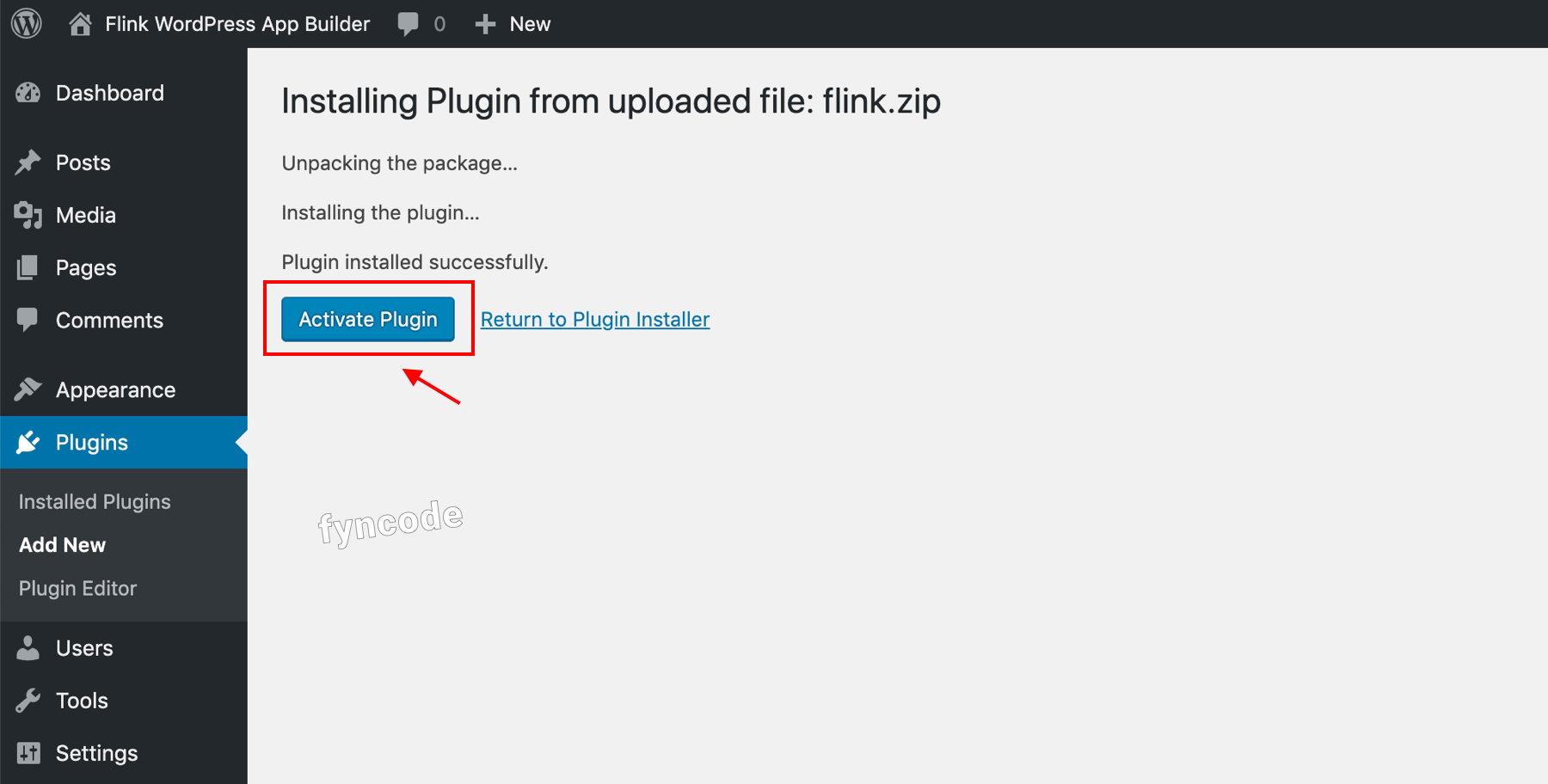
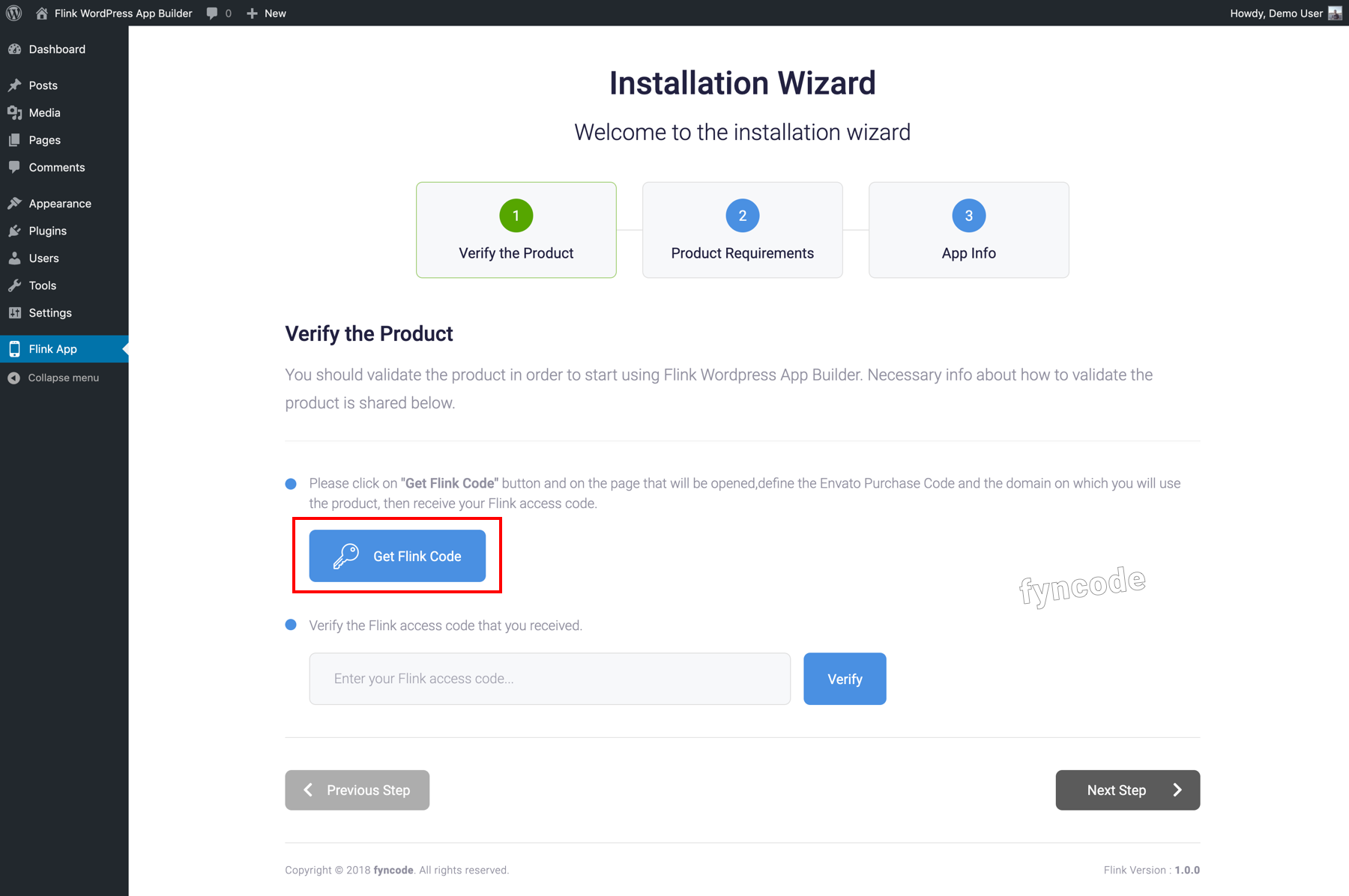
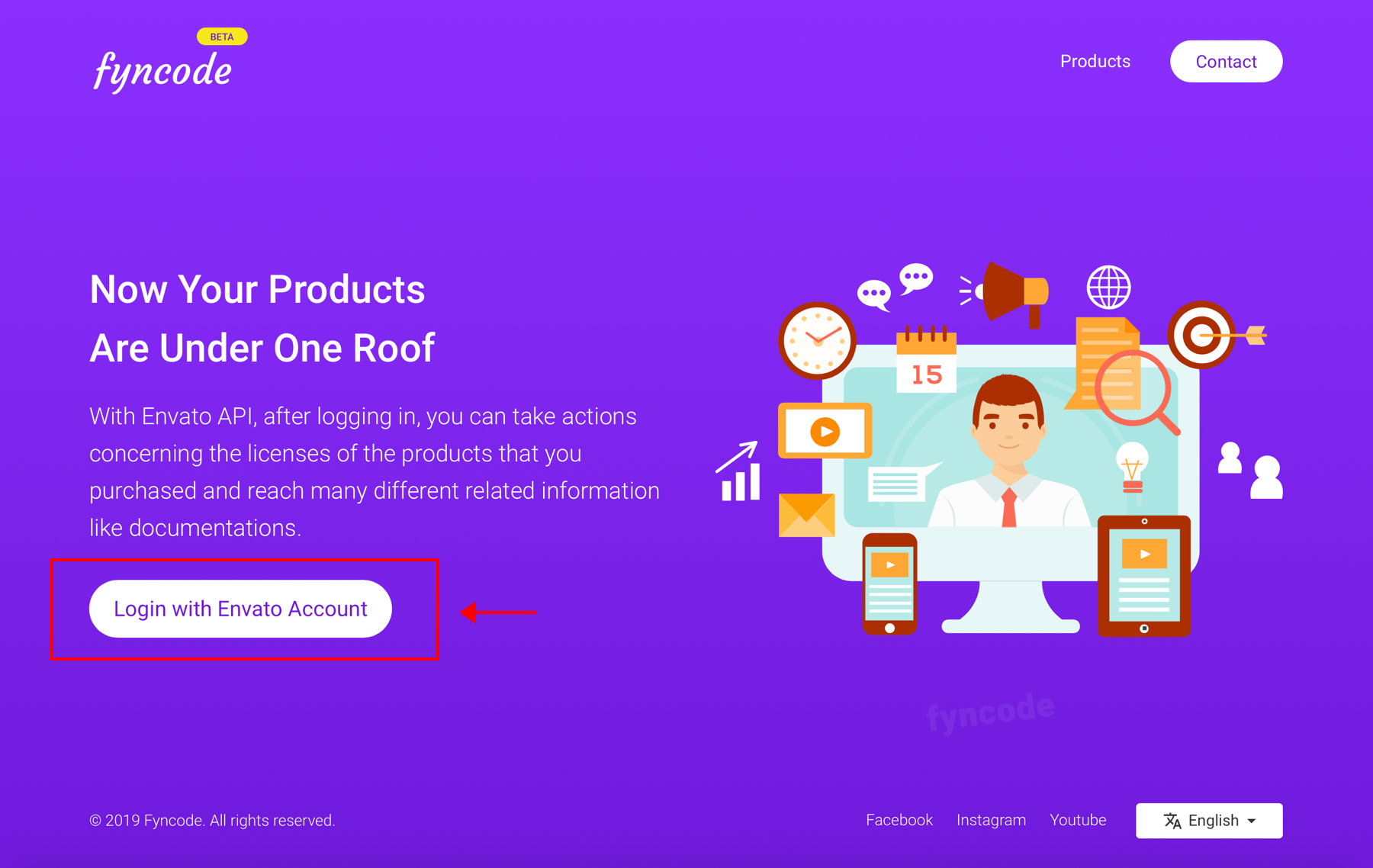
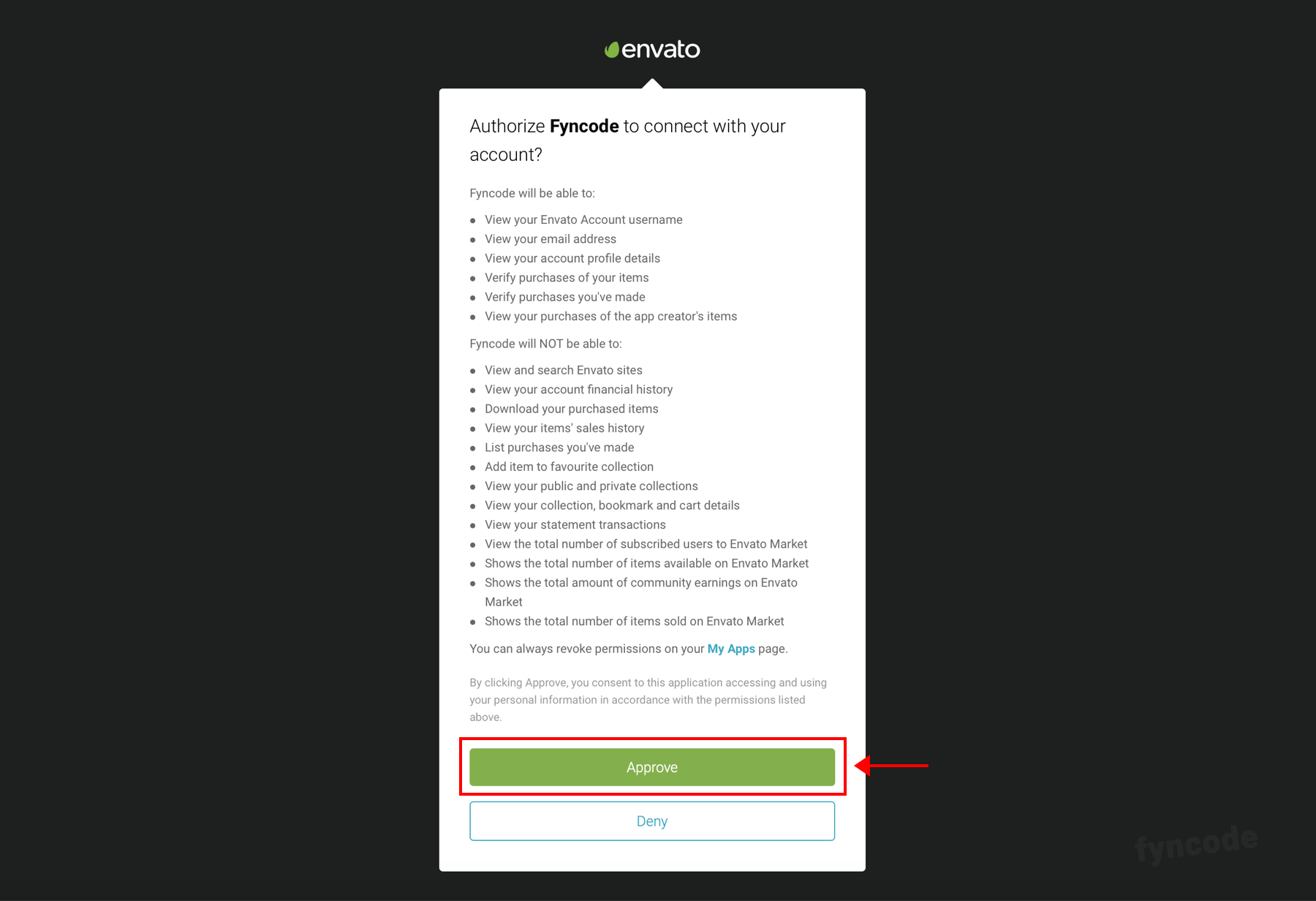
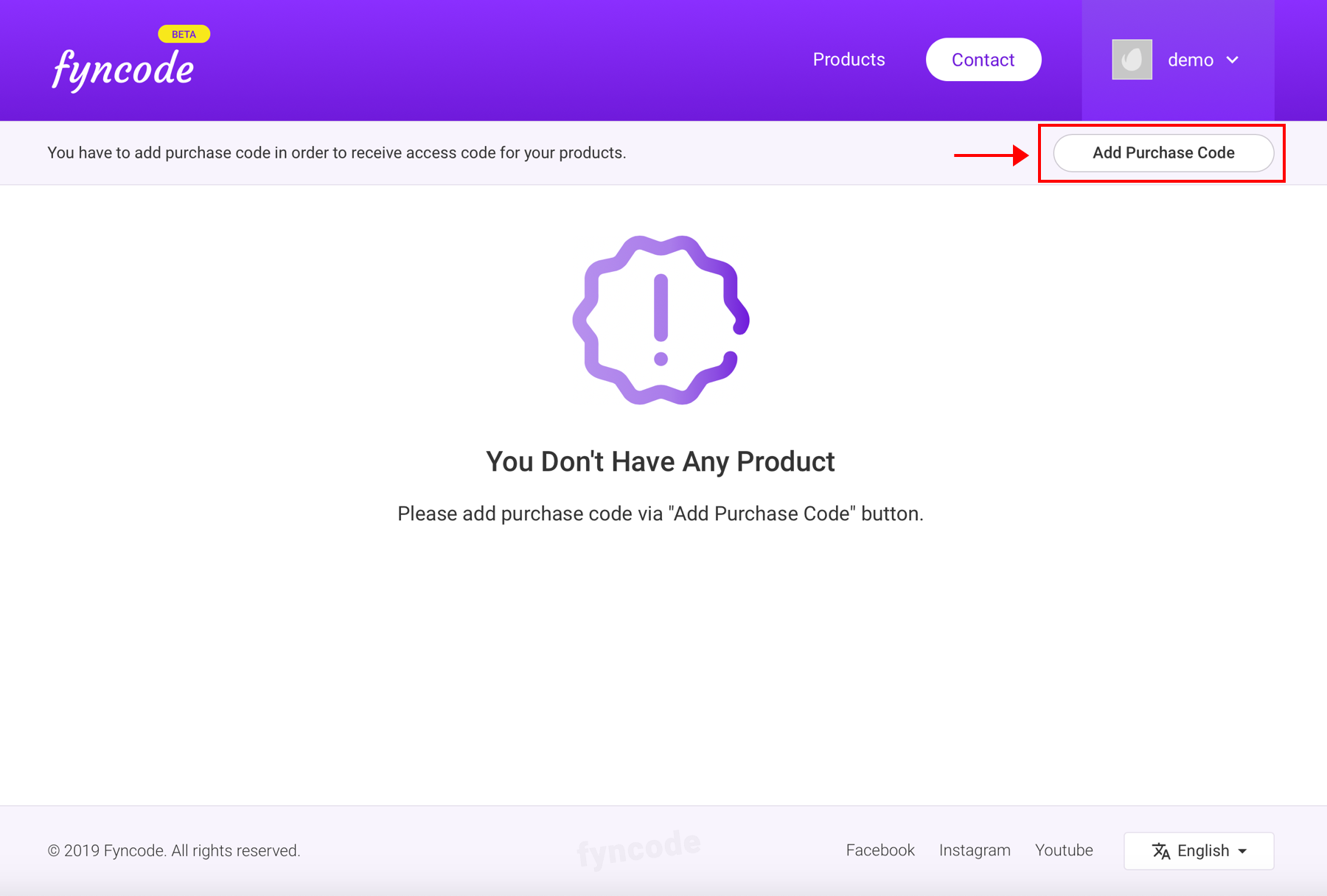
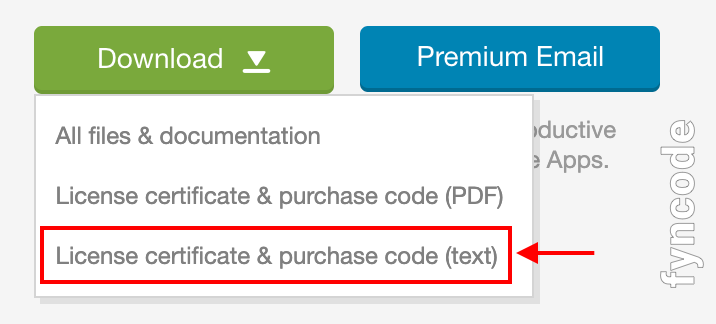
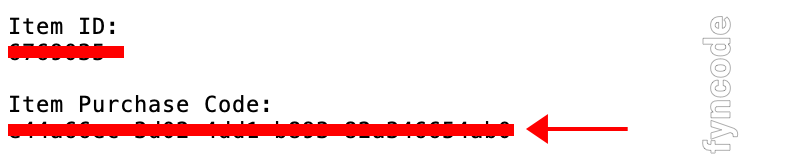
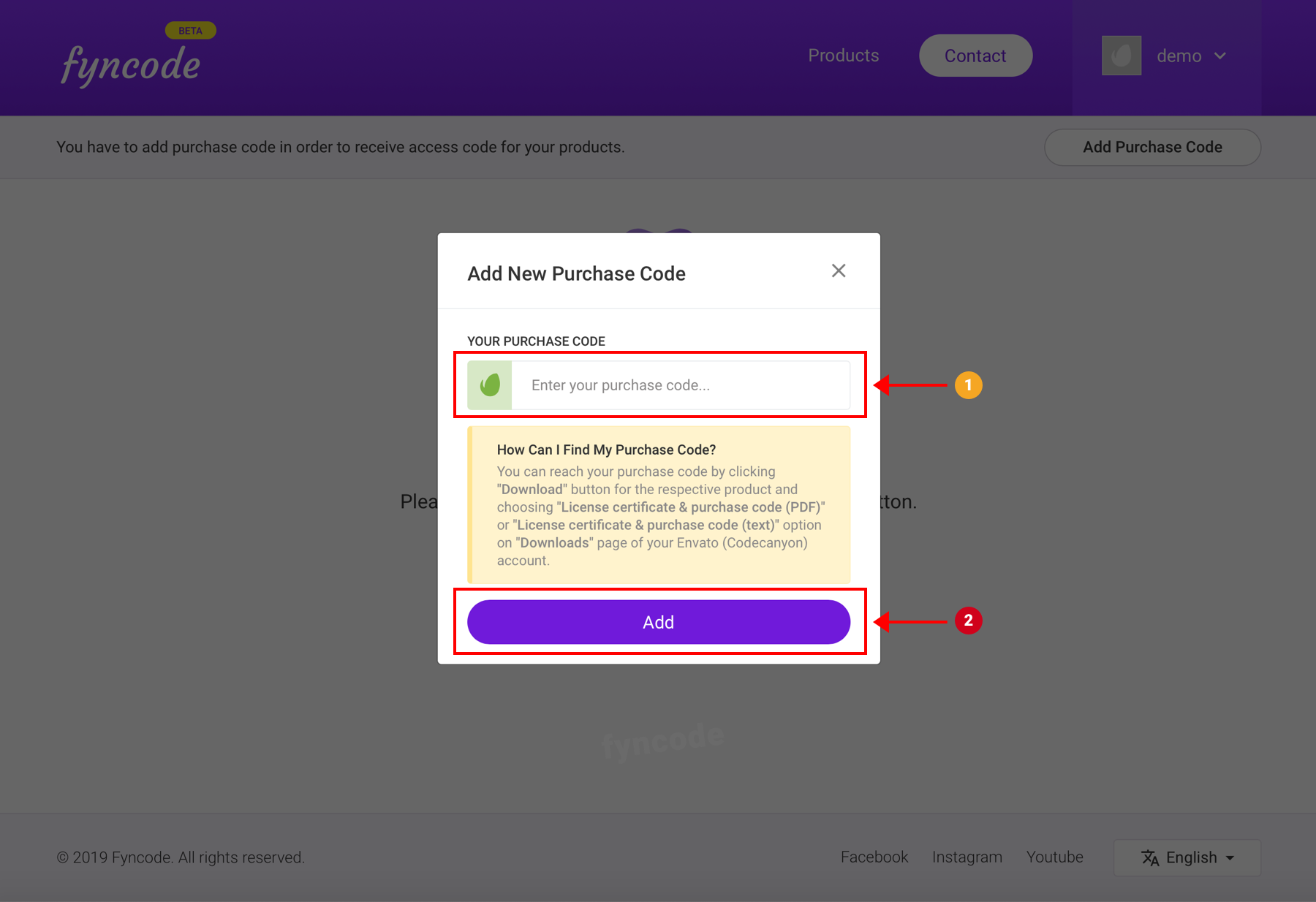
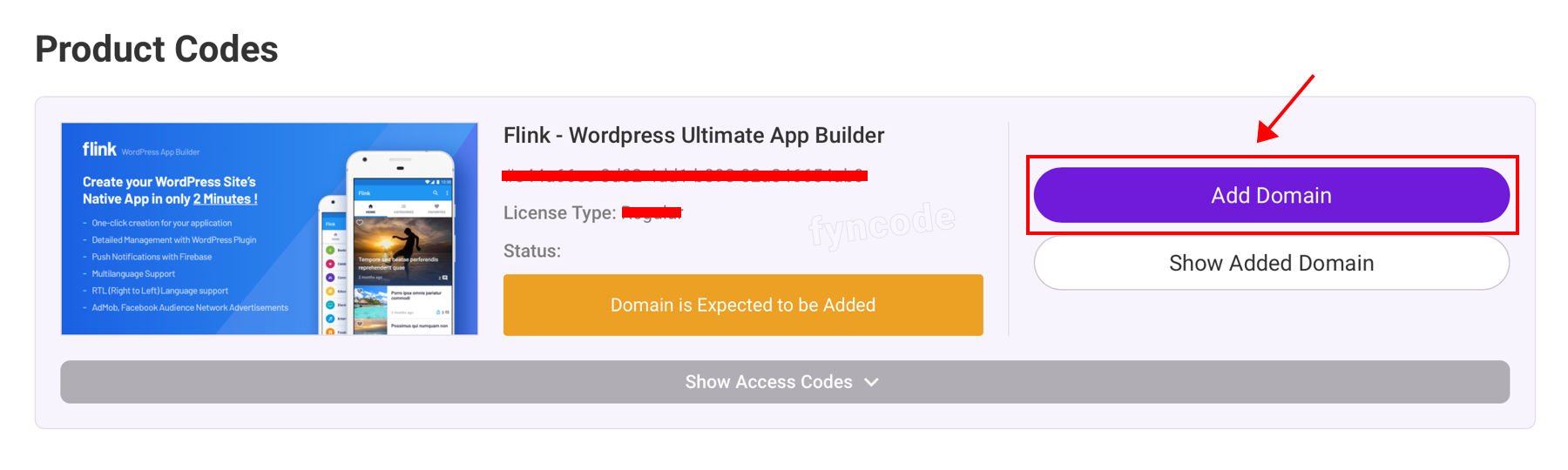
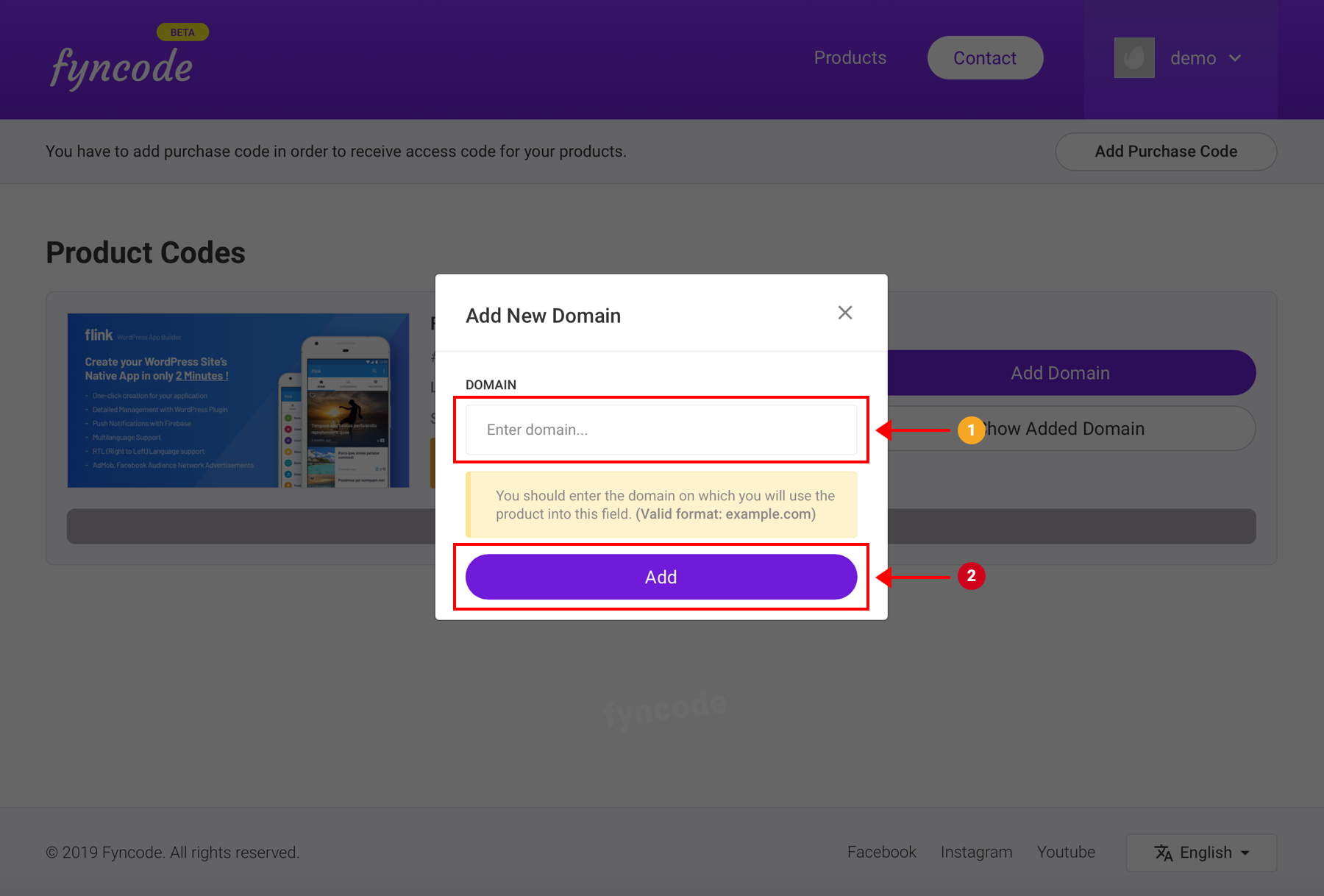
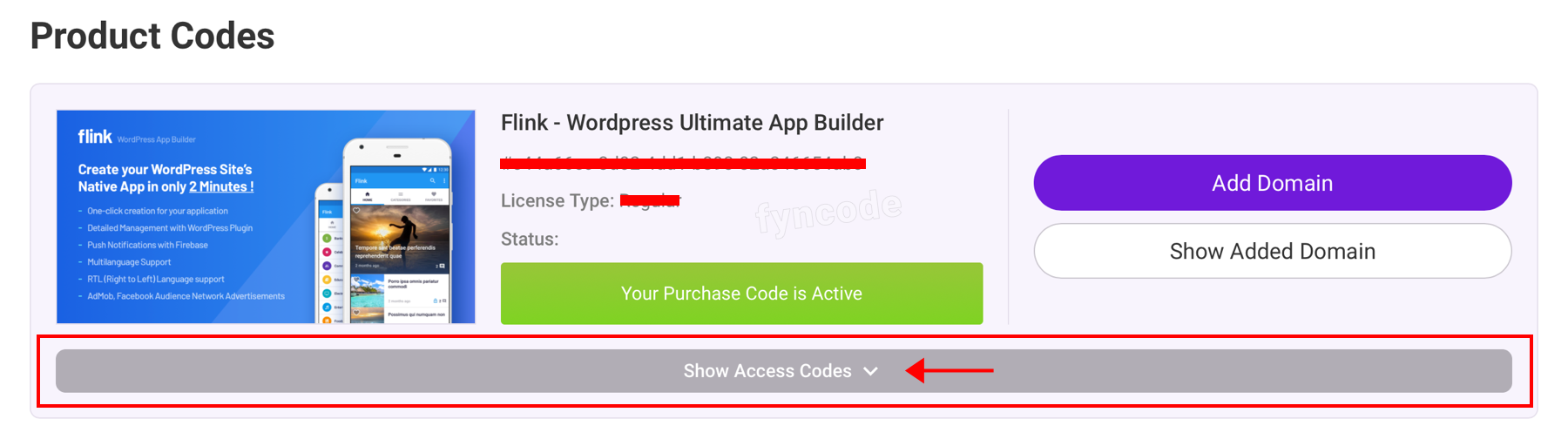
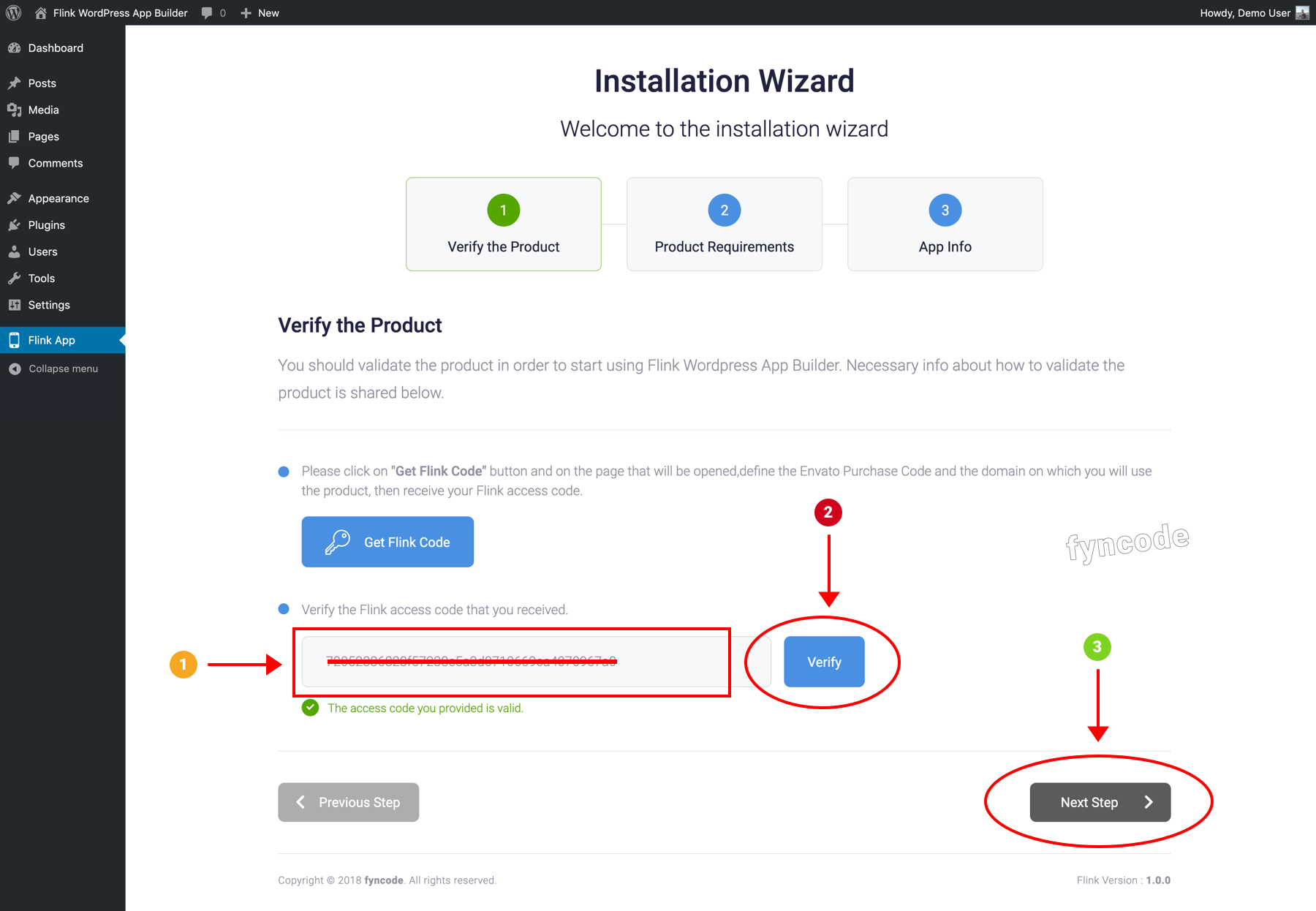
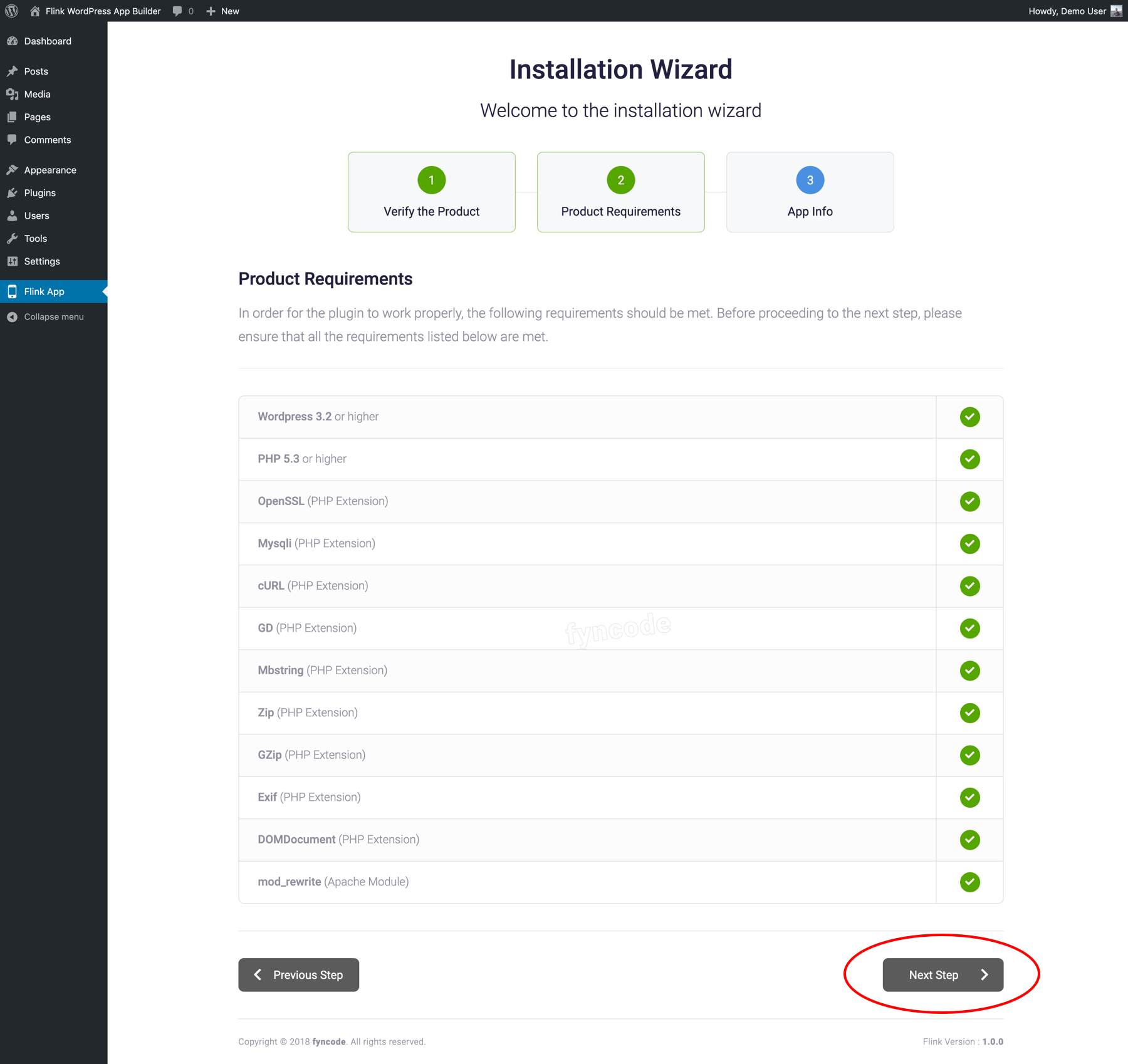
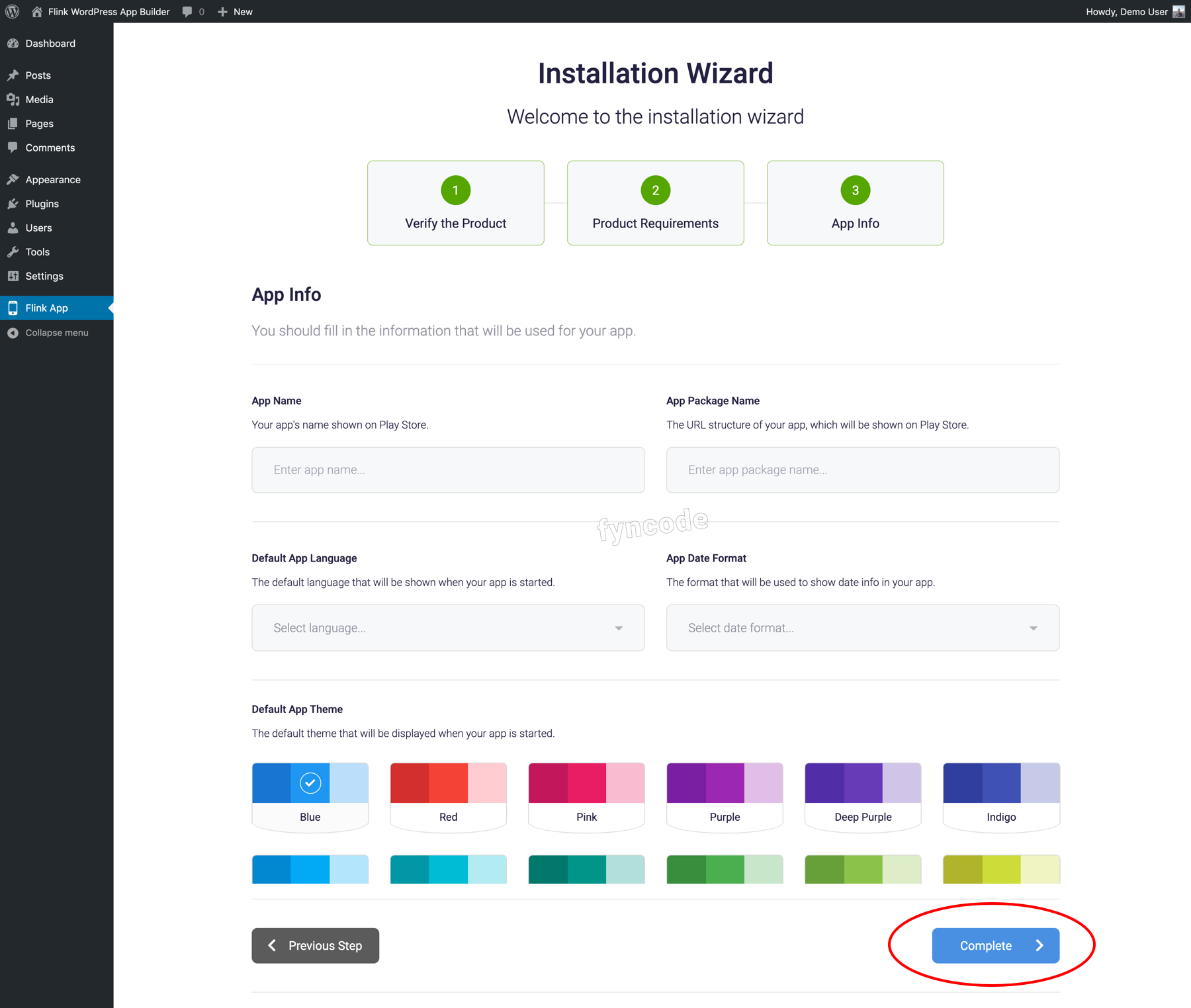
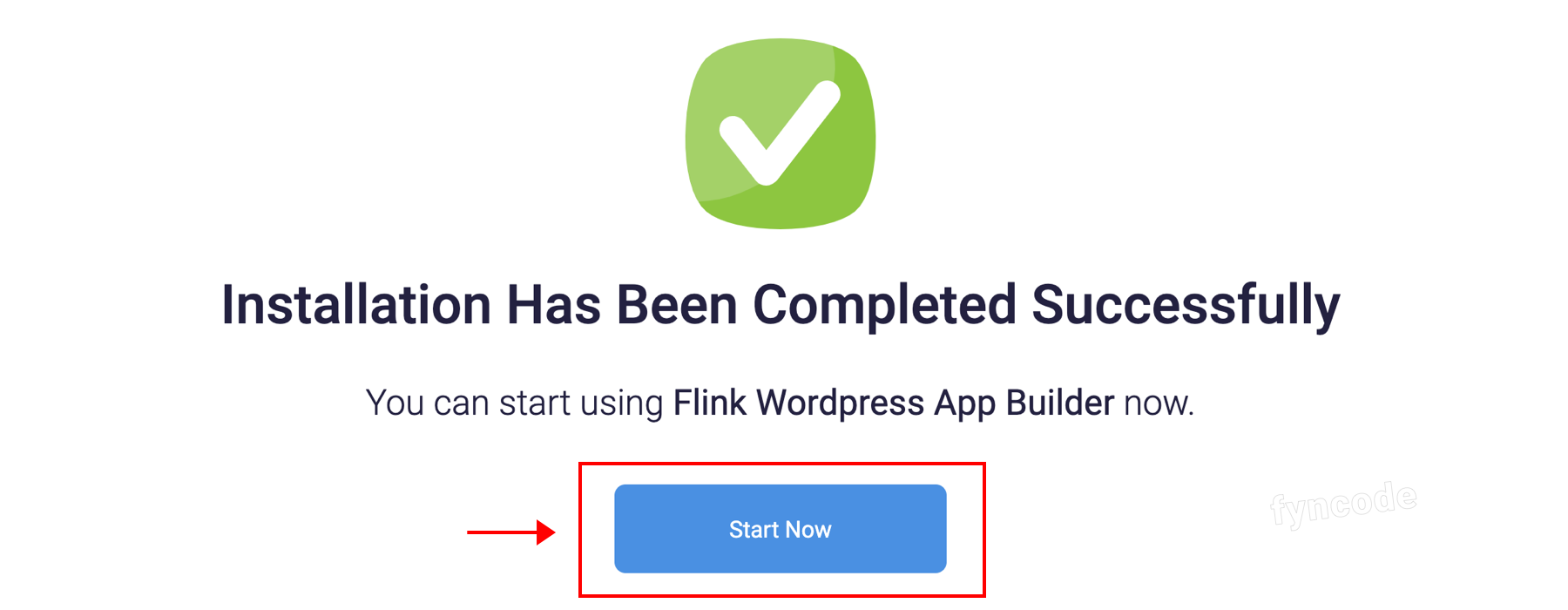
                <![CDATA[<p></p><h2>Plugin Installation</h2><ol><li>Go to <a href="https://codecanyon.net/downloads" target="_blank" rel="noreferrer noopener">“Downloads”</a> page on Codecanyon.net and find <b>“Flink - WordPress App Builder”</b> product. Click on <b>“Download”</b> button and then choose <b>“All files &amp; documentation”</b> option to download the product files.<br /><img src="https://support-hub--assets.s3.eu-west-2.amazonaws.com/assets/362/images/2Rrk3HIf0sYhE0bRifv8f9gYKgHL3qyo2UGMthTB.png" style="width:50%;" alt="2Rrk3HIf0sYhE0bRifv8f9gYKgHL3qyo2UGMthTB.png" /></li><li>Open the “.zip” file that you downloaded. Then, login to your Wordpress admin dashboard and go to <b>“Plugins"</b> &gt;&gt; <b>"Add New”</b> page. On this page, click on <b>“Upload Plugin”</b> button, choose the <b>“flink.zip”</b> file and click “Install Now” button to start the installation.<br /><br /><i>(<b>Optional : </b>You can also install the plugin by extracting the content of “<b>flink.zip” </b>file and uploading the “<b>flink” </b>folder to the <b>“wp-content" </b>&gt;&gt; <b>"plugins”</b> directory of your website via FTP connection.)<br /></i><img src="https://support-hub--assets.s3.eu-west-2.amazonaws.com/assets/362/images/vWEwMr0J0Pq0X1z6AoImo15ap9EIvkNqTqHk2YRC.png" alt="vWEwMr0J0Pq0X1z6AoImo15ap9EIvkNqTqHk2YRC.png" style="width:50%;" /><img src="https://support-hub--assets.s3.eu-west-2.amazonaws.com/assets/362/images/HMVlgf4wsjzP6KOrBbcwWmaySXjw96RYTp2lAmuj.png" alt="HMVlgf4wsjzP6KOrBbcwWmaySXjw96RYTp2lAmuj.png" style="width:100%;" /></li><li>On the page opened after the installation, click on <b>“Activate Plugin”</b> to activate it.<br /><img src="https://support-hub--assets.s3.eu-west-2.amazonaws.com/assets/362/images/iHMd02DmN0s1v3YpnZznu5yRsor3m36viCyGhPJe.png" style="width:100%;" alt="iHMd02DmN0s1v3YpnZznu5yRsor3m36viCyGhPJe.png" /></li><li>Click on <b>“Flink App”</b> located in the left-side menu of your WordPress admin dashboard. Then, click on <b>“Get Flink Code”</b> that can be found in the first page of the installation.<br /><img src="https://support-hub--assets.s3.eu-west-2.amazonaws.com/assets/362/images/l47aGVOUpMnPFNoF1WtZuzoggRBqHG5N6sO1e6th.png" style="width:100%;" alt="l47aGVOUpMnPFNoF1WtZuzoggRBqHG5N6sO1e6th.png" /></li><li>On the opened “Fyncode” page, click <b>“Login with Envato Account”</b> button.<br /><img src="https://support-hub--assets.s3.eu-west-2.amazonaws.com/assets/362/images/U4SOIE2taU25I9PmnD0H5pqrc4cIYSHfDi3DCkUO.png" style="width:100%;" alt="U4SOIE2taU25I9PmnD0H5pqrc4cIYSHfDi3DCkUO.png" /><br /></li><li>For the access with “Envato API”, click <b>“Approve</b>” button.<br /><img src="https://support-hub--assets.s3.eu-west-2.amazonaws.com/assets/362/images/Ddank3ZGzr4CdoaChy85hXwJs4BTbc3JvfrgfXzF.png" style="width:100%;" alt="Ddank3ZGzr4CdoaChy85hXwJs4BTbc3JvfrgfXzF.png" /></li><li>Click <b>“Add Purchase Code”</b> button.<br /><img src="https://support-hub--assets.s3.eu-west-2.amazonaws.com/assets/362/images/fCo2rBpIIwMjvxqtuO1oTIXaNey4bDqc3Vaekse5.png" style="width:100%;" alt="fCo2rBpIIwMjvxqtuO1oTIXaNey4bDqc3Vaekse5.png" /></li><li>Go to <a href="https://codecanyon.net/downloads" target="_blank" rel="noreferrer noopener">“Downloads”</a> page on Codecanyon.net and find <b>“Flink - Wordpress App Builder”</b> product. Click on “Download” button and then download your license file by clicking<b> “License certificate &amp; purchase code (text)”</b> option. Copy the <b>“Item Purchase Code”</b> that can be found in the file you just downloaded, enter it to the related field and then click <b>“Add</b>” button.<br /><img src="https://support-hub--assets.s3.eu-west-2.amazonaws.com/assets/362/images/6SRQSe2sfY0DImDqZwxbJG5G2c3KedvrMI9PSX0b.png" style="width:50%;" alt="6SRQSe2sfY0DImDqZwxbJG5G2c3KedvrMI9PSX0b.png" /><br /><img src="https://support-hub--assets.s3.eu-west-2.amazonaws.com/assets/362/images/4PKM4WQKMAJJ7qc2RReoGWk7npoDsdU7NSuYVAwN.png" style="width:50%;" alt="4PKM4WQKMAJJ7qc2RReoGWk7npoDsdU7NSuYVAwN.png" /><br /><img src="https://support-hub--assets.s3.eu-west-2.amazonaws.com/assets/362/images/dtBRstyUDClpGi1GTKHSOMY1WOvcAe6yZO8bnLsc.png" style="width:100%;" alt="dtBRstyUDClpGi1GTKHSOMY1WOvcAe6yZO8bnLsc.png" /></li><li>From the <b>“Flink - Wordpress App Builder” </b>section, click <b>“Add Domain”</b> button.<br /><img src="https://support-hub--assets.s3.eu-west-2.amazonaws.com/assets/362/images/QuaMGBV8bW9u8ZpFhaHvaMP4gld1iVwoSRIbTLuq.png" style="width:100%;" alt="QuaMGBV8bW9u8ZpFhaHvaMP4gld1iVwoSRIbTLuq.png" /></li><li>To the <b>“Enter domain”</b> field, enter the domain of your website in which you want to use <b>Flink - Wordpress App Builder</b> and click <b>“Add”</b>. (Example: yourwebsite.com)<br /><img src="https://support-hub--assets.s3.eu-west-2.amazonaws.com/assets/362/images/sJ6KqnIMkJiYX2P79DYmdz8W4MYHUhZ0xGkyKjUF.png" style="width:100%;" alt="sJ6KqnIMkJiYX2P79DYmdz8W4MYHUhZ0xGkyKjUF.png" /></li><li>Click <b>“Show Access Codes”</b>. Then, you will see the access code that belongs to your domain, <b>copy it</b>.<br /><img src="https://support-hub--assets.s3.eu-west-2.amazonaws.com/assets/362/images/Xg0rD0ANhmchAxK8I9ZWHDFK60fhd3xAAUZ5JEIZ.png" style="width:100%;" alt="Xg0rD0ANhmchAxK8I9ZWHDFK60fhd3xAAUZ5JEIZ.png" /><br /><img src="https://support-hub--assets.s3.eu-west-2.amazonaws.com/assets/362/images/rabi9x9Stlv3MX0Sm1VXHq3Hu2FO6nI5yKWQ1Oex.png" style="width:100%;" alt="rabi9x9Stlv3MX0Sm1VXHq3Hu2FO6nI5yKWQ1Oex.png" /></li><li>Go back to the installation page. Copy the access code that you got from the previous step into the <b>“Enter your Flink access code...”</b> field and click <b>“Verify”</b>.<br /><br />When you see the green-colored <b>“The access code you provided is valid.”</b> notification, you can click <b>“Next Step”</b> button and proceed with the next step.<br /><img src="https://support-hub--assets.s3.eu-west-2.amazonaws.com/assets/362/images/amAbsowziBb5B48Q3qn1CfTvEM0NhPMGWds6AiDe.png" style="width:100%;" alt="amAbsowziBb5B48Q3qn1CfTvEM0NhPMGWds6AiDe.png" /></li><li>If all requirements are met by your server (if green tick can be seen next to each requirement line), then you can proceed by clicking <b>“Next Step”</b> button.<br /><br />If there is any requirement that can’t be met, you cannot proceed with the installation in order not to experience a problem with your plugin. In such a case, you can contact your hosting provider and request information.<br /><img src="https://support-hub--assets.s3.eu-west-2.amazonaws.com/assets/362/images/UazlkzAEDvv3XMMNGN0lvKlpmfqV1RkqNILFWk5E.png" style="width:100%;" alt="UazlkzAEDvv3XMMNGN0lvKlpmfqV1RkqNILFWk5E.png" /></li><li>Complete all information regarding your app and complete the installation by clicking <b>“Complete”</b> button.<br /><b>(Please note the value in “App Package Name” field down. You will need this value later.)</b><br /><img src="https://support-hub--assets.s3.eu-west-2.amazonaws.com/assets/362/images/wFjfgTZKMkOkkqKc3tOjFRQxmuIBvZTinQmCudHj.png" style="width:100%;" alt="wFjfgTZKMkOkkqKc3tOjFRQxmuIBvZTinQmCudHj.png" /></li><li>Finish the installation process by clicking <b>“Start Now” </b>button. Now, you are ready to use <b>Flink - Wordpress App Builder</b>!<br /><img src="https://support-hub--assets.s3.eu-west-2.amazonaws.com/assets/362/images/f94AfaSXR9kThQo3sa8yGrnyuUloymKPMwPXHyED.png" style="width:100%;" alt="f94AfaSXR9kThQo3sa8yGrnyuUloymKPMwPXHyED.png" /></li></ol><p><br /></p><table class="table table-bordered"><tr><td><b>
<span>← </span>Previous Section</b><br /></td><td><b>Next Section <span>→</span></b></td></tr><tr><td><a href="https://fyncode.support-hub.io/articles/overview-1312">Overview</a></td><td><a href="https://fyncode.support-hub.io/articles/step-2-creating-firebase-project-1333">Step 2 - Creating Firebase Project</a></td></tr></table><p></p>]]>
            </summary>
                                    <updated>2022-12-17T18:55:13+00:00</updated>
        </entry>
            <entry>
            <title><![CDATA[Step 2 - Creating Firebase Project]]></title>
            <link rel="alternate" href="https://fyncode.support-hub.io/articles/step-2-creating-firebase-project-1333" />
            <id>https://fyncode.support-hub.io/1333</id>
            <author>
                <name><![CDATA[Fyncode Tech]]></name>
            </author>
            <summary type="html">
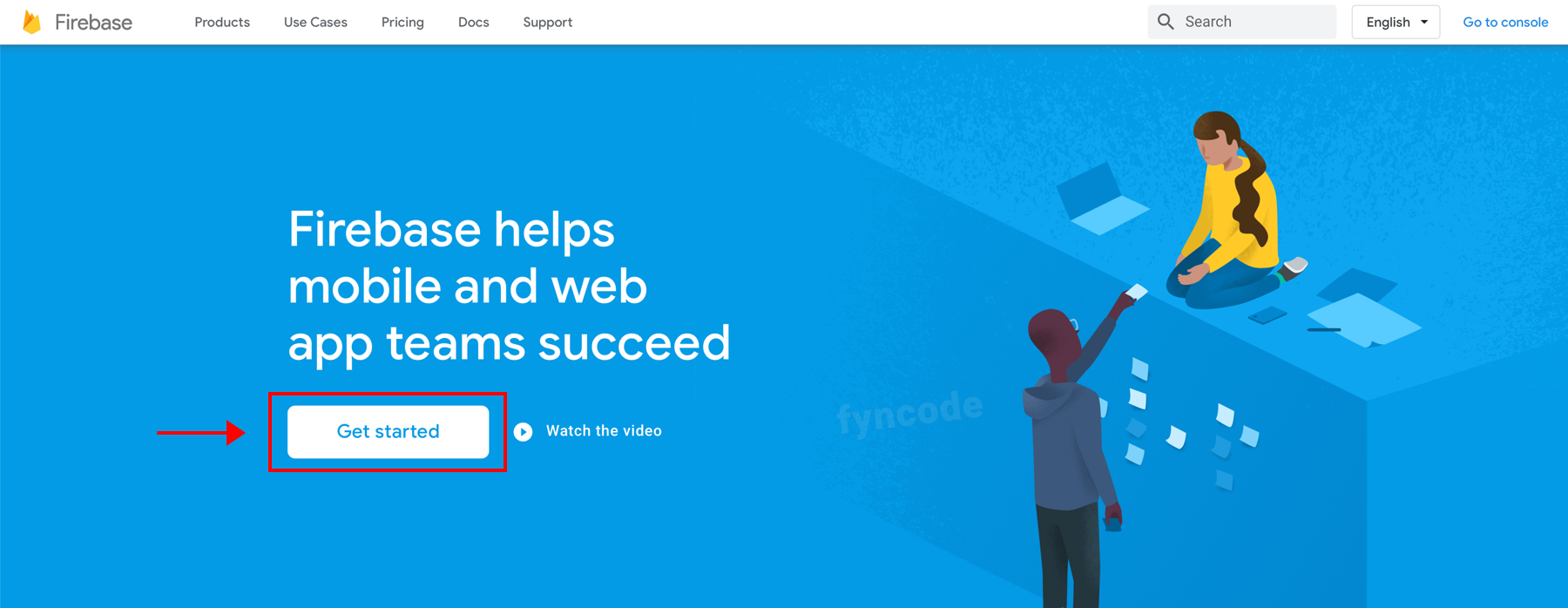
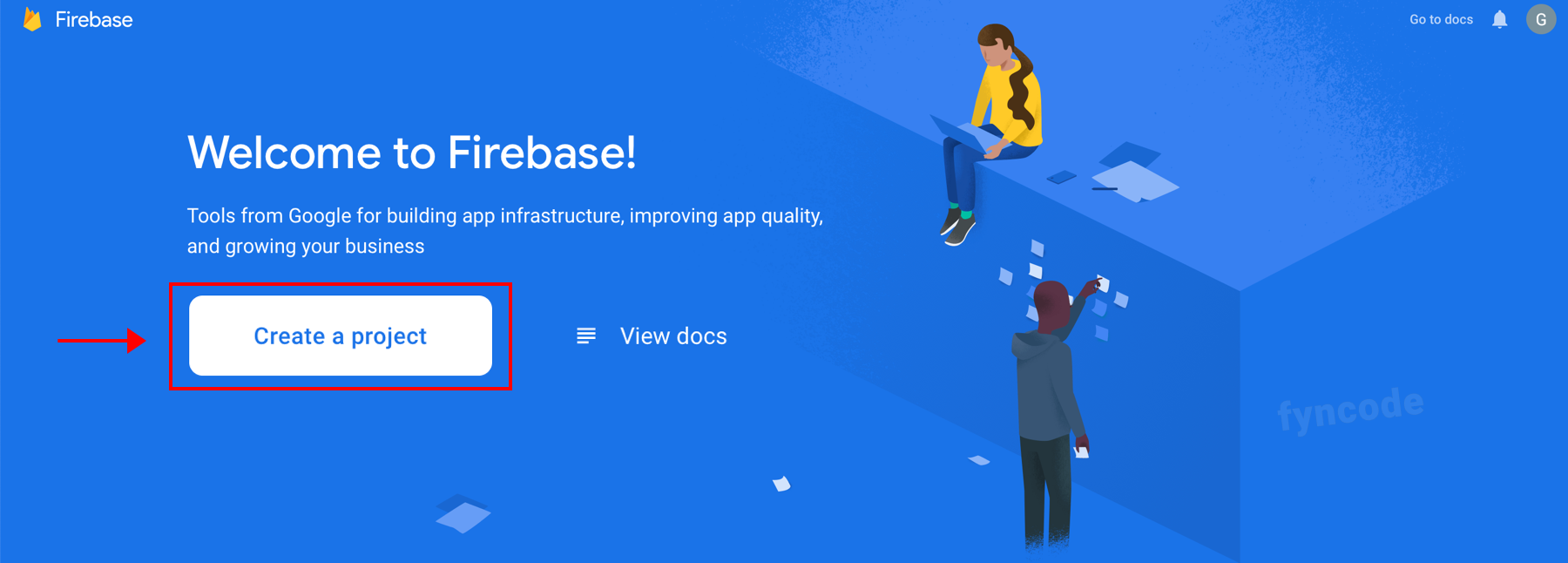
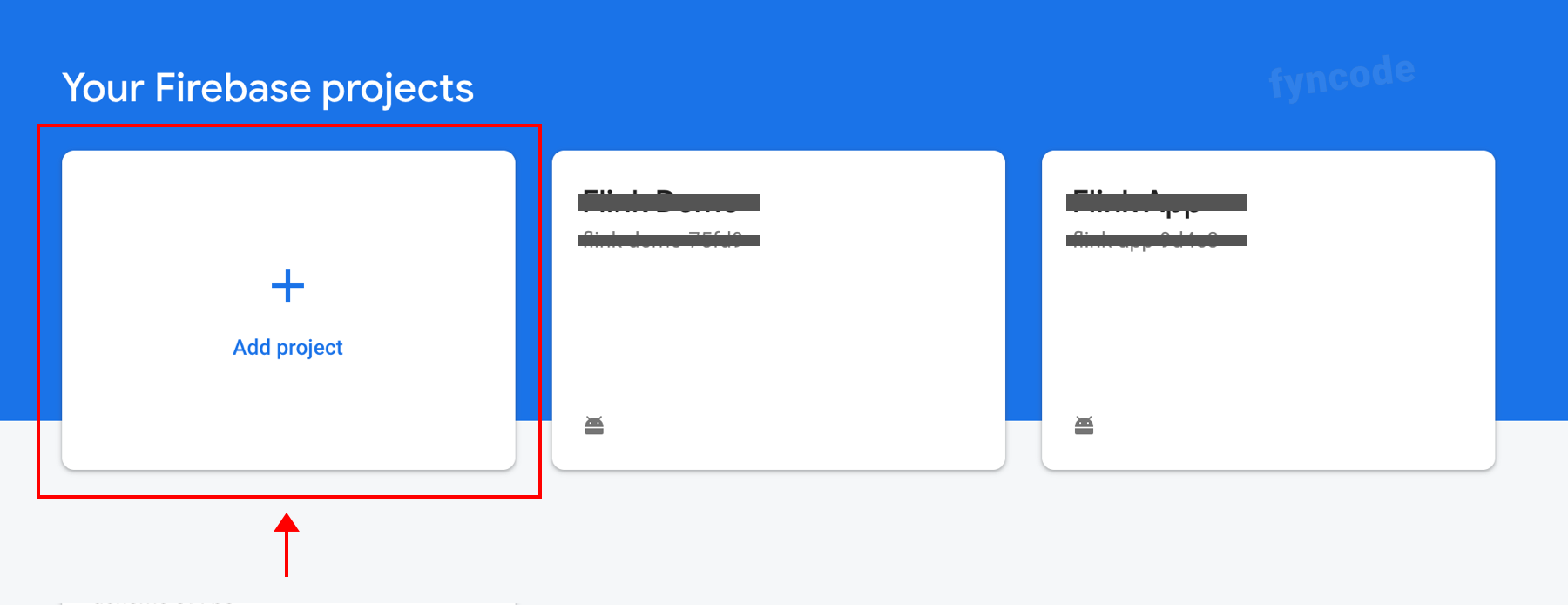
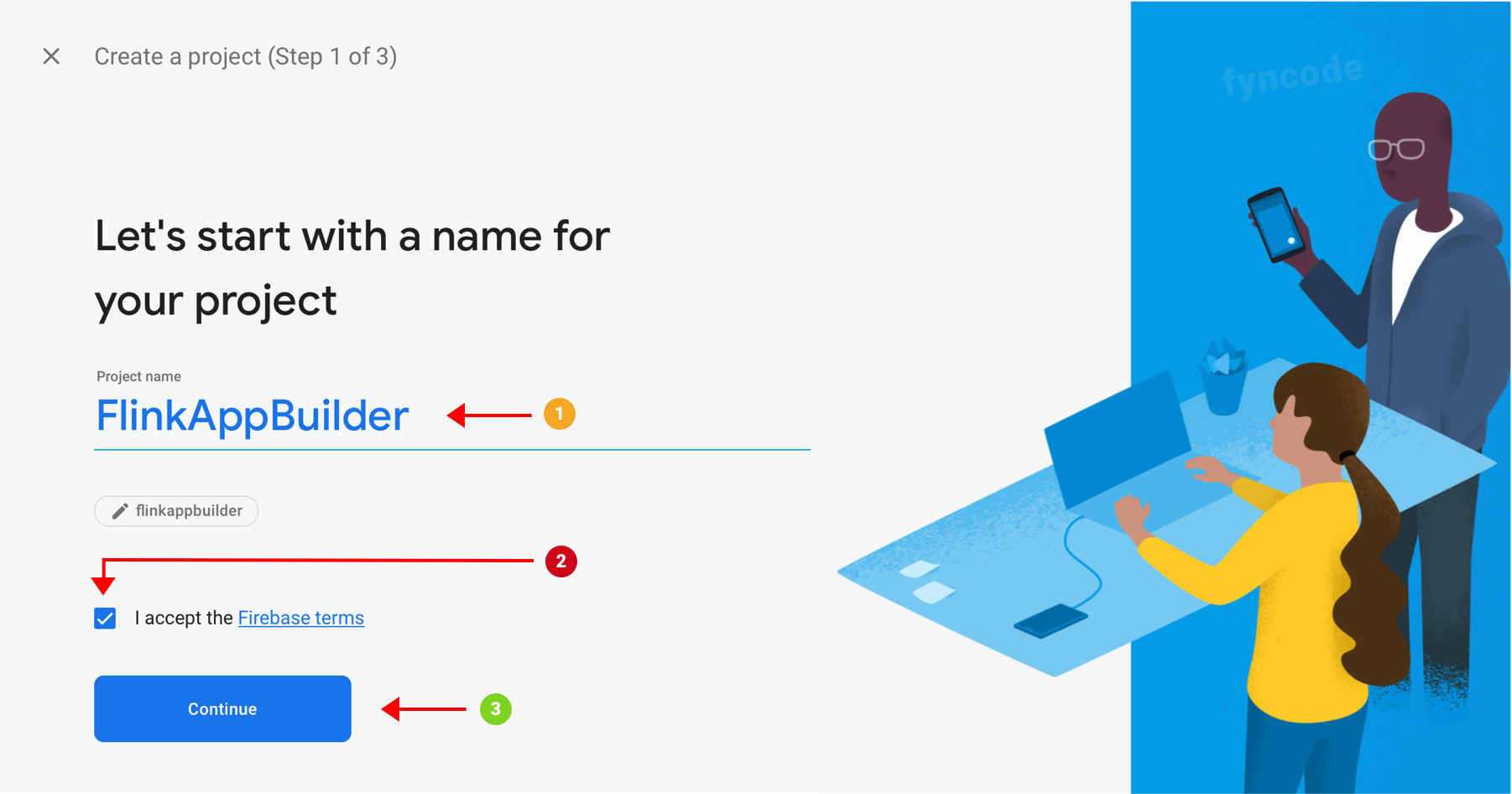
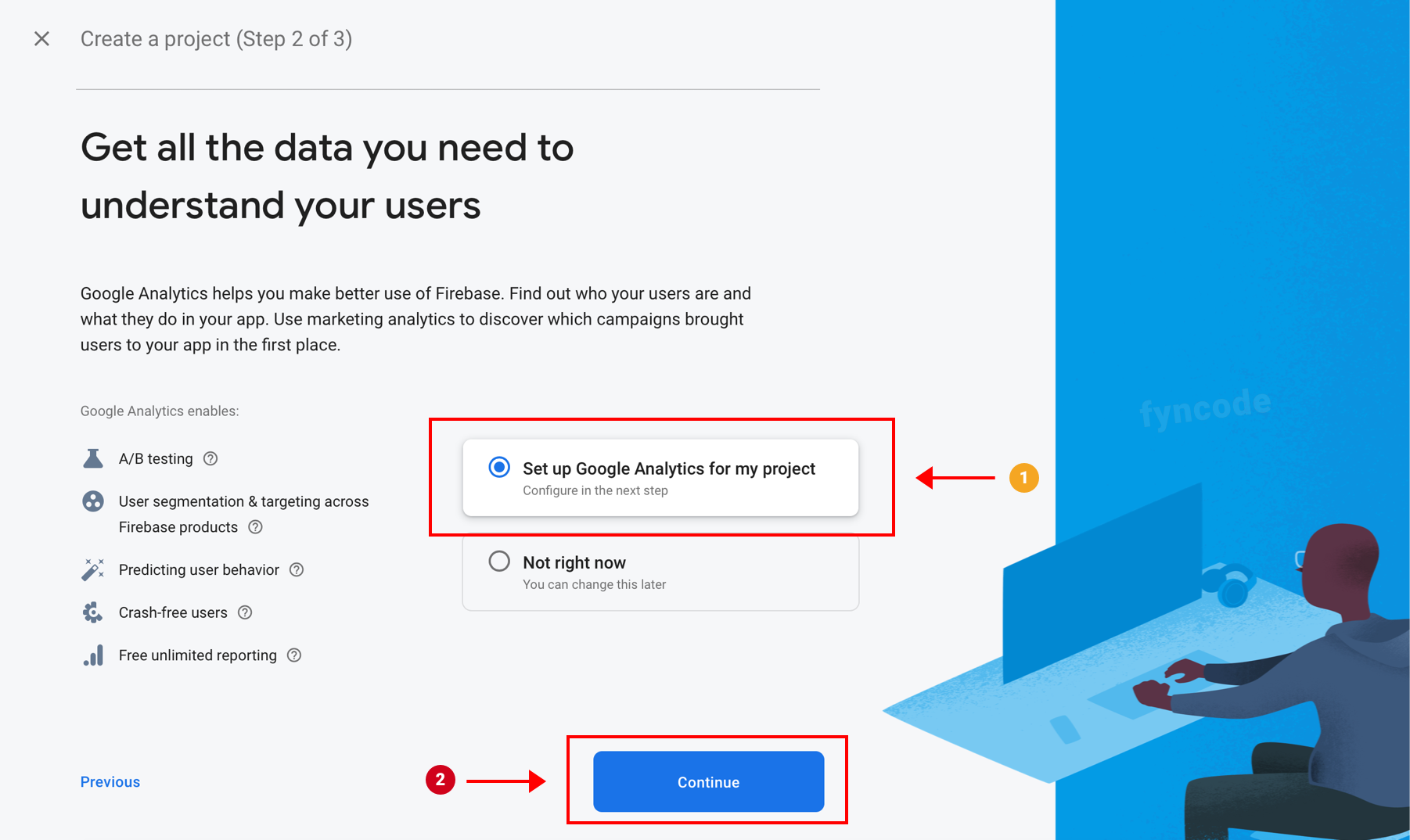
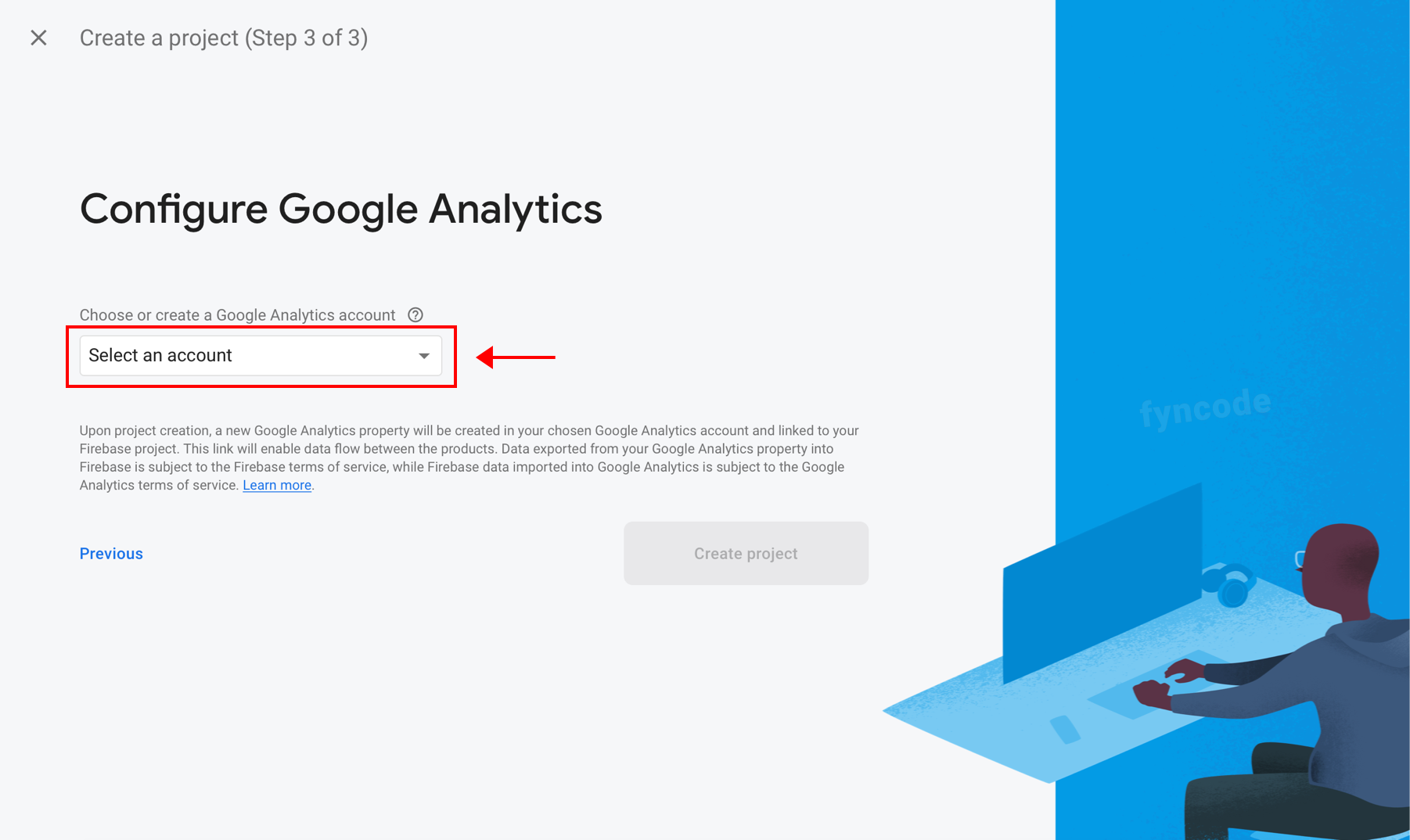
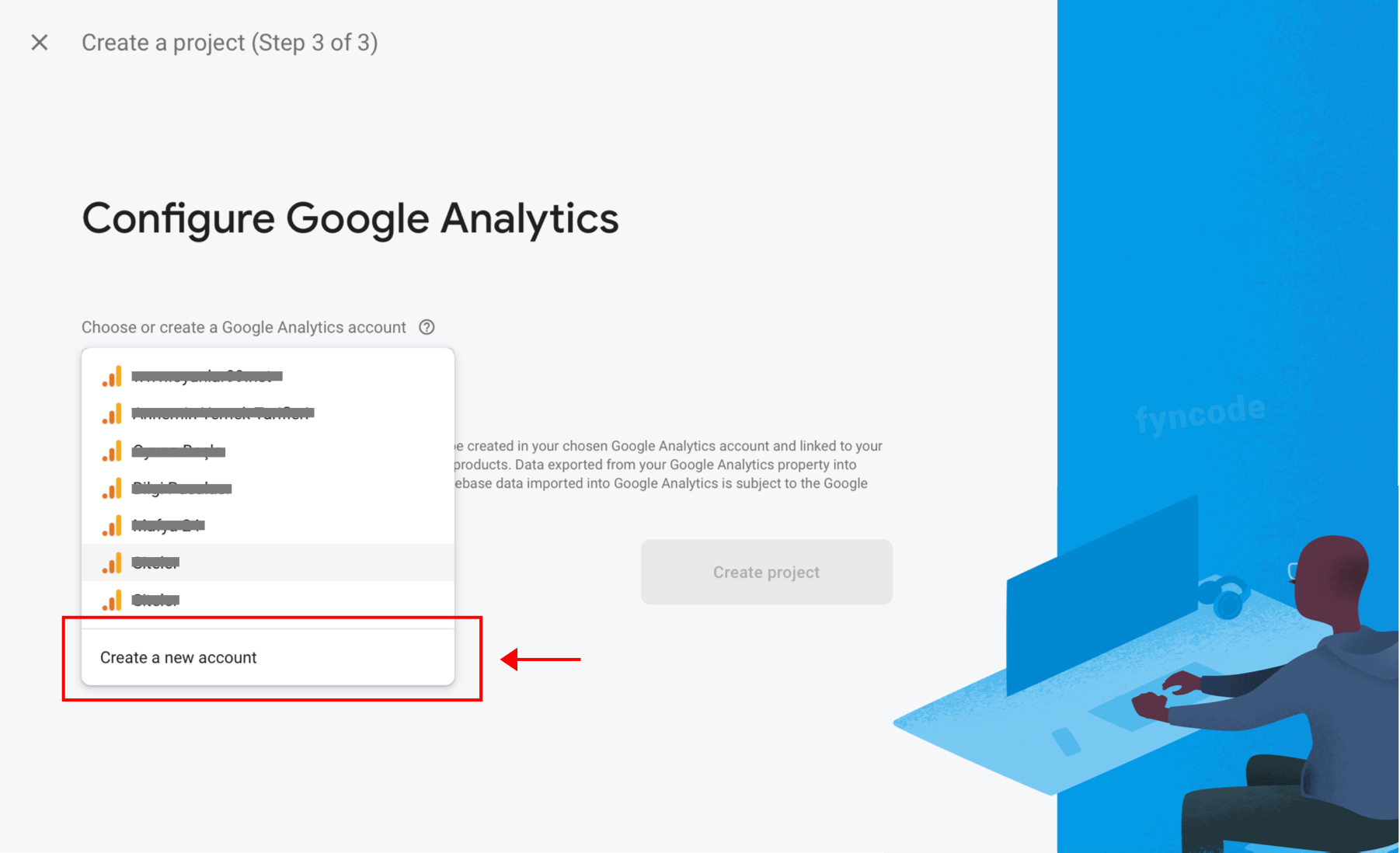
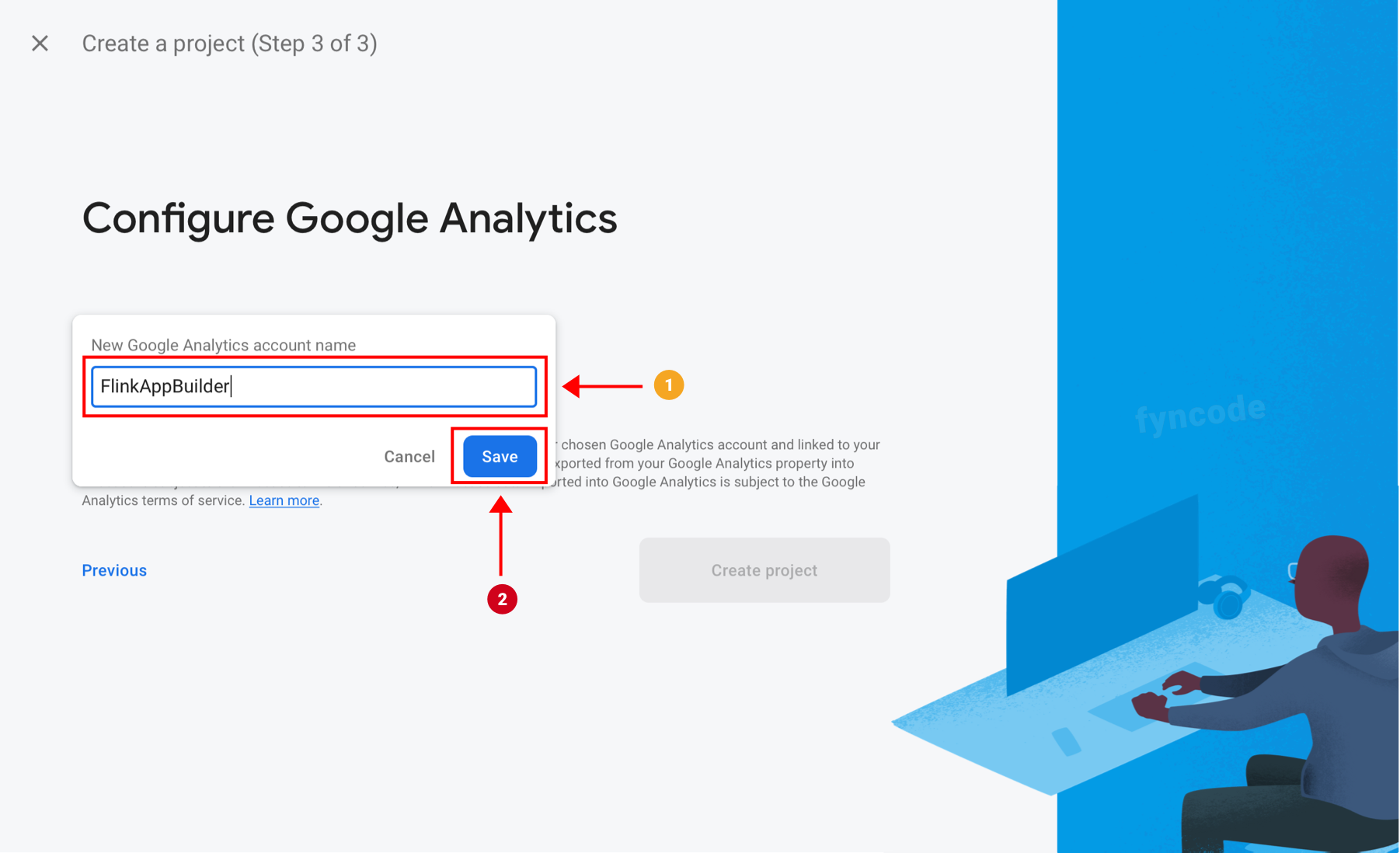
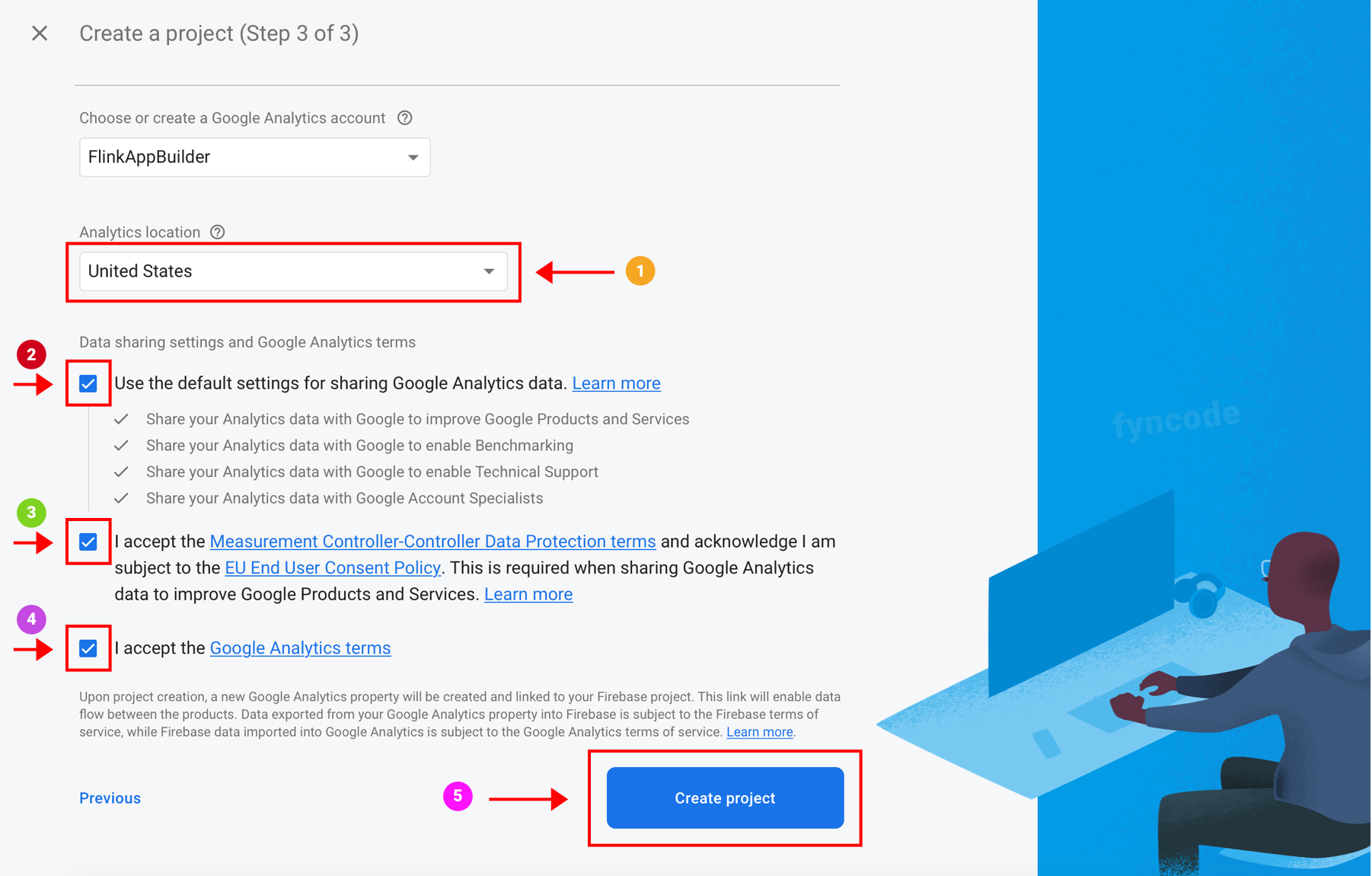
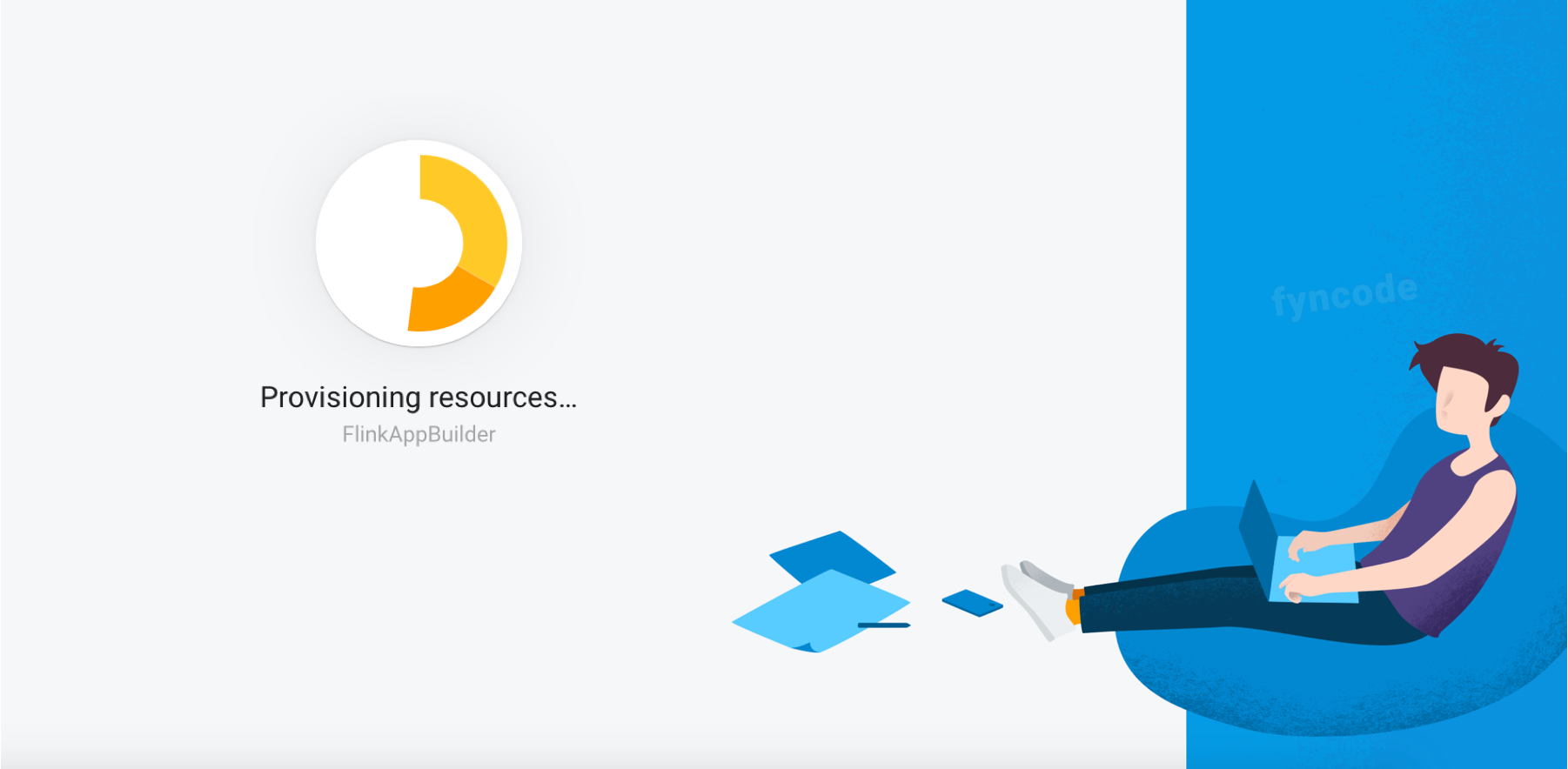
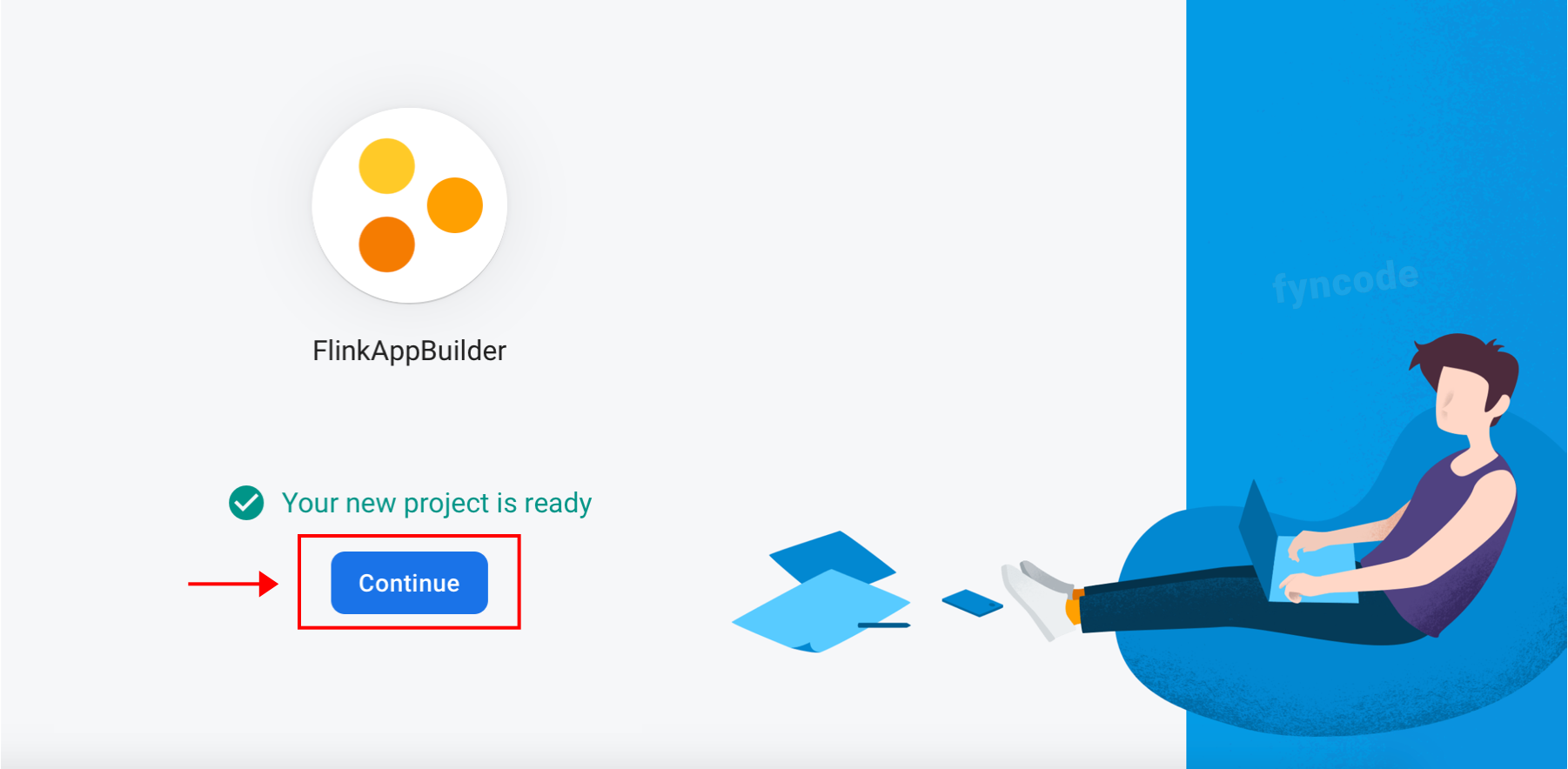
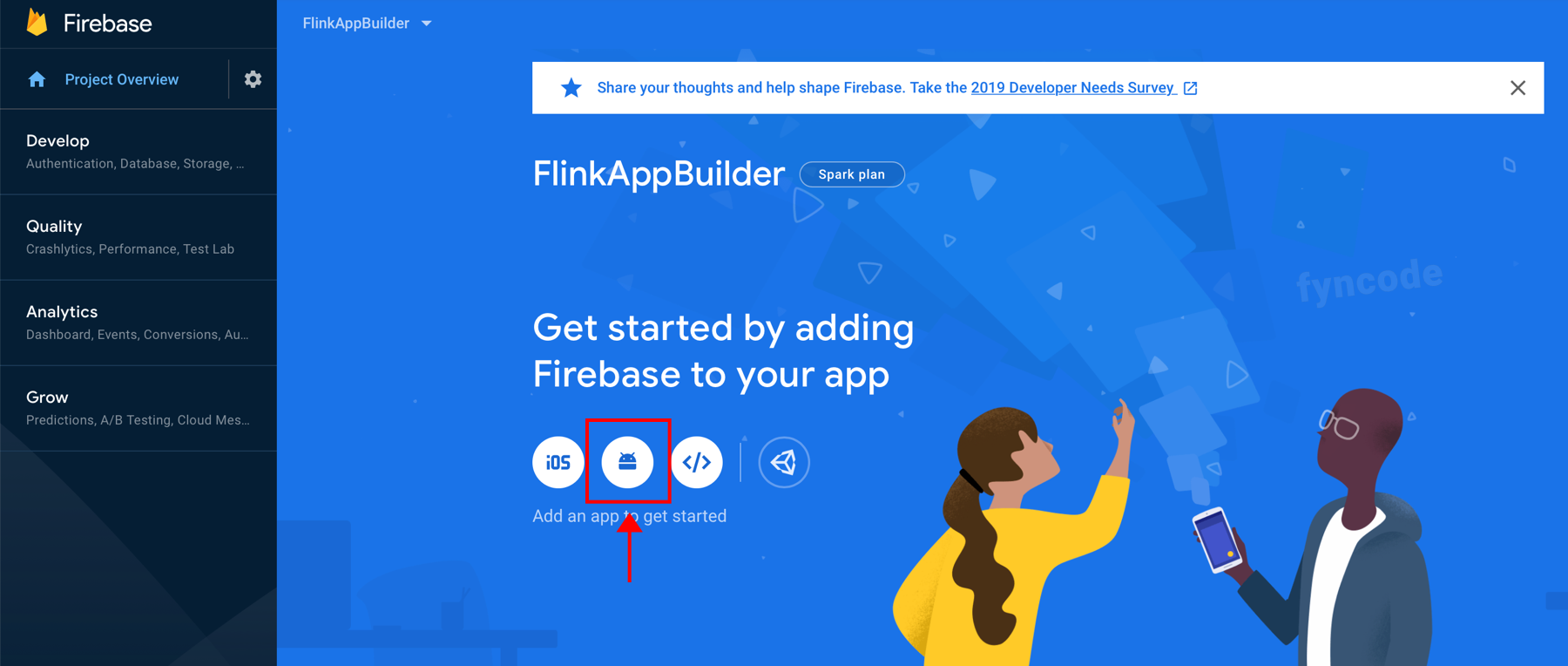
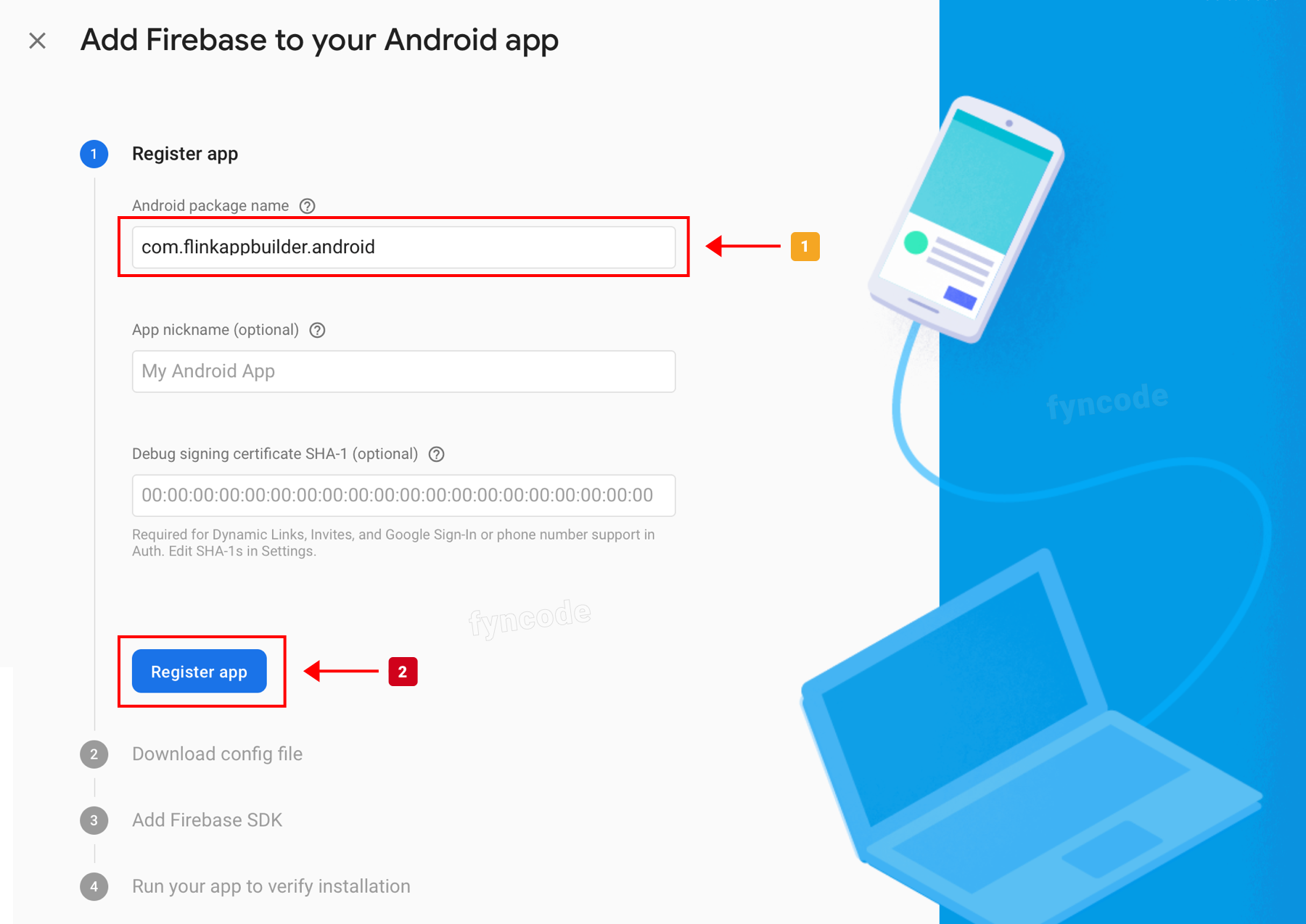
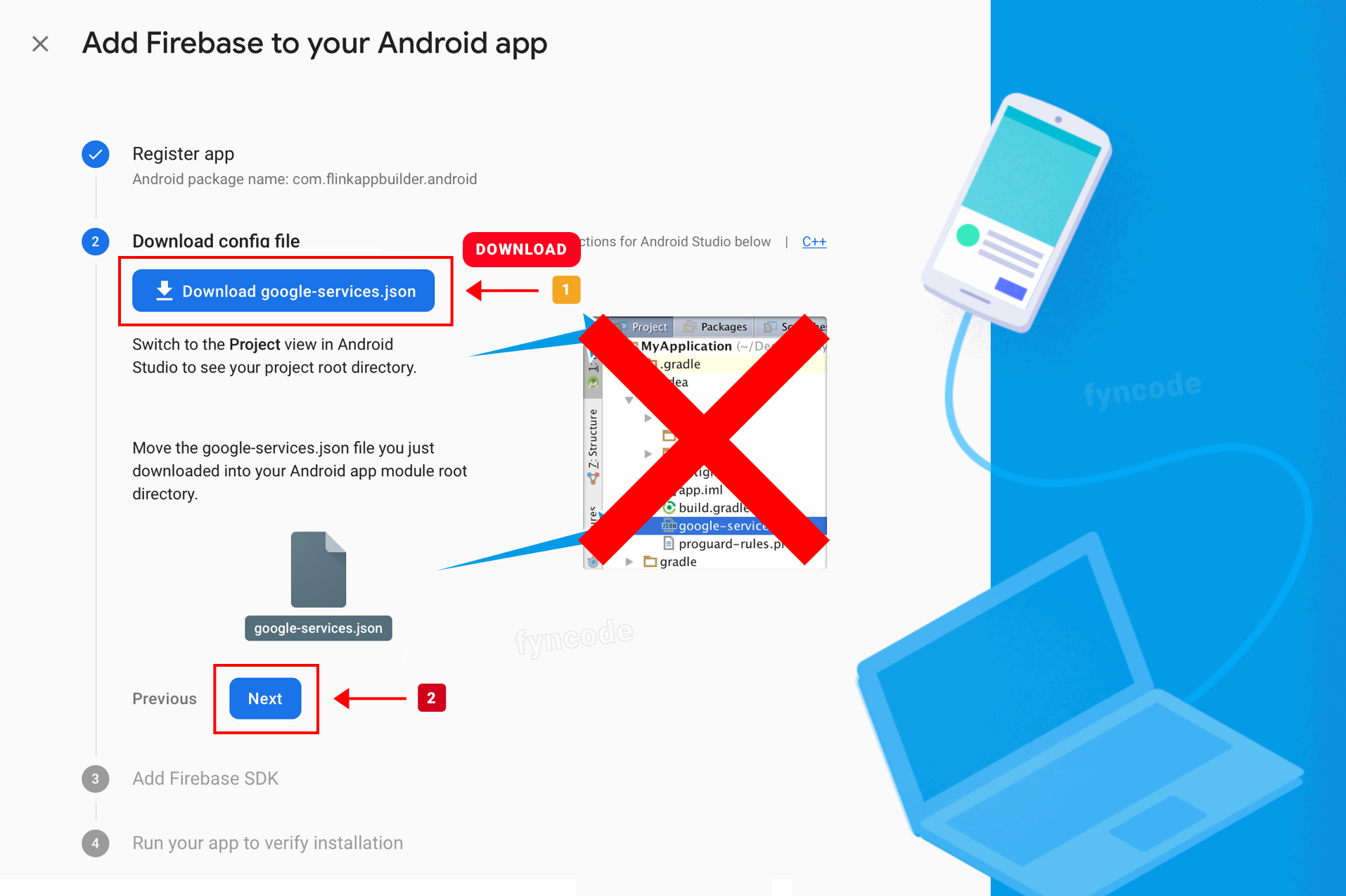
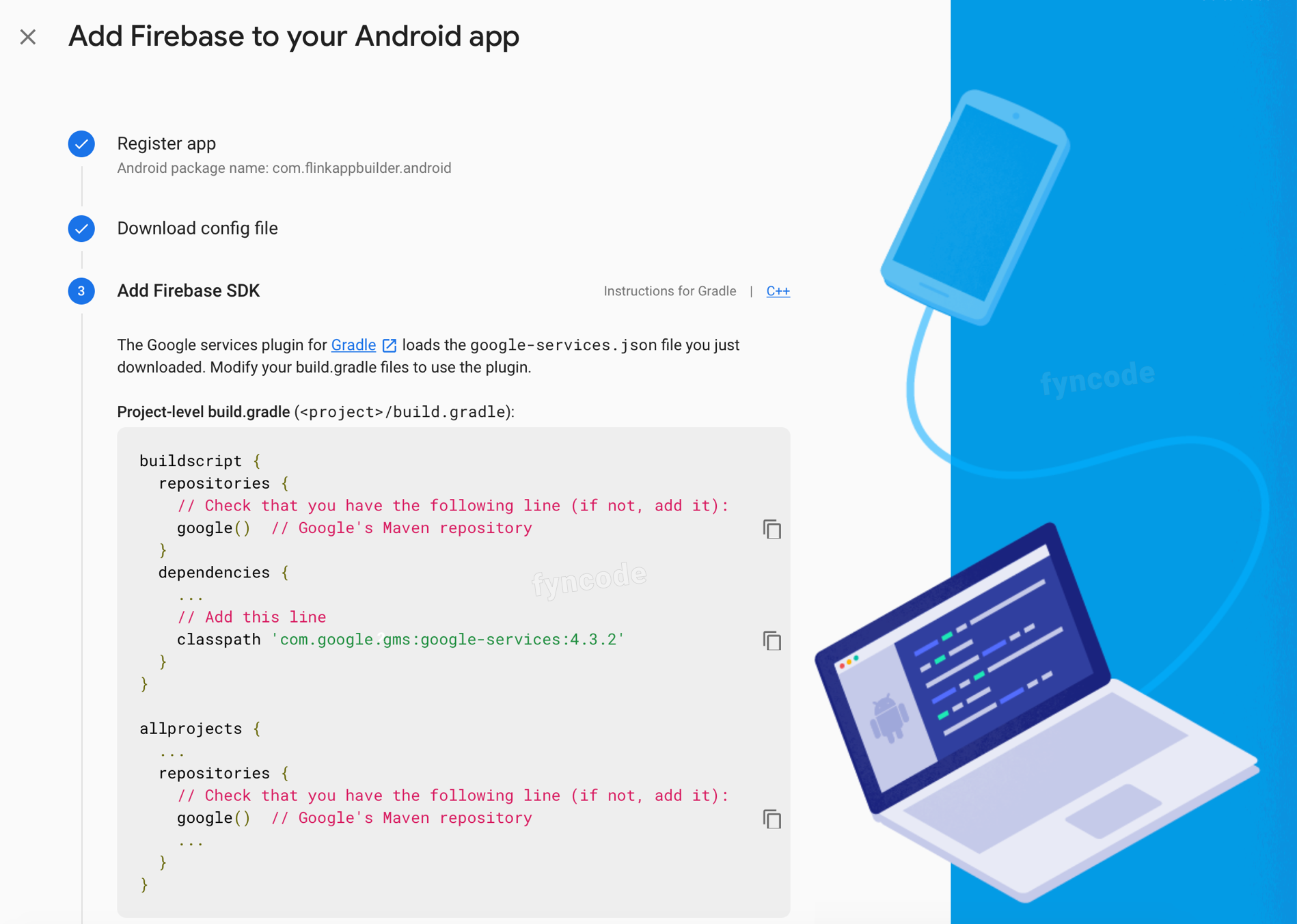
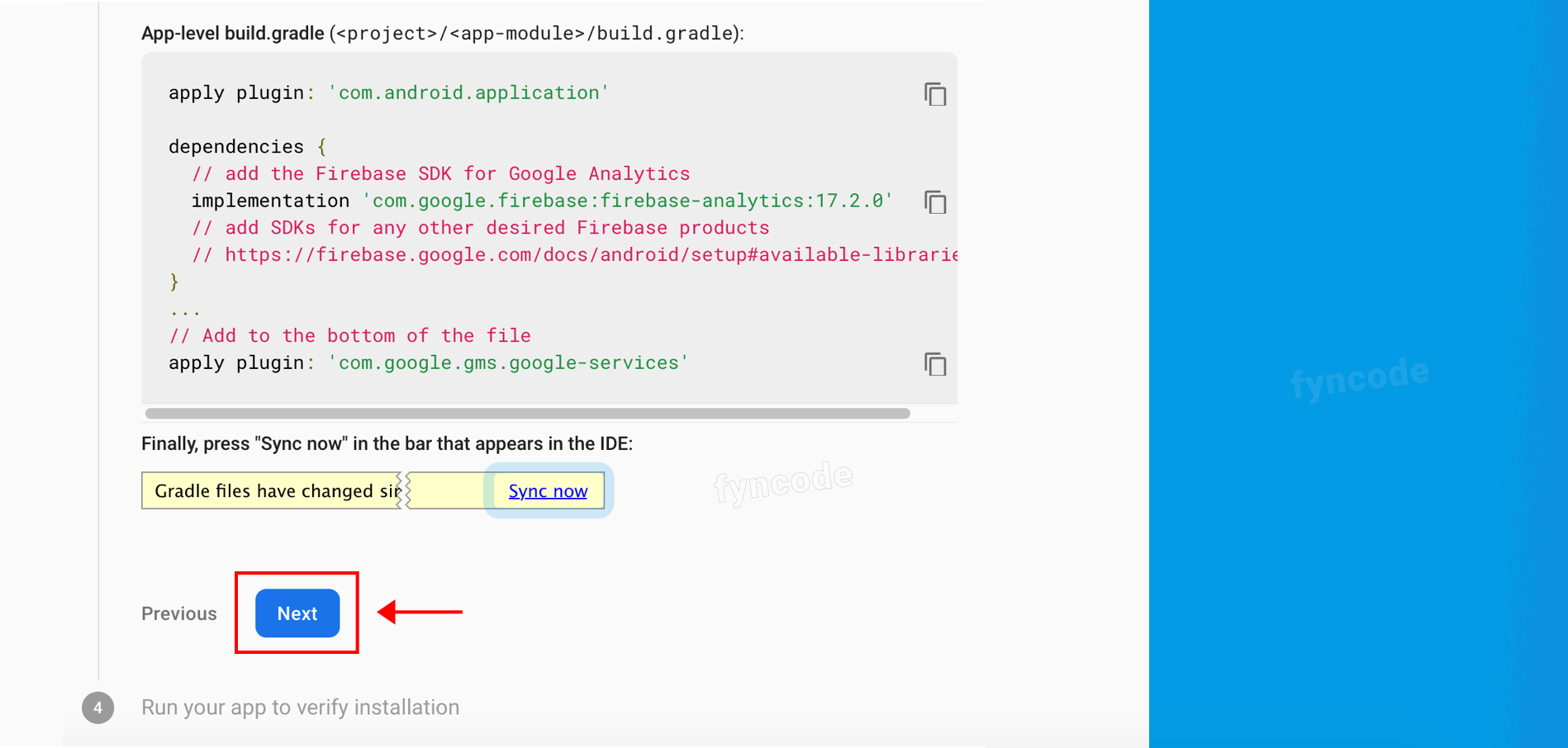
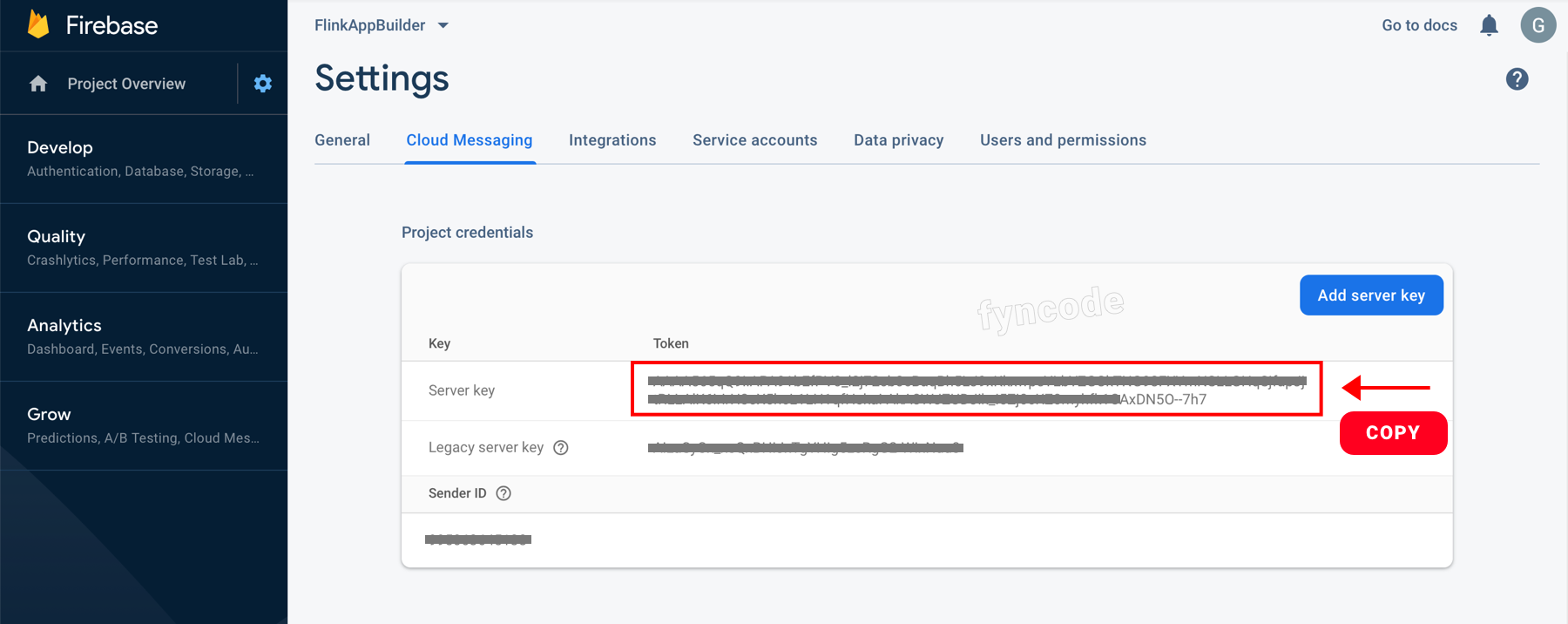
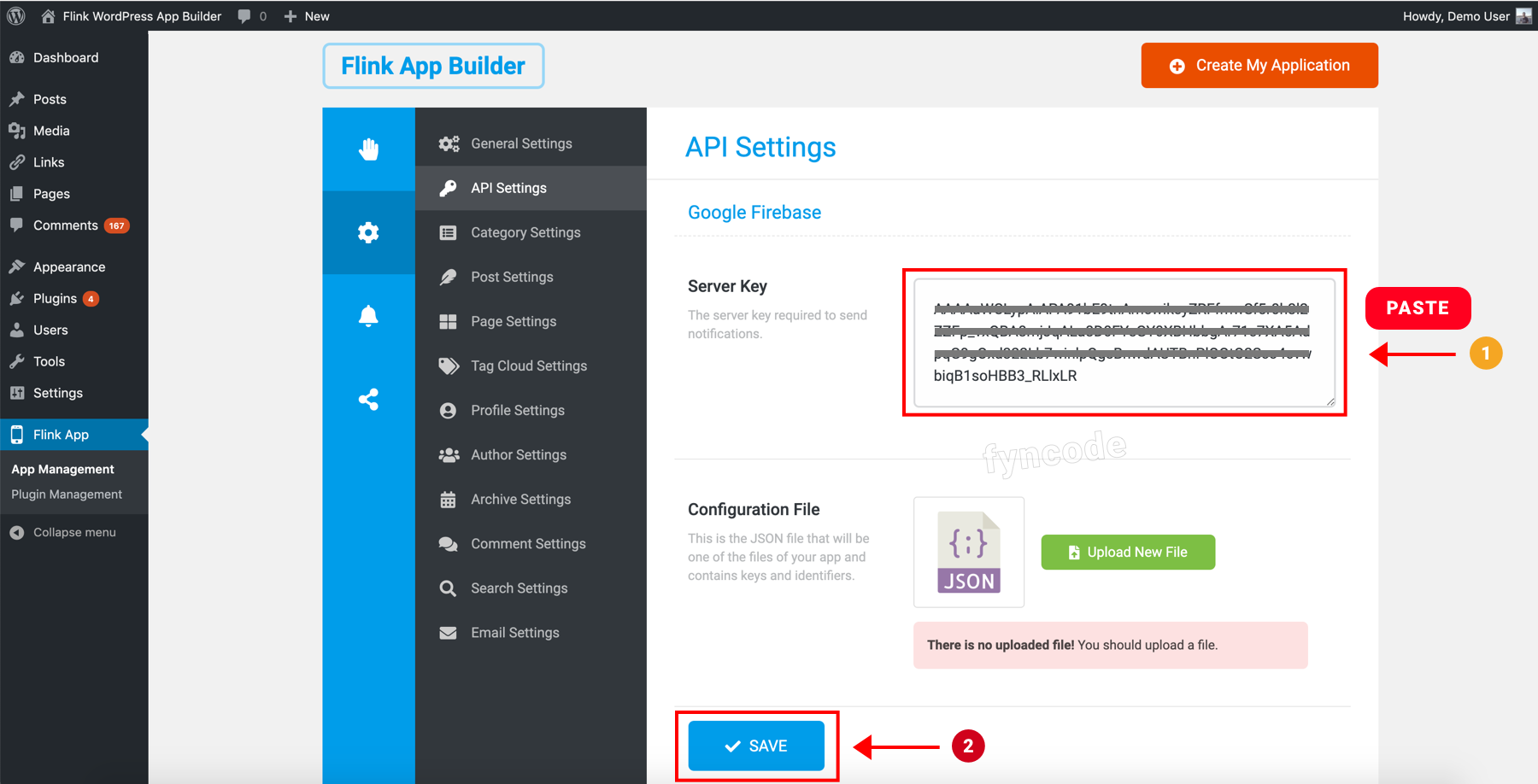
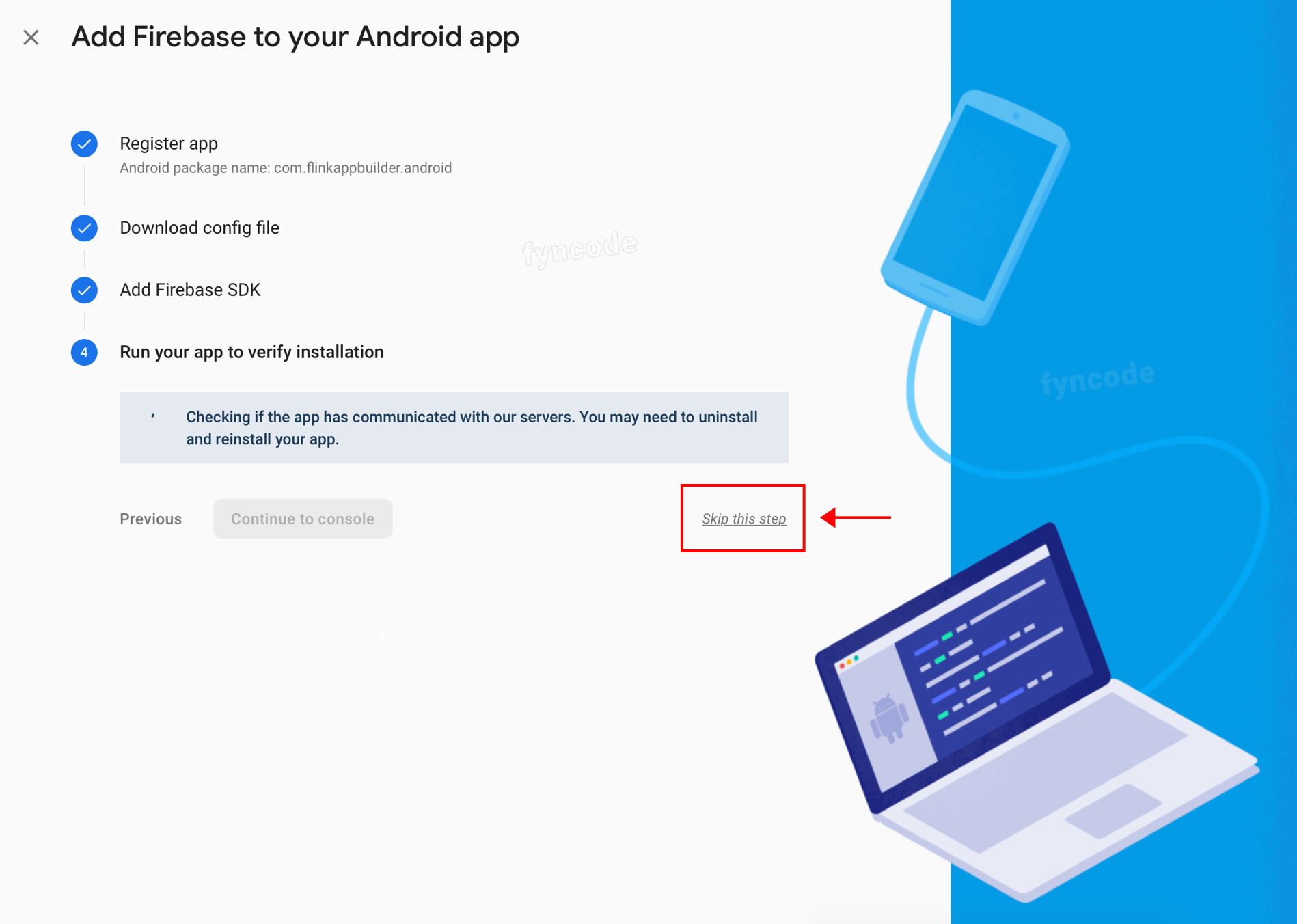
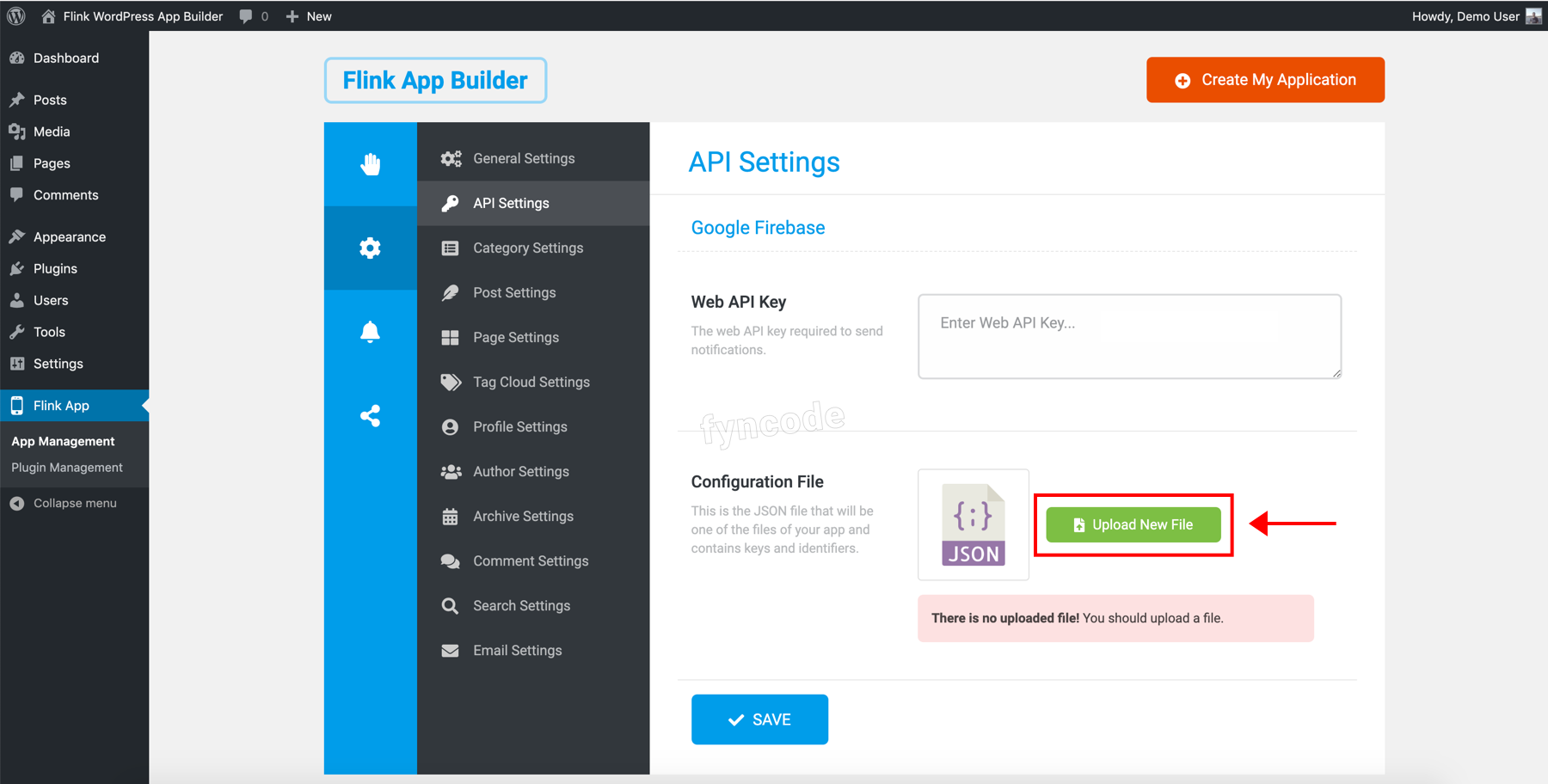
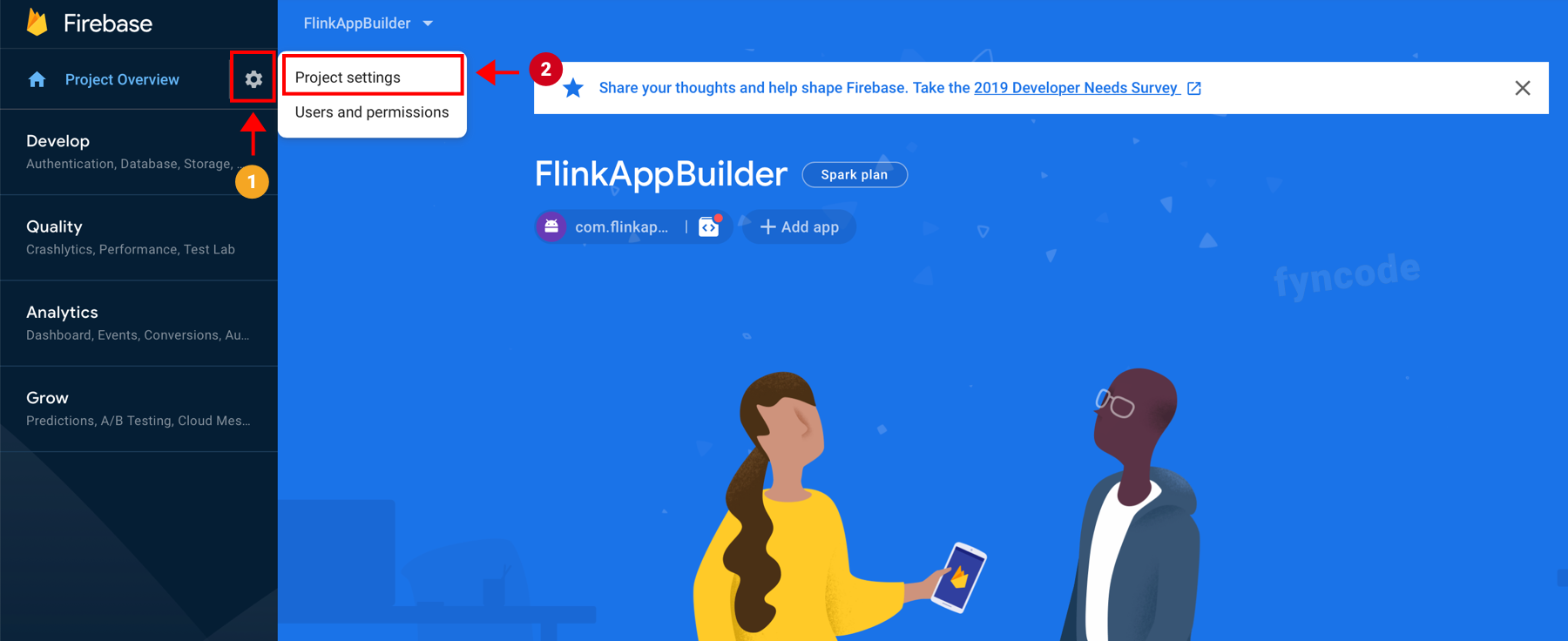
                <![CDATA[<p>Firebase is a Google service. For “<b>Push notifications”</b> and <b>“Firebase Analytics”</b>, we use Firebase.</p><p><b>Push notifications :</b> You can send instant notifications to your users’ devices (mobile phones, tablets etc.)<br /></p><p><b>Firebase Analytics :</b> With Firebase Analytics, you can see several data like active user count, daily interaction of your users, device information of your users, operating systems of those devices, demographic information of your users, countries in which your application is used and many other instantaneously.<br /></p><p>Let’s start...</p><h2>Creating Firebase Project</h2><ol><li>Since Firebase is a Google service, you need a Google account to use it. Go to <a href="https://firebase.google.com" target="_blank" rel="noreferrer noopener">https://firebase.google.com</a> and click <b>“Get started”</b> button.<br /><img src="https://support-hub--assets.s3.eu-west-2.amazonaws.com/assets/362/images/16vn6TQEh33n9fX41msfaKMYlDmU3ff1fs2nblig.png" style="width:100%;" alt="16vn6TQEh33n9fX41msfaKMYlDmU3ff1fs2nblig.png" /><br /></li><li>Login with your Google account. If you don’t have a Google account, you can create a new one and use it to login.<br /><img src="https://support-hub--assets.s3.eu-west-2.amazonaws.com/assets/362/images/hNdLBk5Fr4PemtfduX3J0nd7LkWKnFkjK1wReSUg.png" style="width:50%;" alt="hNdLBk5Fr4PemtfduX3J0nd7LkWKnFkjK1wReSUg.png" /><br /></li><li>Click on<b> “Create a project”</b> button.<br /><b>(Important Note: You will see this screen only if you will create a Firebase project for the first time. If there is any other Firebase project that you created before, then you will not see this page but the page on the next step, to which you should pay attention in this case.)</b><img src="https://support-hub--assets.s3.eu-west-2.amazonaws.com/assets/362/images/SaLB15SdnEF4YZ69yR63UI6a5YX0lS6EyHqOLQEH.png" alt="SaLB15SdnEF4YZ69yR63UI6a5YX0lS6EyHqOLQEH.png" style="width:100%;" /></li><li>Click <b>“Add project”</b> button.<br /><img src="https://support-hub--assets.s3.eu-west-2.amazonaws.com/assets/362/images/K4UMPibANUjUCPlnFnEpImbzdLDagS5VCaJtbDLe.png" style="width:100%;" alt="K4UMPibANUjUCPlnFnEpImbzdLDagS5VCaJtbDLe.png" /><br /></li><li>Enter your project name, accept the Firebase terms and conditions and click <b>“Continue”</b>. (<b>Project name examples:</b> FlinkAppBuilder, BreakingNews etc.)<br /><img src="https://support-hub--assets.s3.eu-west-2.amazonaws.com/assets/362/images/YdTPHUH0lY7P1y18Q7zUsg4JZeUv2sscU4vKP3SO.png" style="width:100%;" alt="YdTPHUH0lY7P1y18Q7zUsg4JZeUv2sscU4vKP3SO.png" /><br /></li><li>Select <b>“Set up Google Analytics for my project”</b> and click <b>“Continue”</b> button.<br /><img src="https://support-hub--assets.s3.eu-west-2.amazonaws.com/assets/362/images/zdyUnunBPKEdJi6B9qWUfogrAO3IchDab9O8fdeb.png" style="width:100%;" alt="zdyUnunBPKEdJi6B9qWUfogrAO3IchDab9O8fdeb.png" /><br /></li><li>Click <b>“Select an account”</b> button.<br /><img src="https://support-hub--assets.s3.eu-west-2.amazonaws.com/assets/362/images/81ns6lNjm51vyFkW7sUdyUEO8mcGyxu6AVHpDhCY.png" style="width:100%;" alt="81ns6lNjm51vyFkW7sUdyUEO8mcGyxu6AVHpDhCY.png" /><br /></li><li>Click <b>“Create a new account”</b> button. (If you have a previously defined Google Analytics account, you can select it as well.)<br /><img src="https://support-hub--assets.s3.eu-west-2.amazonaws.com/assets/362/images/sUDz0SuDhRuPX1xGDqxKWS8HWUq9DOSRldeTKqoN.png" style="width:100%;" alt="sUDz0SuDhRuPX1xGDqxKWS8HWUq9DOSRldeTKqoN.png" /><br /></li><li>Define a name for the Google Analytics account that you will create and enter it to the respective field (you can use the same project name that you defined previously or you can define a different account name). Then, click <b>“Save”</b>.<br /><img src="https://support-hub--assets.s3.eu-west-2.amazonaws.com/assets/362/images/pW7v8R7zDfmk9Wz3S3e105K45HE7X8N3DCzIqulK.png" style="width:100%;" alt="pW7v8R7zDfmk9Wz3S3e105K45HE7X8N3DCzIqulK.png" /><br /></li><li>Select your location, tick all confirmation boxes and click <b>“Create project”</b> button.<br /><img src="https://support-hub--assets.s3.eu-west-2.amazonaws.com/assets/362/images/EaiDcEMYR2y7cpTyYdC4IMHIG3Ji4ambyoUPMSJu.png" style="width:100%;" alt="EaiDcEMYR2y7cpTyYdC4IMHIG3Ji4ambyoUPMSJu.png" /><br /></li><li>Your Firebase project will begin to be prepared and you will see an installation page. Please wait while your project is being prepared. After it is ready, click <b>“Continue”</b> button and complete the project creating part.<br /><img src="https://support-hub--assets.s3.eu-west-2.amazonaws.com/assets/362/images/rTTg7wrKWLtISVHgwfYeRSAnHbmmLteYrKcT6d7B.png" style="width:100%;" alt="rTTg7wrKWLtISVHgwfYeRSAnHbmmLteYrKcT6d7B.png" /><br /><img src="https://support-hub--assets.s3.eu-west-2.amazonaws.com/assets/362/images/pdwH6TmEpyLLpcVorYyv1cShfaaWQwjtJzKpWJ6T.png" style="width:100%;" alt="pdwH6TmEpyLLpcVorYyv1cShfaaWQwjtJzKpWJ6T.png" /><br /></li></ol><h2>Adding Your Application</h2><ol><li>Click on Android icon.<br /><img src="https://support-hub--assets.s3.eu-west-2.amazonaws.com/assets/362/images/D3WCrd8e1dP7pDLoFPCYDyDFZIvExr4AI0RM6IKR.png" style="width:100%;" alt="D3WCrd8e1dP7pDLoFPCYDyDFZIvExr4AI0RM6IKR.png" /><br /></li><li>Enter the application package name that you defined while you are installing Flink Wordpress App Builder to the <b>“App package name”</b> field <b>(example: com.flinkappbuilder.android)</b>. Then, click <b>“Register App</b>” button and proceed to the next step.<br /><img src="https://support-hub--assets.s3.eu-west-2.amazonaws.com/assets/362/images/vjchiRRruImCkL5nSOsm0aFOB0XMEnK3i1b5Y5i9.png" style="width:100%;" alt="vjchiRRruImCkL5nSOsm0aFOB0XMEnK3i1b5Y5i9.png" /><br /></li><li>Click <b>“Download google-services.json”</b> button, download the JSON file related with your app and click <b>“Next”</b>.<br /><img src="https://support-hub--assets.s3.eu-west-2.amazonaws.com/assets/362/images/YsMiuF6jWGMJgS6t2LV6myMF3vKxjkh0S1yVp9rM.png" style="width:100%;" alt="YsMiuF6jWGMJgS6t2LV6myMF3vKxjkh0S1yVp9rM.png" /><br /></li><li>You don’t need to do anything in this tep, just click <b>“Next”</b>.<br /><img src="https://support-hub--assets.s3.eu-west-2.amazonaws.com/assets/362/images/00TDUdmYLBQ7zi2aBmlolN8bqHKh0ejO7Fg1SYVi.png" style="width:100%;" alt="00TDUdmYLBQ7zi2aBmlolN8bqHKh0ejO7Fg1SYVi.png" /><br /><img src="https://support-hub--assets.s3.eu-west-2.amazonaws.com/assets/362/images/R1jAugx9lDGvAQqTRrZIgH3H6ZBGf3BlgE58G8th.png" style="width:100%;" alt="R1jAugx9lDGvAQqTRrZIgH3H6ZBGf3BlgE58G8th.png" /><br /></li><li>Click <b>“Skip this step”</b> button.<br /><img src="https://support-hub--assets.s3.eu-west-2.amazonaws.com/assets/362/images/LHAJnR7X6ZwQqxt8nSLt30p2yNucetVgOqBQ9GHk.png" style="width:100%;" alt="LHAJnR7X6ZwQqxt8nSLt30p2yNucetVgOqBQ9GHk.png" /><br /></li><li>Login to your Wordpress admin dashboard and from the side menu, click <b>“Flink App”</b> in order to open the Flink WordPress App Builder page.<br /><br />On this page, find <b>“API Settings”</b> and click it. Click <b>“Upload New File”</b> button in the <b>“Configuration File”</b> part of the <b>“Google Firebase”</b> section and upload the JSON file that you previously downloaded <b>(google-services.json)</b>.<br /><img src="https://support-hub--assets.s3.eu-west-2.amazonaws.com/assets/362/images/RXt0HVg5aubOUqFaokVBFBpRwRVZgSioomwQVCrB.png" style="width:100%;" alt="RXt0HVg5aubOUqFaokVBFBpRwRVZgSioomwQVCrB.png" /><b><br /></b></li></ol><h2>Getting the Web API Key</h2><ol><li>Click on settings icon and then click <b>“Project Settings”</b> to go to the page where project settings can be configured.<br /><img src="https://support-hub--assets.s3.eu-west-2.amazonaws.com/assets/362/images/IUsCQWBDydlSXz6CX7Hnh7uyn2QlO5tvfDsk5x6n.png" style="width:100%;" alt="IUsCQWBDydlSXz6CX7Hnh7uyn2QlO5tvfDsk5x6n.png" /><br /></li><li>Click <b>“Cloud Messaging”</b> button. Copy the key in <b>“Server Key”</b> field.<br /><img src="https://support-hub--assets.s3.eu-west-2.amazonaws.com/assets/362/images/frjknvp6NltQroVixEbtyzLiNbBMERsXWL9CFaRQ.png" style="width:100%;" alt="frjknvp6NltQroVixEbtyzLiNbBMERsXWL9CFaRQ.png" /><br /></li><li>Go to your WordPress admin dashboard and click <b>“Flink App”</b> on the side menu to open the page for Flink WordPress App Builder.<br /><br />On this page, find and click <b>“API Settings”</b>. Copy the API key that you previously obtained and paste it to the <b>“Server Key”</b> field in the “Google Firebase” section, then click <b>“Save”</b> button.<br /><img src="https://support-hub--assets.s3.eu-west-2.amazonaws.com/assets/362/images/L9Hp85NrnCVtuitZpuu1oHMPw5IierVFke7q9QuL.png" style="width:100%;" alt="L9Hp85NrnCVtuitZpuu1oHMPw5IierVFke7q9QuL.png" /></li></ol><p><br /></p>
<table class="table table-bordered"><tr><td><b>
<span>← </span>Previous Section</b><br /></td><td><b>Next Section <span>→</span></b></td></tr><tr><td><a href="https://fyncode.support-hub.io/articles/step-1-installation-1315">Step 1 - Installation</a></td><td><a href="https://fyncode.support-hub.io/articles/step-3-admob-advertisement-integration-1334">Step 3 - AdMob Advertisement Integration</a></td></tr></table>]]>
            </summary>
                                    <updated>2022-12-17T18:55:13+00:00</updated>
        </entry>
            <entry>
            <title><![CDATA[Step 3 - AdMob Advertisement Integration]]></title>
            <link rel="alternate" href="https://fyncode.support-hub.io/articles/step-3-admob-advertisement-integration-1334" />
            <id>https://fyncode.support-hub.io/1334</id>
            <author>
                <name><![CDATA[Fyncode Tech]]></name>
            </author>
            <summary type="html">
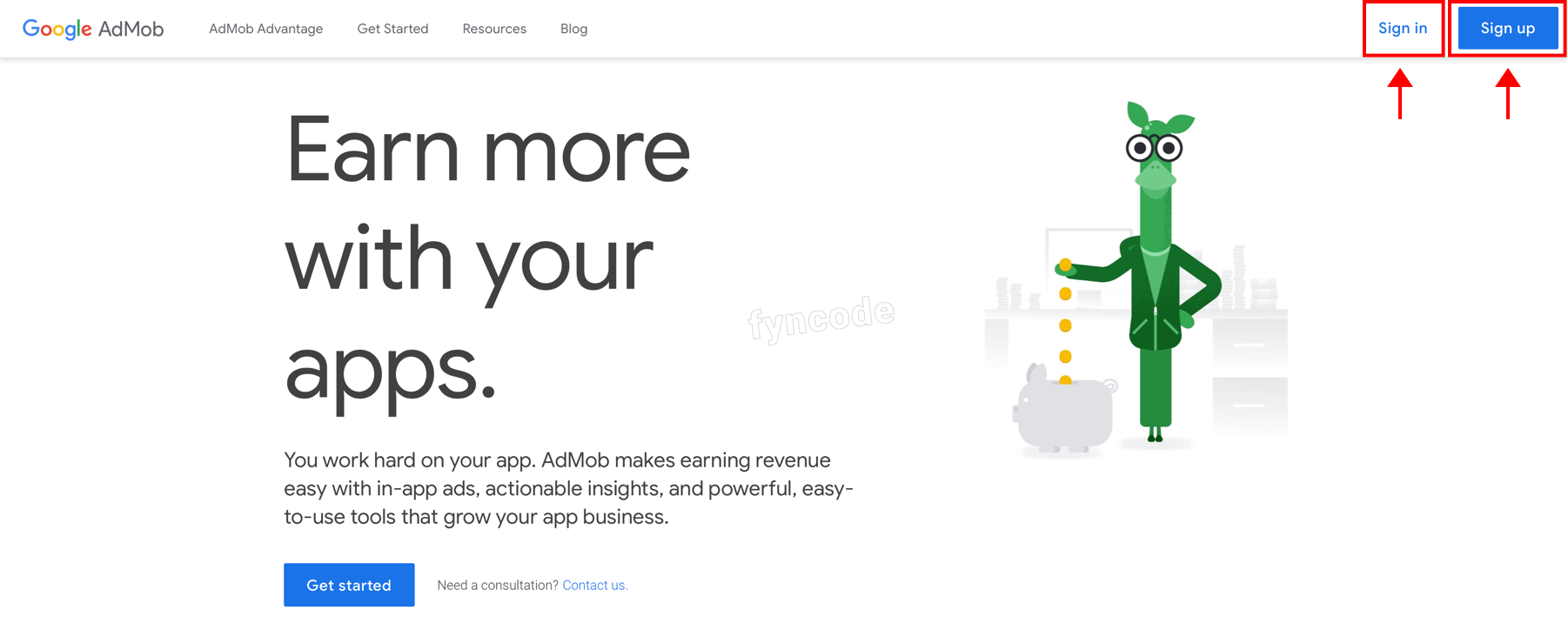
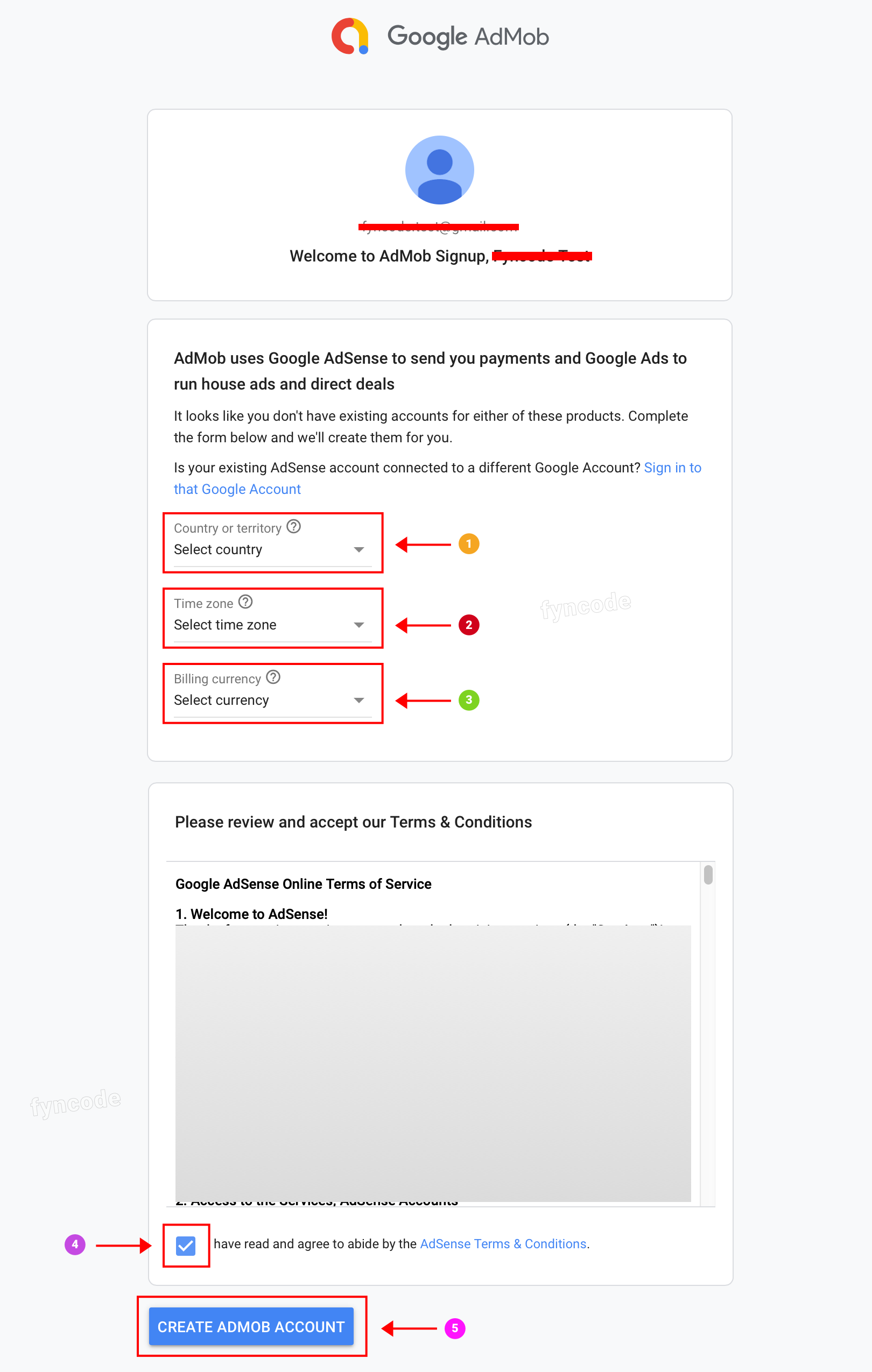
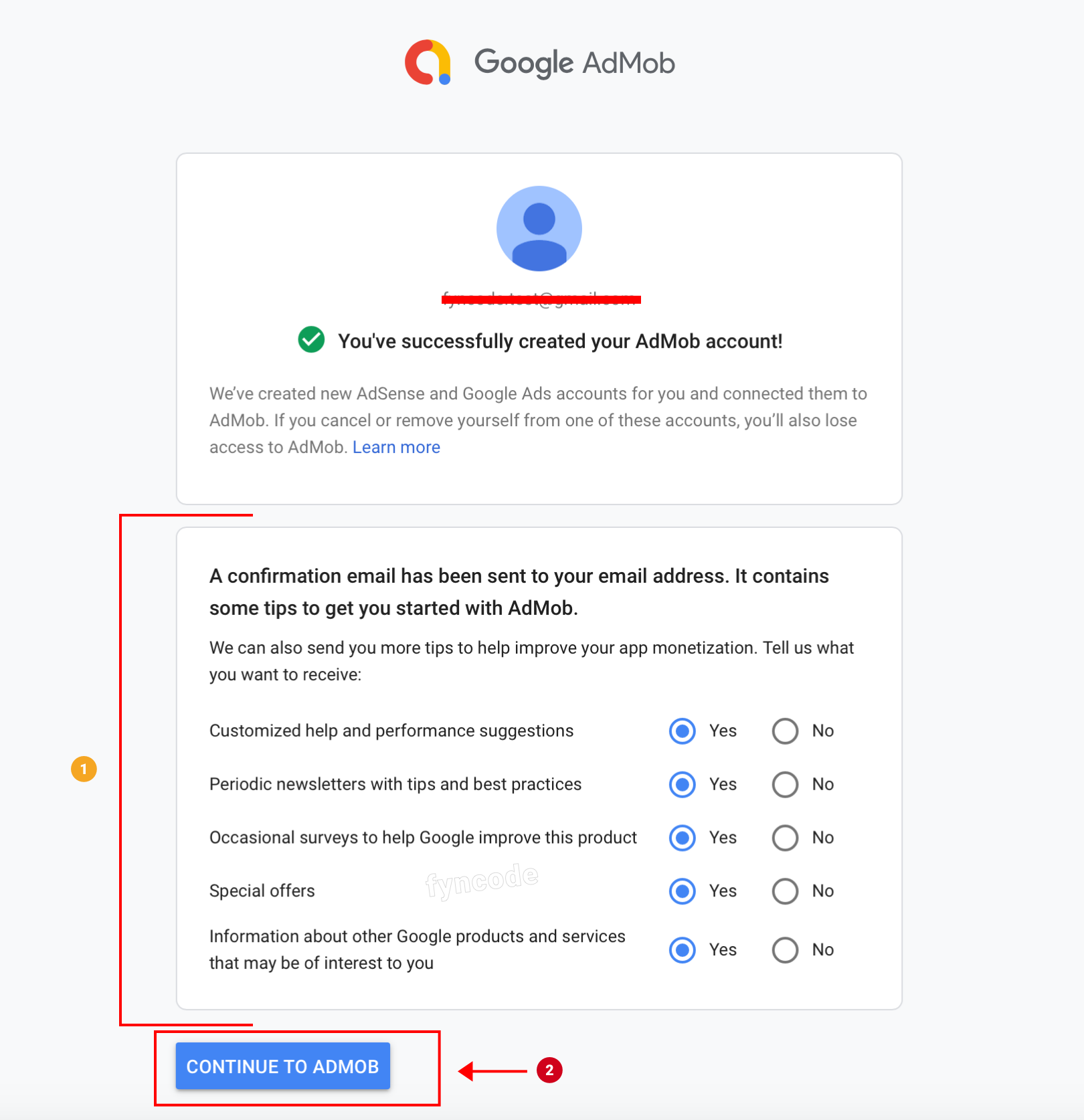
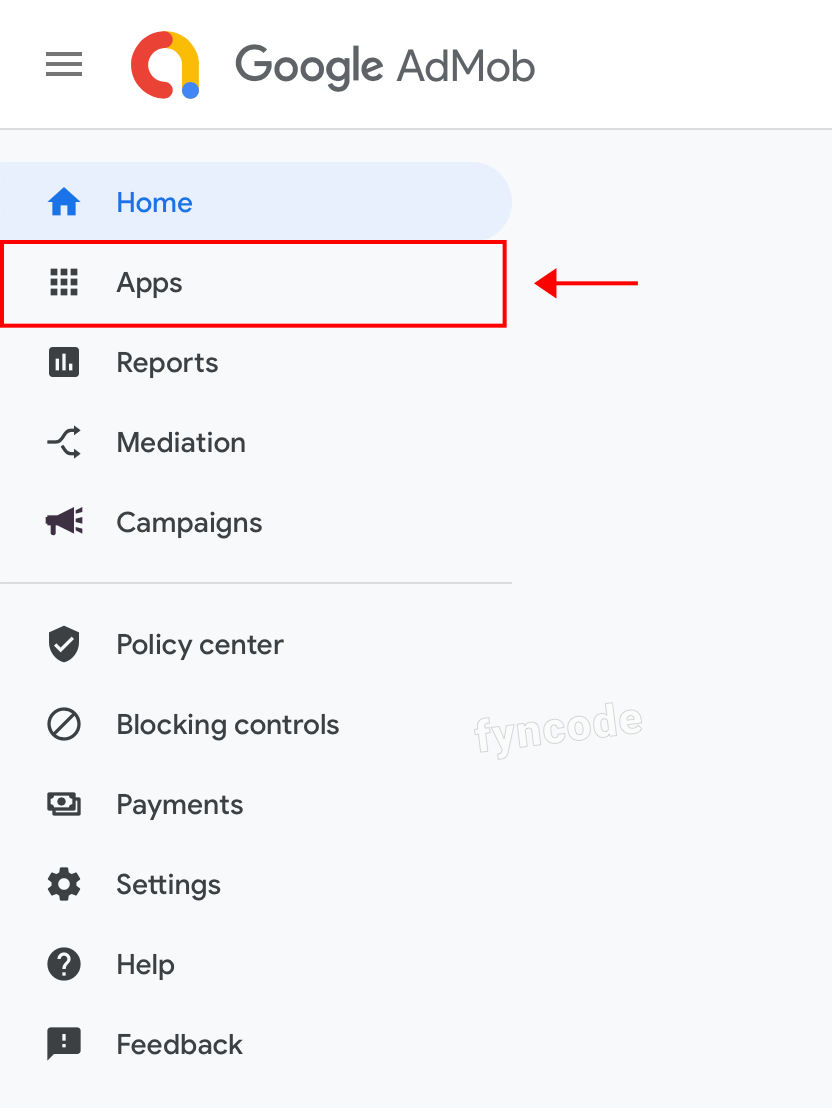
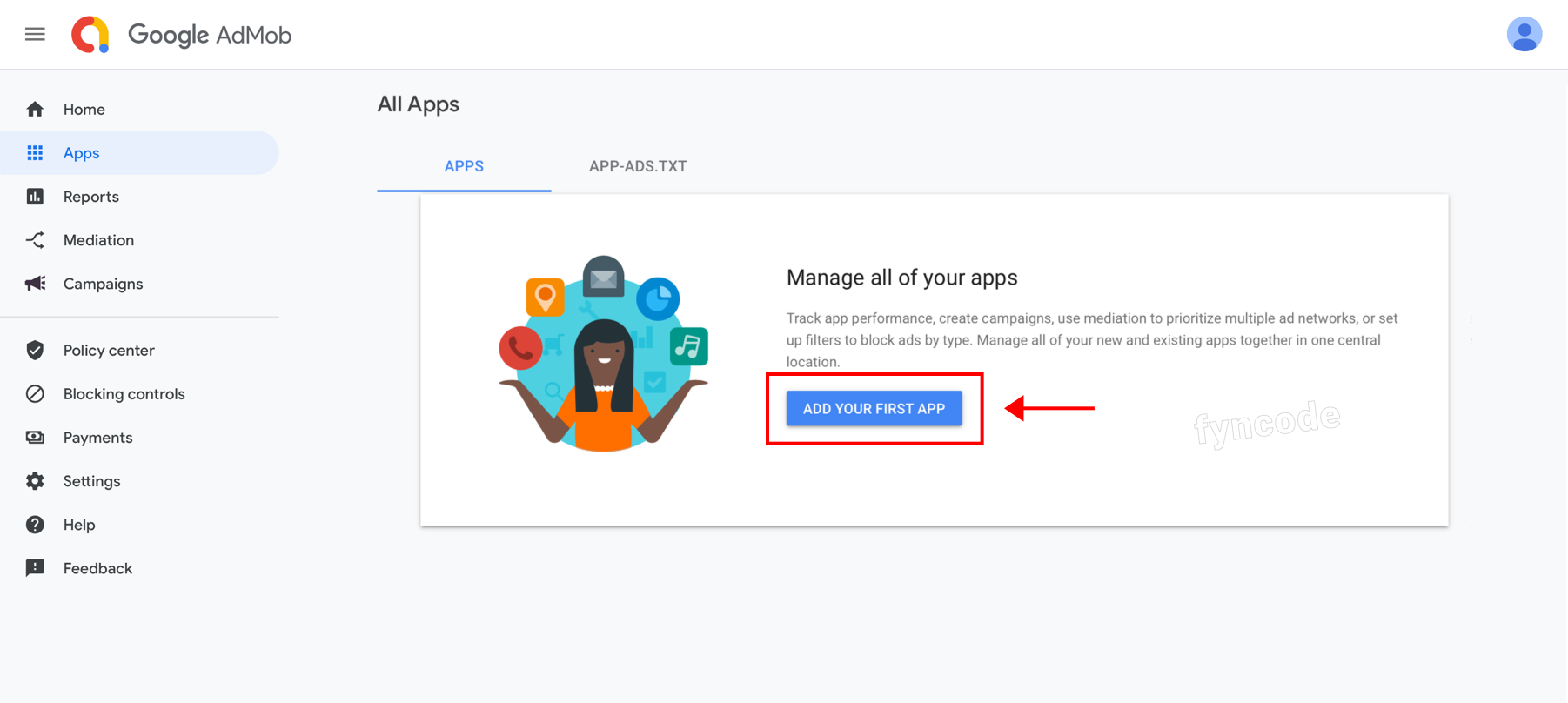
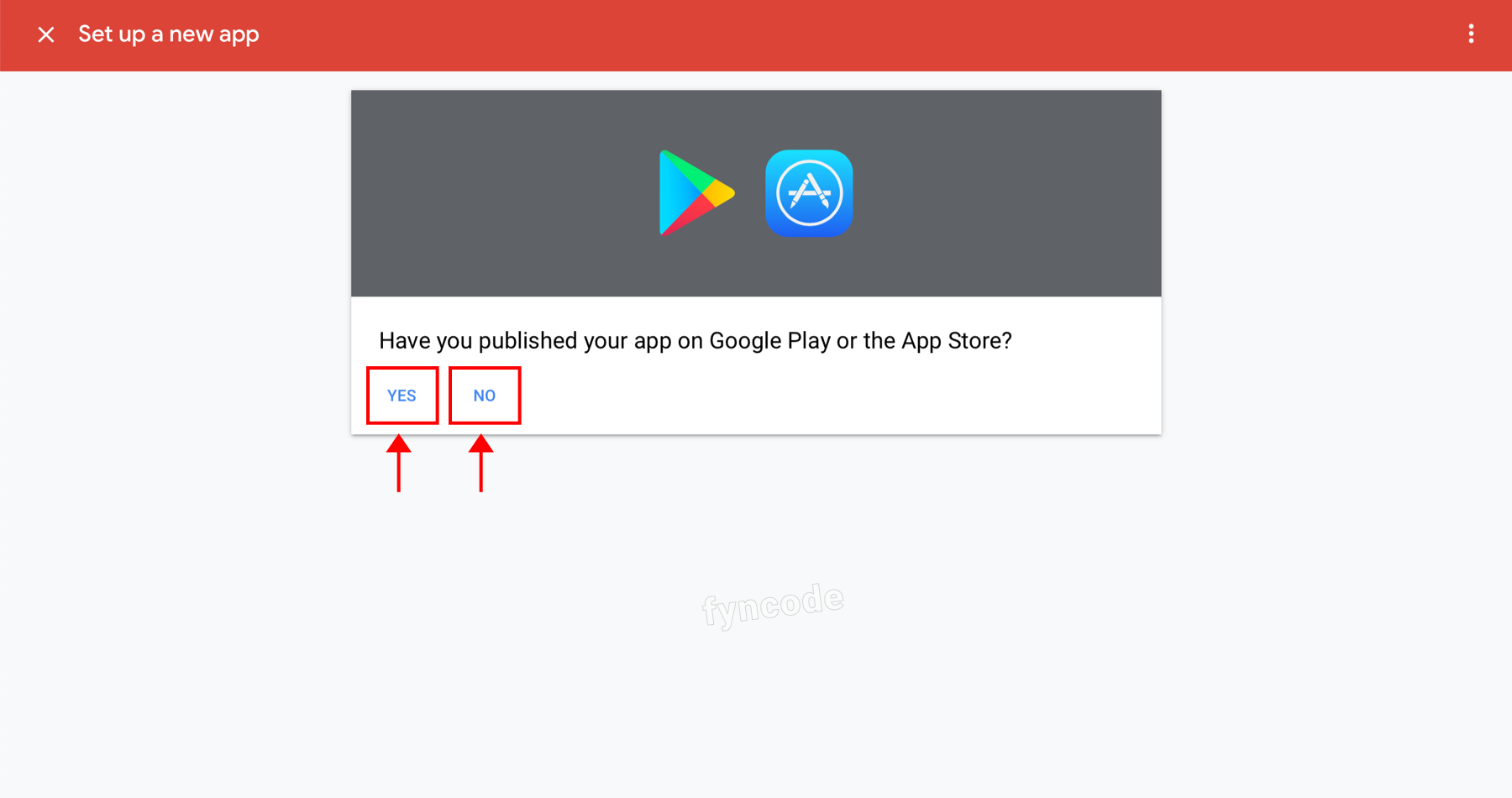
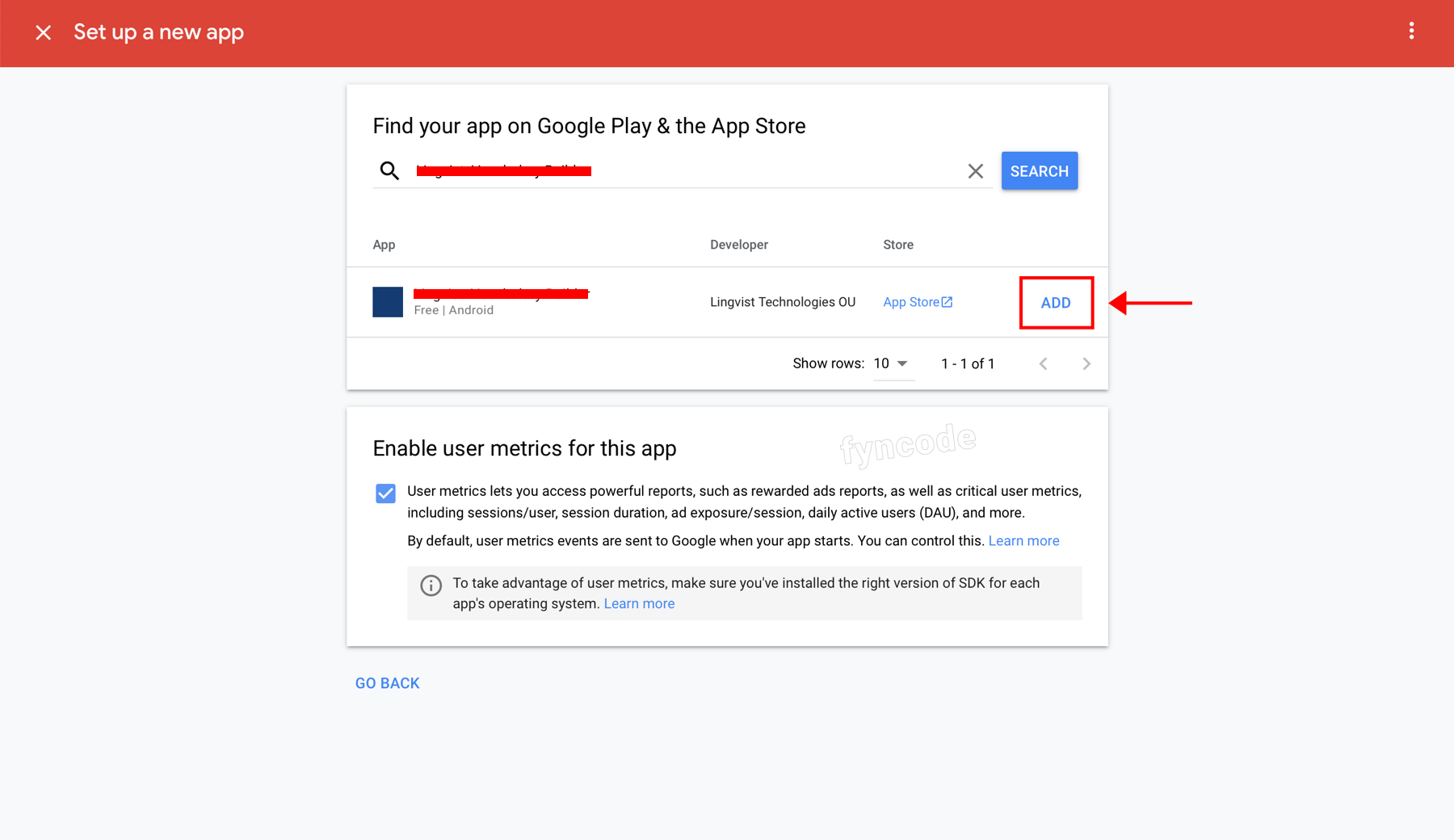
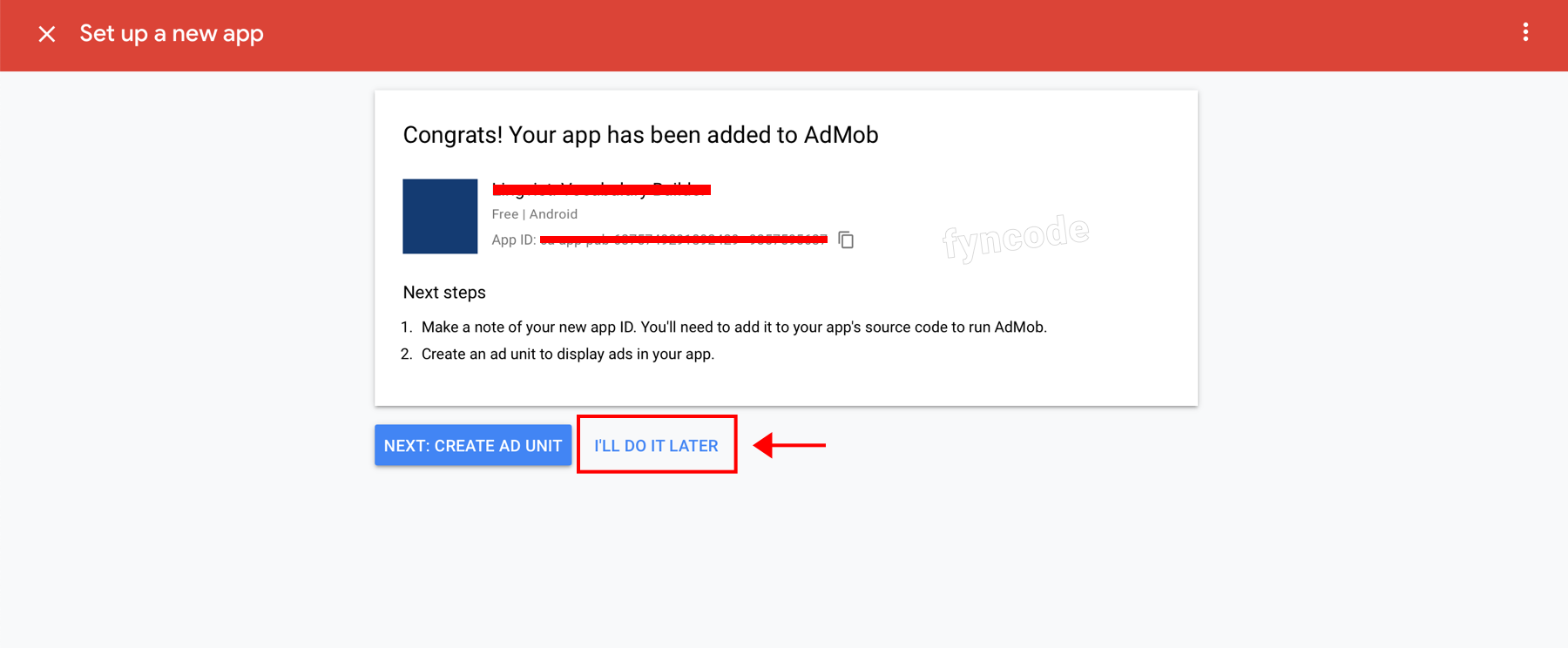
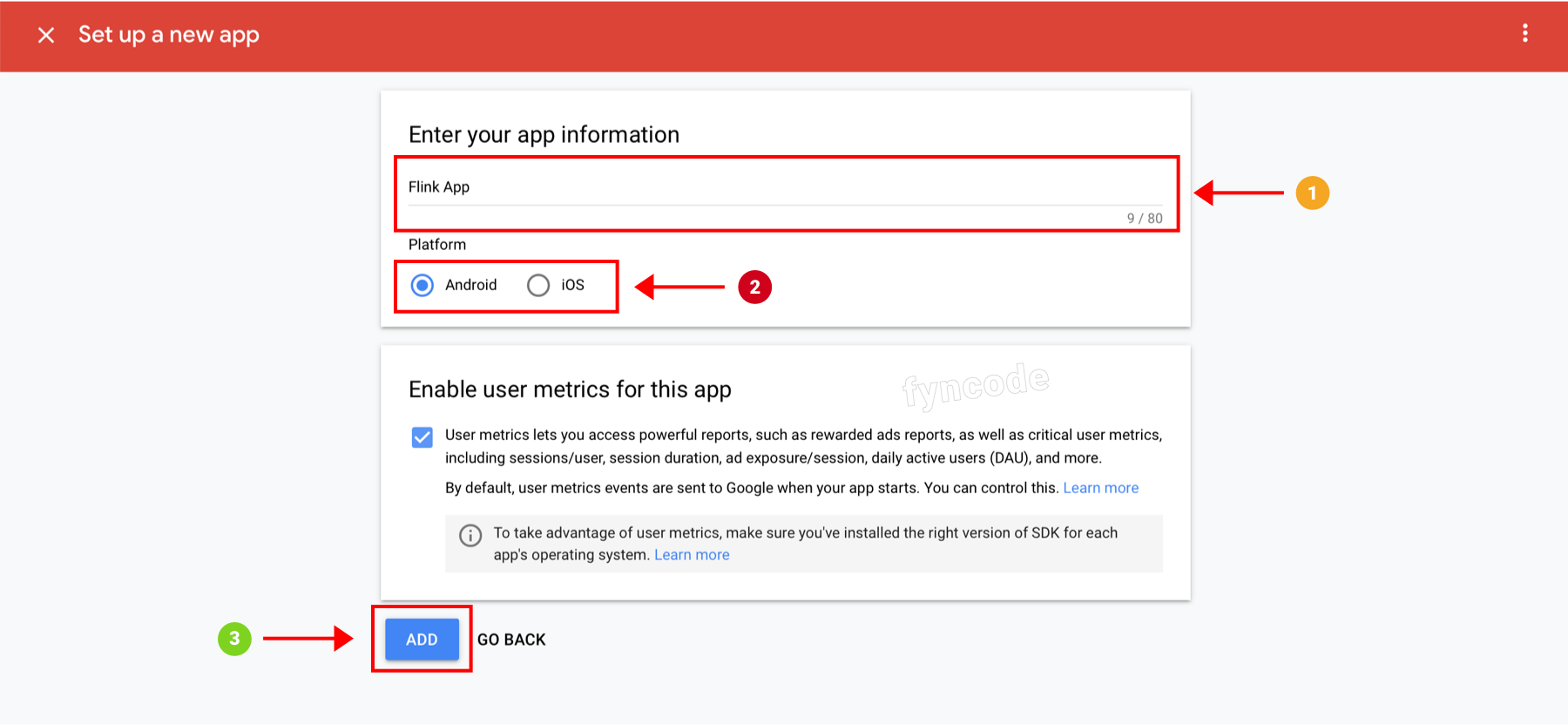
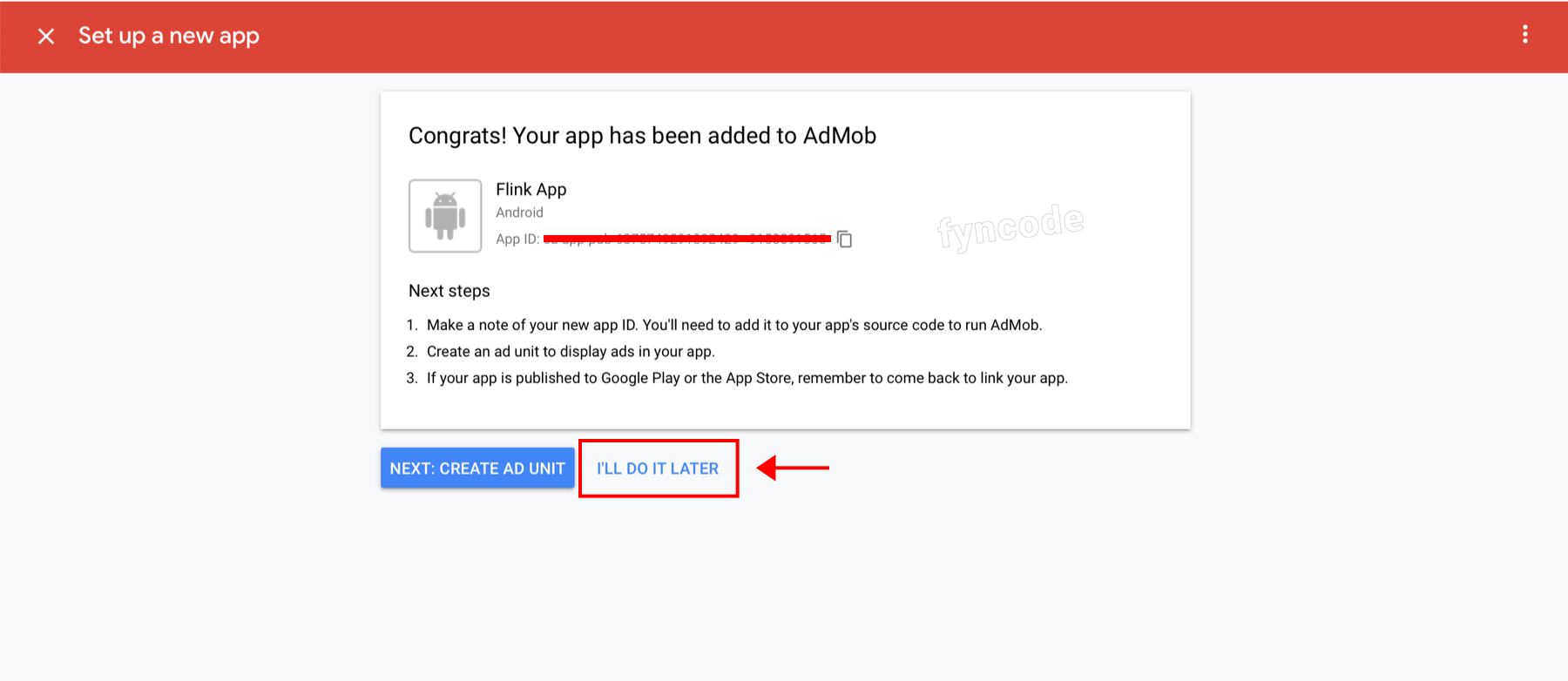
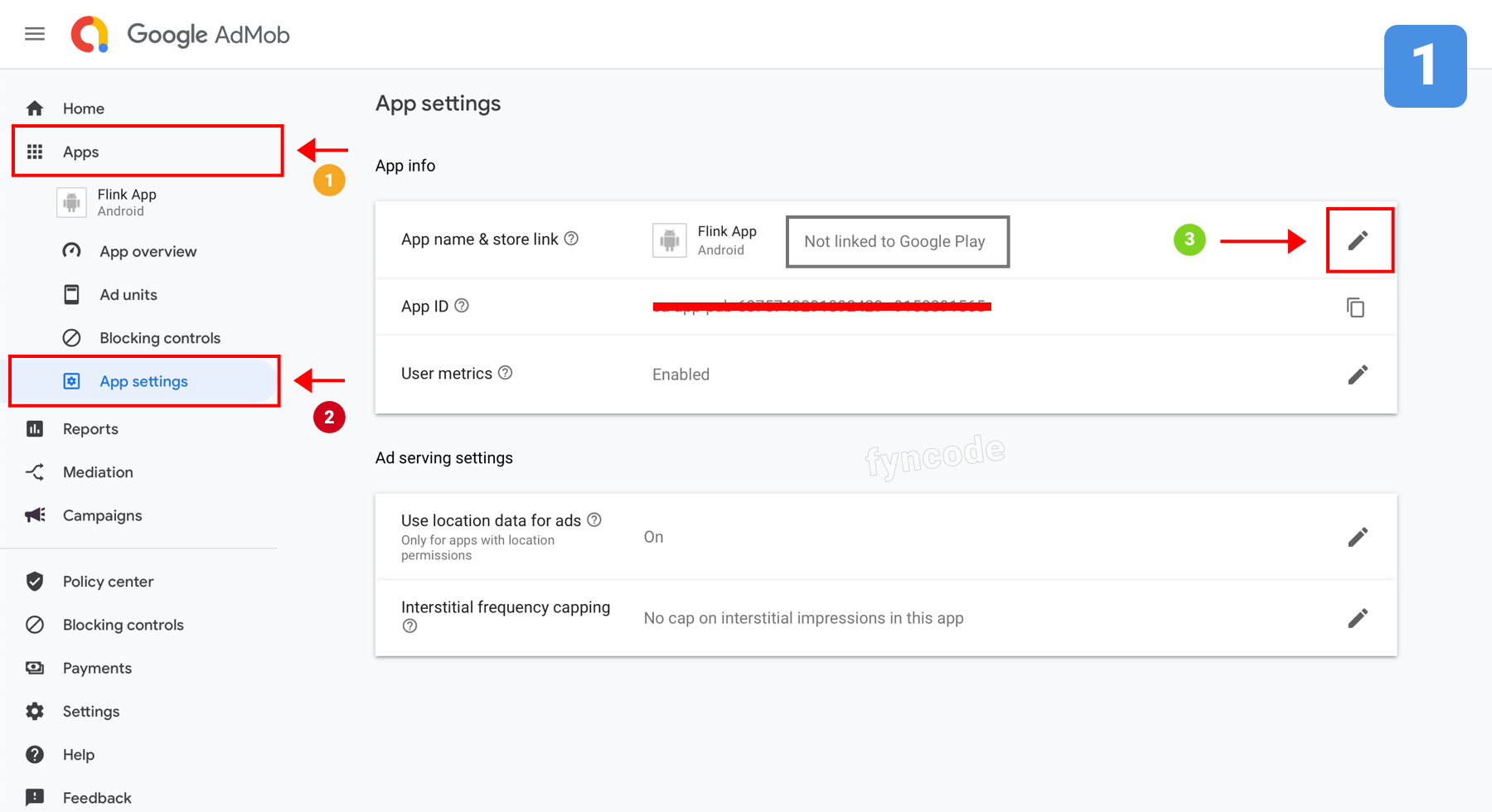
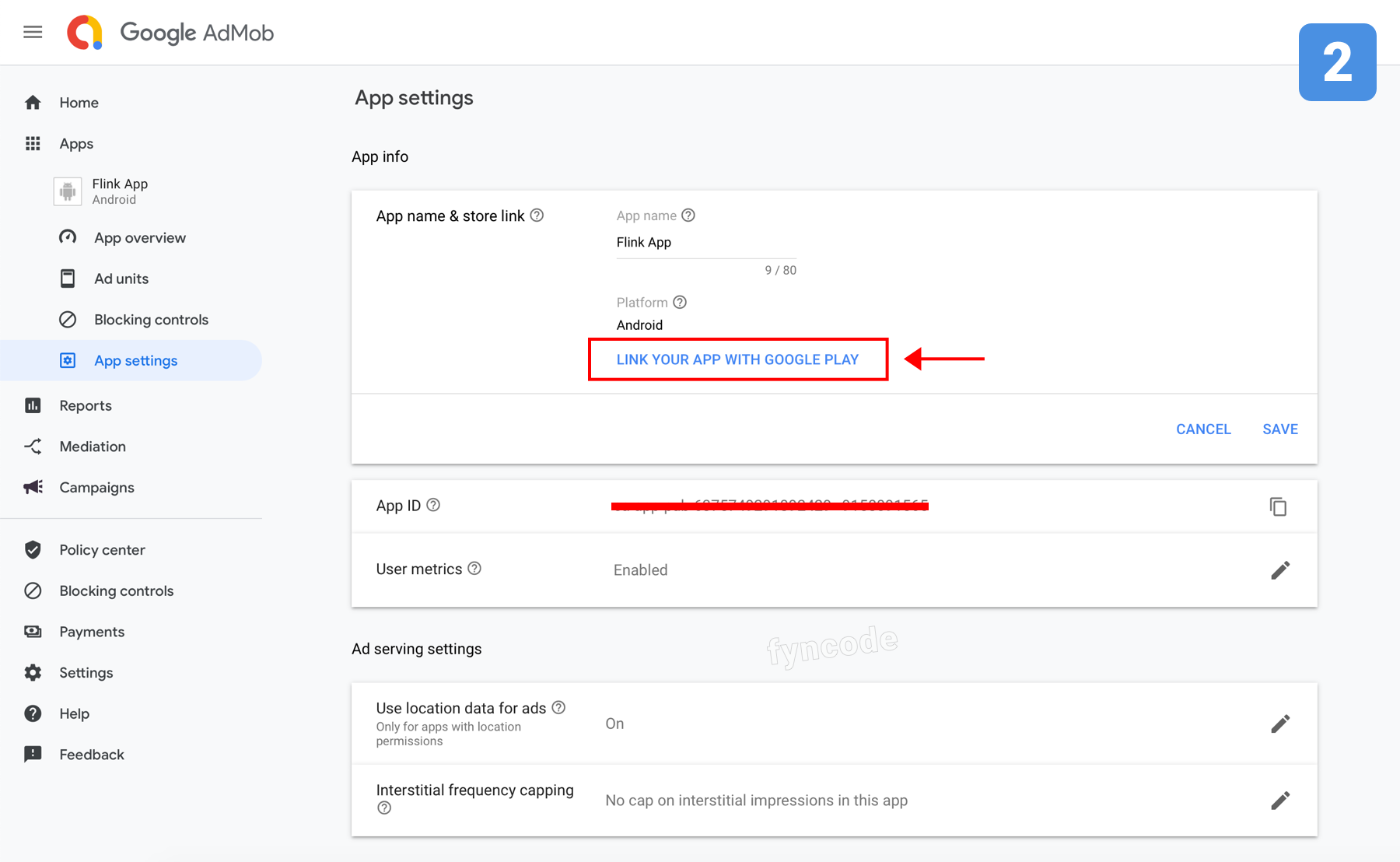
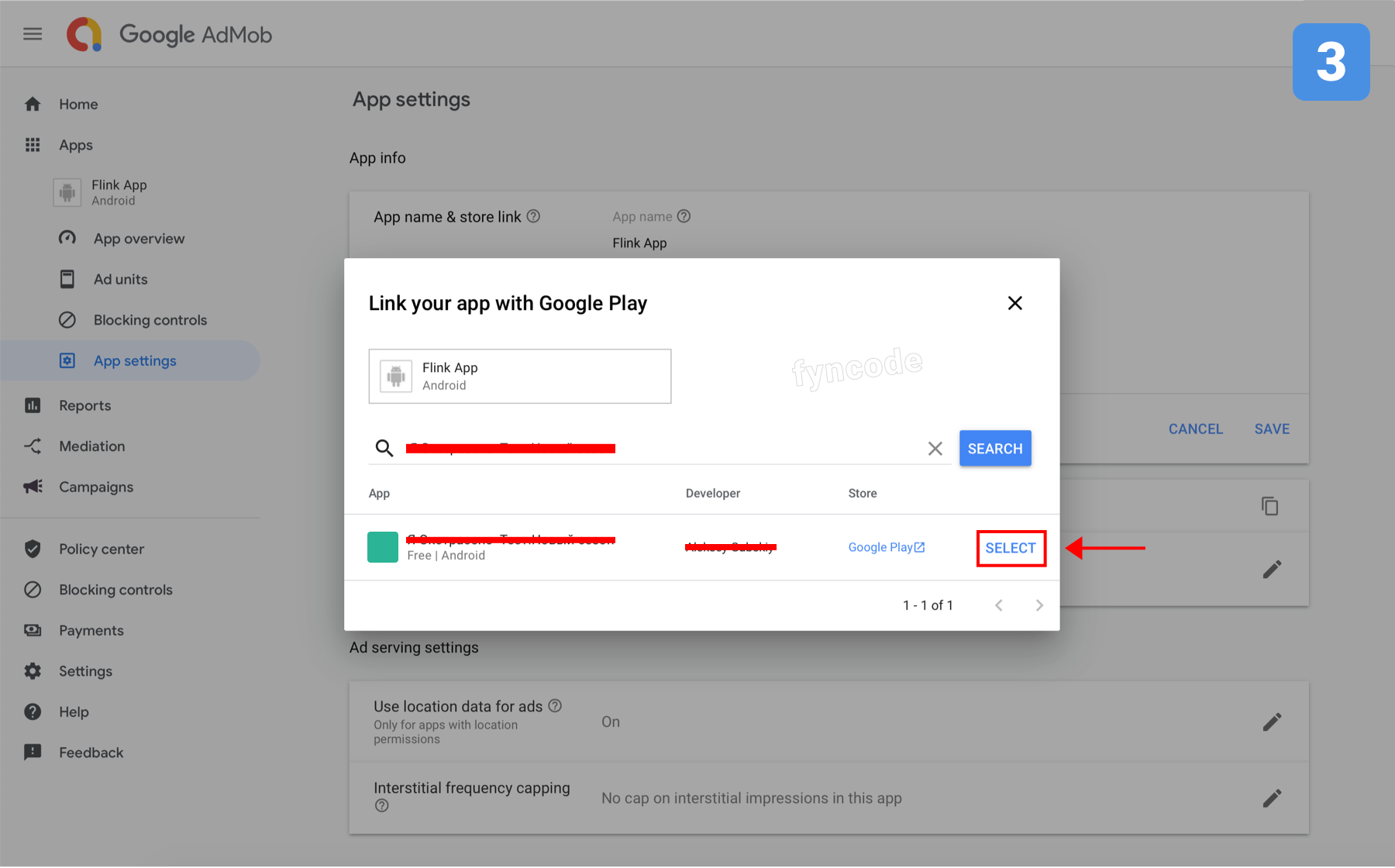
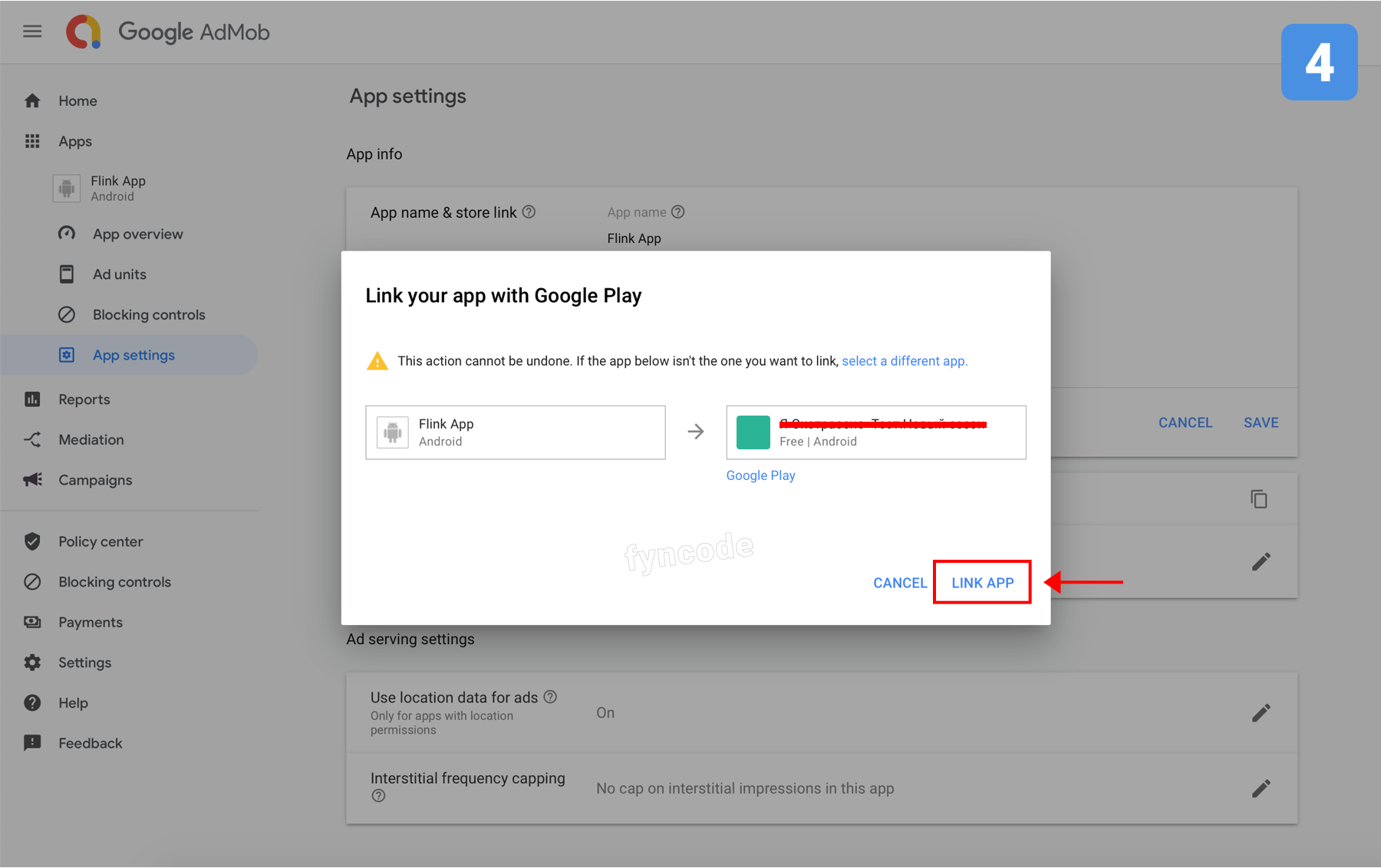
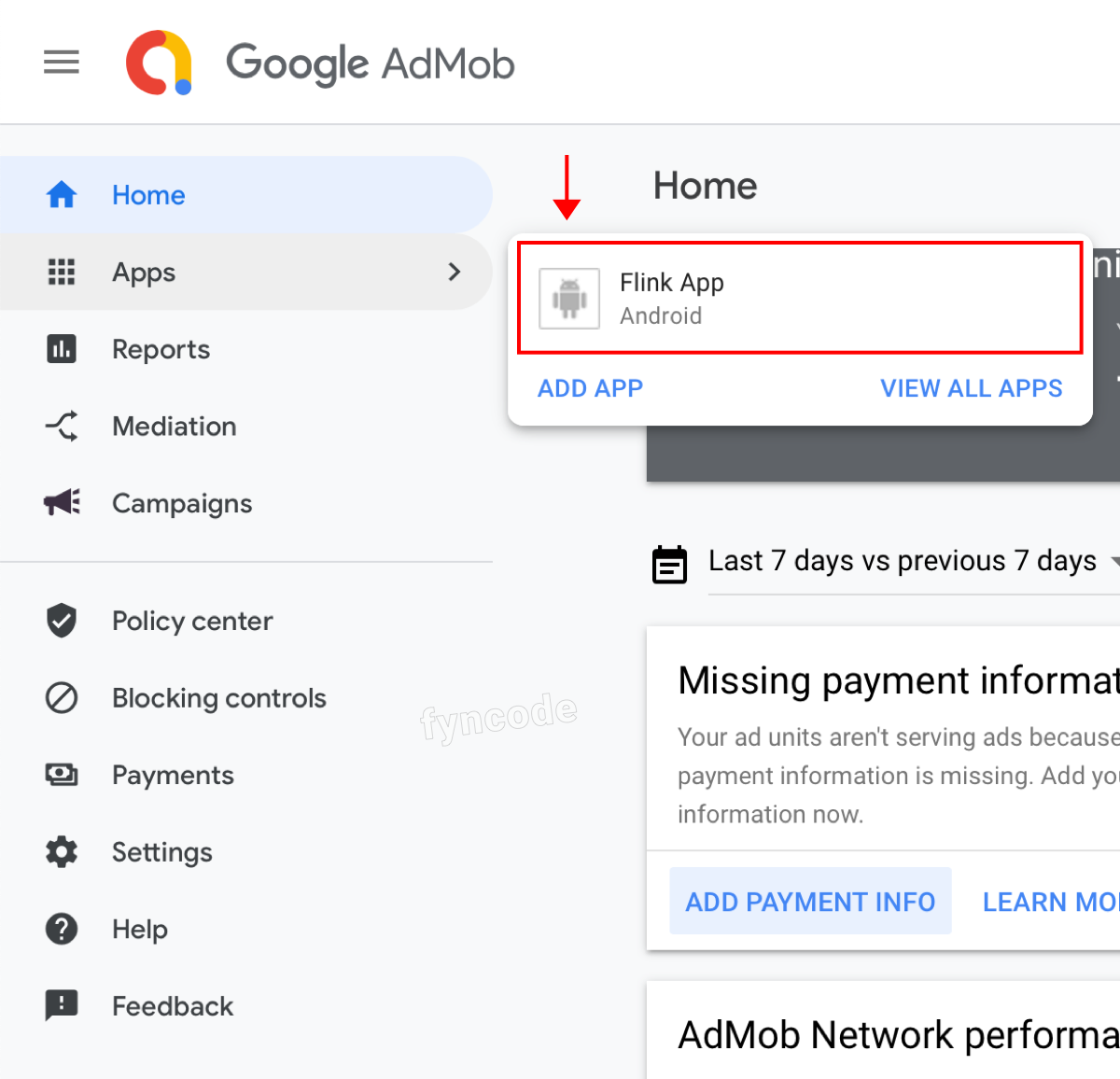
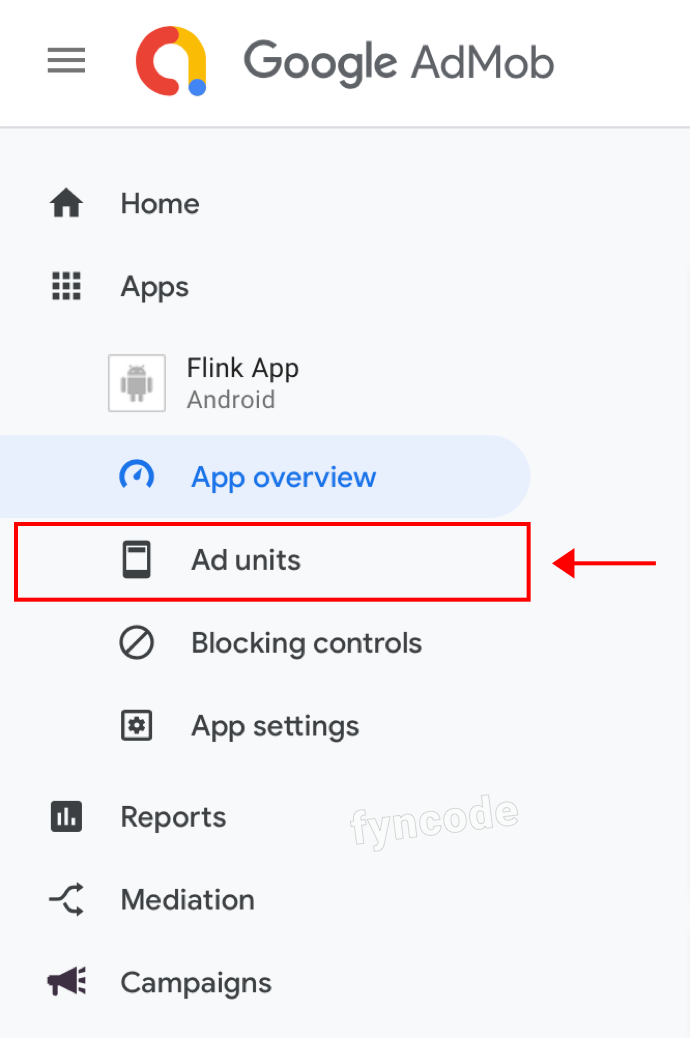
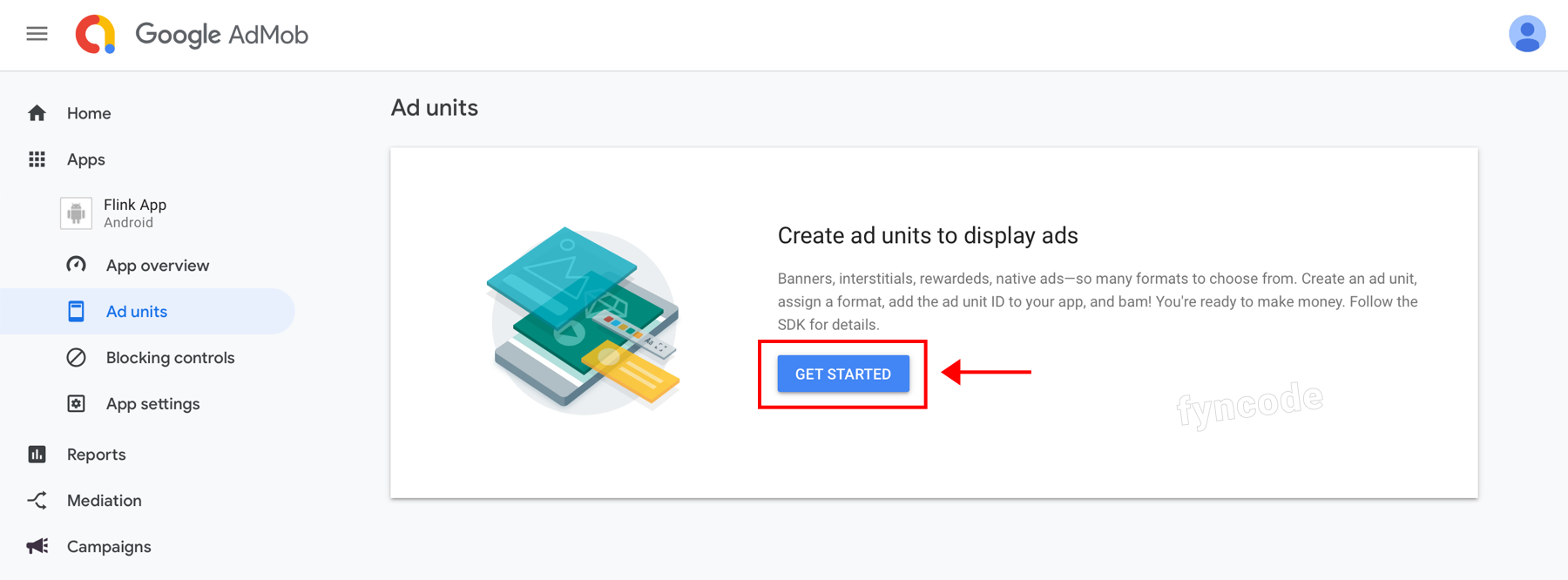
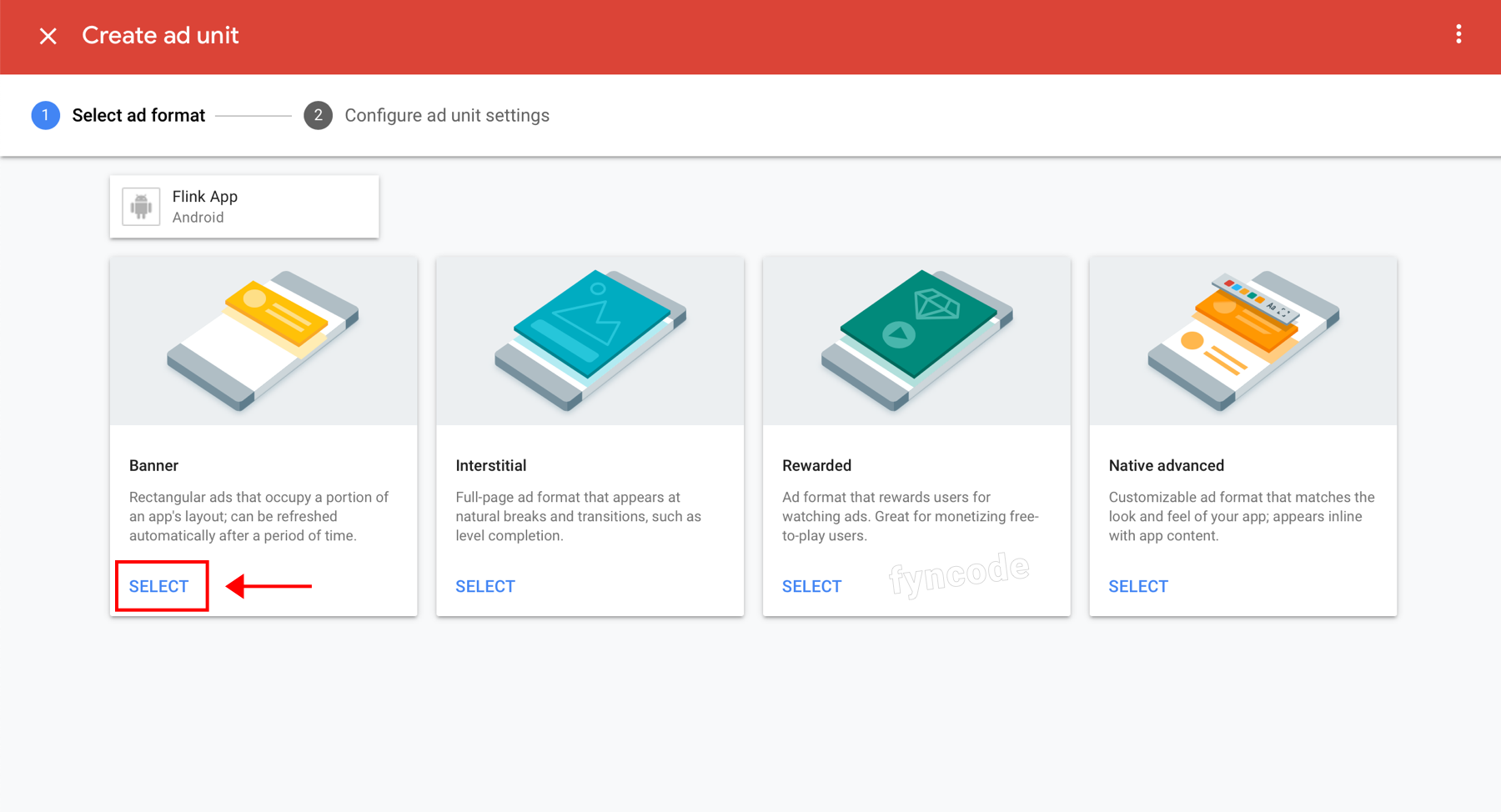
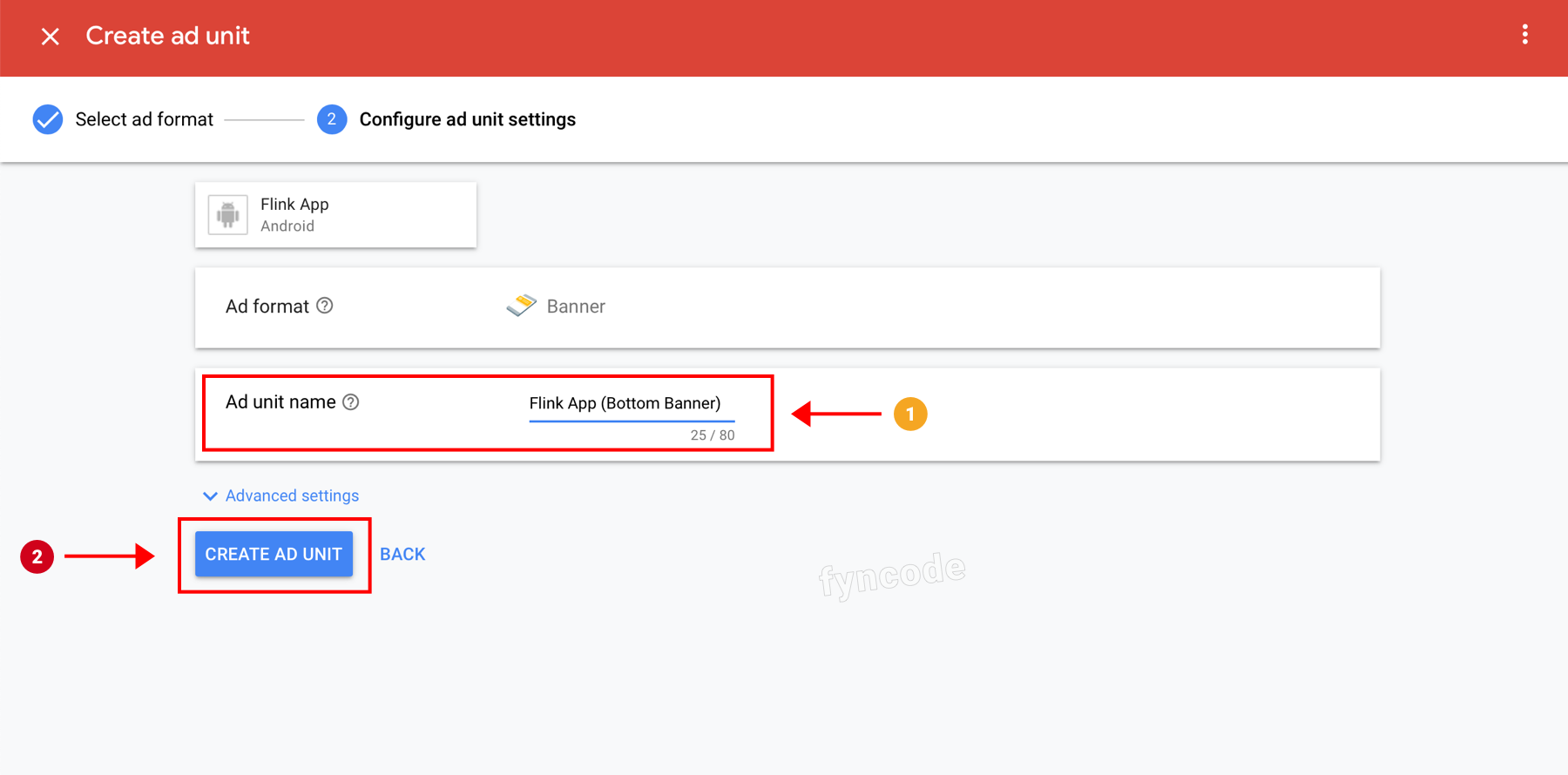
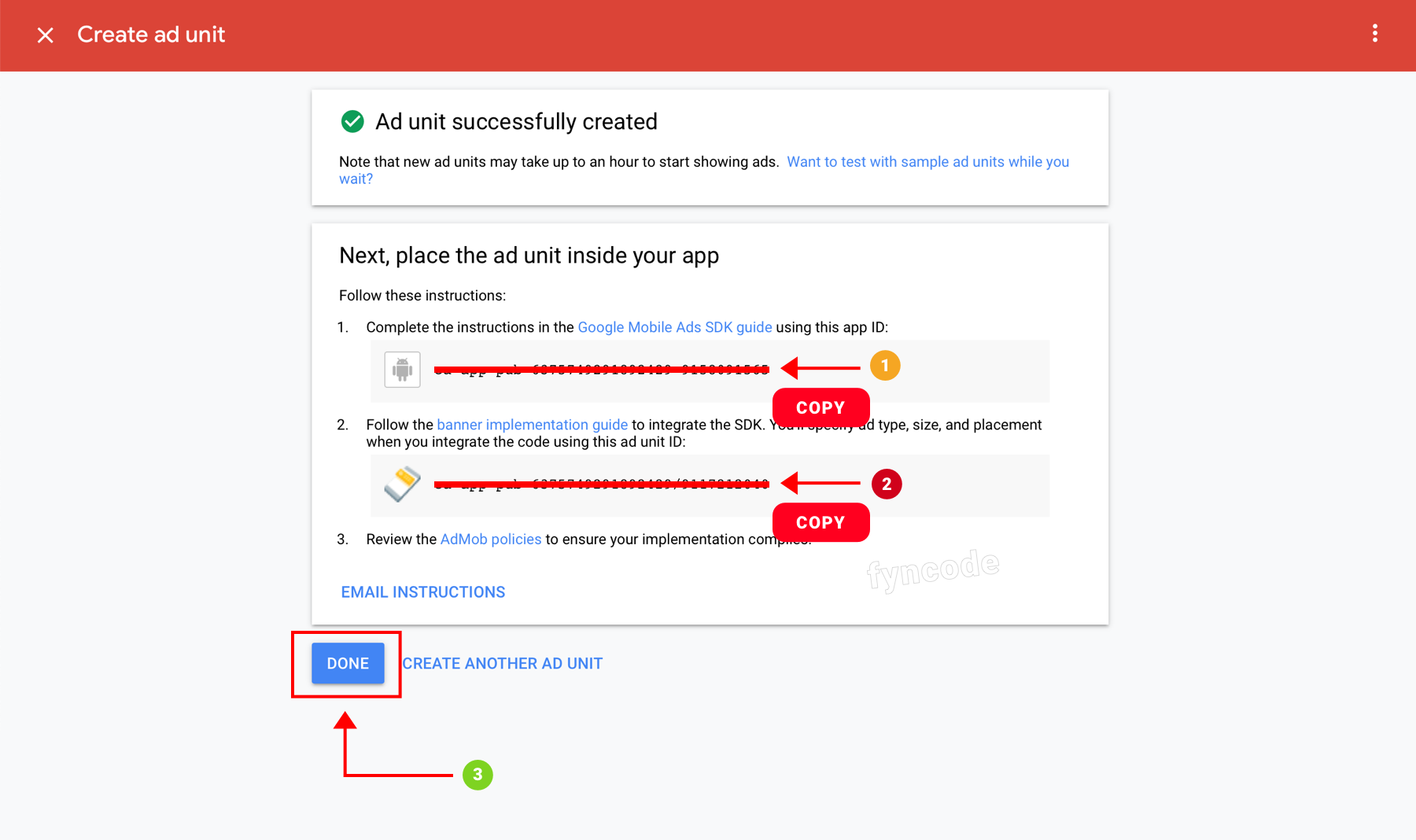
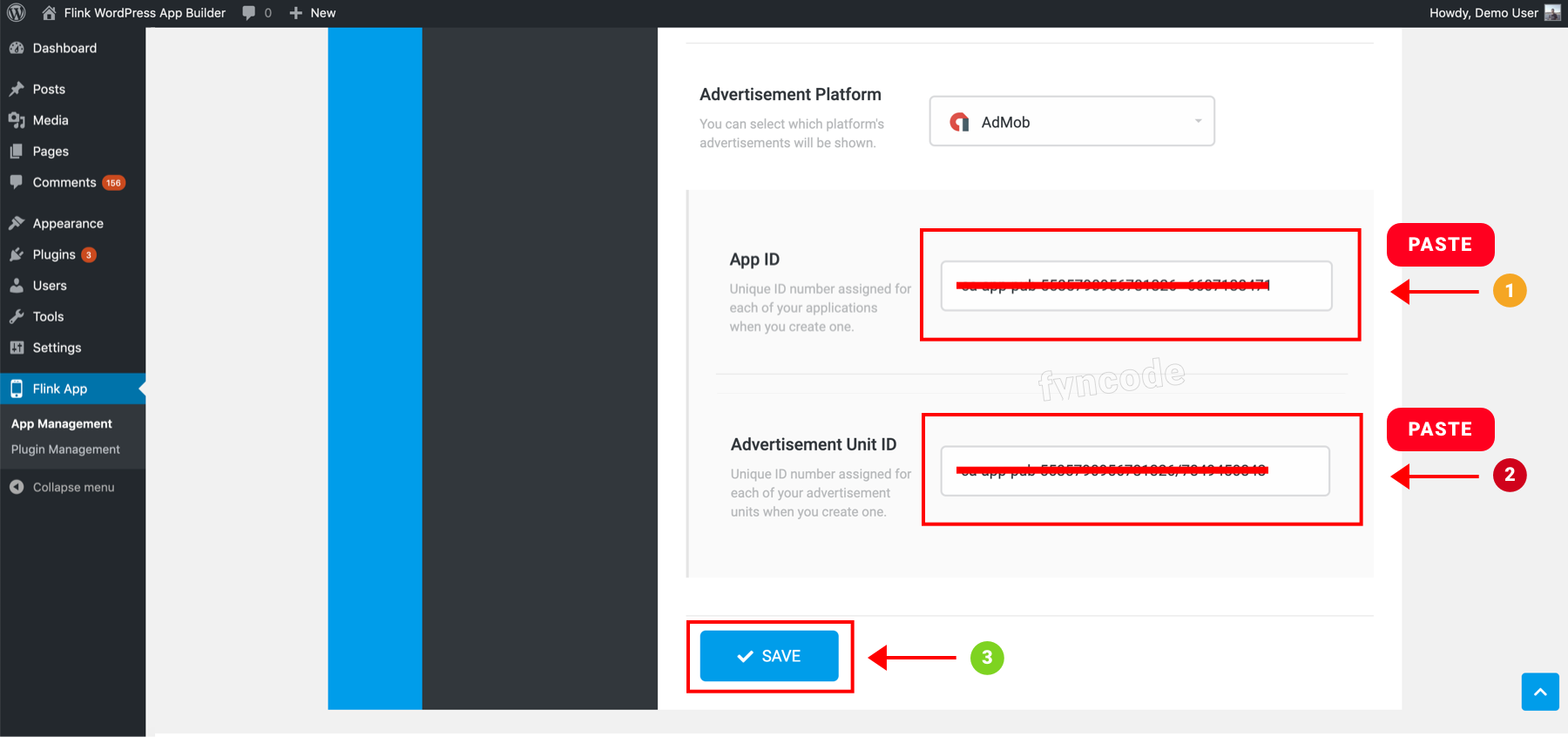
                <![CDATA[<p>AdMob is an advertisement service by Google that provides the chance for mobile app developers to earn money.</p><ol><li>Go to <a href="https://admob.google.com/home/?hl=en" target="_blank" rel="noreferrer noopener">https://admob.google.com/home/?hl=en</a>. If you have a Google account, click <b>“Sign in”</b> button located on top of the page and login. If you don’t have a Google account, click <b>“Sign up”</b> to register first and then login.<br /><img src="https://support-hub--assets.s3.eu-west-2.amazonaws.com/assets/362/images/sVBpvTSpKYWv6HKht0W5i9RQH3Eaz35CVNIT3g74.png" style="width:100%;" alt="sVBpvTSpKYWv6HKht0W5i9RQH3Eaz35CVNIT3g74.png" /></li><li>If you are using AdMob for the first time, you will see the screen below <b>(if you used AdMob in the past, skip this screen)</b>. Enter all necessary information, tick the approval box and click <b>“CREATE ADMOB ACCOUNT”</b>.<br /><img src="https://support-hub--assets.s3.eu-west-2.amazonaws.com/assets/362/images/n5GccEvroPxpHOiRCLxk7hwlomuYcMSt826aFFf3.png" style="width:100%;" alt="n5GccEvroPxpHOiRCLxk7hwlomuYcMSt826aFFf3.png" /></li><li>A confirmation email will be sent to your email address. Click the button in this email to verify your email address. Then, select the options that you see in the screenshot below as you wish and click <b>“CONTINUE TO ADMOB”</b> button.<br /><img src="https://support-hub--assets.s3.eu-west-2.amazonaws.com/assets/362/images/FNVxfQg86eu5KYDGGBg7BSPYfgpdbhErOCSIU2Uk.png" style="width:100%;" alt="FNVxfQg86eu5KYDGGBg7BSPYfgpdbhErOCSIU2Uk.png" /></li></ol><h2>Adding Your App</h2><ol><li>Click <b>“Apps”</b> in the left-side menu.<br /><img src="https://support-hub--assets.s3.eu-west-2.amazonaws.com/assets/362/images/LxLk5ABwykcoxtHNXezNI8bNtK589wWBlTdEEgAI.png" style="width:50%;" alt="LxLk5ABwykcoxtHNXezNI8bNtK589wWBlTdEEgAI.png" /></li><li>Click <b>“ADD YOUR FIRST APP”</b> button. (If you used AdMob before and if there is an app that you previously added, you will see <b>“ADD APP”</b> button instead - in this case, click that button.)<br /><img src="https://support-hub--assets.s3.eu-west-2.amazonaws.com/assets/362/images/fqs5r2n9r5YIn0CcHslotPOtY0yBSmFJhWd5EaN8.png" style="width:100%;" alt="fqs5r2n9r5YIn0CcHslotPOtY0yBSmFJhWd5EaN8.png" /></li><li>If you already published your app in which you will use AdMob advertisements on Play Store, click <b>“YES”</b> button, otherwise click <b>“NO”</b> button.<br /><img src="https://support-hub--assets.s3.eu-west-2.amazonaws.com/assets/362/images/8QSMQM4Fn23Q9LYL61qaPNz4o1z3JEBqxH7fK23h.png" style="width:100%;" alt="8QSMQM4Fn23Q9LYL61qaPNz4o1z3JEBqxH7fK23h.png" /><br /><b>If you clicked “YES” button, </b>search for your app name, find it and click <b>“ADD”</b> button. On the next screen, click <b>“I’LL DO IT LATER”</b> and complete this step.<br /><img src="https://support-hub--assets.s3.eu-west-2.amazonaws.com/assets/362/images/Bwr7Md2Nkmqzwd6AUCKB2RjBEisNa3MYFvMRceP0.png" style="width:100%;" alt="Bwr7Md2Nkmqzwd6AUCKB2RjBEisNa3MYFvMRceP0.png" /><br /><img src="https://support-hub--assets.s3.eu-west-2.amazonaws.com/assets/362/images/Cu7QFNMy11YX5CzWIJvEIChxXVVsEvgdS9joDry5.png" style="width:100%;" alt="Cu7QFNMy11YX5CzWIJvEIChxXVVsEvgdS9joDry5.png" /><br /><b>If you clicked “NO” button,</b> enter your app’s name, select <b>“Android”</b> as platform and click <b>“ADD”</b> button. On the next screen, click <b>“I’LL DO IT LATER”</b> and complete this step.<br /><img src="https://support-hub--assets.s3.eu-west-2.amazonaws.com/assets/362/images/6LOcOkSVUUonPOKLlI3lGX3UQ9ByyRrTdvQTiEG3.png" style="width:100%;" alt="6LOcOkSVUUonPOKLlI3lGX3UQ9ByyRrTdvQTiEG3.png" /><br /><img src="https://support-hub--assets.s3.eu-west-2.amazonaws.com/assets/362/images/4AgVDhCSBX2uDf6DNHOuXXCXZBqQmtWJ0TzHbX4X.png" style="width:100%;" alt="4AgVDhCSBX2uDf6DNHOuXXCXZBqQmtWJ0TzHbX4X.png" /><br /><b>*** IMPORTANT: ***<br />If you clicked “NO” button, you have to synchronize your app in AdMob and your app on Play Store when you published your app on Play Store. To do so, follow these steps:</b><br /><br />1. Click <b>“Apps”</b> in the side menu and select your app. From the submenu, click <b>“App settings”</b>.<br /><br />In the <b>“App name &amp; store link”</b> section, click the editing button in the section where you see <b>“Not linked to Google Play”</b> notification.<img src="https://support-hub--assets.s3.eu-west-2.amazonaws.com/assets/362/images/IB497i0sDiHk6QU29Z11hLe6S82k42cSVkzh4sKD.png" alt="IB497i0sDiHk6QU29Z11hLe6S82k42cSVkzh4sKD.png" style="width:100%;" />2. Click <b>“LINK YOUR APP WITH GOOGLE PLAY”</b> button.<img src="https://support-hub--assets.s3.eu-west-2.amazonaws.com/assets/362/images/fZX7thLi4Z8EgpIPyIQhPUHIklhkDdcdocQffAjZ.png" alt="fZX7thLi4Z8EgpIPyIQhPUHIklhkDdcdocQffAjZ.png" style="width:100%;" />3. Search for your app’s name or package name, find your app and click <b>“SELECT”</b>.<img src="https://support-hub--assets.s3.eu-west-2.amazonaws.com/assets/362/images/0g7dk9X7d3gOsQFqh0VWtGm7NJsTV8nvvuFQRdd3.png" alt="0g7dk9X7d3gOsQFqh0VWtGm7NJsTV8nvvuFQRdd3.png" style="width:100%;" />4. Complete the process by clicking <b>“LINK APP”</b> button.<img src="https://support-hub--assets.s3.eu-west-2.amazonaws.com/assets/362/images/ni8ddziKLmnpxVZcTCeN08WqsivWfQg9cKSYJAsx.png" alt="ni8ddziKLmnpxVZcTCeN08WqsivWfQg9cKSYJAsx.png" style="width:100%;" /></li></ol><h2>Creating Ad Unit</h2><ol><li>Click <b>“Apps”</b> in the side menu and select your app.<br /><img src="https://support-hub--assets.s3.eu-west-2.amazonaws.com/assets/362/images/BPRQeCK2BoirU8UEMPQQXwllMLlvGsVIfs0XTh58.png" style="width:50%;" alt="BPRQeCK2BoirU8UEMPQQXwllMLlvGsVIfs0XTh58.png" /></li><li>Click <b>“Ad units”</b>.<br /><img src="https://support-hub--assets.s3.eu-west-2.amazonaws.com/assets/362/images/auO9uEvOrri7a85ZwzqEkZ5AUfBcLyhcpTbTHG8y.png" style="width:50%;" alt="auO9uEvOrri7a85ZwzqEkZ5AUfBcLyhcpTbTHG8y.png" /></li><li>Click <b>“GET STARTED”</b> button.<br /><img src="https://support-hub--assets.s3.eu-west-2.amazonaws.com/assets/362/images/WsPC4CJMijr4oYaUn2WcYNaAhzataxSUS27Gy7PN.png" style="width:100%;" alt="WsPC4CJMijr4oYaUn2WcYNaAhzataxSUS27Gy7PN.png" /></li><li>In order to select the advertisement type that you want to create, click <b>“SELECT”</b> button in the respective box.<br />- For the “Bottom Banner” area of your app, you should choose <b>“Banner”</b> and for the “Native Ad” area of your app, you should select <b>“Native advanced”</b> option.<br /><img src="https://support-hub--assets.s3.eu-west-2.amazonaws.com/assets/362/images/csznPu4JCS7sFSpfeA2CrWazPFI5zdQaUt8gw41u.png" style="width:100%;" alt="csznPu4JCS7sFSpfeA2CrWazPFI5zdQaUt8gw41u.png" /></li><li>Define a name for the ad unit that you are creating and enter it to the <b>“Ad unit bame”</b> field (example: Flink App - Bottom Banner).<br /><br />Click <b>“CREATE AD UNIT”</b> button and finish ad unit creating process.<br /><img src="https://support-hub--assets.s3.eu-west-2.amazonaws.com/assets/362/images/zCH4yd49dWhM6t5PLASsH6E8oBy4Ri4Gkdq8HcrK.png" style="width:100%;" alt="zCH4yd49dWhM6t5PLASsH6E8oBy4Ri4Gkdq8HcrK.png" /></li><li>Note the codes in <b>“........app ID:”</b> and <b>“.......unit ID:”</b> sections down and click <b>“DONE” </b>button.<br /><img src="https://support-hub--assets.s3.eu-west-2.amazonaws.com/assets/362/images/52i9yT3MZkSmeQLHPV0iQDdekUPfGbtpIqeqiroD.png" style="width:100%;" alt="52i9yT3MZkSmeQLHPV0iQDdekUPfGbtpIqeqiroD.png" /></li><li>Go to your Wordpress Admin Dashboard and in the side menu, click “<b>Flink App”</b> to open the page for Flink Wordpress App Builder.<br /><br />1. Find the <b>“Ad Management”</b> tab on the opened page and click.<br />2. Click the ad type, of which data you want to update (bottom banner, native ad etc.)<br />3. Enter the <b>“App ID”</b> and <b>“Advertisement Unit ID”</b> values that you previously noted down to the respective fields in <b>“Advertisement Platform”</b> section (while AdMob is selected).<br />4. Click <b>“SAVE”</b> button.<br /><img src="https://support-hub--assets.s3.eu-west-2.amazonaws.com/assets/362/images/xhTSdI4UOehHcgQ3MSfuHff9EDcFwf0FXd8Kdc47.png" style="width:100%;" alt="xhTSdI4UOehHcgQ3MSfuHff9EDcFwf0FXd8Kdc47.png" /></li></ol><p><br /></p><table class="table table-bordered"><tr><td><b>
<span>← </span>Previous Section</b><br /></td><td><b>Next Section <span>→</span></b></td></tr><tr><td><a href="https://fyncode.support-hub.io/articles/step-2-creating-firebase-project-1333">Step 2 - Creating Firebase Project</a></td><td><a href="https://fyncode.support-hub.io/articles/step-4-integrate-facebook-audience-network-advertisements-1347">Step 4 - Integrate Facebook Audience Network Advertisements</a></td></tr></table>]]>
            </summary>
                                    <updated>2022-12-17T18:55:13+00:00</updated>
        </entry>
            <entry>
            <title><![CDATA[Step 4 - Integrate Facebook Audience Network Advertisements]]></title>
            <link rel="alternate" href="https://fyncode.support-hub.io/articles/step-4-integrate-facebook-audience-network-advertisements-1347" />
            <id>https://fyncode.support-hub.io/1347</id>
            <author>
                <name><![CDATA[Fyncode Tech]]></name>
            </author>
            <summary type="html">
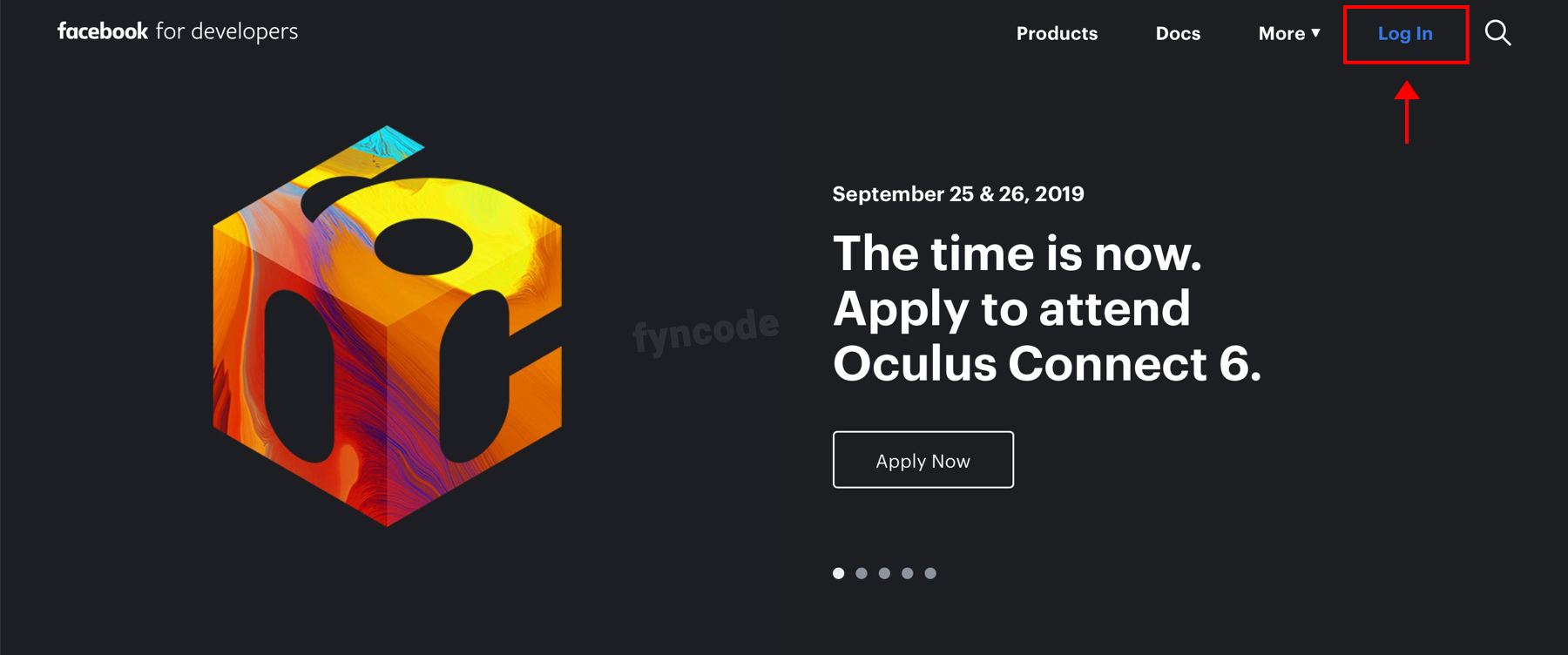
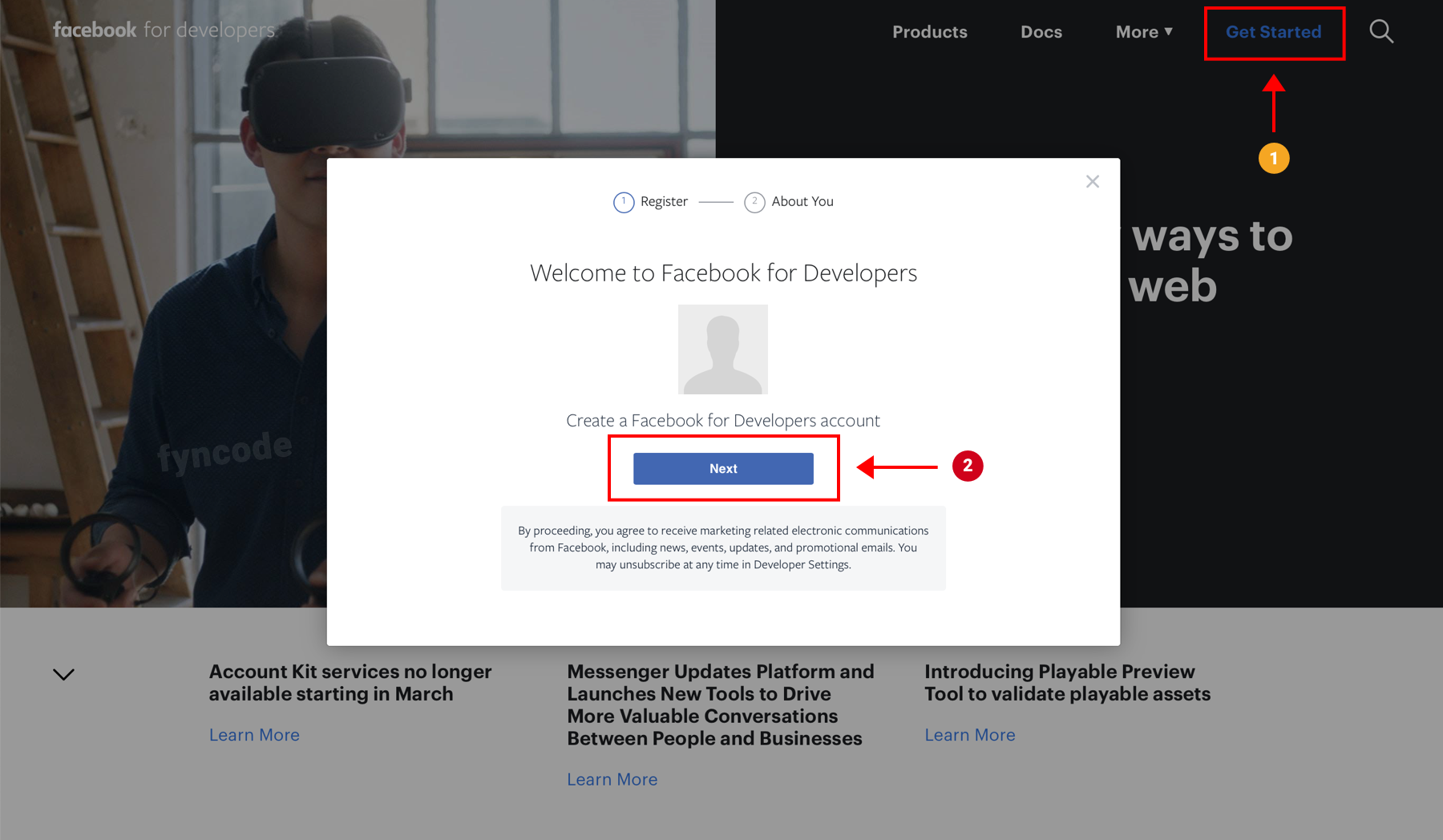
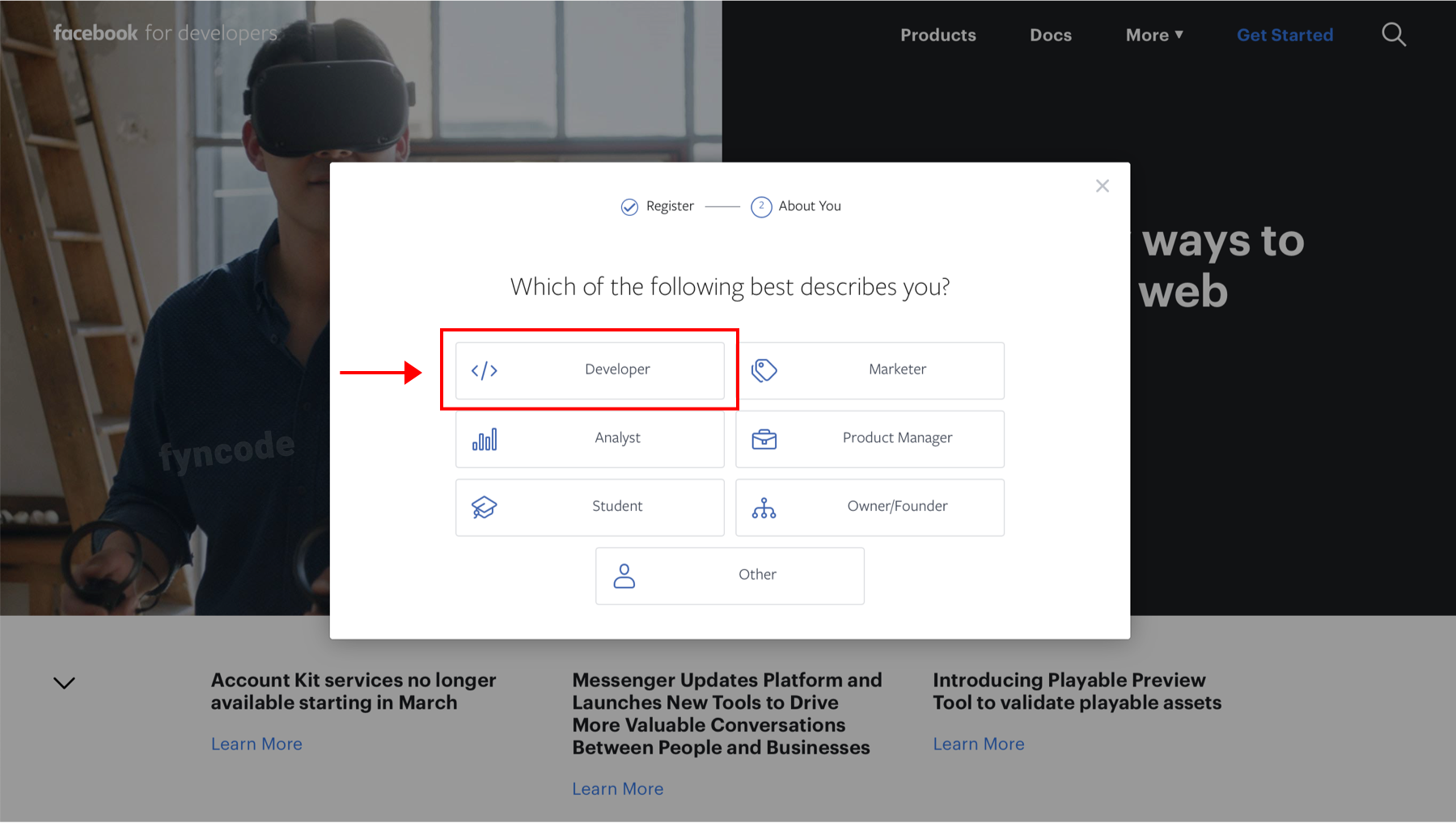
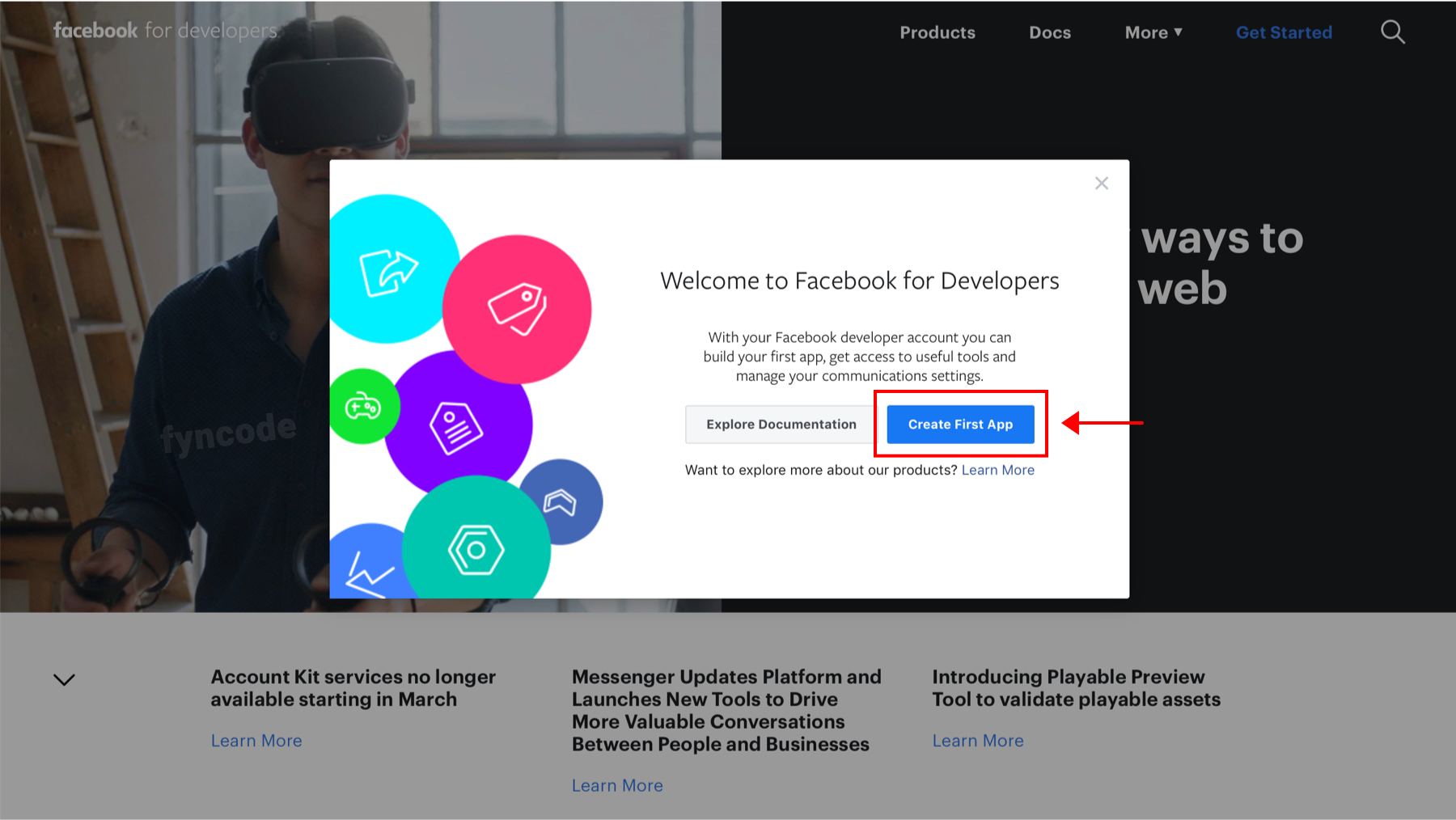
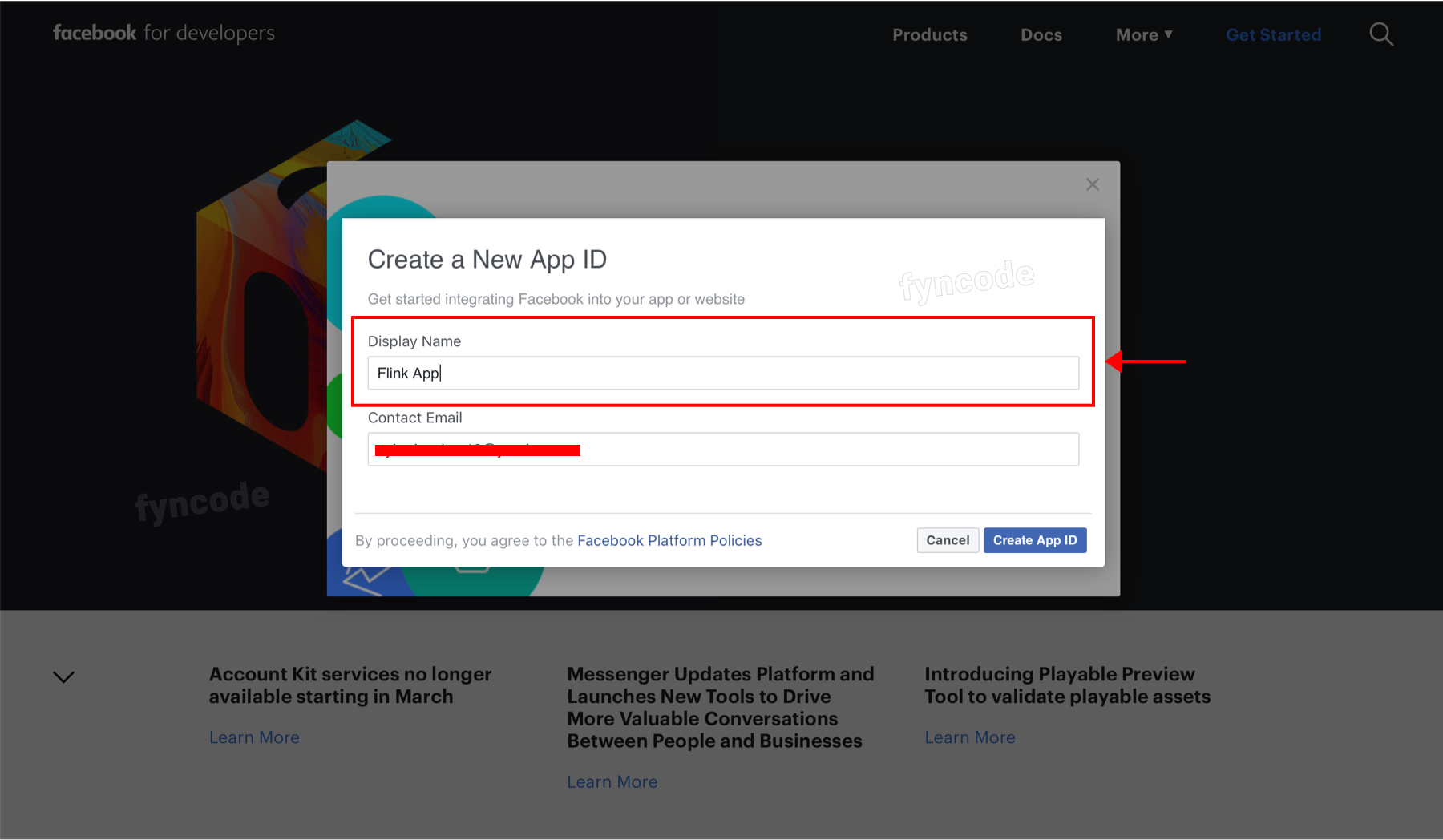
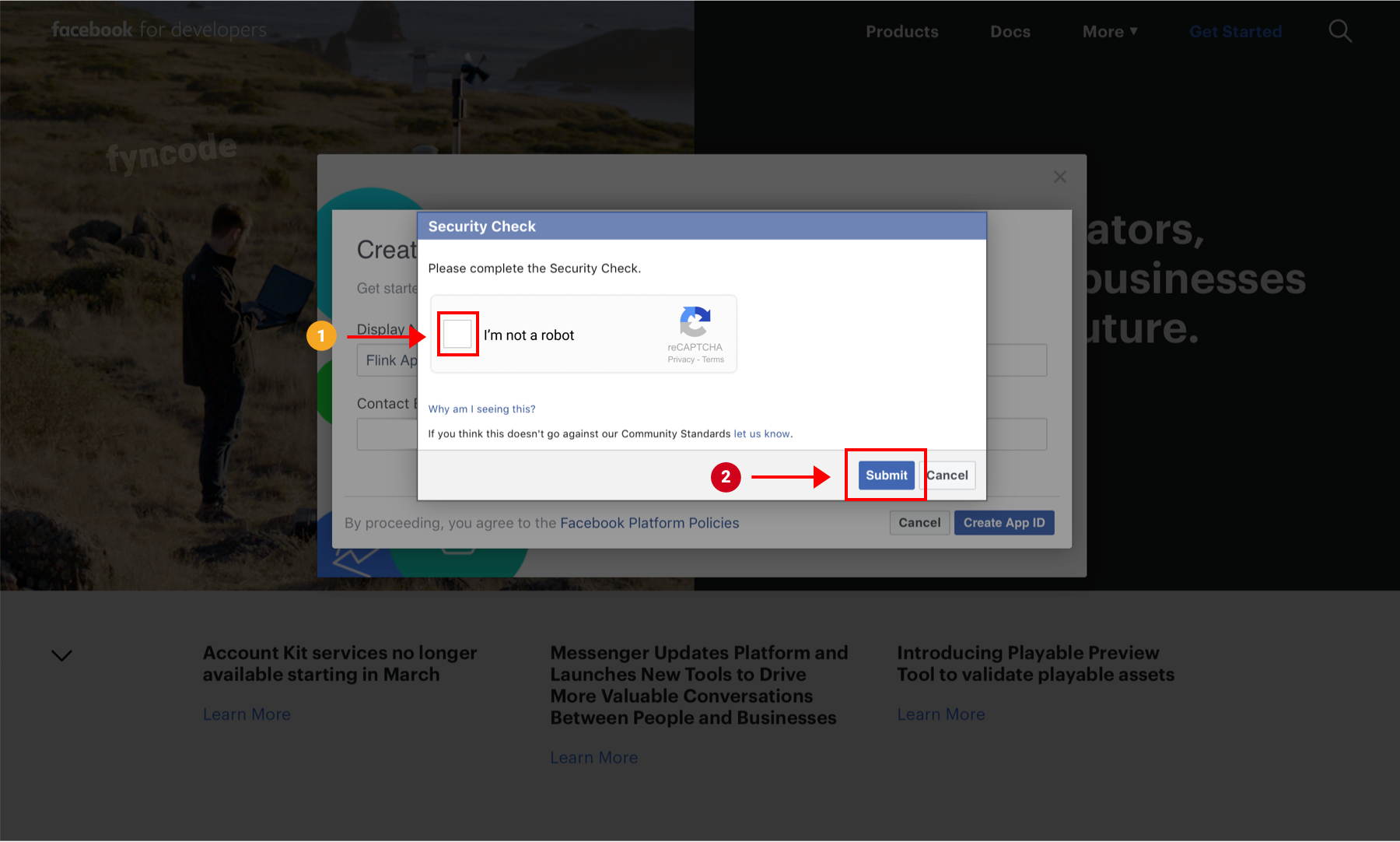
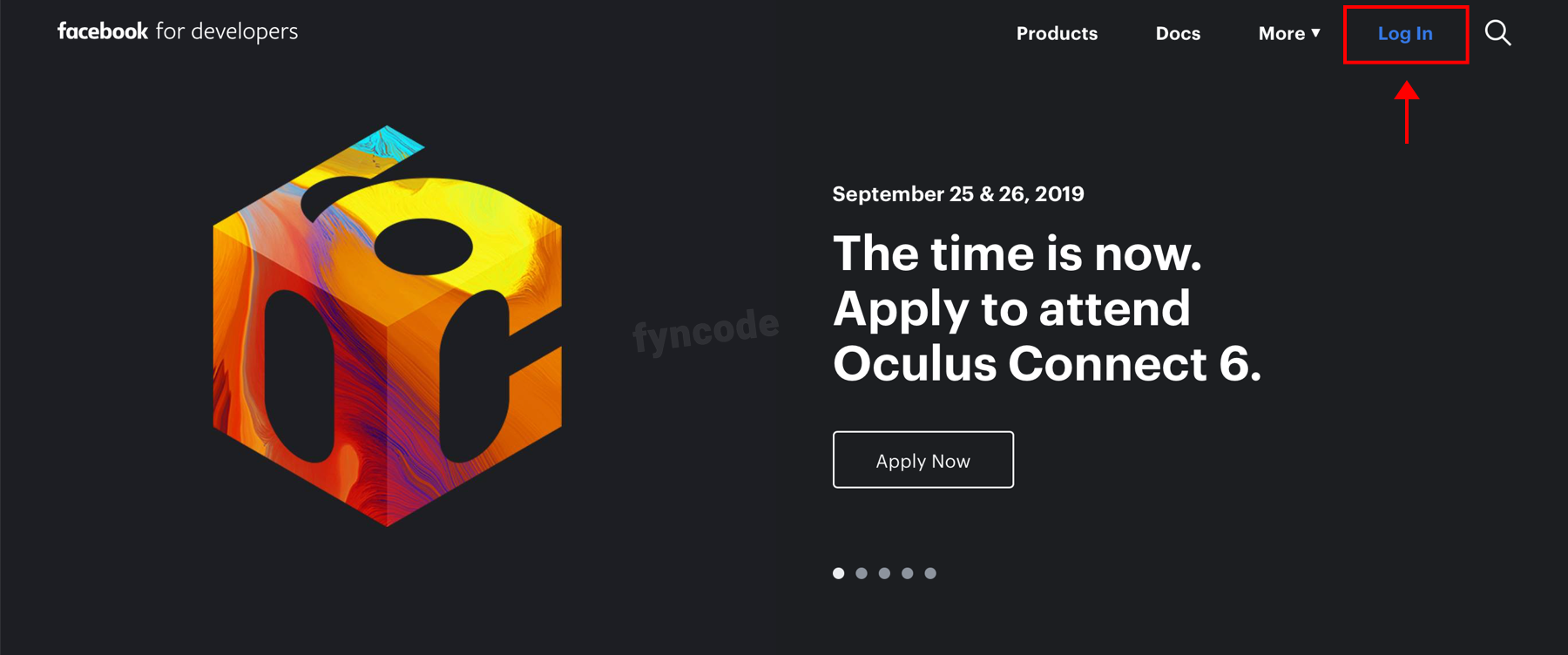
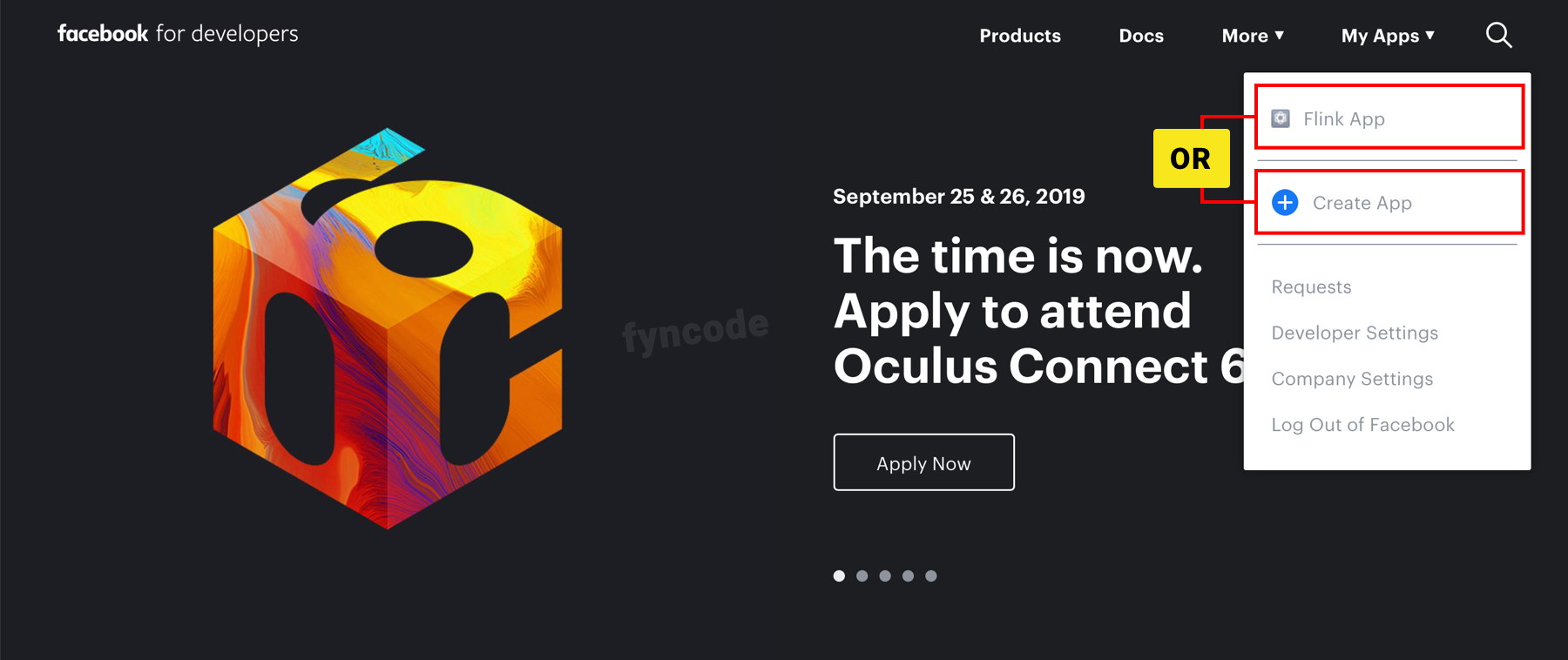
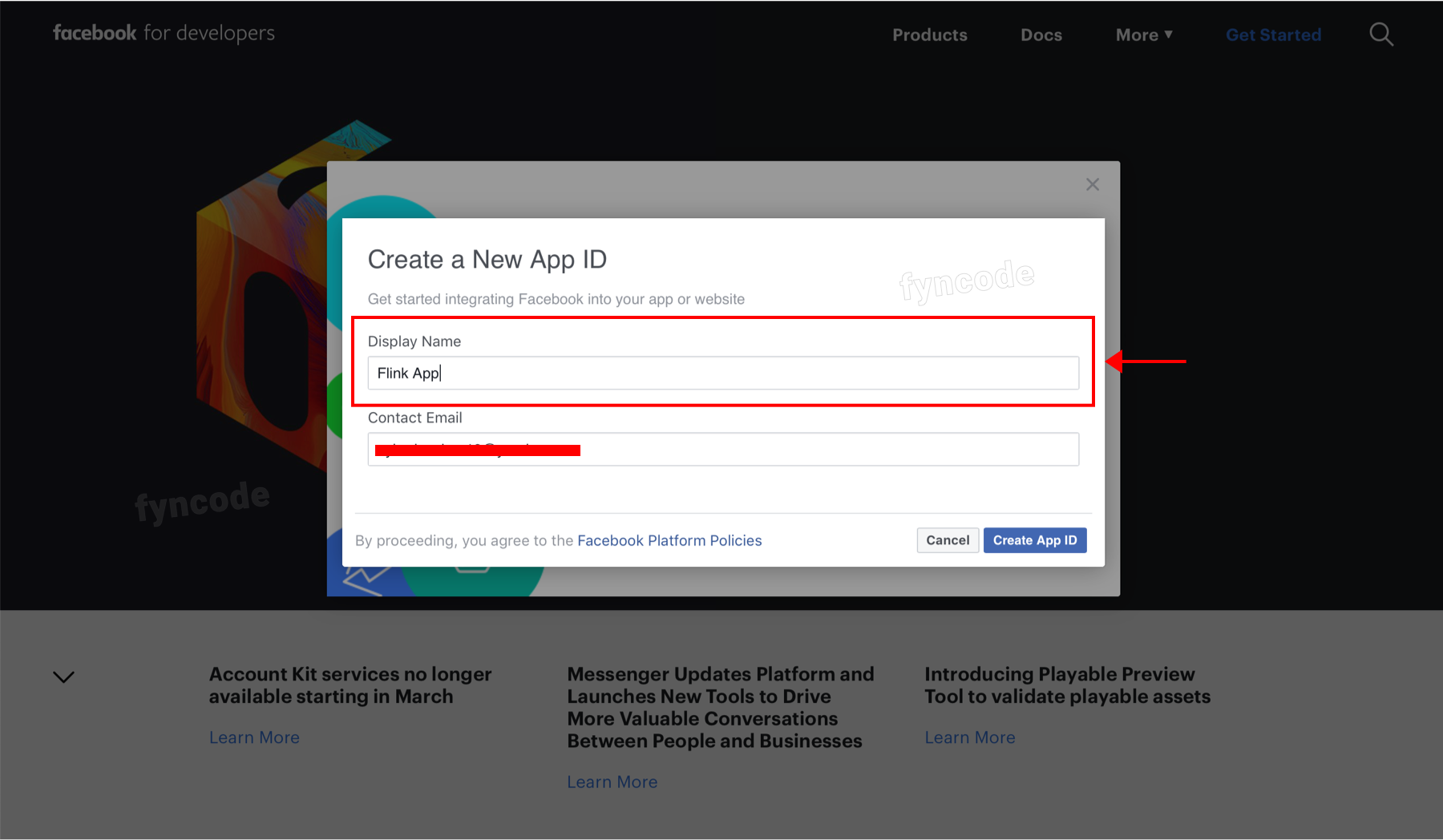
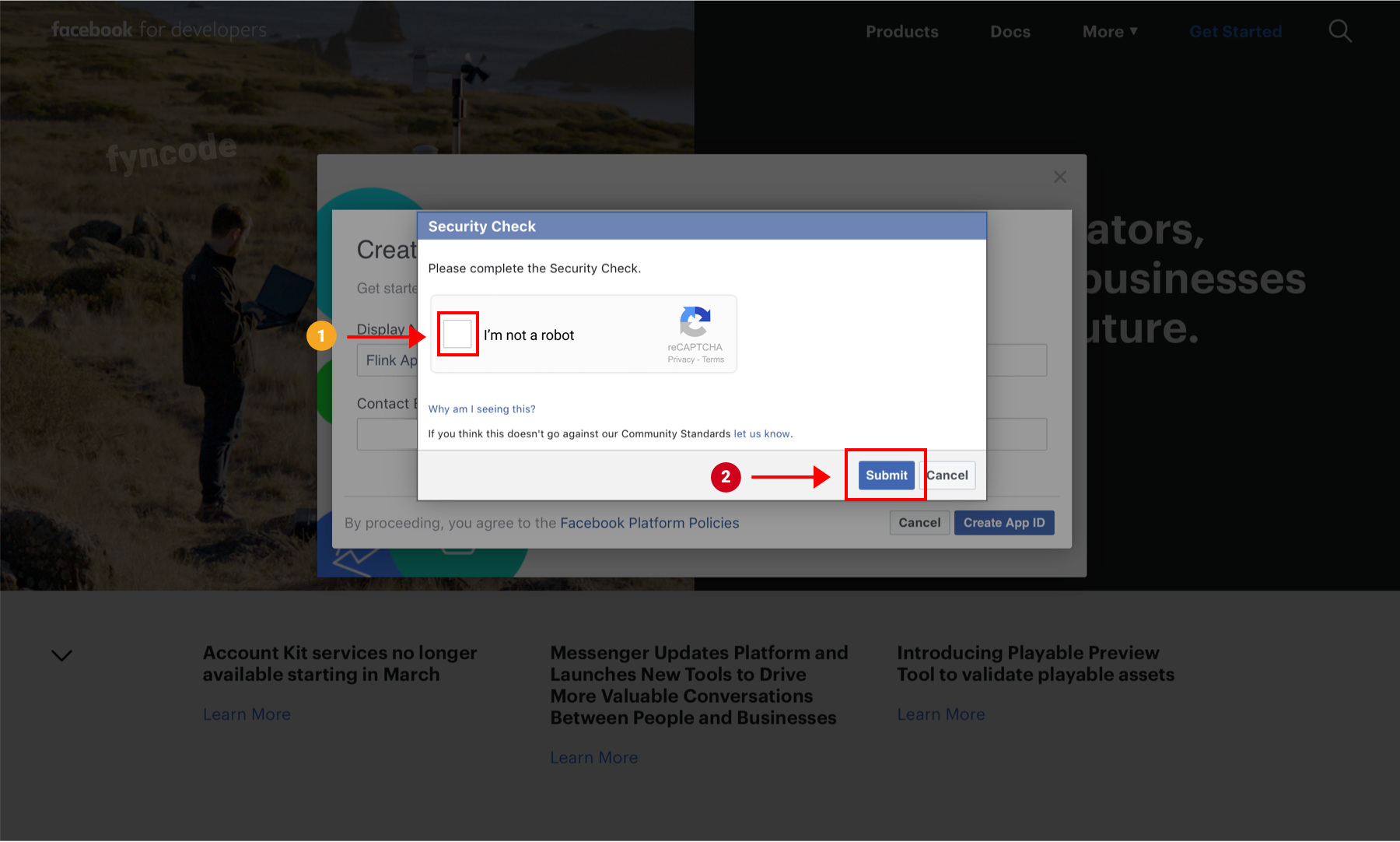
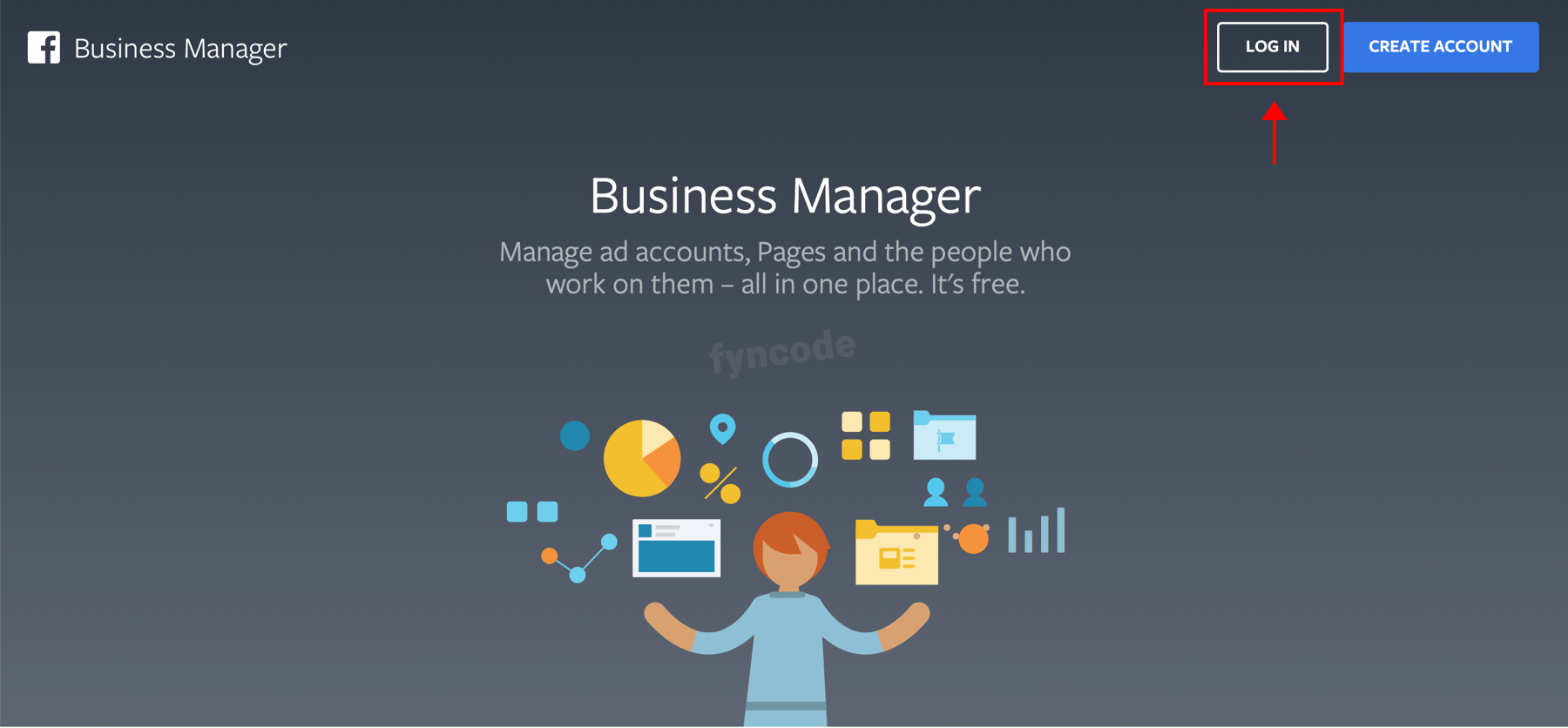
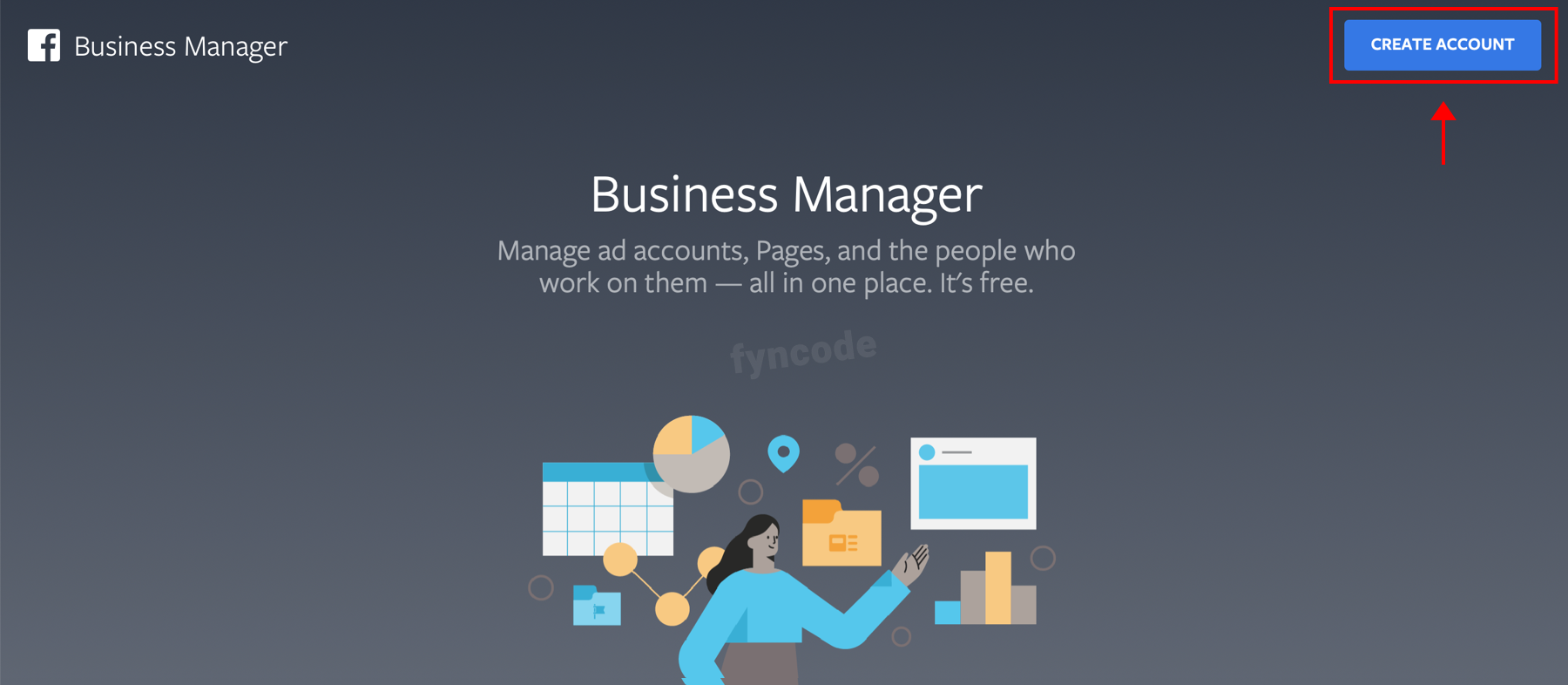
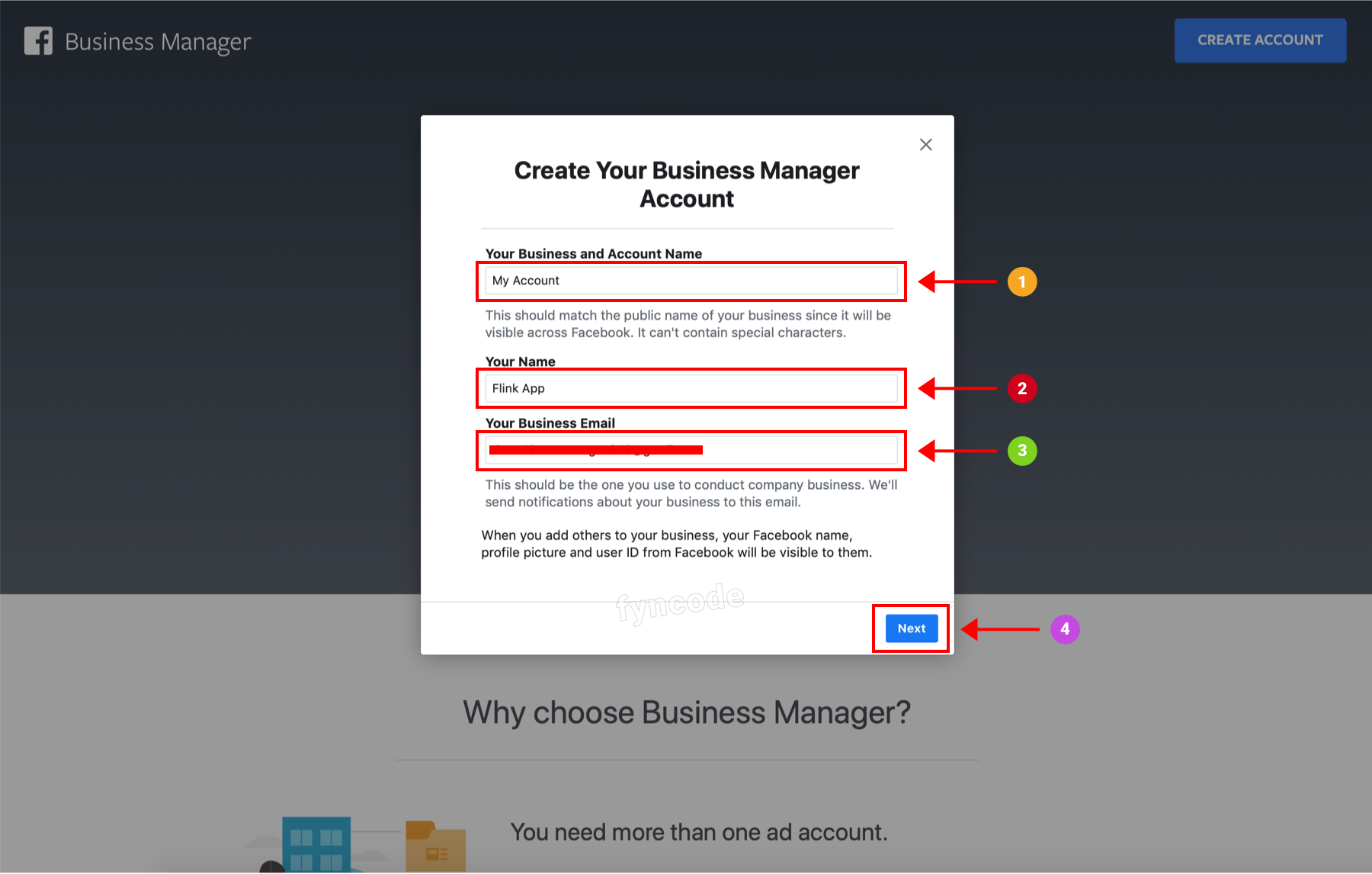
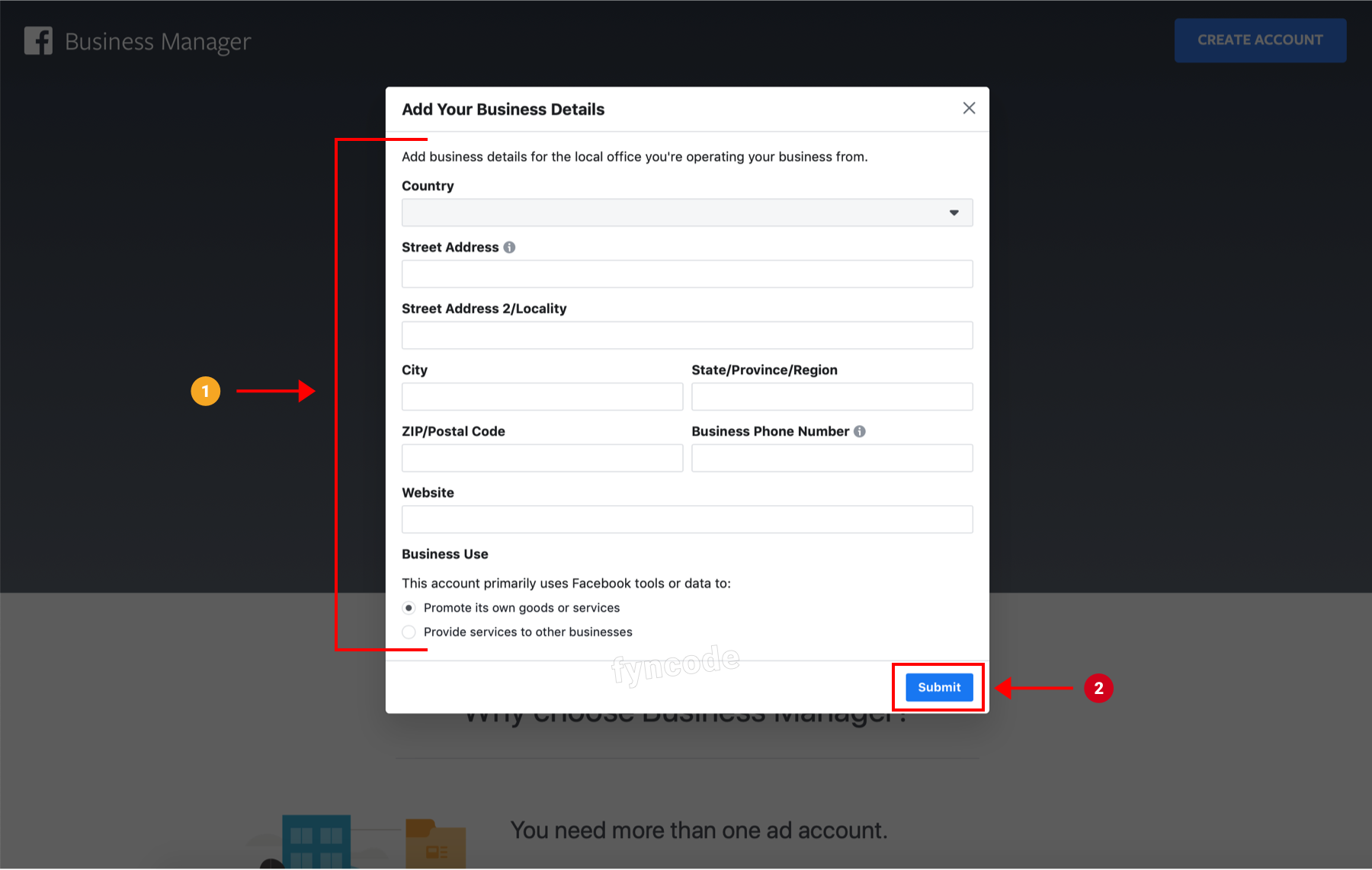
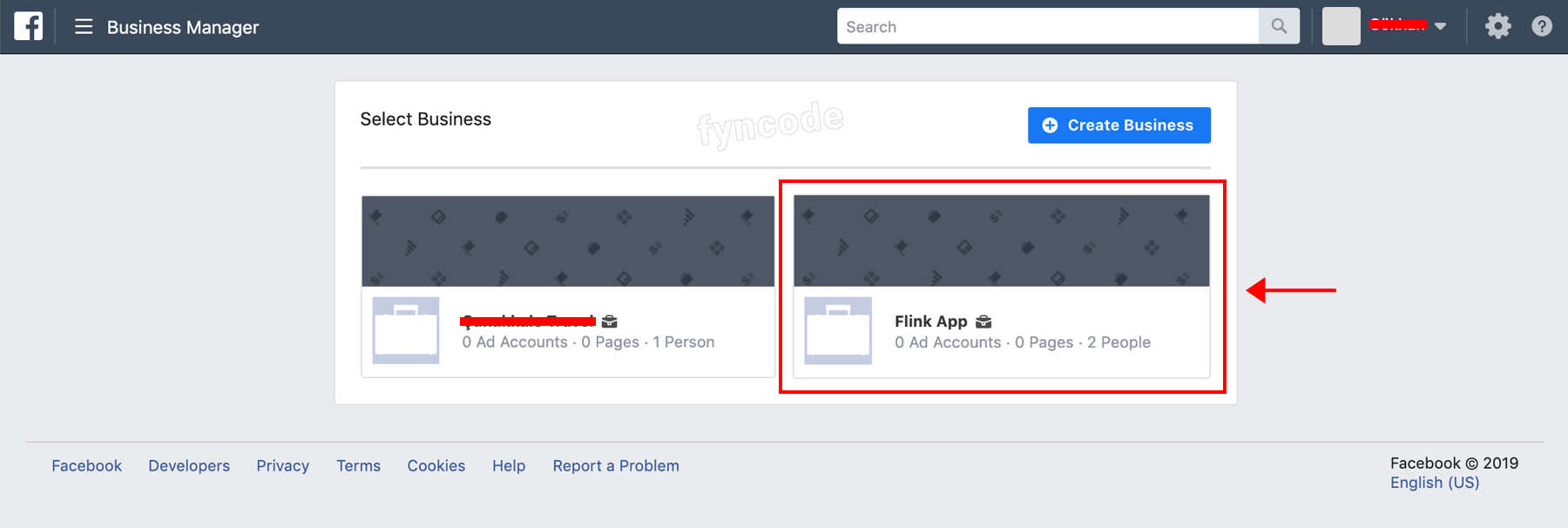
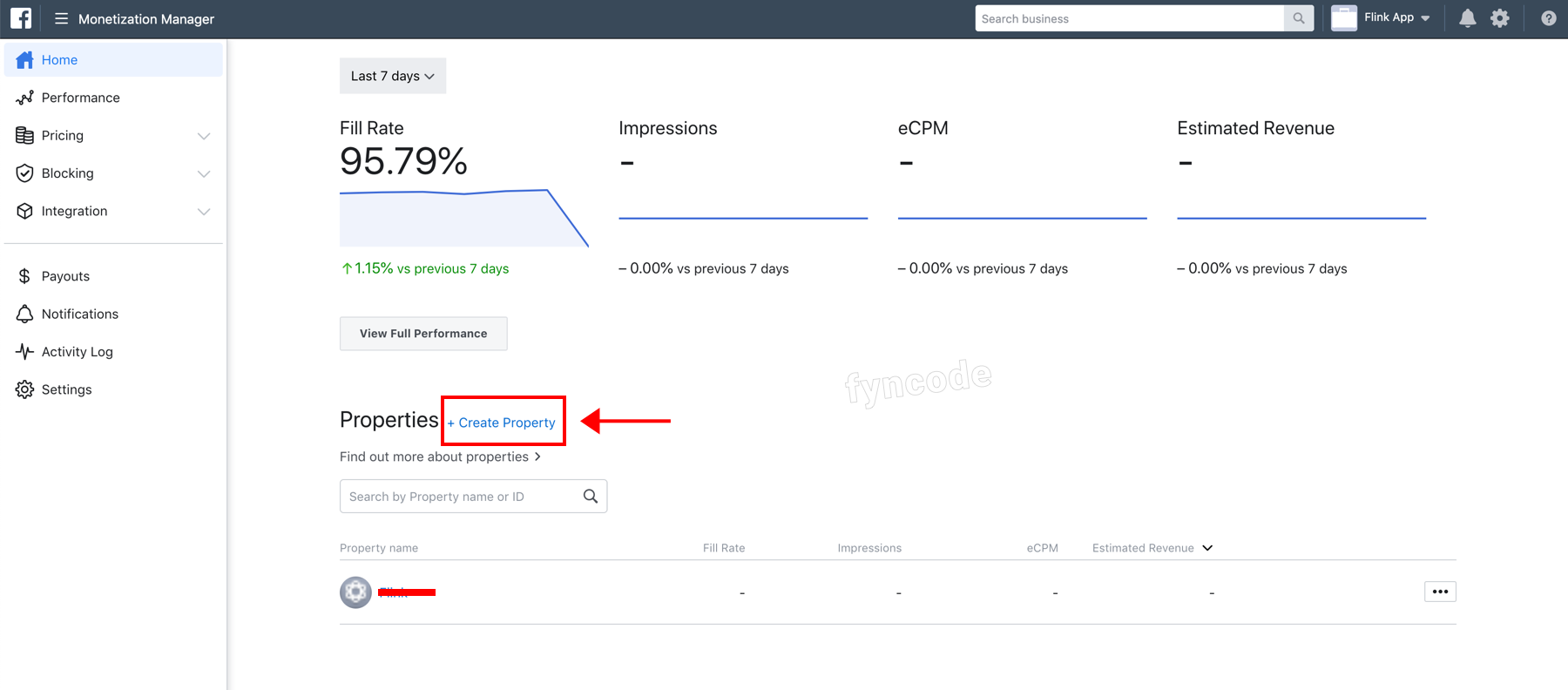
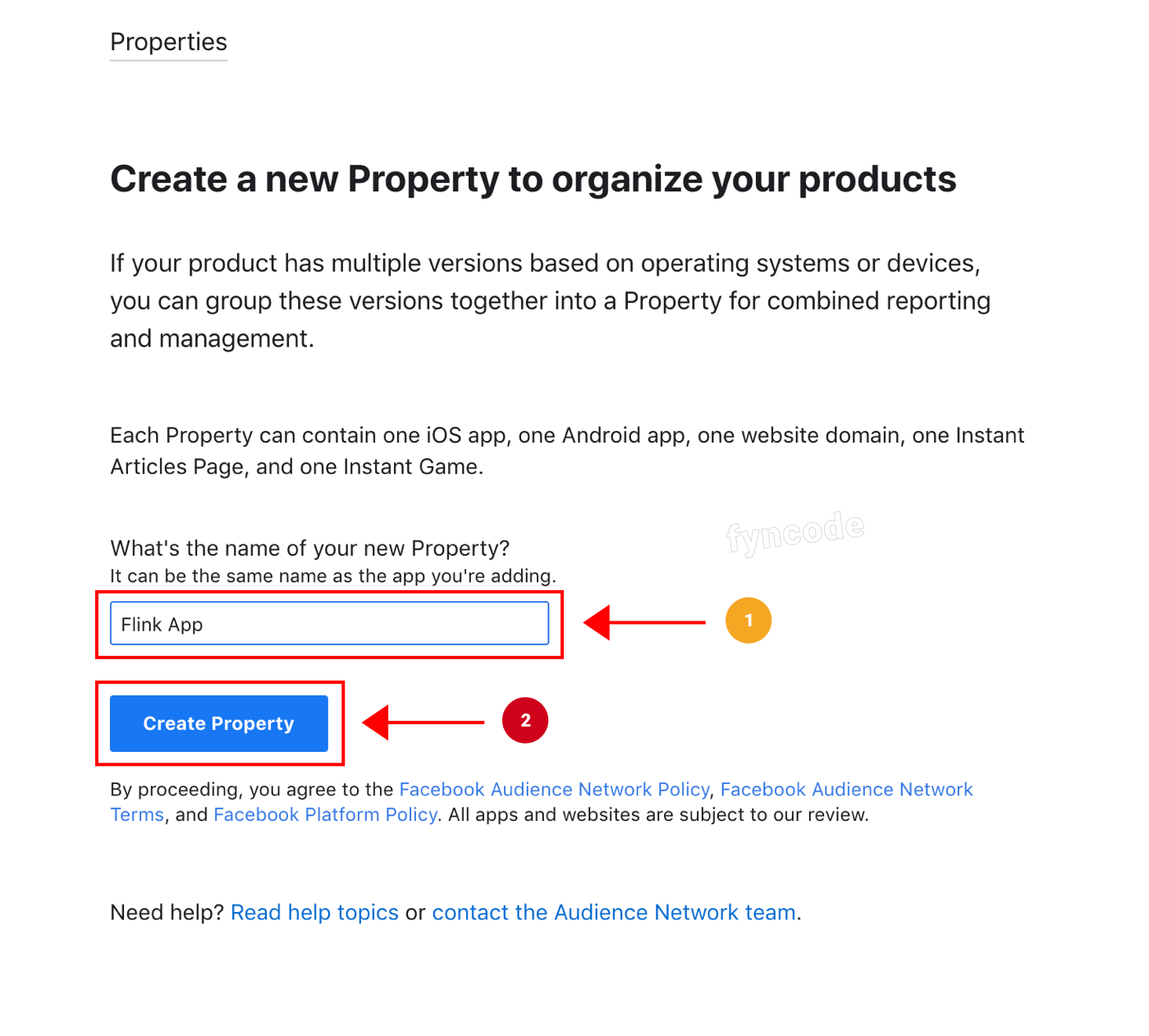
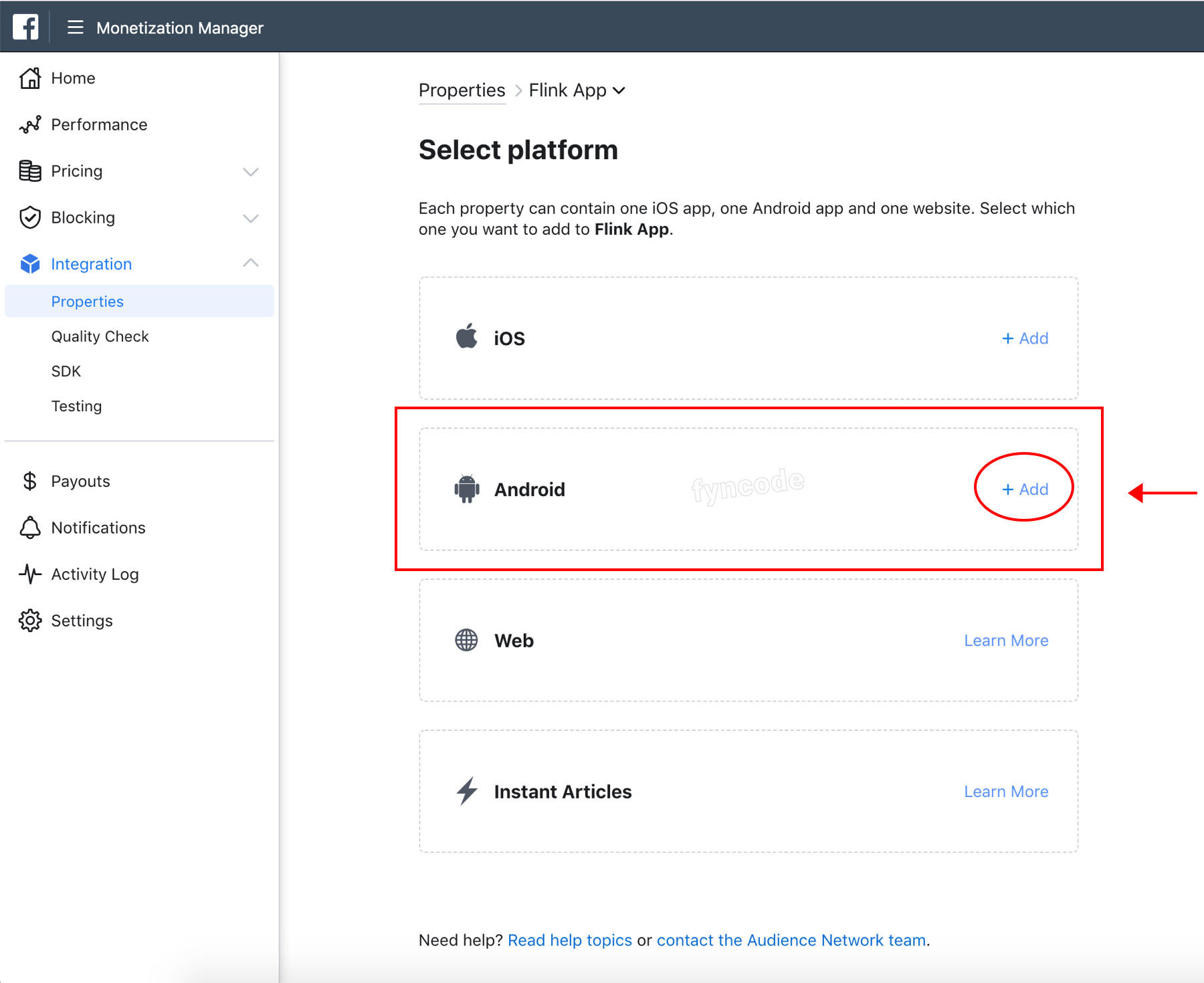
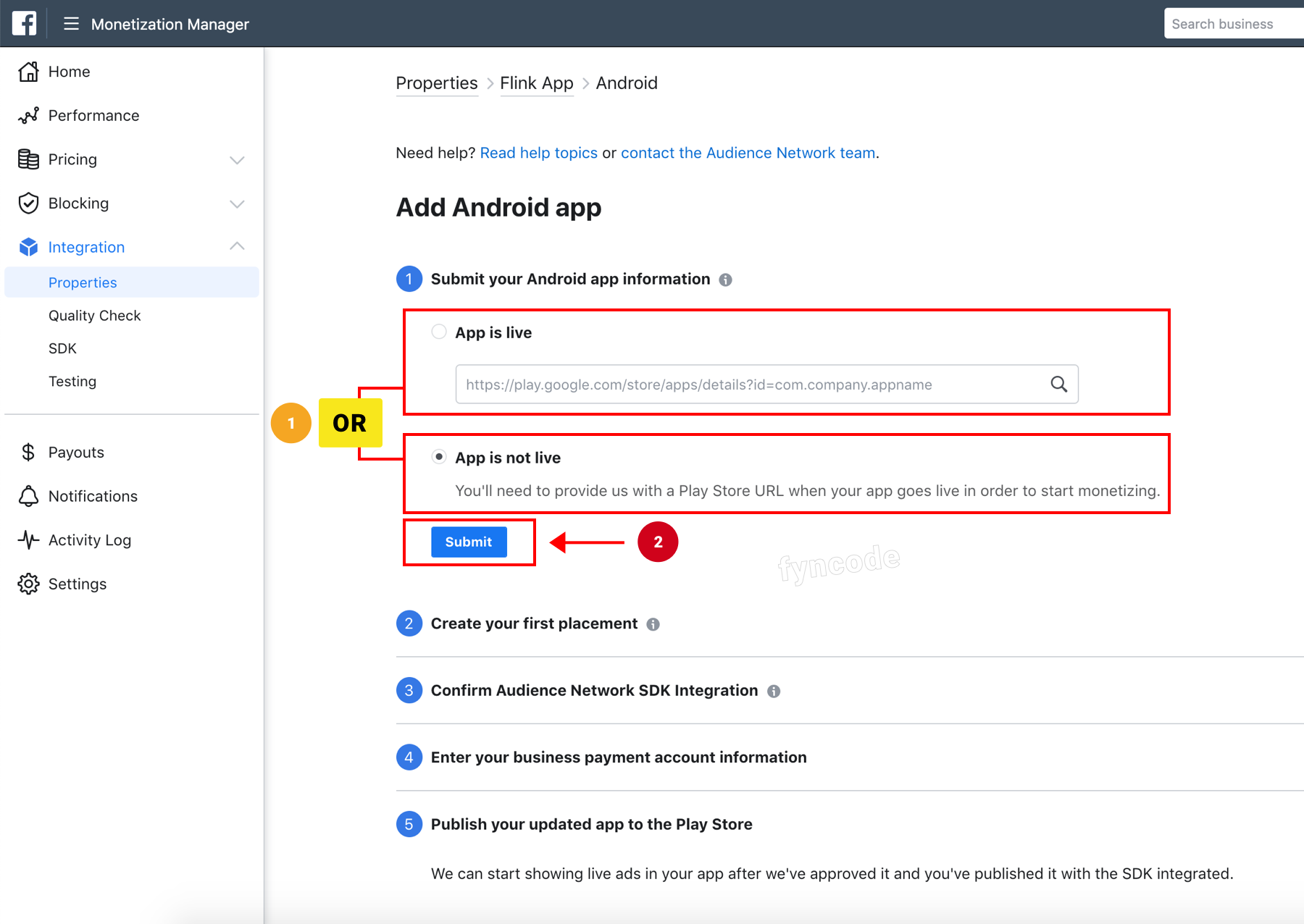
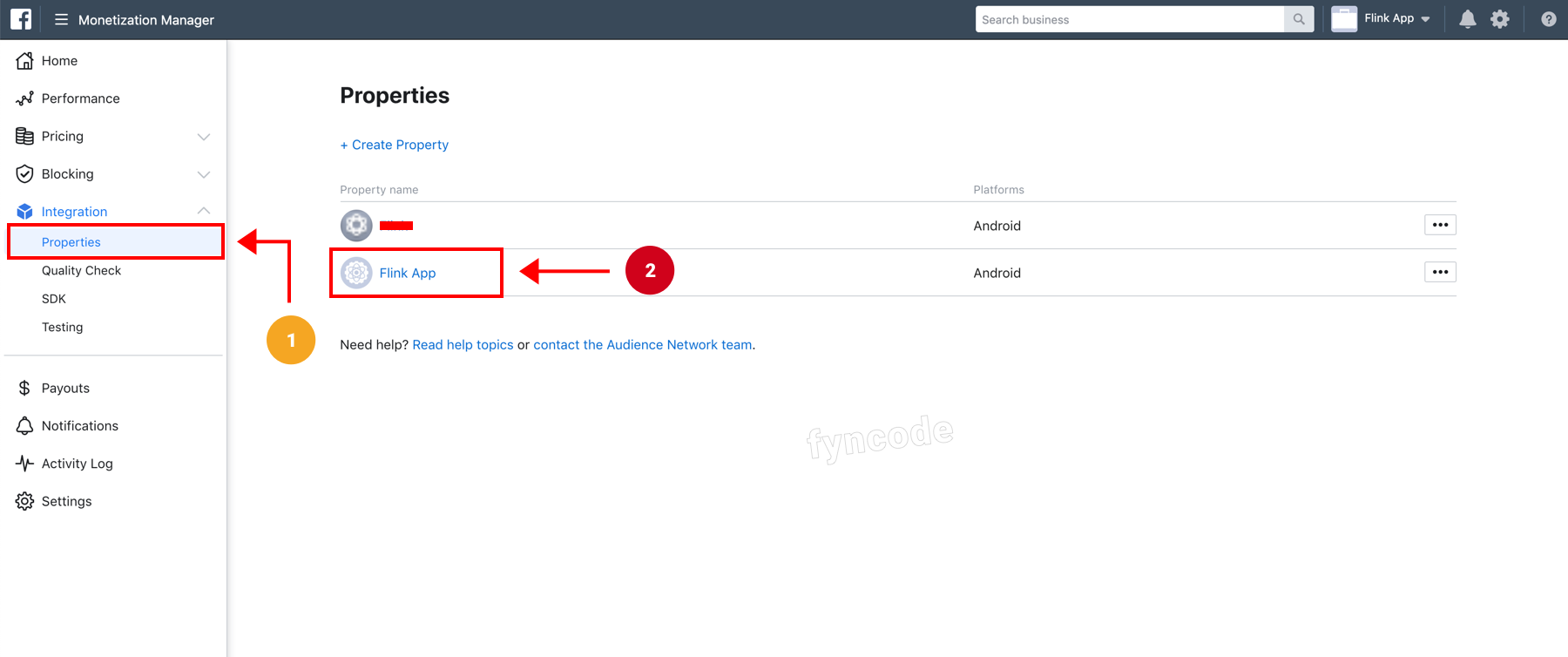
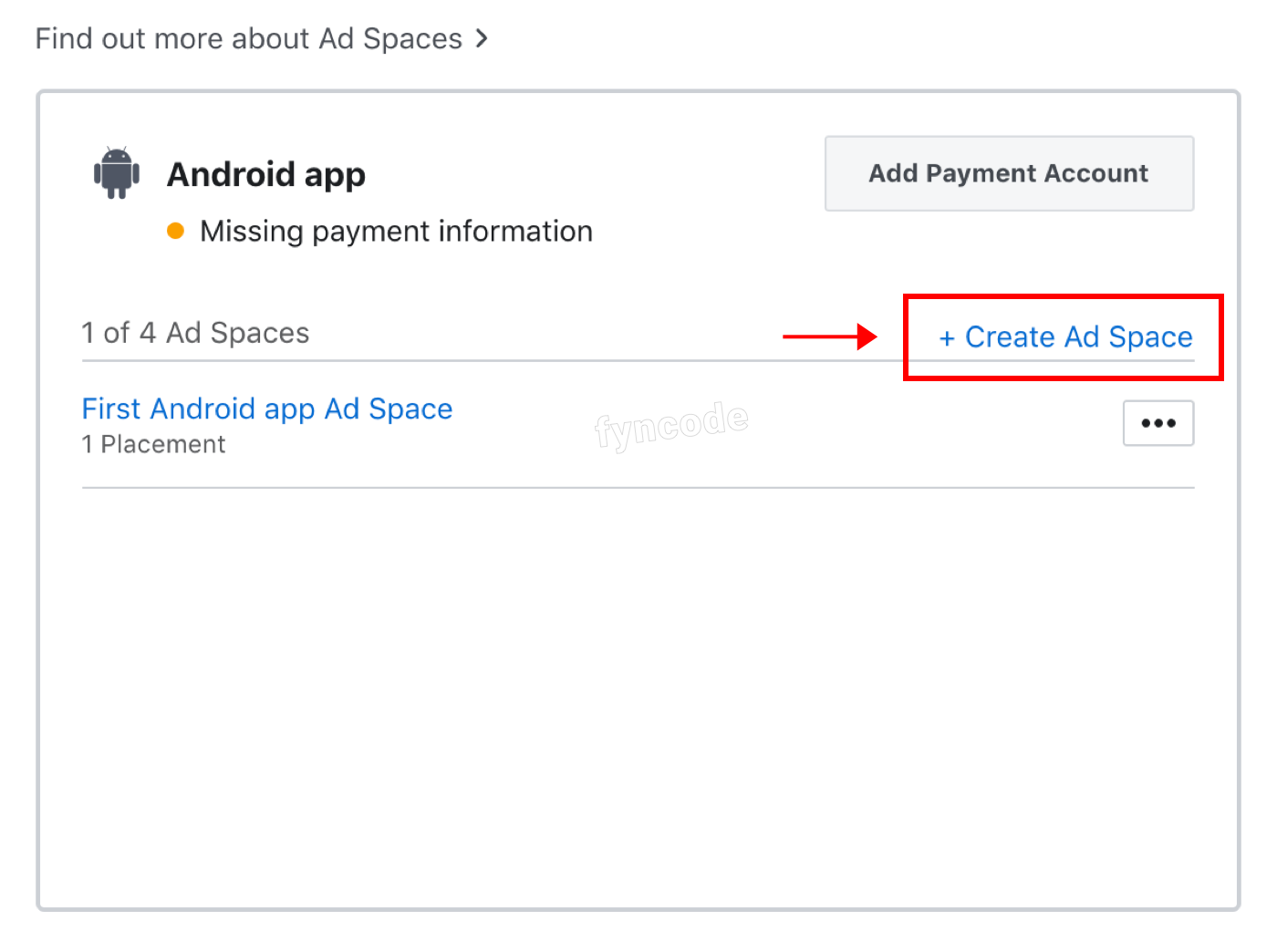
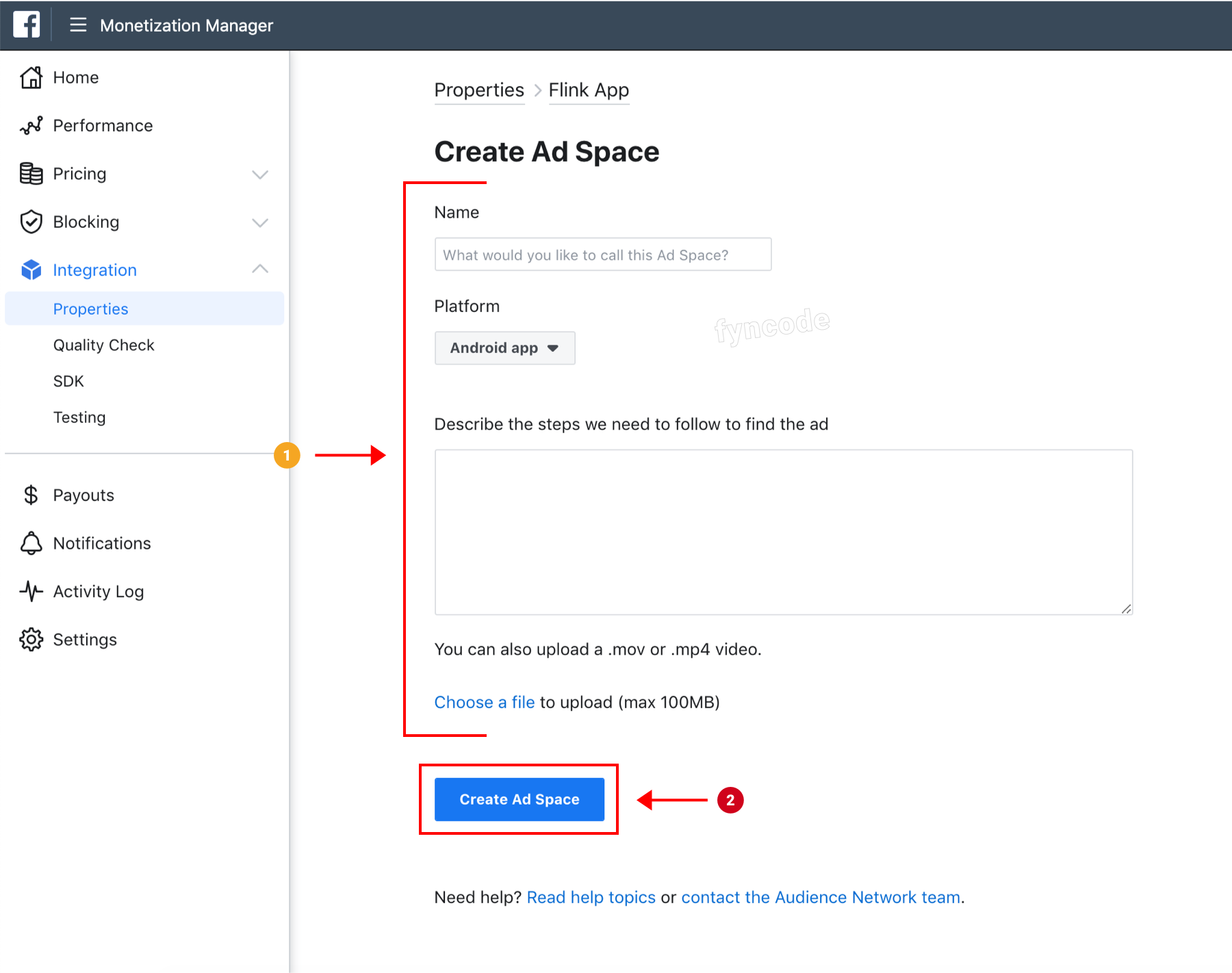
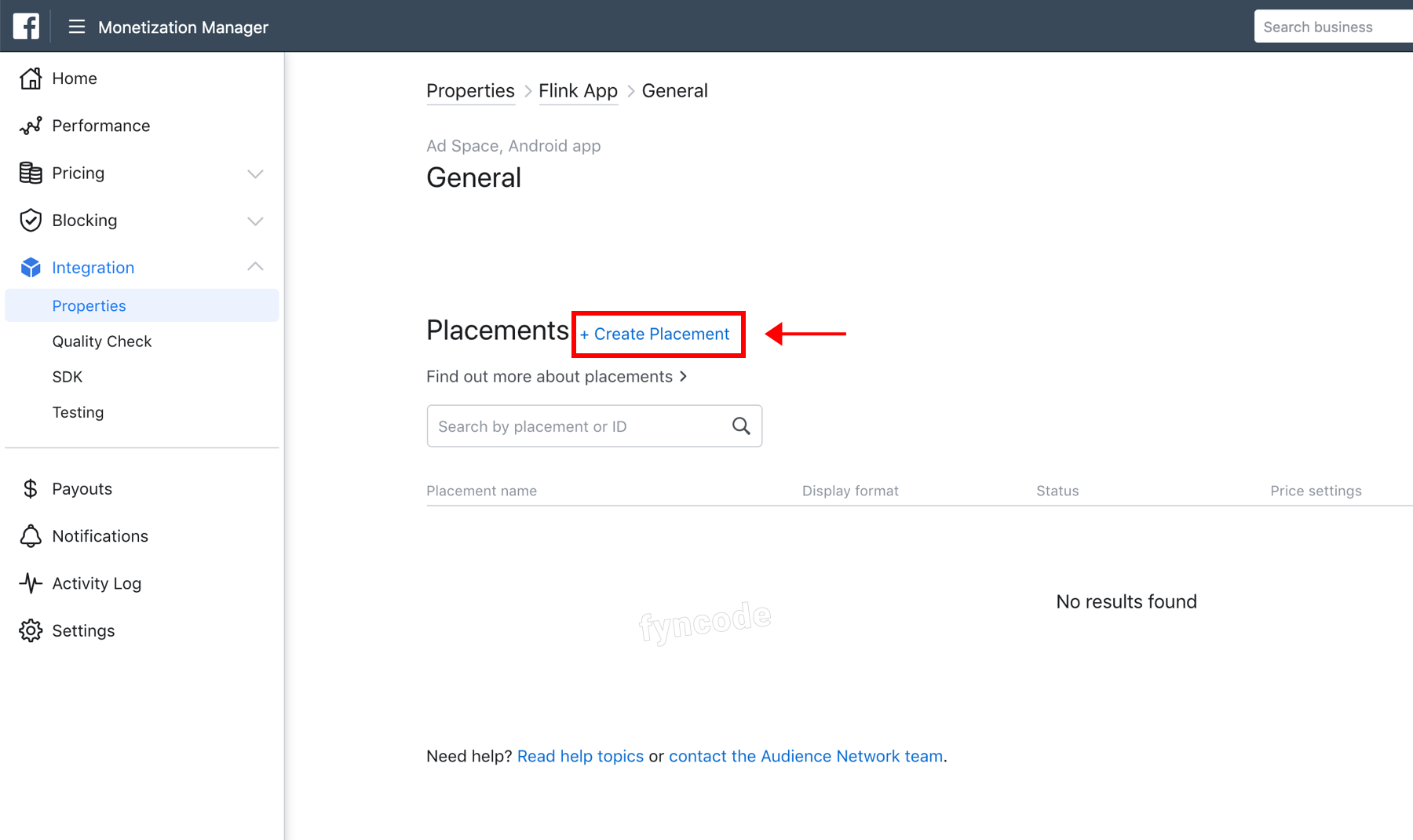
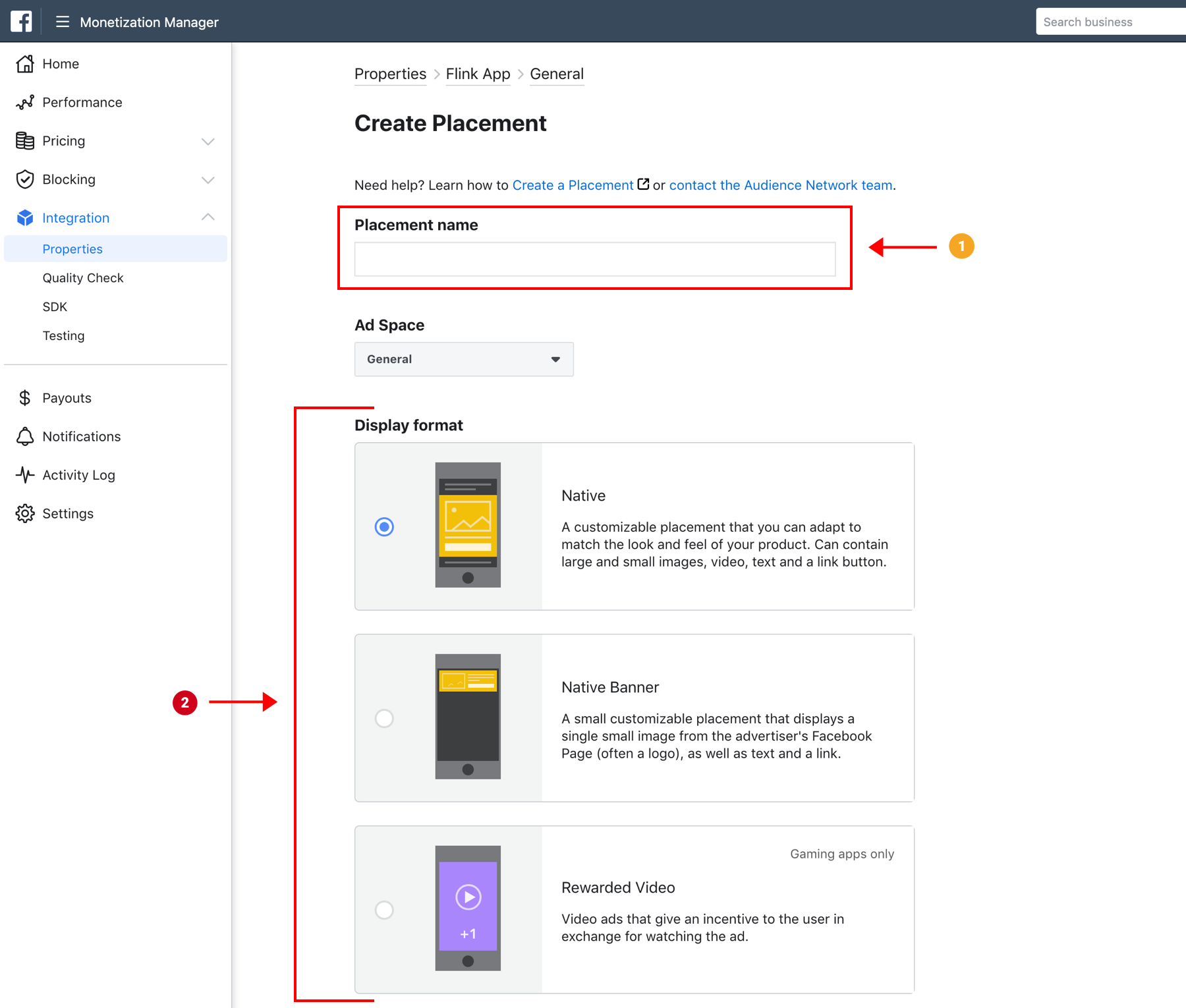
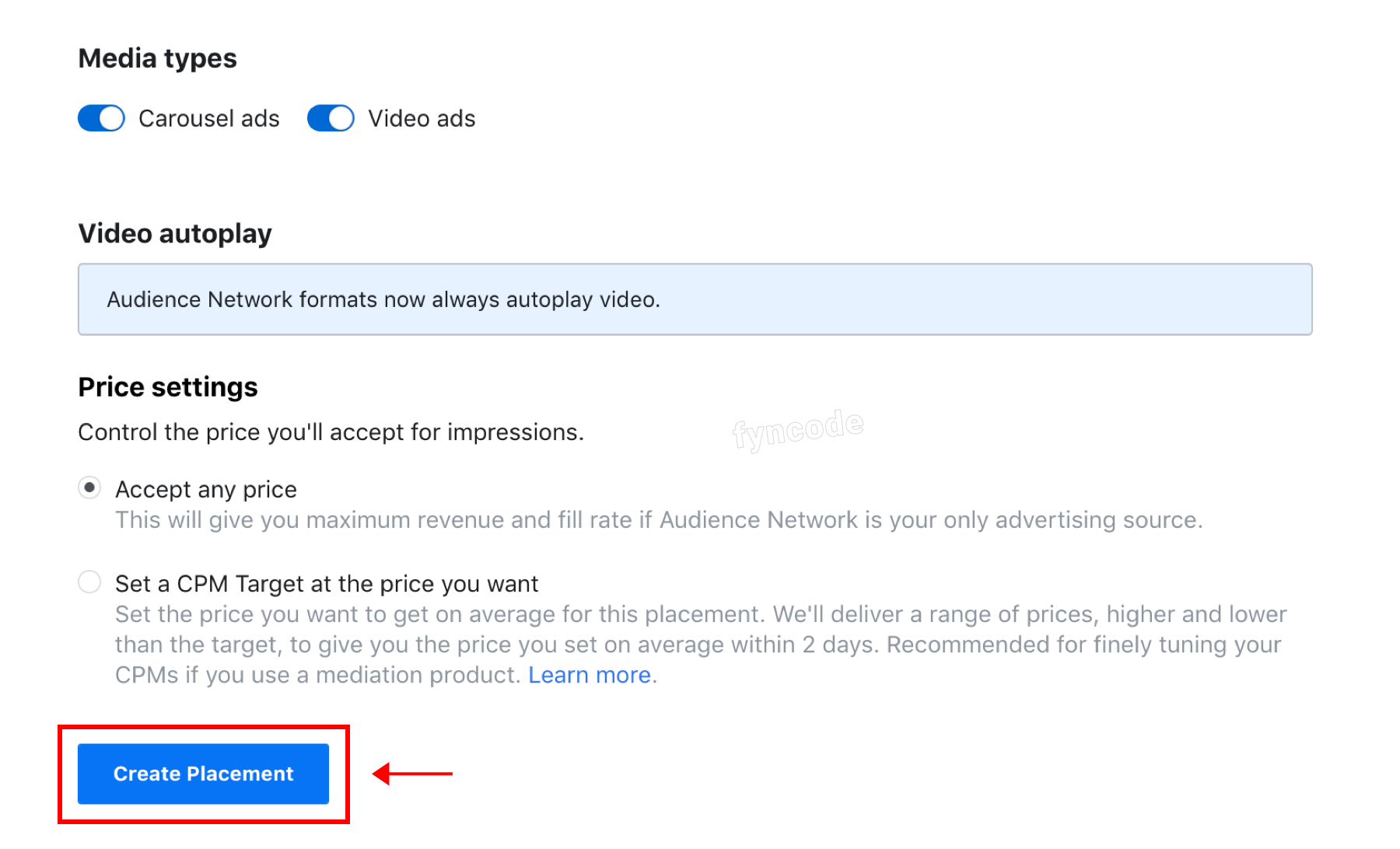
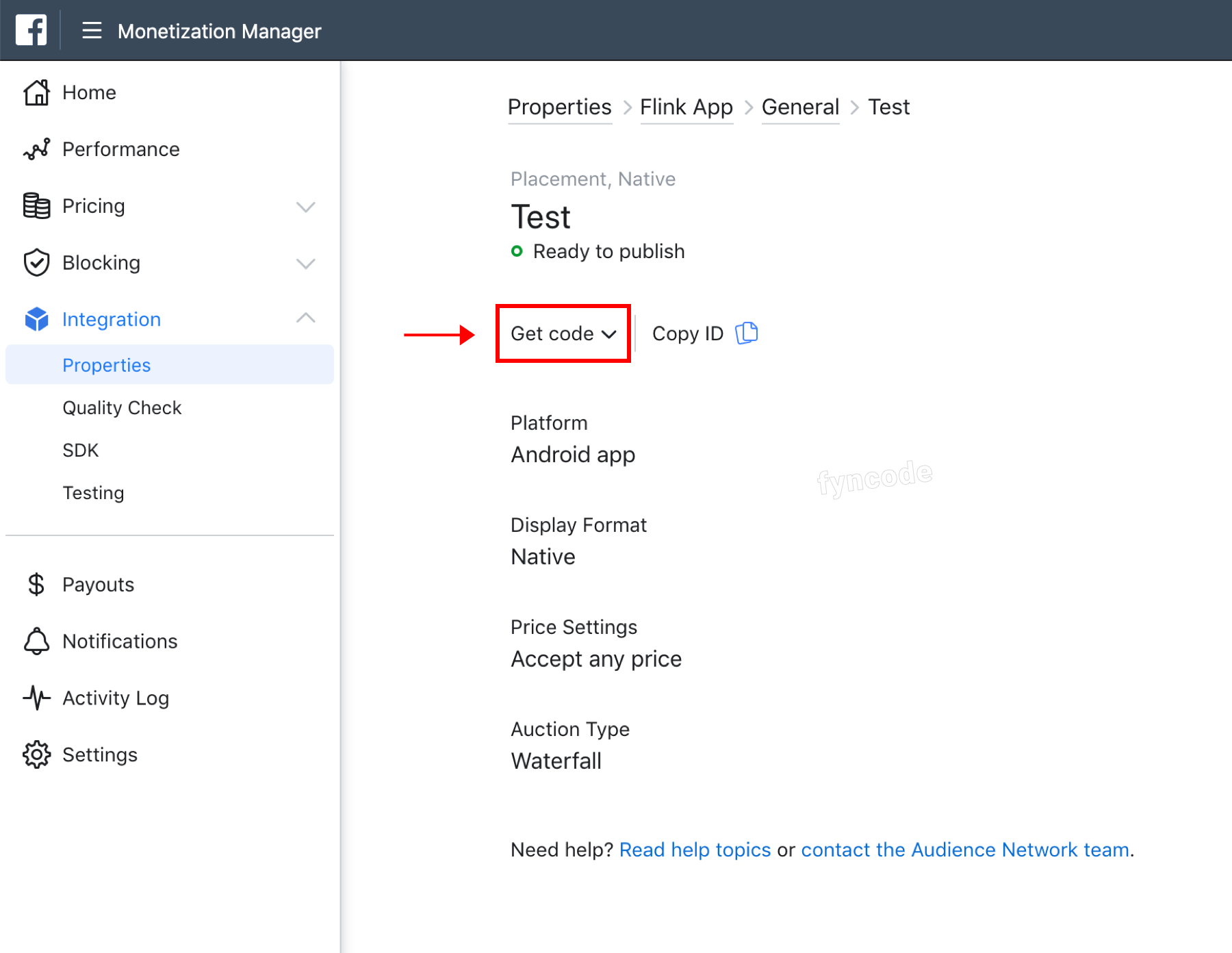
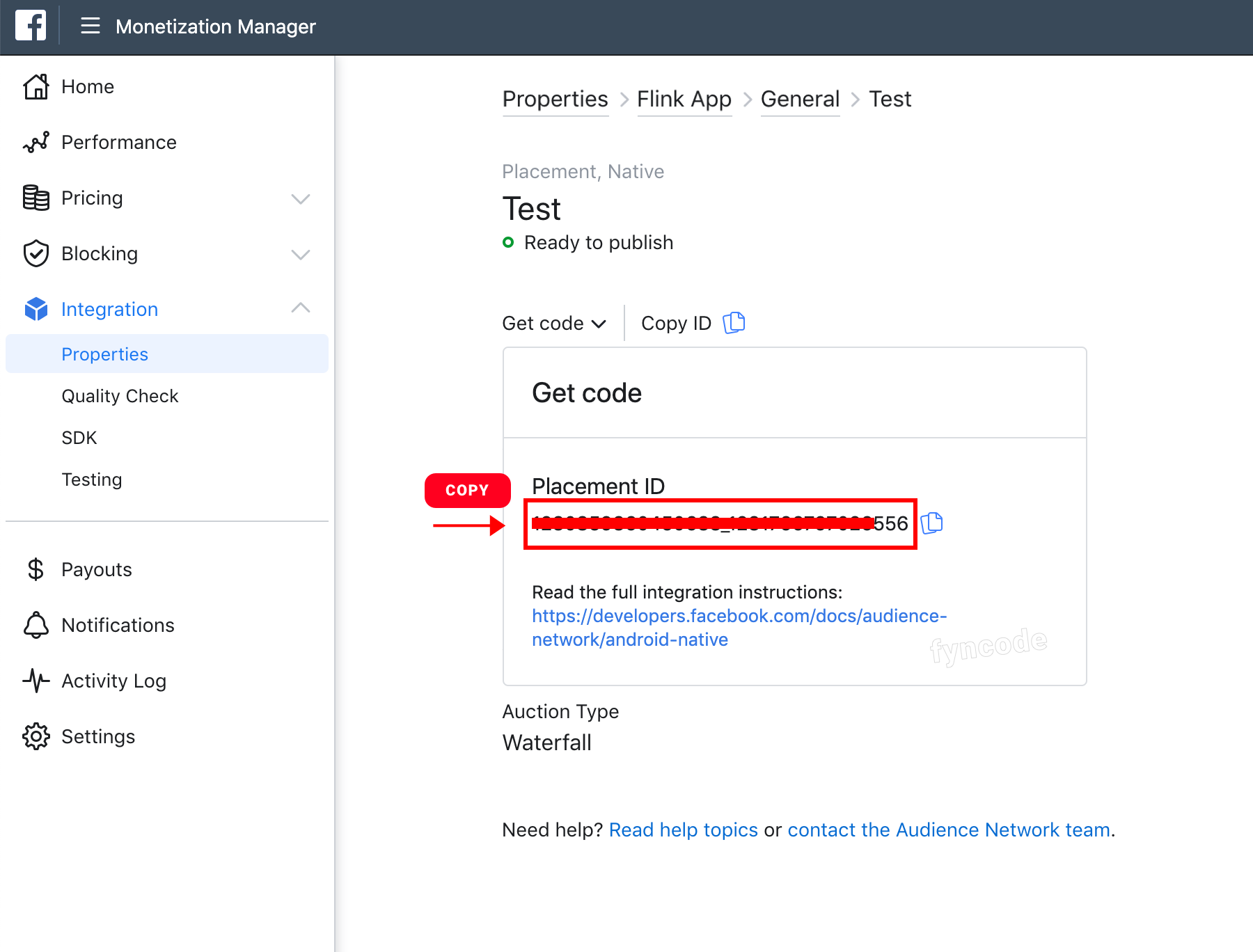
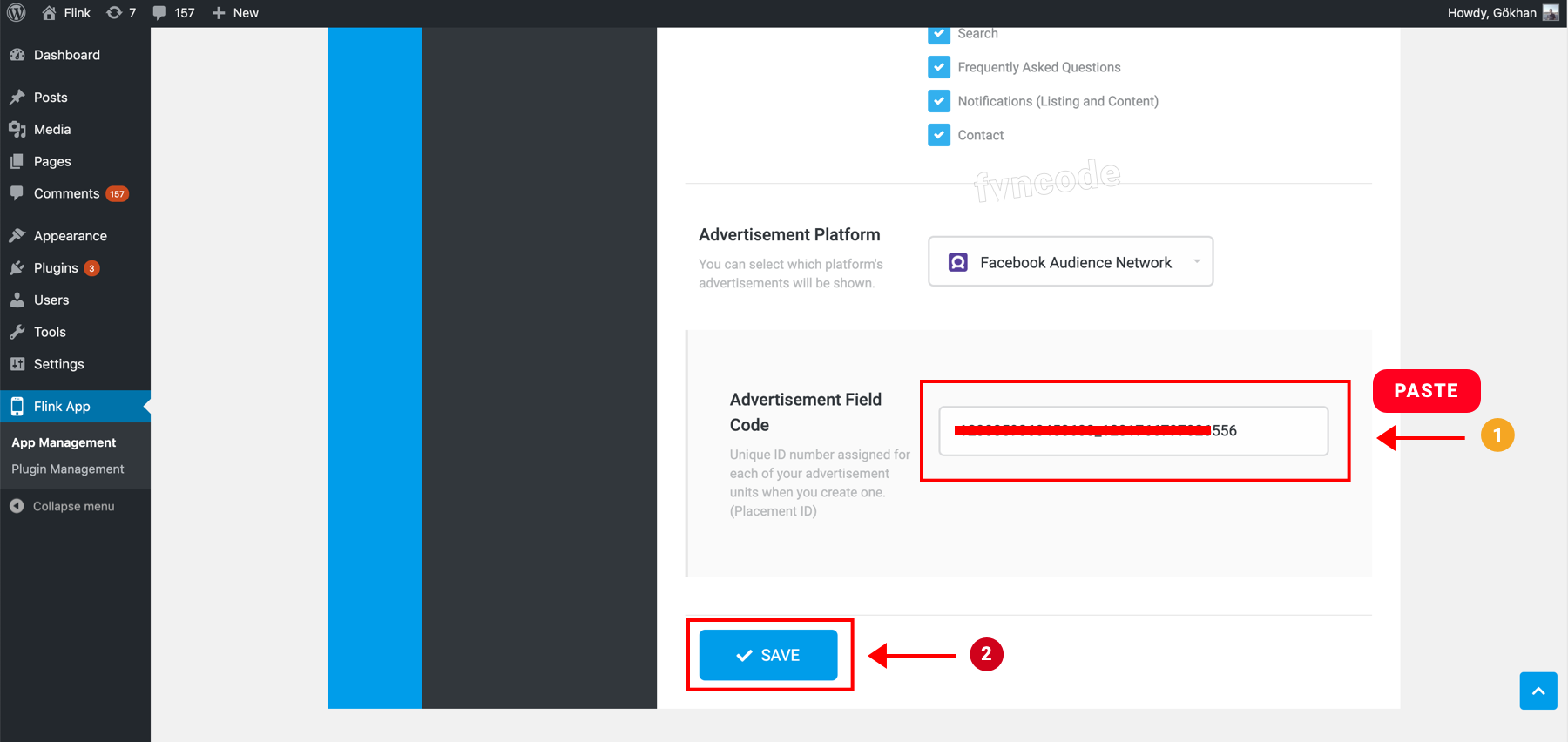
                <![CDATA[<p></p><p>Audience Network is an advertisement service by Facebook that provides the chance for mobile app developers to earn money.</p><h2>Login and Creating App</h2><p><b>If you are using “Facebook for Developers” for the first time, follow these steps.</b></p><ol><li>Go to <a href="https://developers.facebook.com" target="_blank" rel="noreferrer noopener">https://developers.facebook.com</a> and click <b>“Log In”</b> button. If you have a Facebook account, login with your credentials. If you don’t have a Facebook account, register for one and then login.<br /><img src="https://support-hub--assets.s3.eu-west-2.amazonaws.com/assets/362/images/fyvXl9P6cCNh60bcjRB54W3mnnw0ggmHTlXTfFrM.png" style="width:100%;" alt="fyvXl9P6cCNh60bcjRB54W3mnnw0ggmHTlXTfFrM.png" /><br /></li><li>Click<b> “Get Started”</b> button. On the pop-up window, click <b>“Next”</b> button.<br /><img src="https://support-hub--assets.s3.eu-west-2.amazonaws.com/assets/362/images/K0ETeurQk9PcWDB78AXdoRbRirNsWL5IblxvrEAL.png" style="width:100%;" alt="K0ETeurQk9PcWDB78AXdoRbRirNsWL5IblxvrEAL.png" /></li><li>Select the option that fits you the best (developer, marketer etc.)<br /><img src="https://support-hub--assets.s3.eu-west-2.amazonaws.com/assets/362/images/289Rgp0an93yFjMoBt0TL5TEg6kIcgp2EH1oXDYJ.png" style="width:100%;" alt="289Rgp0an93yFjMoBt0TL5TEg6kIcgp2EH1oXDYJ.png" /></li><li>Click <b>“Create First App”</b> button.<br /><img src="https://support-hub--assets.s3.eu-west-2.amazonaws.com/assets/362/images/DdEV8sMHBlvmozIsSEyhT7JhQo2v4by1Apn3lVq4.png" style="width:100%;" alt="DdEV8sMHBlvmozIsSEyhT7JhQo2v4by1Apn3lVq4.png" /></li><li>Define a name for your App ID and enter it to the <b>“Display Name”</b> field. Then, click <b>“Create App ID”</b> button.<br /><img src="https://support-hub--assets.s3.eu-west-2.amazonaws.com/assets/362/images/8e3LVcOlGN2SmDzxwLTyhtJRChe8QNfvToW0F3DU.png" style="width:100%;" alt="8e3LVcOlGN2SmDzxwLTyhtJRChe8QNfvToW0F3DU.png" /></li><li>Complete the verification step and click <b>“Submit”</b> button.<br /><img src="https://support-hub--assets.s3.eu-west-2.amazonaws.com/assets/362/images/TZFcgNrcmrMFjMb3BK6PEHIYWTKgpGlIRjTt6Vq9.png" style="width:100%;" alt="TZFcgNrcmrMFjMb3BK6PEHIYWTKgpGlIRjTt6Vq9.png" /></li></ol><p><b>If you already used “Facebook for Developers” before, follow these steps:</b></p><ol><li>Go to <a href="https://developers.facebook.com" target="_blank" rel="noreferrer noopener">https://developers.facebook.com</a> and click <b>“Log In”</b>. If you have a Facebook account, login with your credentials. If you don’t have a Facebook account, register for one and then login.<br /><img src="https://support-hub--assets.s3.eu-west-2.amazonaws.com/assets/362/images/cXDyPO6Gifby5v05clu0UstMdhQ3QmYssFxTUNLX.png" style="width:100%;" alt="cXDyPO6Gifby5v05clu0UstMdhQ3QmYssFxTUNLX.png" /><br /></li><li>Click <b>“My Apps”</b>. If you already created the app, select it from the menu; if you didn’t, click <b>“Create App”</b> button.<br /><img src="https://support-hub--assets.s3.eu-west-2.amazonaws.com/assets/362/images/W7YbRuujpqNcyN6dEwBC8WpKsLsvHYztzeQwCsqN.png" style="width:100%;" alt="W7YbRuujpqNcyN6dEwBC8WpKsLsvHYztzeQwCsqN.png" /></li></ol><p><b> - If you clicked "Create App" button, follow these steps:</b></p><ol><li>Define a name for your app and enter it to the <b>“Display Name</b>” field. Then, click <b>“Create App ID”</b> button.<br /><img src="https://support-hub--assets.s3.eu-west-2.amazonaws.com/assets/362/images/T22mwobQyA0zeLgkvjjYRpE2jGdWuWzEBpOoB9ZB.png" style="width:100%;" alt="T22mwobQyA0zeLgkvjjYRpE2jGdWuWzEBpOoB9ZB.png" /></li><li>Complete the verification step and click <b>“Submit”</b> button.<br /><img src="https://support-hub--assets.s3.eu-west-2.amazonaws.com/assets/362/images/cD9bAAx5PbcwVwQQ4sNSzs5xaCWDtvO1w6dYA0B2.png" style="width:100%;" alt="cD9bAAx5PbcwVwQQ4sNSzs5xaCWDtvO1w6dYA0B2.png" /></li></ol><h2>Creating Business</h2><p>In order to use <b>Facebook Audience Network</b> service, you should first create a business account. With a business account, you can manage several work related things on Facebook, including earning money with Audience Network.</p><p>Facebook Manager is a trusted way to manage your pages and advertisement accounts.</p><ol><li>Go to <a href="" target="_blank" rel="noreferrer noopener">Facebook Business</a> and click <b>“LOG IN”</b> button. If you have a Facebook account, login with your credentials. If you don’t have a Facebook account, register for one and then login.<br /><img src="https://support-hub--assets.s3.eu-west-2.amazonaws.com/assets/362/images/zkCwDffPgSPaZ5TaquWbwGwypGpdaqHtxtCnbPQt.png" style="width:100%;" alt="zkCwDffPgSPaZ5TaquWbwGwypGpdaqHtxtCnbPQt.png" /></li><li>After logging in, click <b>“CREATE ACCOUNT”</b> button.<br /><img src="https://support-hub--assets.s3.eu-west-2.amazonaws.com/assets/362/images/DjFdMF8CSNg8gEnYZPU4ec0FEWakAXTeCOXIxry8.png" style="width:100%;" alt="DjFdMF8CSNg8gEnYZPU4ec0FEWakAXTeCOXIxry8.png" /></li><li>Enter the requested information and click <b>“Next”</b> button.<br /><img src="https://support-hub--assets.s3.eu-west-2.amazonaws.com/assets/362/images/Jf3EfI5Yrni2rihFBQT5b8OS93mcIggGjHFcrp8K.png" style="width:100%;" alt="Jf3EfI5Yrni2rihFBQT5b8OS93mcIggGjHFcrp8K.png" /></li><li>Enter the information about your business and click <b>“Submit”</b> button.<br /><img src="https://support-hub--assets.s3.eu-west-2.amazonaws.com/assets/362/images/EYkpyskbPZArtIoSRKXxd1lFZZXdtKFViUjQ5Eho.png" style="width:100%;" alt="EYkpyskbPZArtIoSRKXxd1lFZZXdtKFViUjQ5Eho.png" /></li></ol><h2>Creating Property</h2><p>Facebook’s <b>Monetization Manager</b> service is a platform that will help you grow your business with Audience Network. It helps you manage your ad placements, understand your performance and maximize your income.</p><ol><li>Go to <a href="https://business.facebook.com/pub/home/" target="_blank" rel="noreferrer noopener">Monetization Manager</a>.</li><li>Select the business that you created or create a new business as explained under <b>“Creating Business”</b> title.<br /><img src="https://support-hub--assets.s3.eu-west-2.amazonaws.com/assets/362/images/2X6KnvRImlcNHVZjbqnbR7eJf5Xvy3Kj1MFTXIJK.png" style="width:100%;" alt="2X6KnvRImlcNHVZjbqnbR7eJf5Xvy3Kj1MFTXIJK.png" /></li><li>Scroll down and click <b>“Create Property”</b> button.<br /><img src="https://support-hub--assets.s3.eu-west-2.amazonaws.com/assets/362/images/FnMWmPfwgPCA9VwKDIhPUAb6BanjcbjZjuxefBec.png" style="width:100%;" alt="FnMWmPfwgPCA9VwKDIhPUAb6BanjcbjZjuxefBec.png" /></li><li>Enter the name of the new property and click <b>“Create Property”</b> button.<br /><img src="https://support-hub--assets.s3.eu-west-2.amazonaws.com/assets/362/images/E8JCYHYJ2CfJ317WxiZfsxMyo1SJUvBXcCOaZf9a.png" style="width:70%;" alt="E8JCYHYJ2CfJ317WxiZfsxMyo1SJUvBXcCOaZf9a.png" /></li></ol><h2>Adding Your Platform and App</h2><p>After you create your property, the next step is adding the platform that you want to make money from.</p><ol><li>Click <b>“+ Add”</b> button that is next to <b>“Android”</b> option.<br /><img src="https://support-hub--assets.s3.eu-west-2.amazonaws.com/assets/362/images/uYta6JHOg3rXPHIOCcNPkE92ppRYFH5wrdL0iLDm.png" style="width:100%;" alt="uYta6JHOg3rXPHIOCcNPkE92ppRYFH5wrdL0iLDm.png" /></li><li>If you already published the app, in which you will use <b>Facebook Audience Network</b> ads, on Play Store, select <b>“App is live”</b> option, enter the URL of your app on Play Store to the respective field and choose your application. If not, click <b>“App is not live”</b> button and then <b>“Submit”</b> button to proceed.<br /><img src="https://support-hub--assets.s3.eu-west-2.amazonaws.com/assets/362/images/cu4PGEUpqvSLlp5YriUtI0Ocxcnu1zMy5nZEUVbO.png" style="width:100%;" alt="cu4PGEUpqvSLlp5YriUtI0Ocxcnu1zMy5nZEUVbO.png" /></li><li>Select an ad type as placement type (native banner, etc.) in <b>“Create your first placement”</b> step and click <b>“Create Placement”</b> button.<br /><b>(NOTE: This ad area will not be used, so you can choose any type.)</b></li><li>Don’t do anything else after this step. (like ticking an option, etc.)</li></ol><h2>Creating Ad Space</h2><p>In order to create an ad placement, you have to create an ad space first.</p><ol><li>Click <b>“Properties”</b> button located under the <b>“Integration”</b> option in the left-side menu and then click the name of your property.<br /><img src="https://support-hub--assets.s3.eu-west-2.amazonaws.com/assets/362/images/alj8a81y2jnKb1LmMKIbYAQUWqZuVxZz9RRAaqUf.png" style="width:100%;" alt="alj8a81y2jnKb1LmMKIbYAQUWqZuVxZz9RRAaqUf.png" /></li><li>Click <b>“Create Ad Space”</b> button.<br /><img src="https://support-hub--assets.s3.eu-west-2.amazonaws.com/assets/362/images/LHxB6CkyBntt3J5gylBKoBUwVoSqvuoKBaDR4Kzd.png" style="width:100%;" alt="LHxB6CkyBntt3J5gylBKoBUwVoSqvuoKBaDR4Kzd.png" /></li><li>Enter a name for your ad area to the <b>“Name”</b> field. Upload a video to the <b>“Describe the steps we need to find the ad”</b> field and write an explanation about when your ad should be triggered. Lastly, click <b>“Create Ad Space”</b> button and finish ad space creating process.<br /><img src="https://support-hub--assets.s3.eu-west-2.amazonaws.com/assets/362/images/zH0pziiMgd0sWUDA22PbHmw1lBZmWYTlAfLGjBwT.png" style="width:100%;" alt="zH0pziiMgd0sWUDA22PbHmw1lBZmWYTlAfLGjBwT.png" /></li></ol><h2>Creating Ad Placement</h2><p>Facebook Audience Network offers different types of ad units. Each ad unit in your application is defined by using a unique placement identity.</p><ol><li>Click <b>“+ Create Placement”</b> button.<br /><img src="https://support-hub--assets.s3.eu-west-2.amazonaws.com/assets/362/images/4UxDC3hkyeVr8o24zykVE2cWufX6plba4WRlPXbw.png" style="width:100%;" alt="4UxDC3hkyeVr8o24zykVE2cWufX6plba4WRlPXbw.png" /></li><li>Add your Placement name. Select your Display format. (For the “Bottom Banner” area of your app, you should choose <b>“Banner”</b> and for the “Native Ad” area of your app, you should select <b>“Native”</b> option.)<br /><img src="https://support-hub--assets.s3.eu-west-2.amazonaws.com/assets/362/images/qYxcjA6mizNiDrtUqmWqvgoS8pkPasaxMcaXOc6h.png" style="width:100%;" alt="qYxcjA6mizNiDrtUqmWqvgoS8pkPasaxMcaXOc6h.png" /></li><li>Scroll down, configure values and click <b>“Create Placement”</b> button.<br /><img src="https://support-hub--assets.s3.eu-west-2.amazonaws.com/assets/362/images/QKxcmmQzS00i3yd2amhb06ziYBgL6AjaAFmKuCR9.png" style="width:100%;" alt="QKxcmmQzS00i3yd2amhb06ziYBgL6AjaAFmKuCR9.png" /></li><li>Click <b>“Get Code”</b> button.<br /><img src="https://support-hub--assets.s3.eu-west-2.amazonaws.com/assets/362/images/NYreRP62JFuAU9lufUVo4Rt3DHs4KHpCMN1oXsdu.png" style="width:100%;" alt="NYreRP62JFuAU9lufUVo4Rt3DHs4KHpCMN1oXsdu.png" /></li><li>Copy the <b>Placement ID</b>.<br /><img src="https://support-hub--assets.s3.eu-west-2.amazonaws.com/assets/362/images/Jg5uGFXYQGU4GXFM1AoAr73ZnNPjy1uTvG7hnQ4Y.png" style="width:100%;" alt="Jg5uGFXYQGU4GXFM1AoAr73ZnNPjy1uTvG7hnQ4Y.png" /></li><li>Go to your WordPress admin dashboard, click <b>“Flink App”</b> from the side menu and open the page for Flink WordPress App Builder.<br /><br />1. On the page that is opened, find and click <b>“Ad Management”</b>.<br />2. Click the ad type, of which data you want to update (bottom banner, native ad etc.)<br />3. Enter the <b>Placement ID</b> that you previously copied to the <b>“Advertisement Field Code”</b> field in the <b>“Advertisement Platform”</b> section (while Facebook Audience Network is selected).<br />4. Click <b>“SAVE”</b> button.<br /><img src="https://support-hub--assets.s3.eu-west-2.amazonaws.com/assets/362/images/S5GXjLRK9962AGsnP4SSmrti3w8xcGjuNz67QlSo.png" style="width:100%;" alt="S5GXjLRK9962AGsnP4SSmrti3w8xcGjuNz67QlSo.png" /></li></ol><table class="table table-bordered"><tr><td><b>NOTE:</b> Your app cannot receive Facebook Audience Network ads until payment information is added and your application is sent for review.</td></tr></table><p></p><br /><br /><table class="table table-bordered"><tr><td><b>
<span>← </span>Previous Section</b><br /></td><td><b>Next Section <span>→</span></b></td></tr><tr><td><a href="https://fyncode.support-hub.io/articles/step-3-admob-advertisement-integration-1334">Step 3 - AdMob Advertisement Integration</a></td><td><a href="https://fyncode.support-hub.io/articles/creating-application-apk-and-downloading-1378">Creating Application (APK) and Downloading</a></td></tr></table>]]>
            </summary>
                                    <updated>2022-12-17T18:55:13+00:00</updated>
        </entry>
            <entry>
            <title><![CDATA[Creating Application (APK) and Downloading]]></title>
            <link rel="alternate" href="https://fyncode.support-hub.io/articles/creating-application-apk-and-downloading-1378" />
            <id>https://fyncode.support-hub.io/1378</id>
            <author>
                <name><![CDATA[Fyncode Tech]]></name>
            </author>
            <summary type="html">
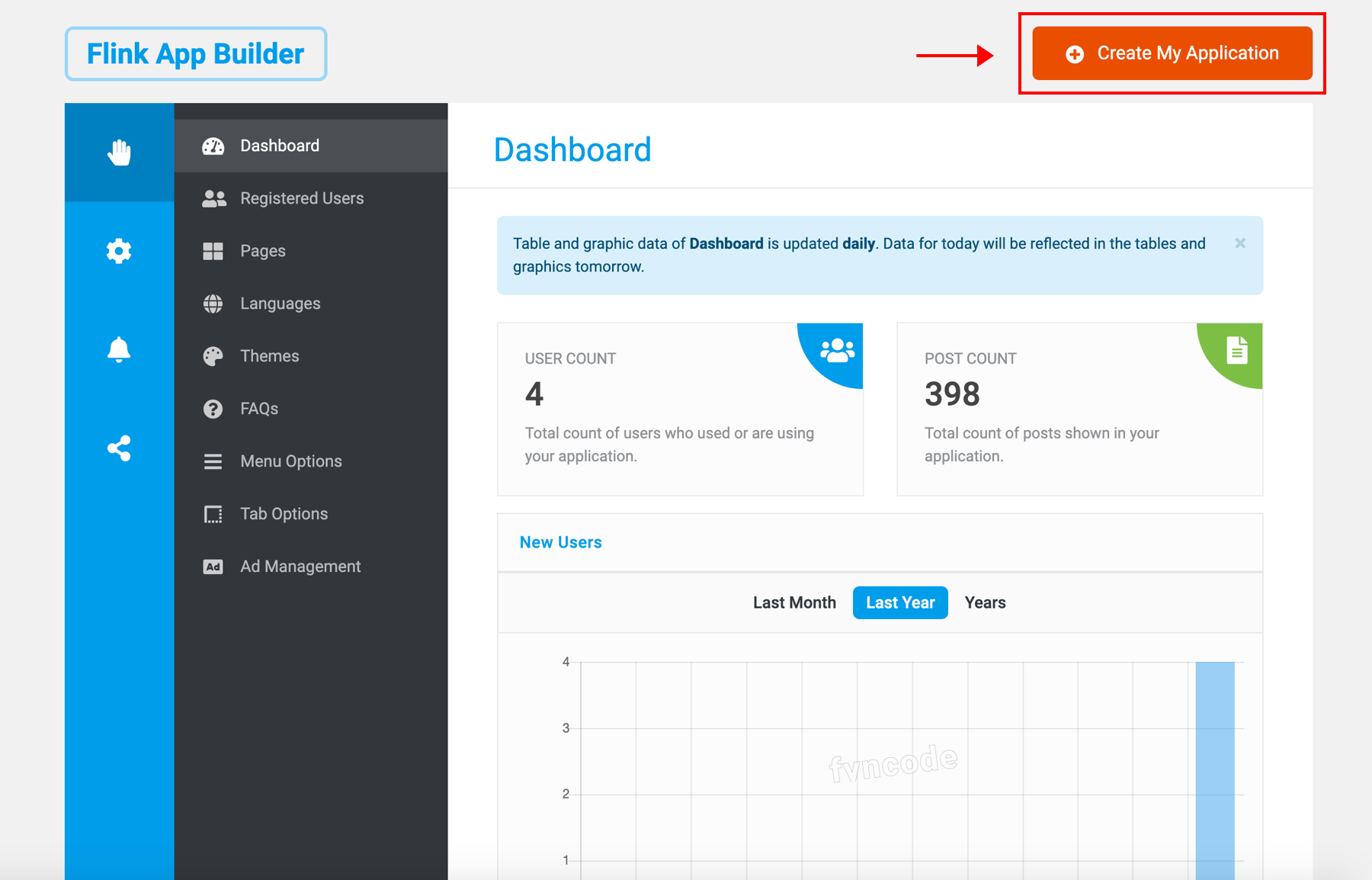
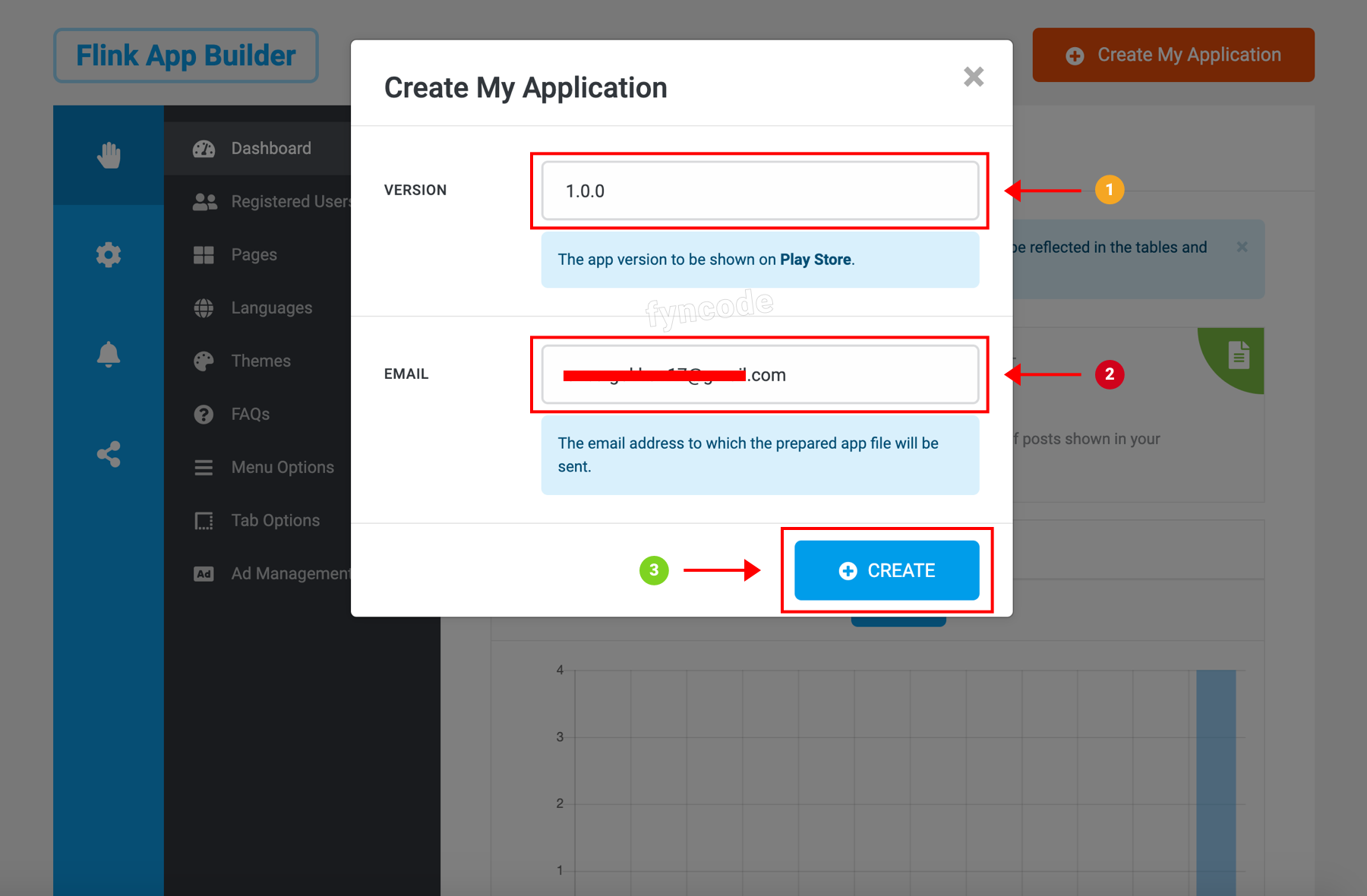
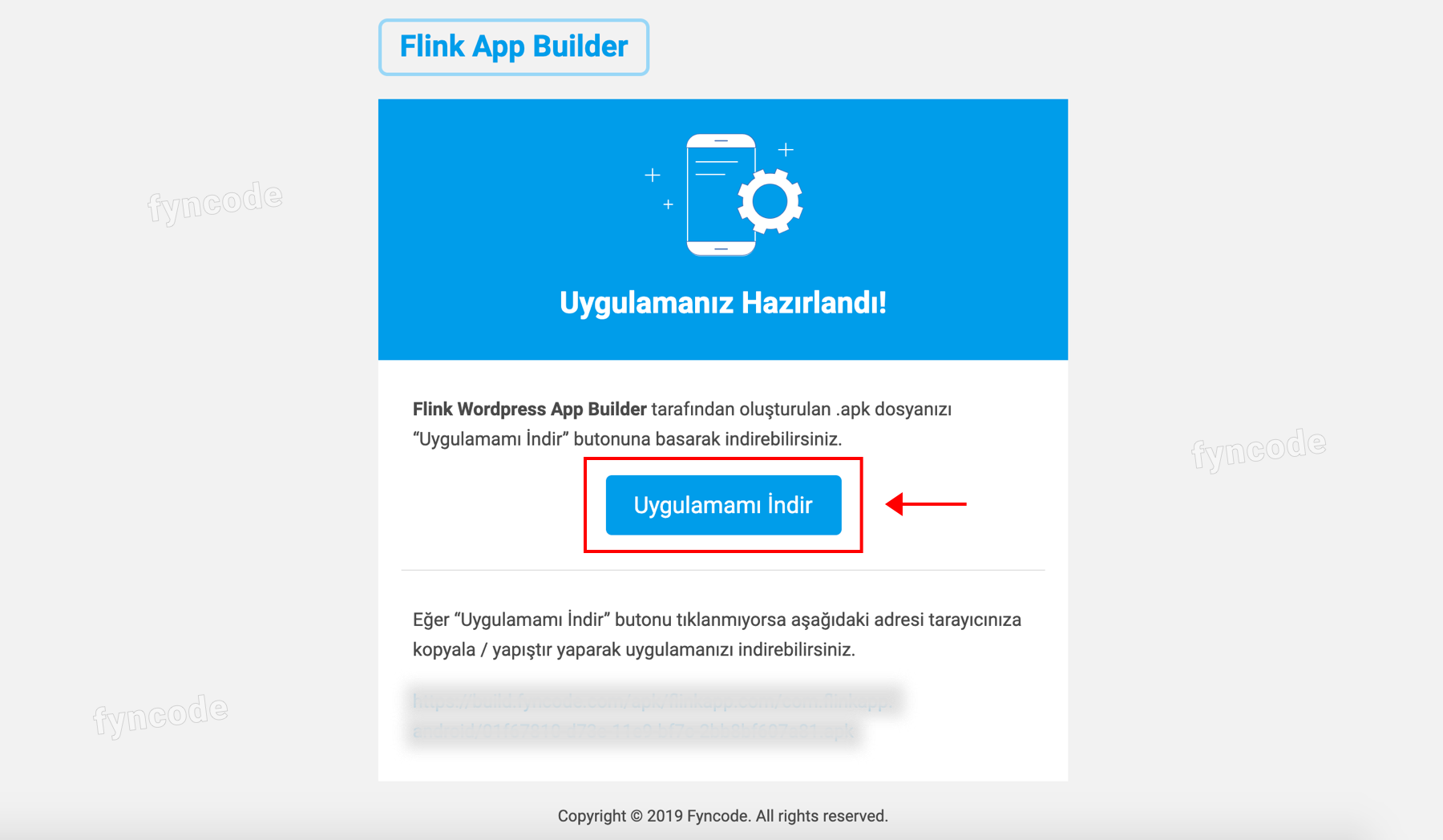
                <![CDATA[<h2>Creating Your App</h2><ol><li>Go to your Wordpress admin dashboard, click <b>“Flink App”</b> from the side menu and open the page for Flink Wordpress App Builder.<br /><br /></li><li>Click <b>“Create My Application”</b> button.<br /><img src="https://support-hub--assets.s3.eu-west-2.amazonaws.com/assets/362/images/jNkKDJ6RE5Vo2hgYnUsGALEcrFtS8EHkZYjsG5ju.png" style="width:100%;" alt="jNkKDJ6RE5Vo2hgYnUsGALEcrFtS8EHkZYjsG5ju.png" /><br /></li><li>To the <b>“Version”</b> field, enter a version value that you state for your app. This version value is displayed on Play Store when you publish your app (examples: 1.0.1, 2.2, 2.3.0).<br /><br />Enter the email address that you want your application to be sent to into the <b>“Email”</b> field. (When your app is prepared by the server, it is sent to your email address automatically. You don’t have to take another action for that.)<br /><br />Lastly, click <b>“CREATE”</b> button. (The time that passes until you receive the app to your email address may vary depending on the server. It is sent automatically to your email address in 5 minutes on average.)<br /><img src="https://support-hub--assets.s3.eu-west-2.amazonaws.com/assets/362/images/DIilD9w1DruFjv3djW6EHtbSahEXVAcBM3mHIZJ9.png" style="width:100%;" alt="DIilD9w1DruFjv3djW6EHtbSahEXVAcBM3mHIZJ9.png" /><br /></li></ol><h2>Downloading Your App</h2><p>You can download your app (the <b>“apk”</b> file) by clicking <b>“Download My App</b>” button in the email that you received.<br /><img src="https://support-hub--assets.s3.eu-west-2.amazonaws.com/assets/362/images/uwNZXv7rYjHkJTVoWh3kQMgG9hXkor5kasFIdL2C.png" style="width:100%;" alt="uwNZXv7rYjHkJTVoWh3kQMgG9hXkor5kasFIdL2C.png" /><br /></p><h2>Uploading Your App to Play Store</h2><p>You can upload your app to Play Store by following the steps on <a href="https://support.google.com/googleplay/android-developer/answer/113469?hl=en" target="_blank" rel="noreferrer noopener">“Upload an app”</a> page.</p><p><br /></p>
<table class="table table-bordered"><tr><td><b>
<span>← </span>Previous Section</b><br /></td><td><b>Next Section <span>→</span></b></td></tr><tr><td><a href="https://fyncode.support-hub.io/articles/step-4-integrate-facebook-audience-network-advertisements-1347">Step 4 - Integrate Facebook Audience Network Advertisements</a></td><td><a href="https://fyncode.support-hub.io/articles/play-console-data-safety-form-2696">Play Console Data Safety Form</a></td></tr></table>]]>
            </summary>
                                    <updated>2022-12-17T21:39:54+00:00</updated>
        </entry>
            <entry>
            <title><![CDATA[Play Console Data Safety Form]]></title>
            <link rel="alternate" href="https://fyncode.support-hub.io/articles/play-console-data-safety-form-2696" />
            <id>https://fyncode.support-hub.io/2696</id>
            <author>
                <name><![CDATA[Fyncode Tech]]></name>
            </author>
            <summary type="html">
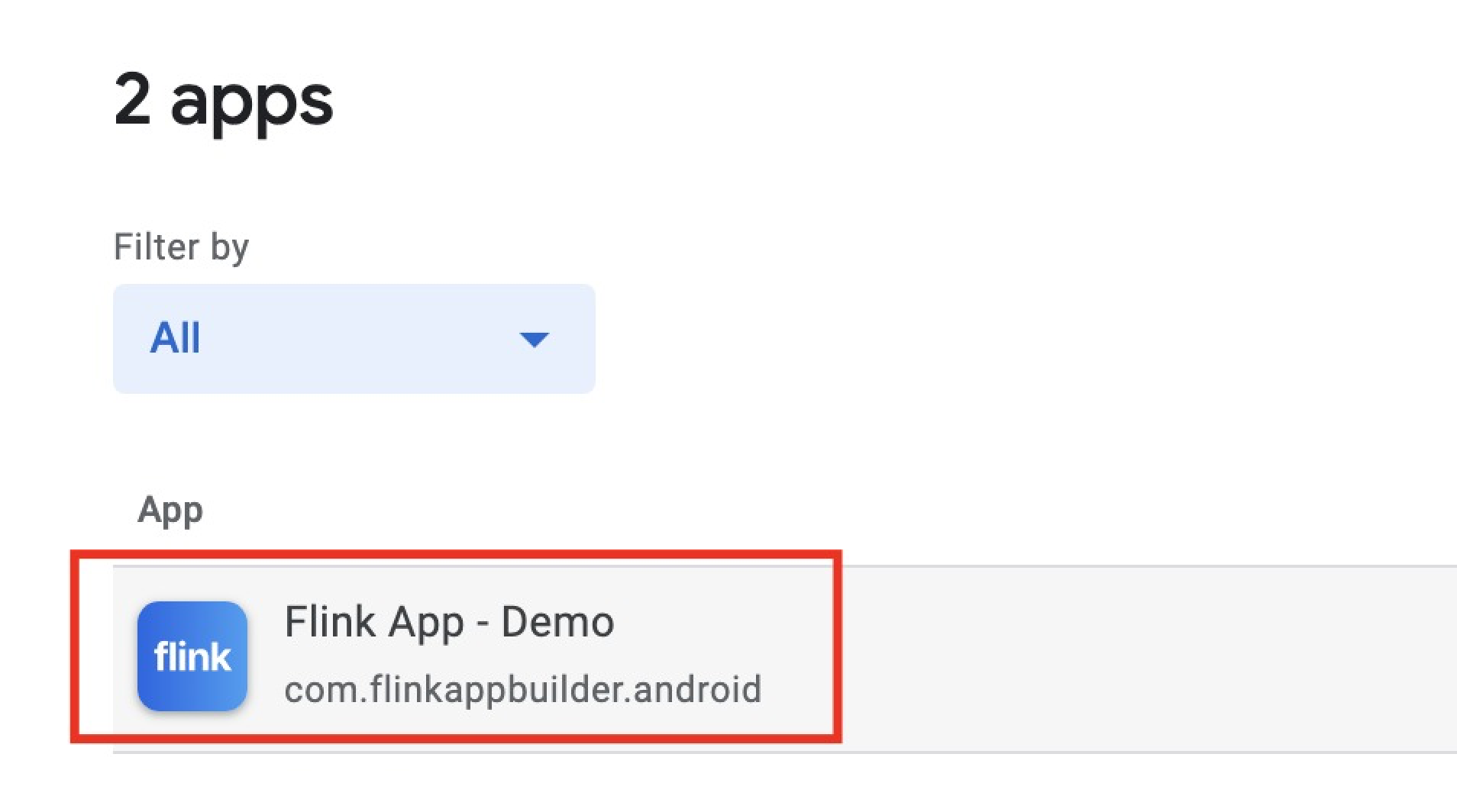
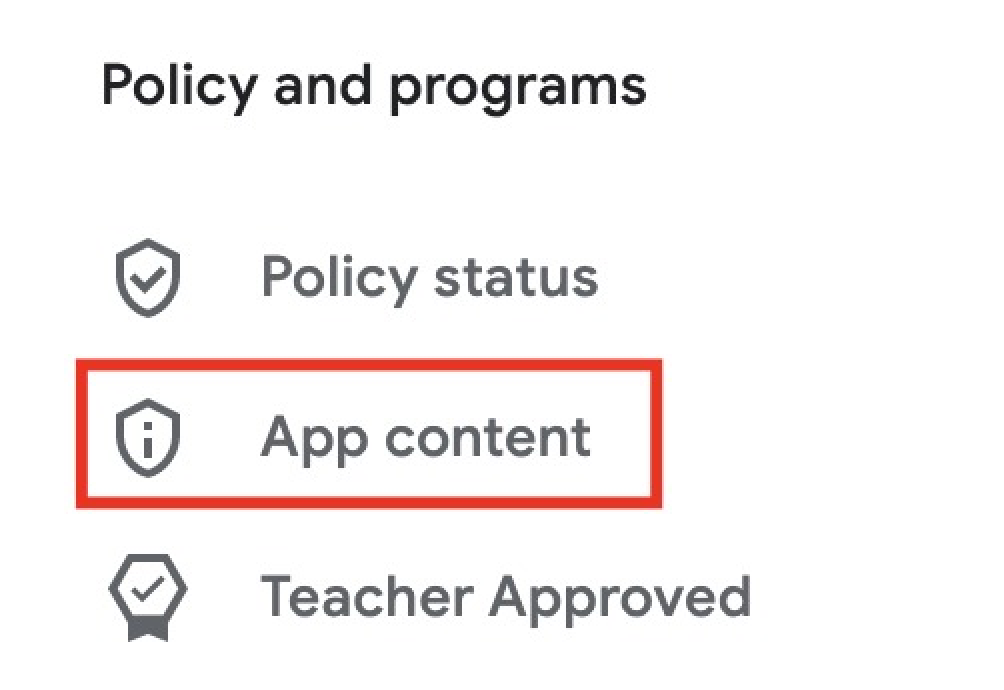
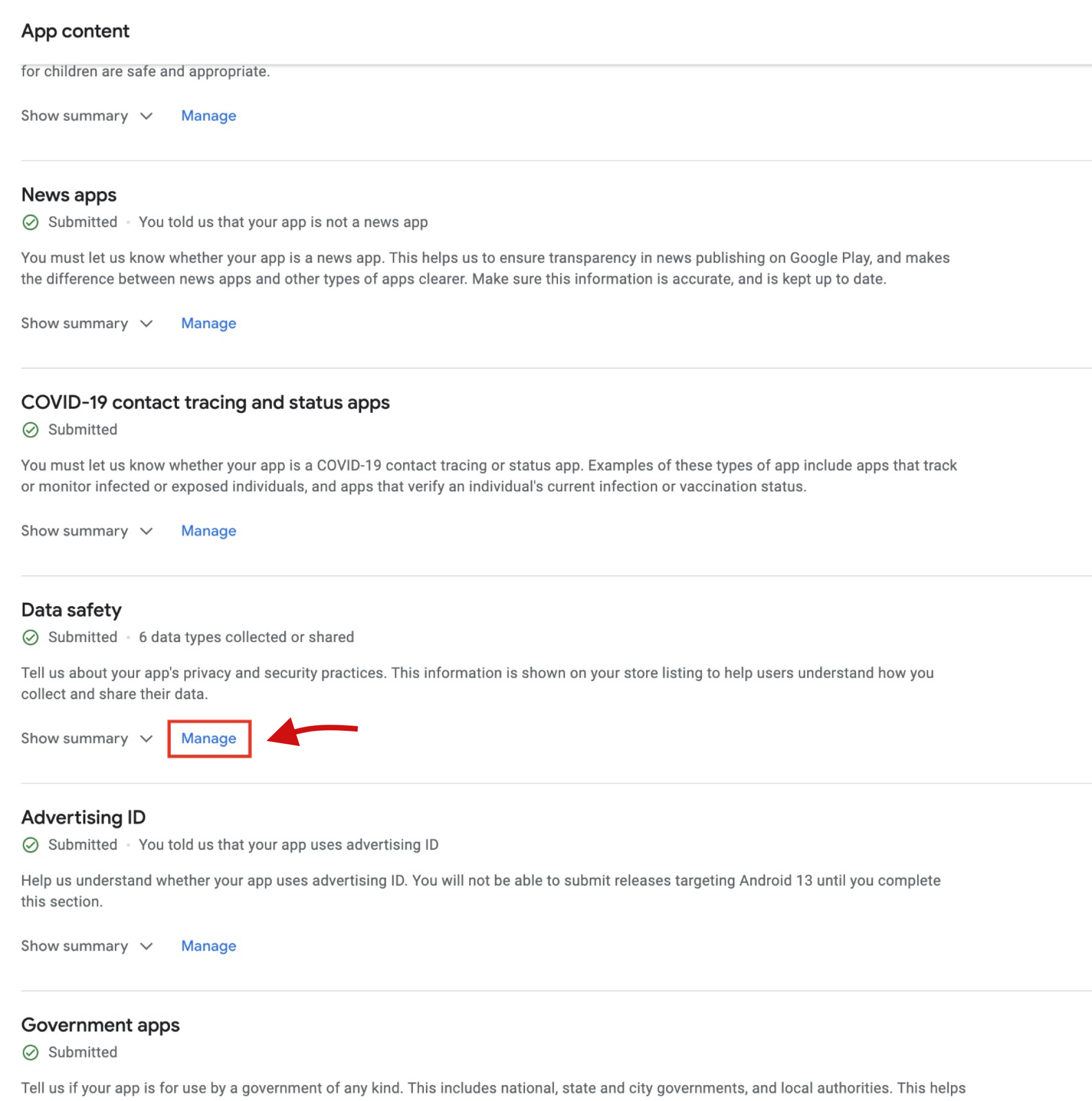
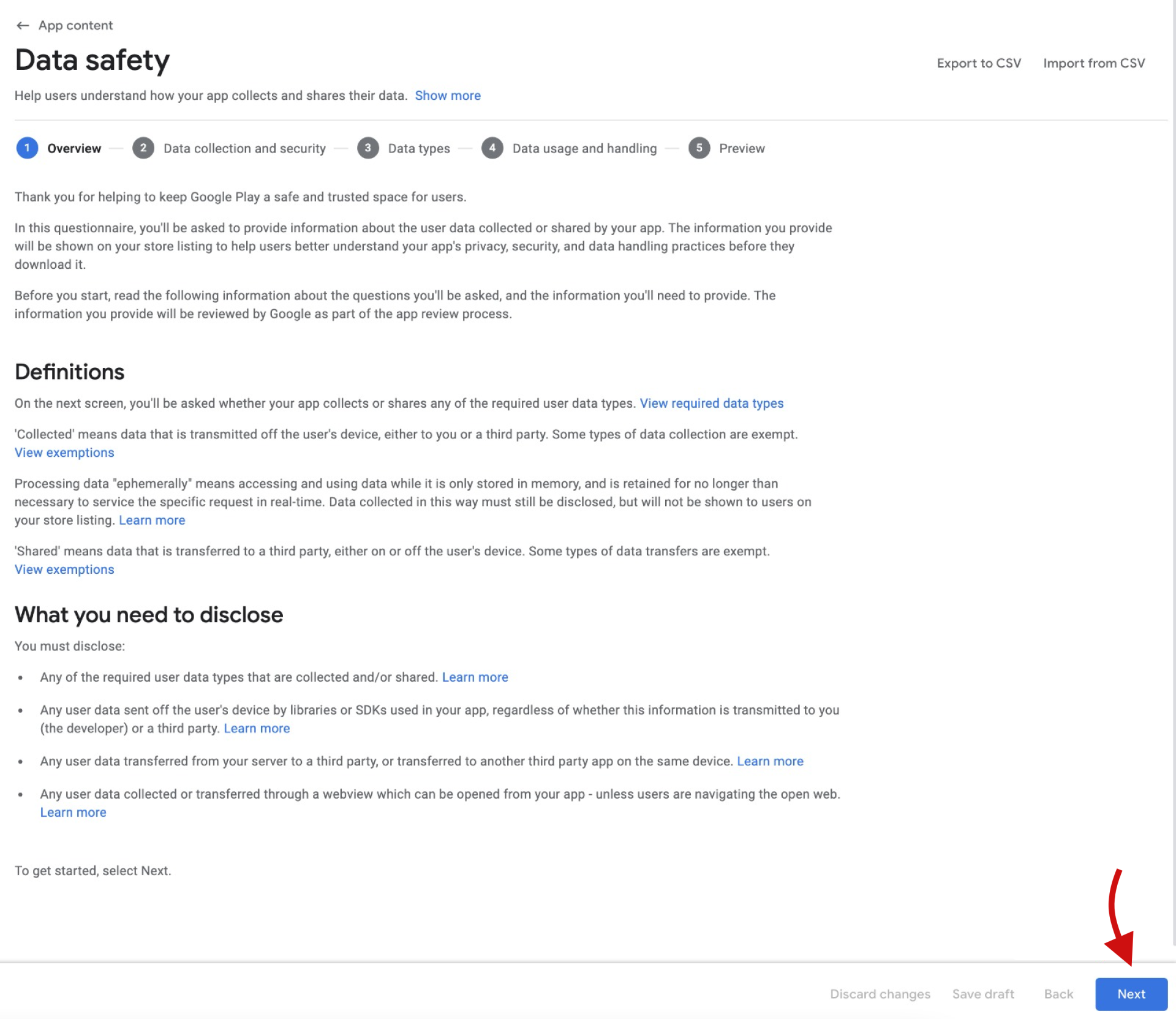
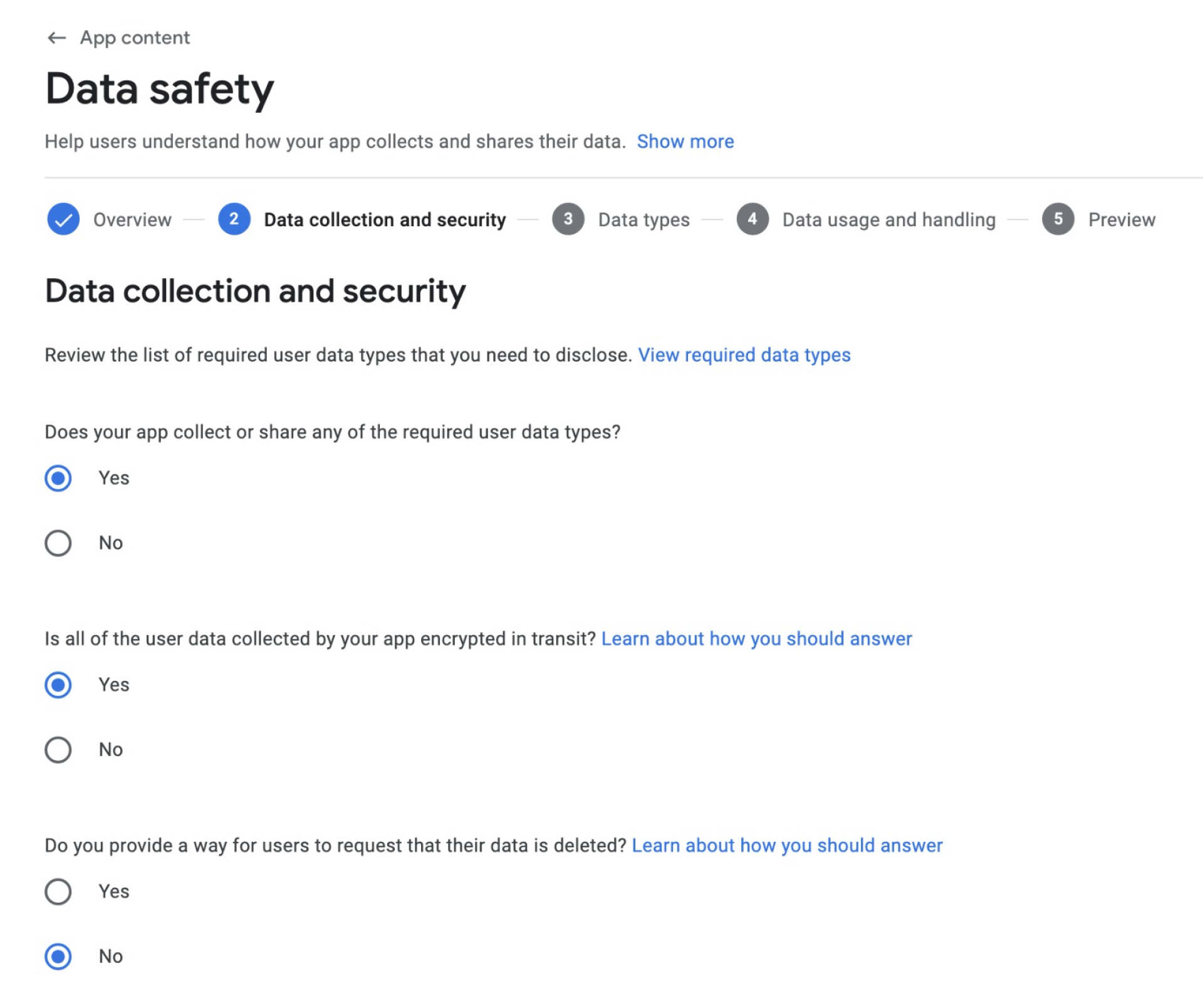
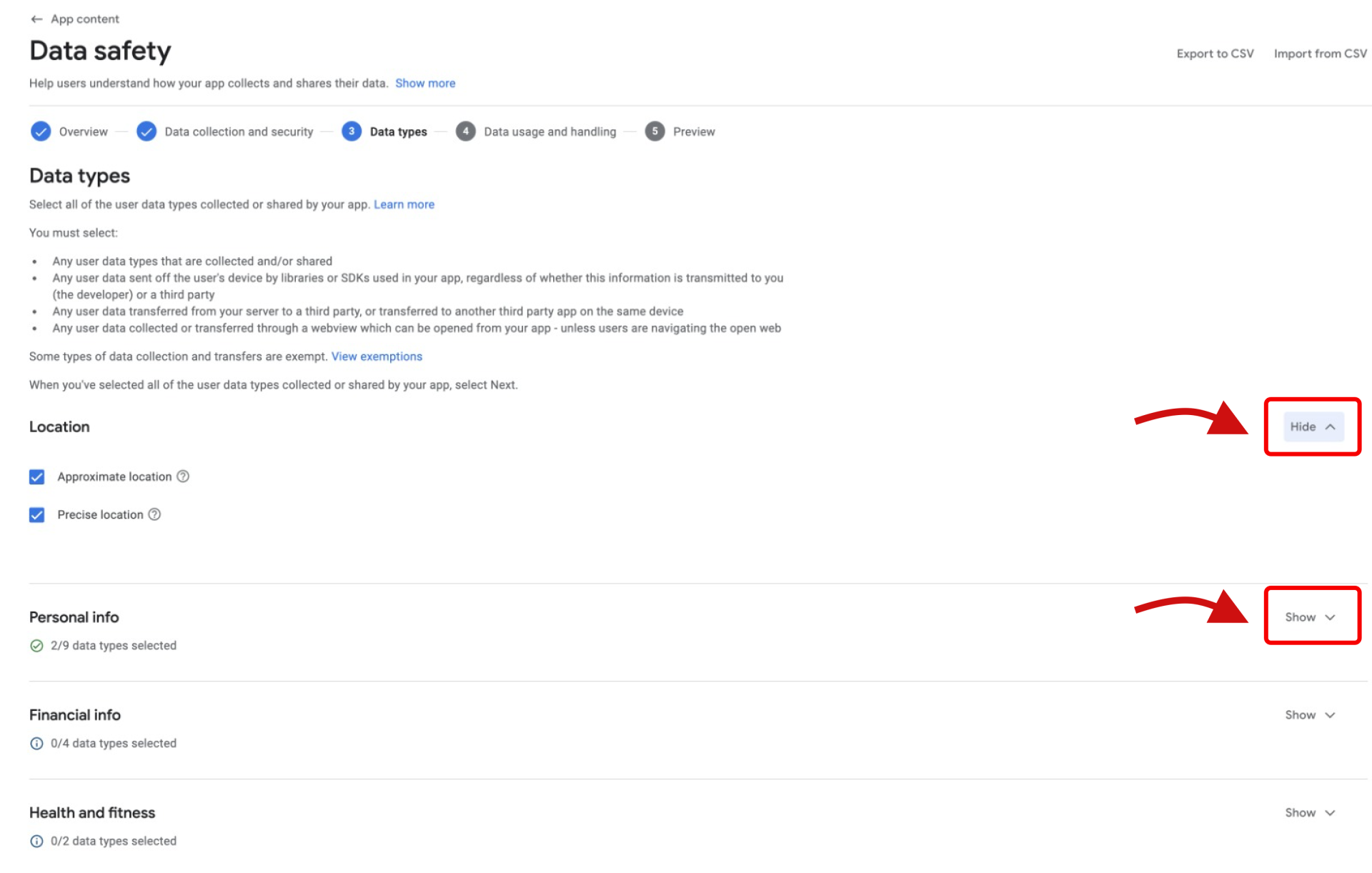
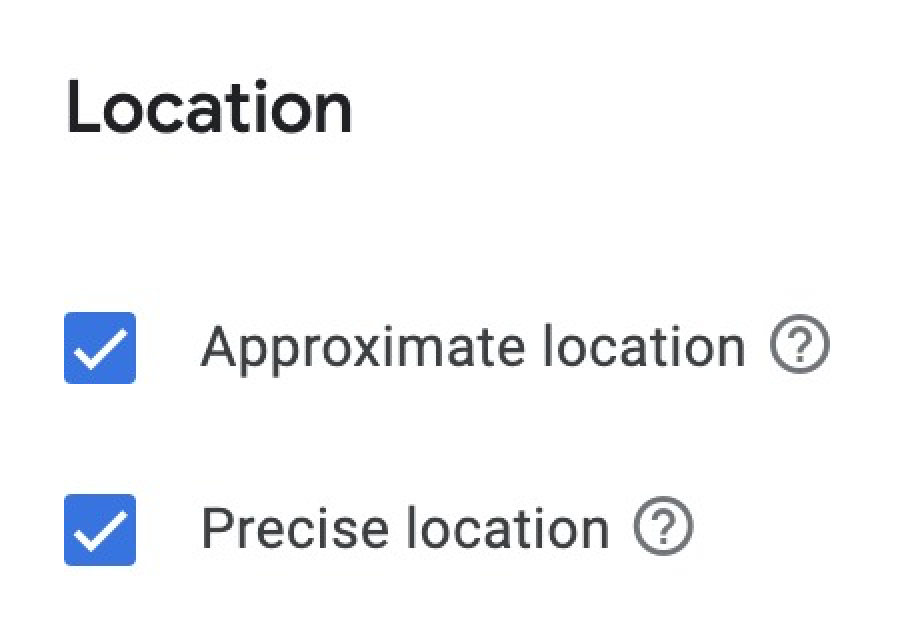
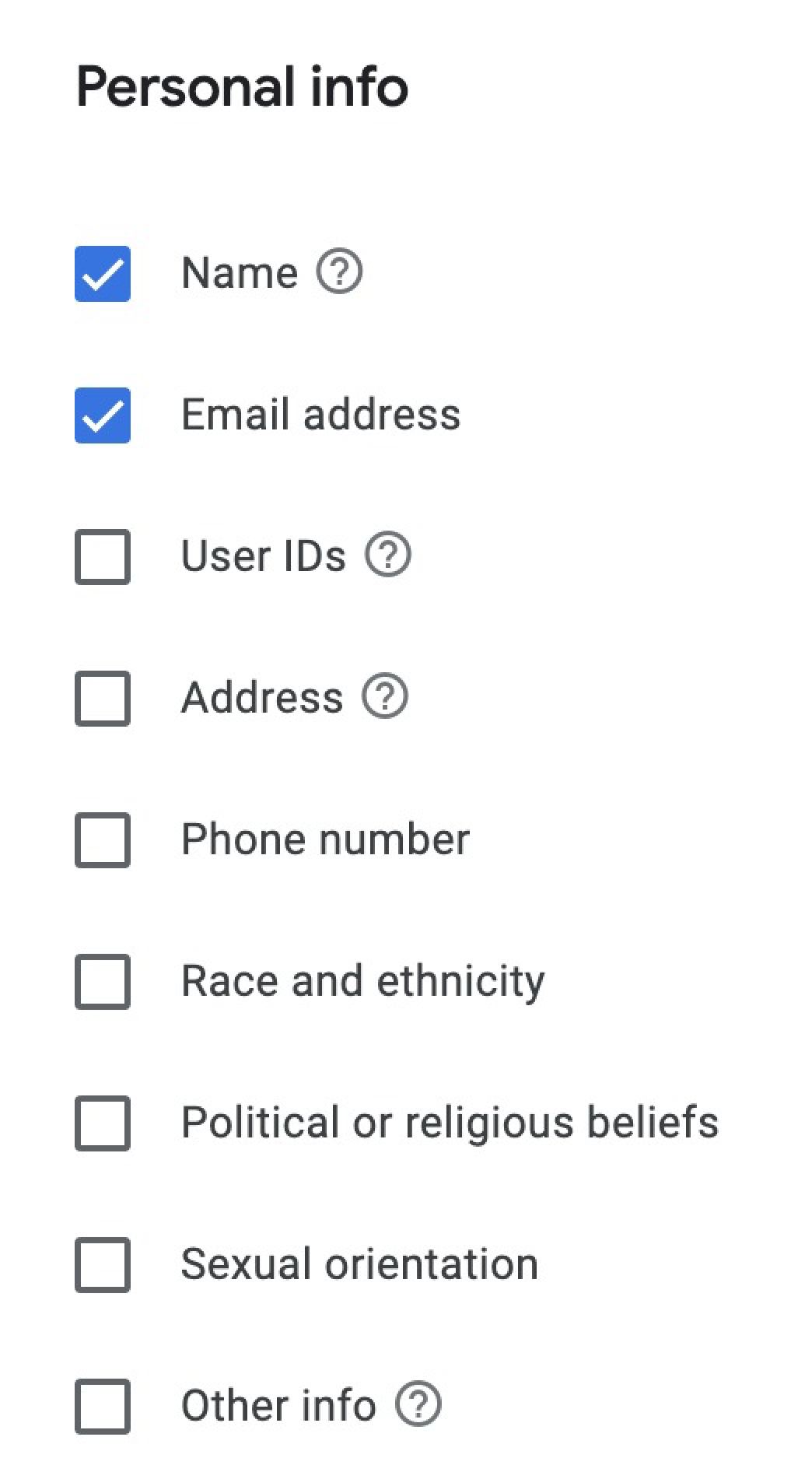
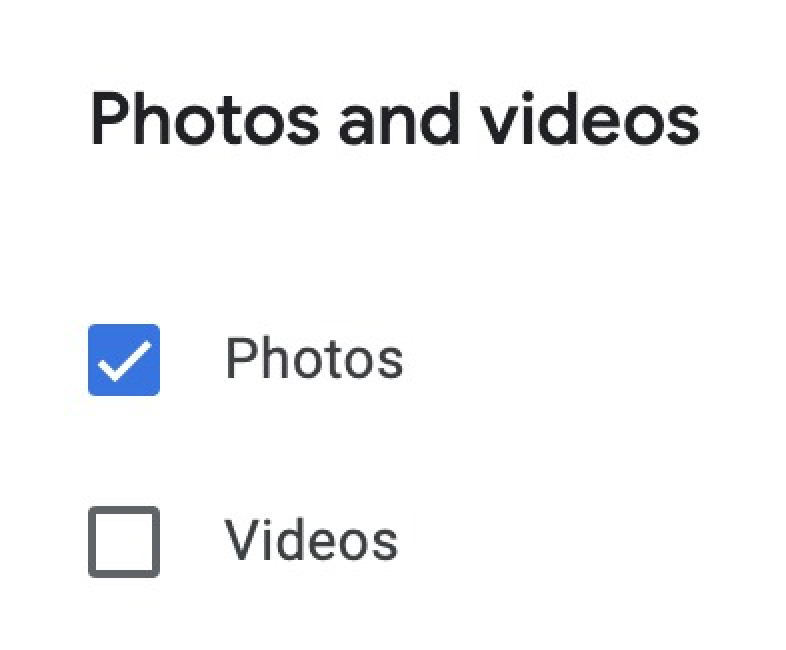
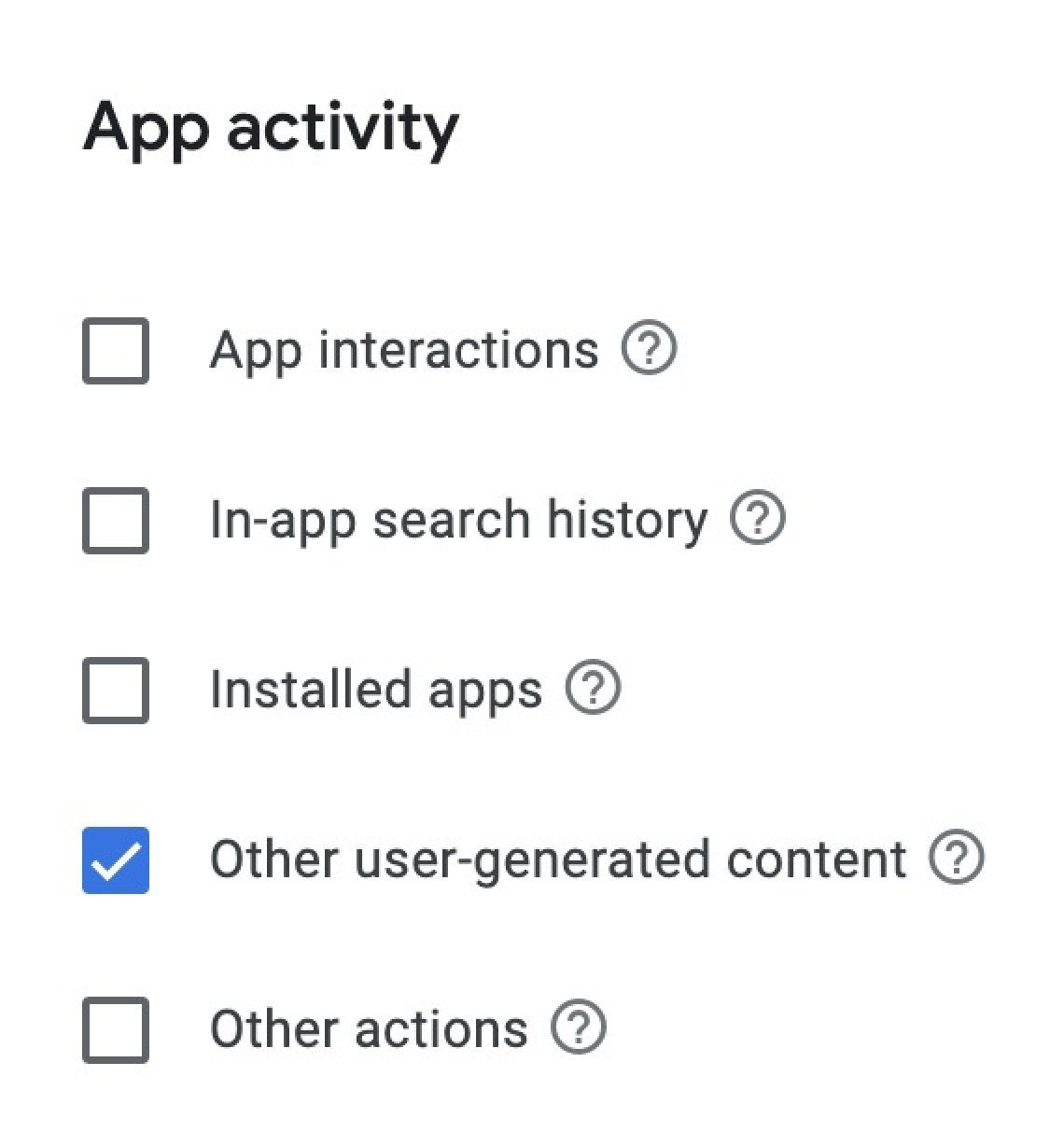
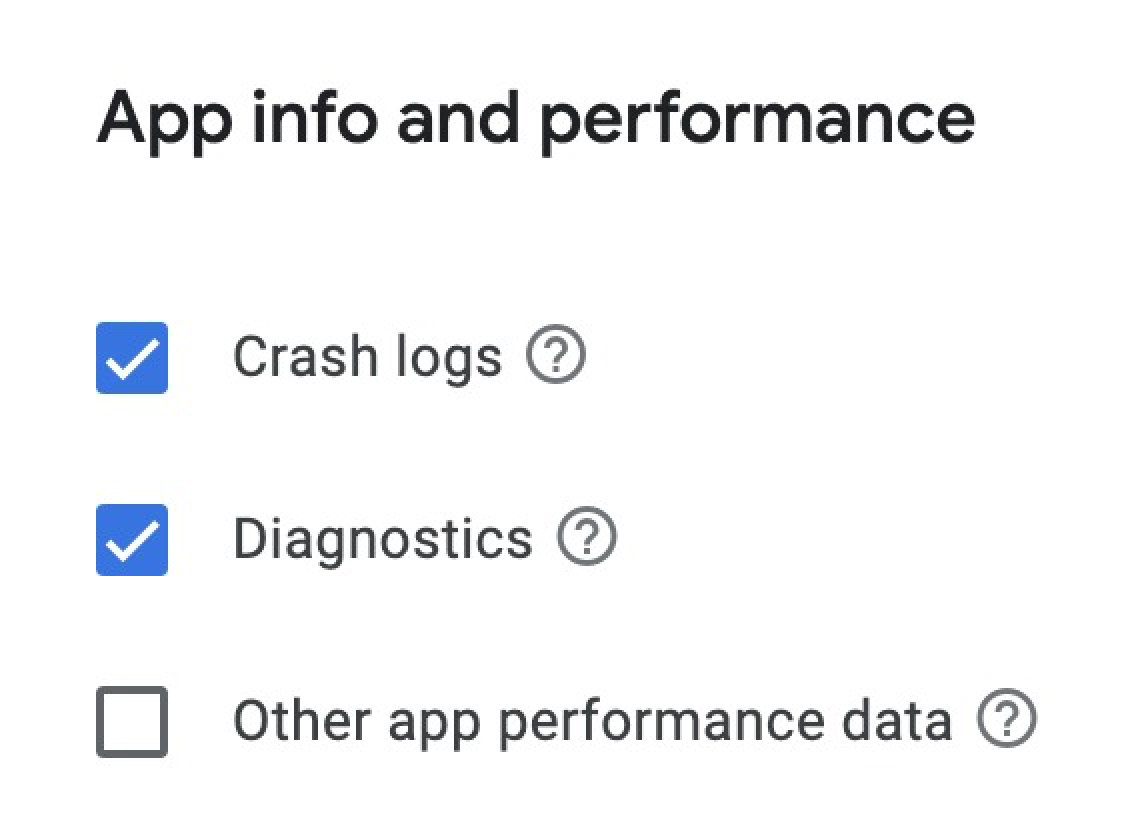
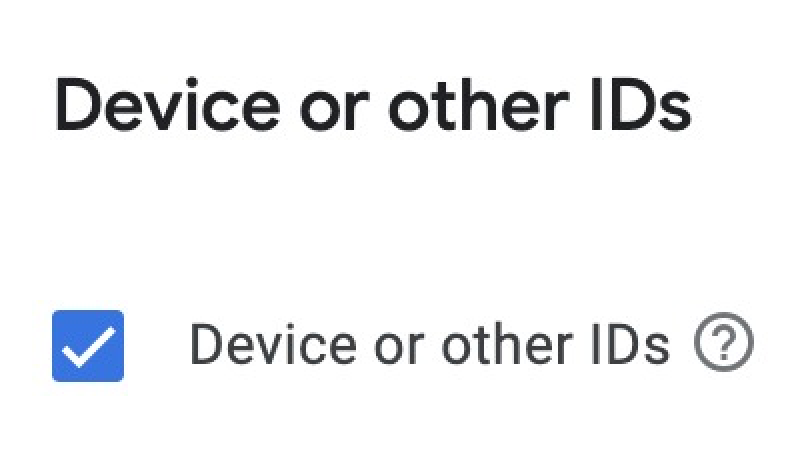
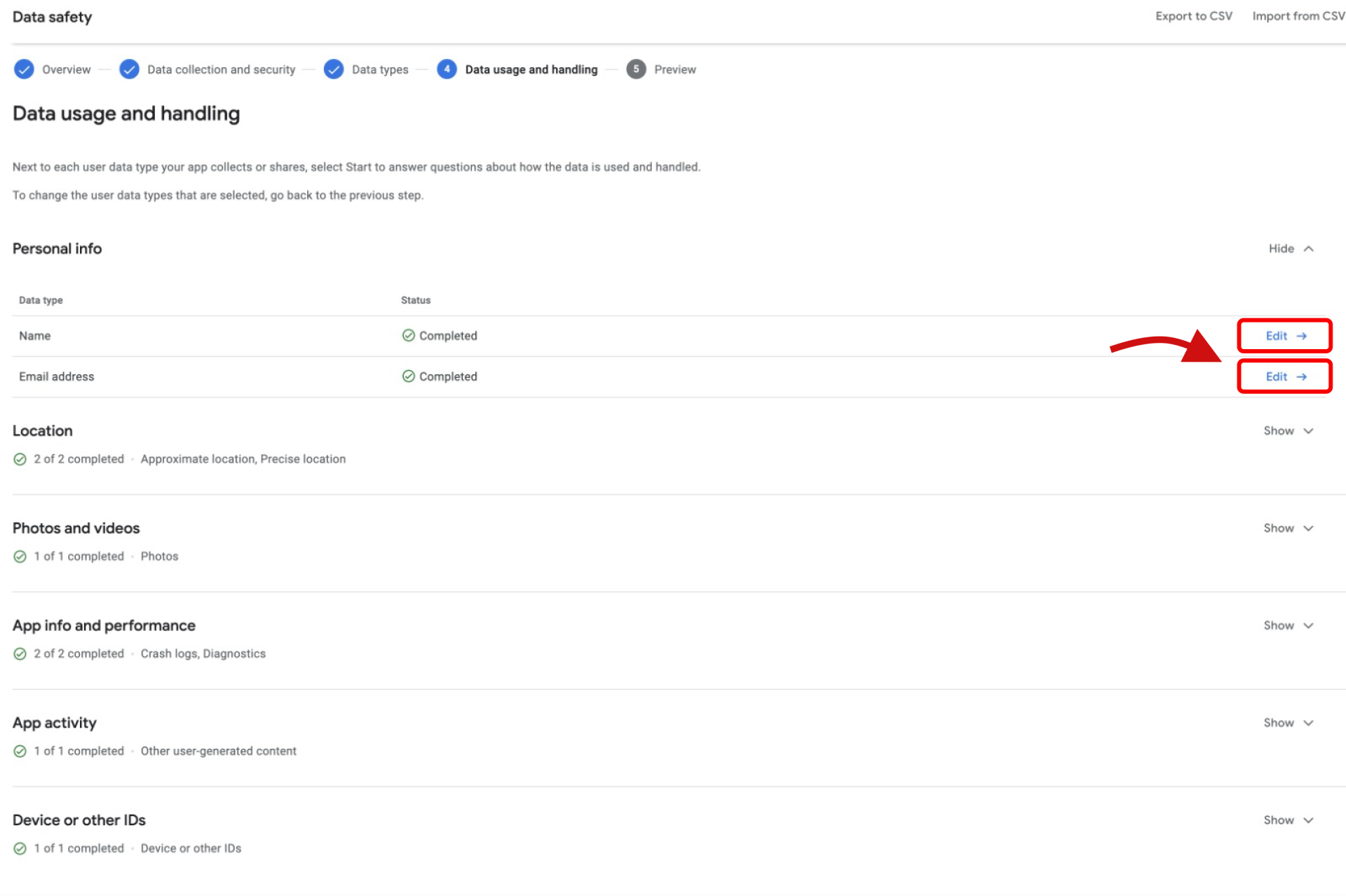
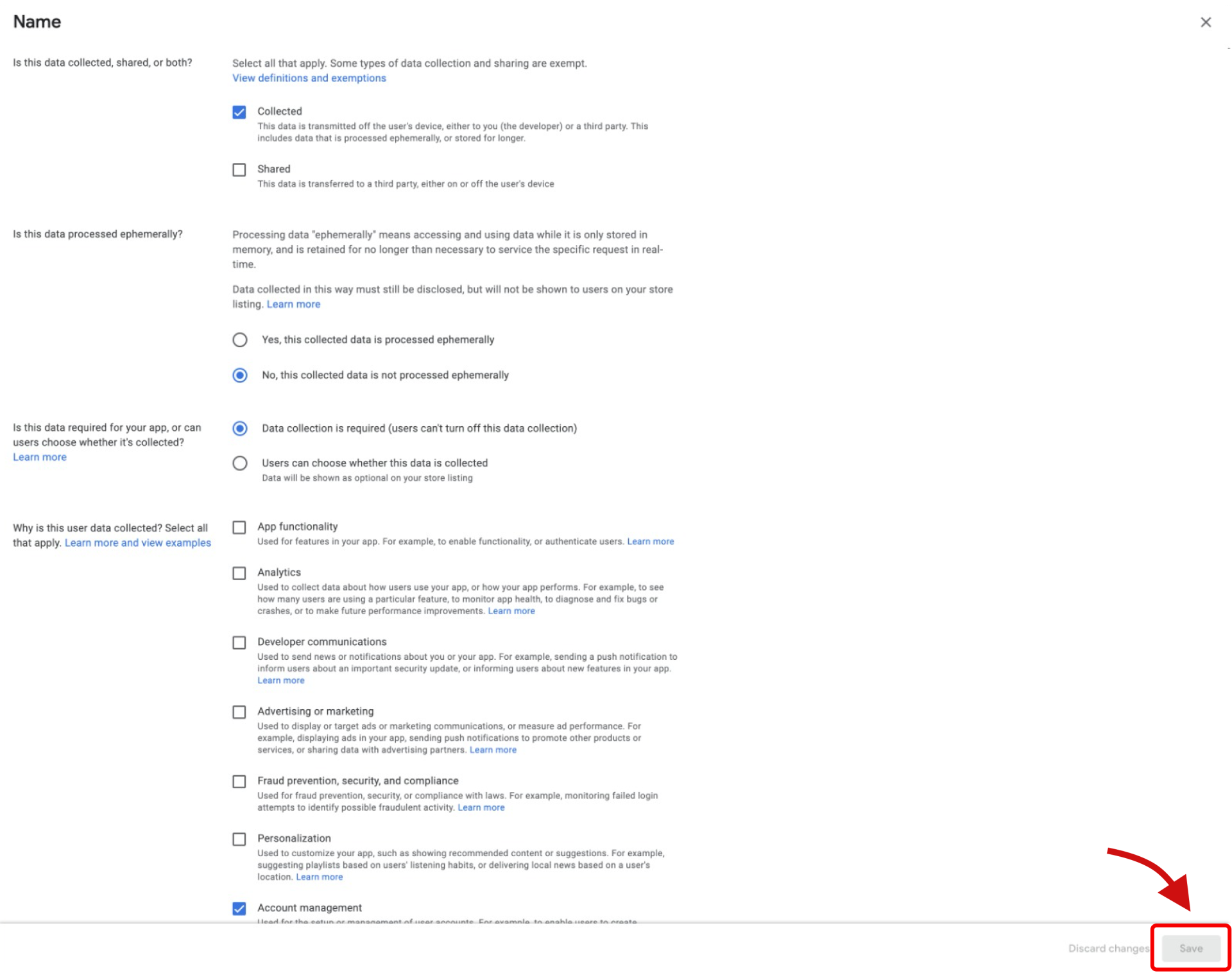
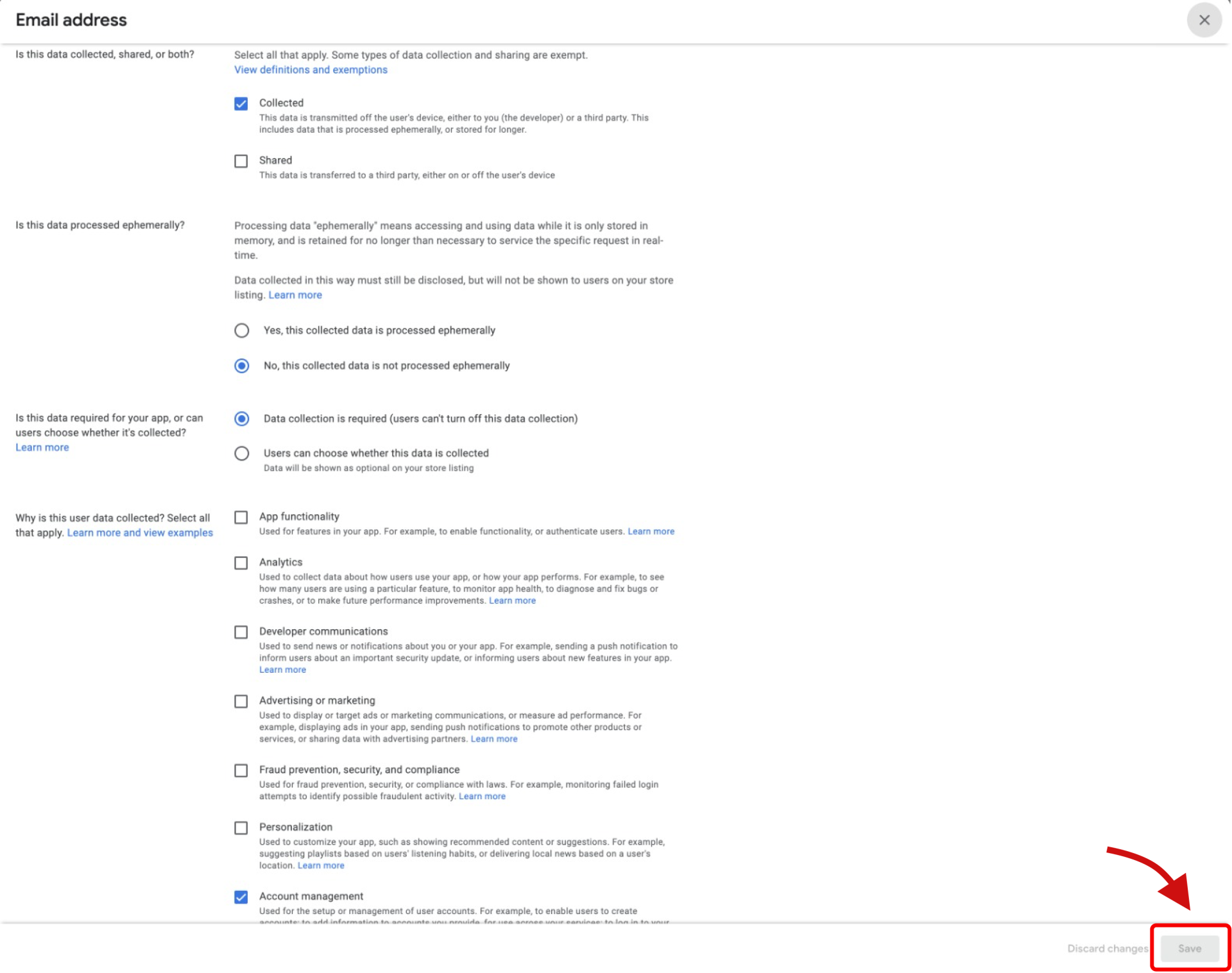
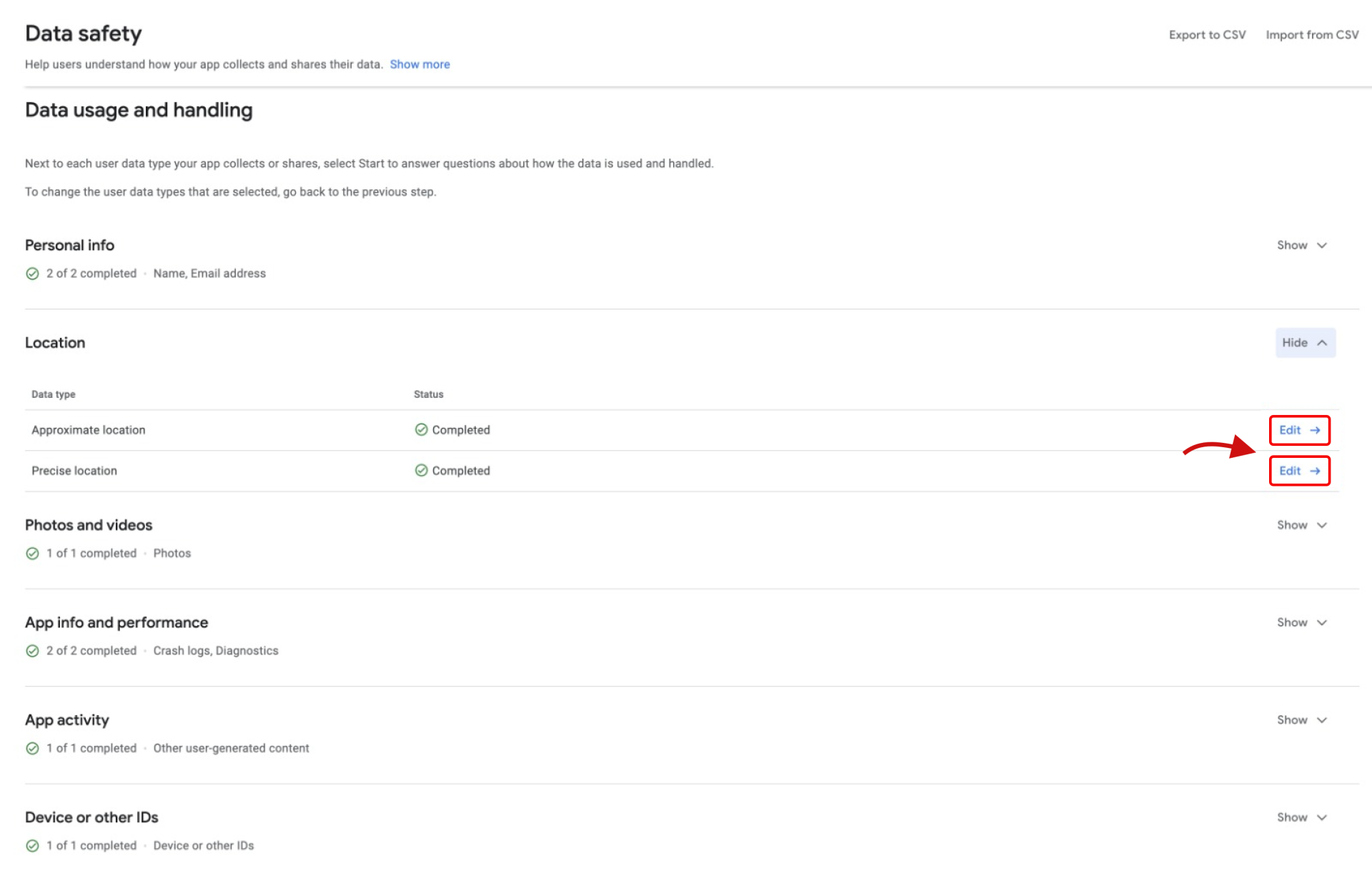
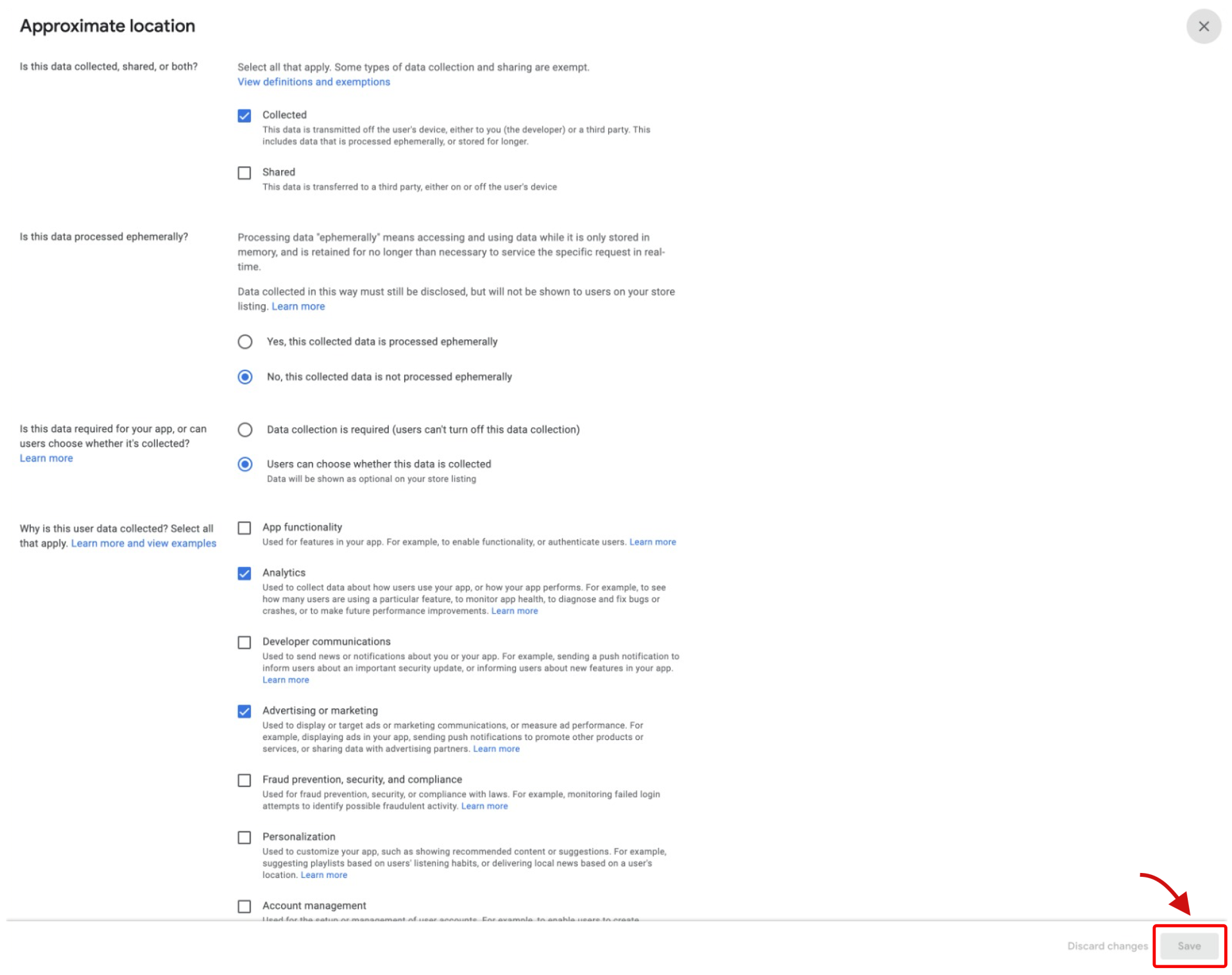
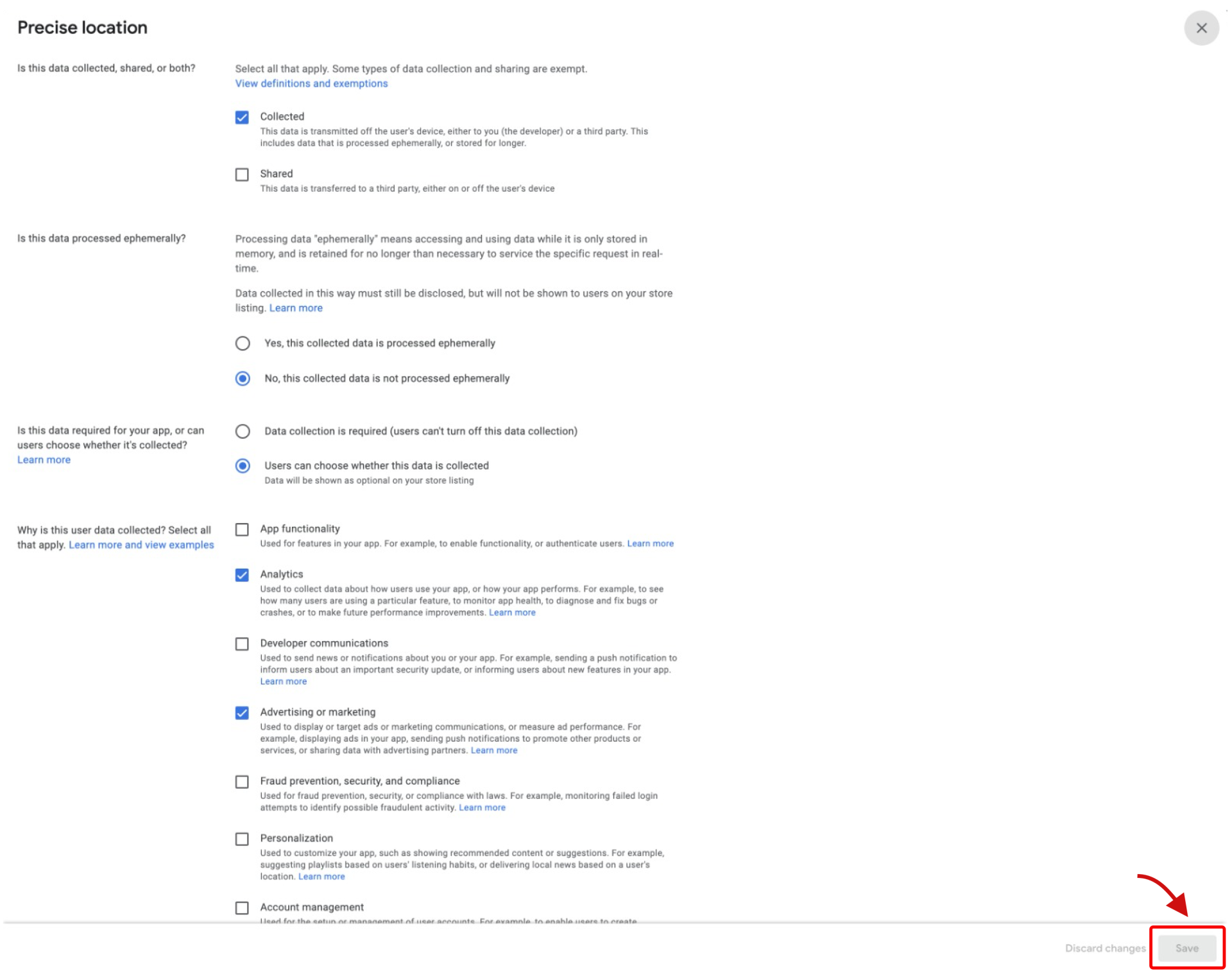
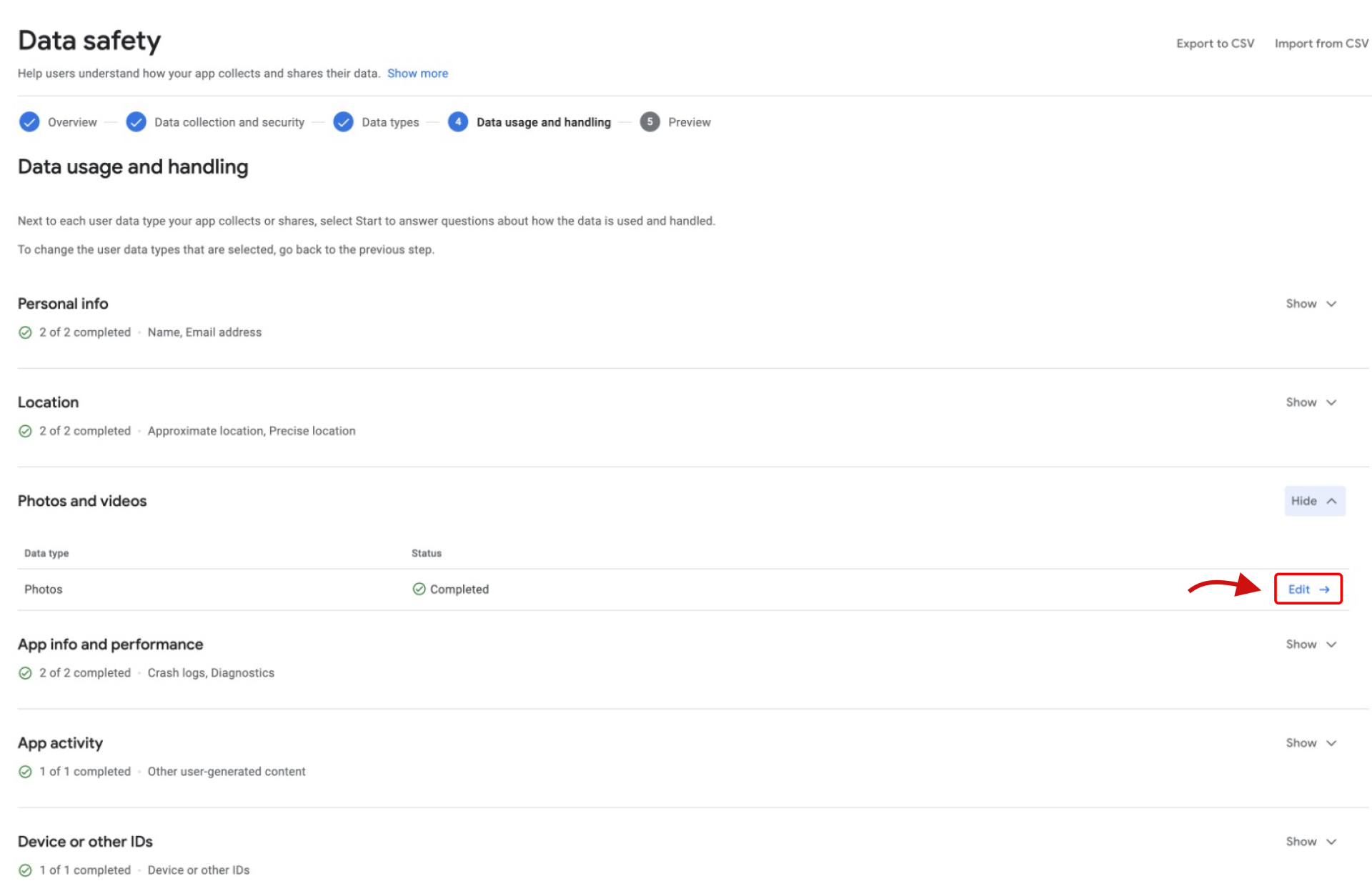
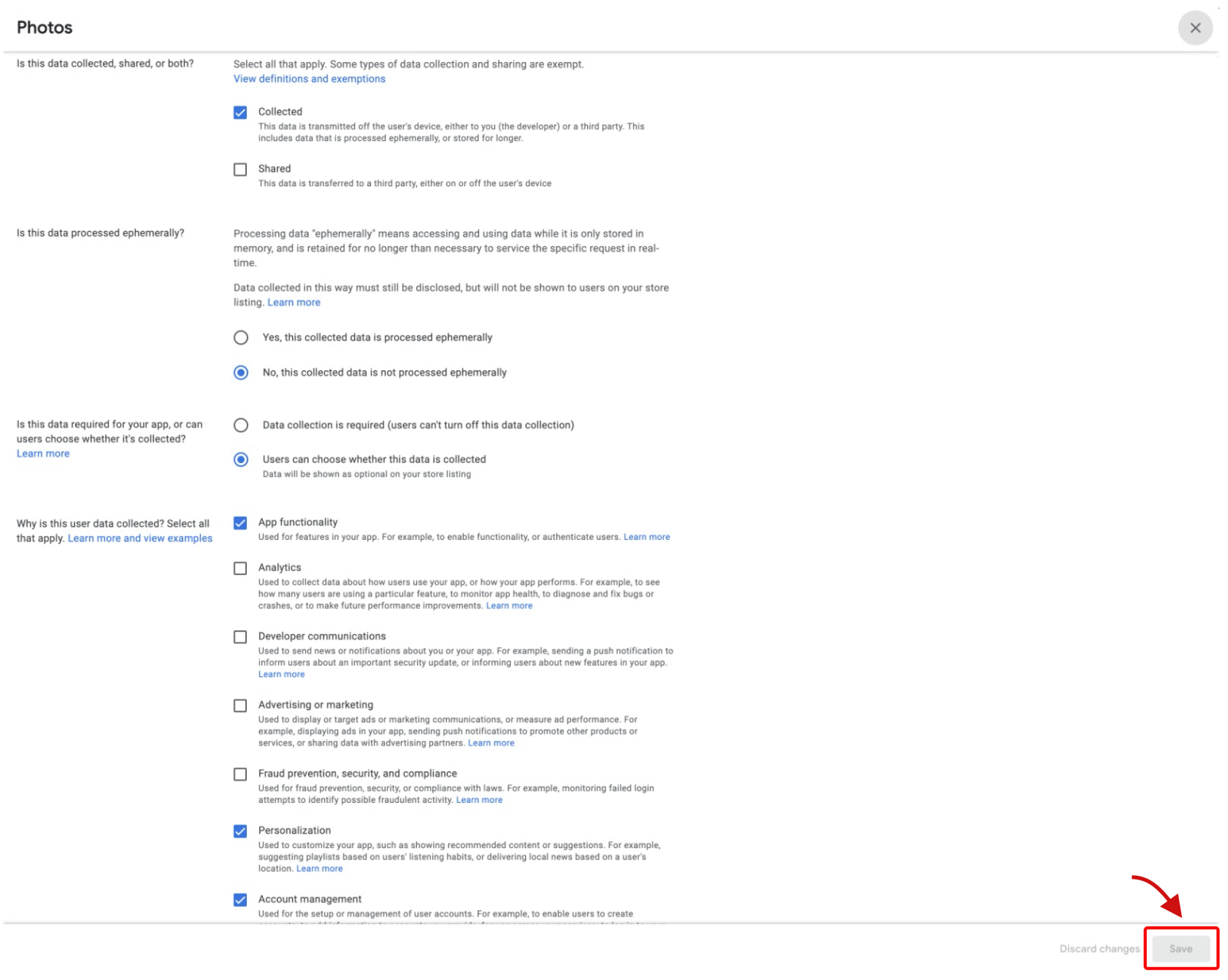
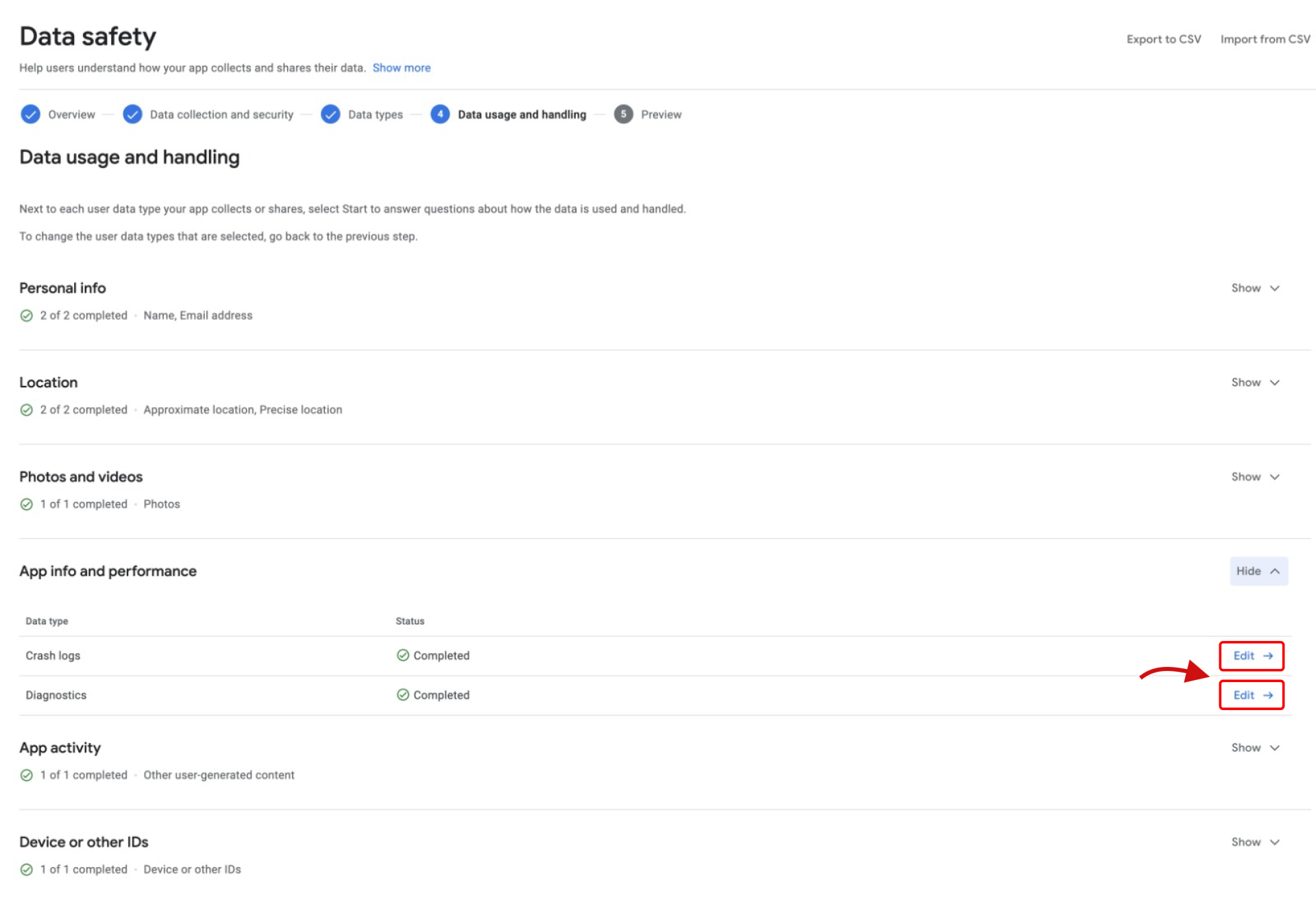
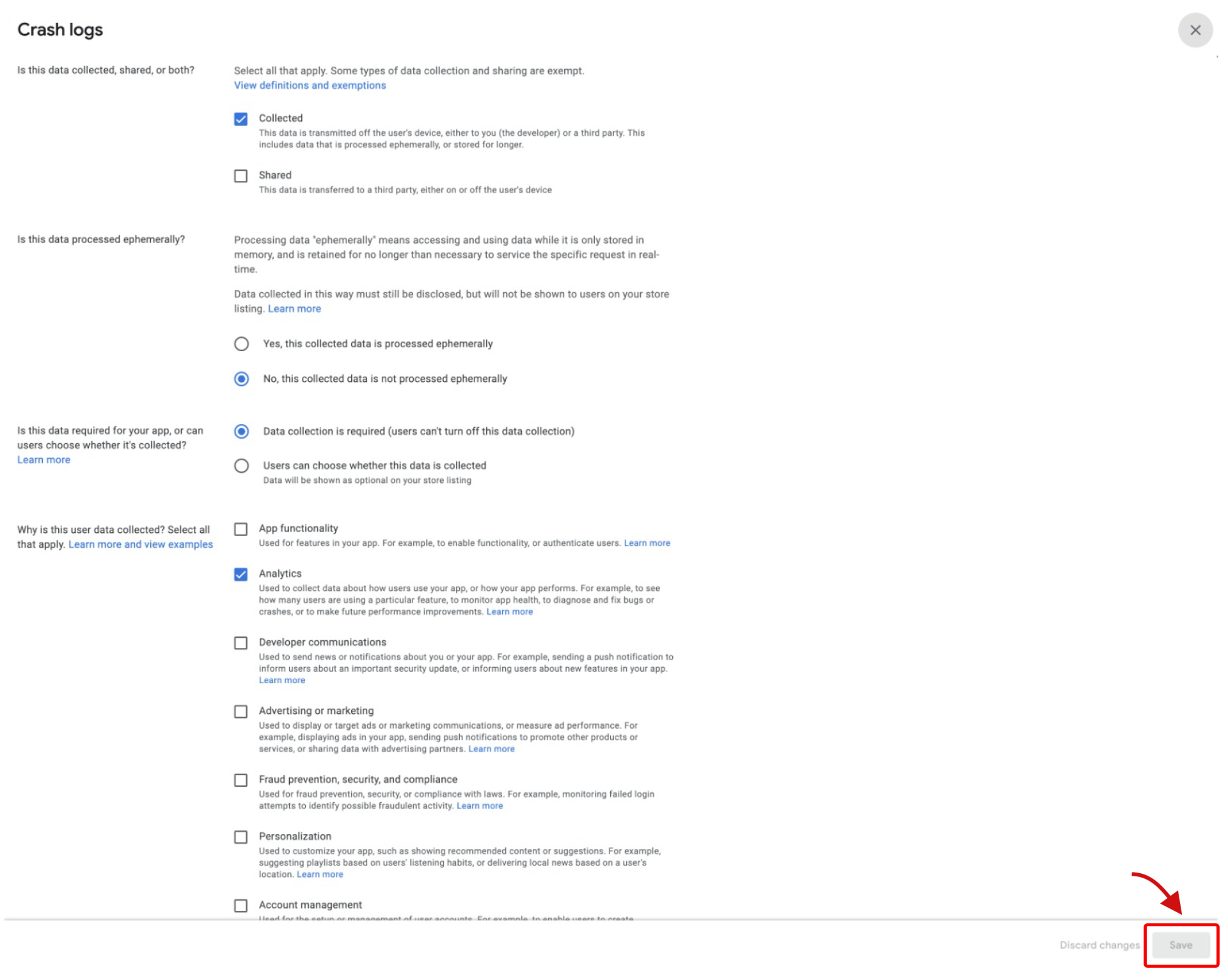
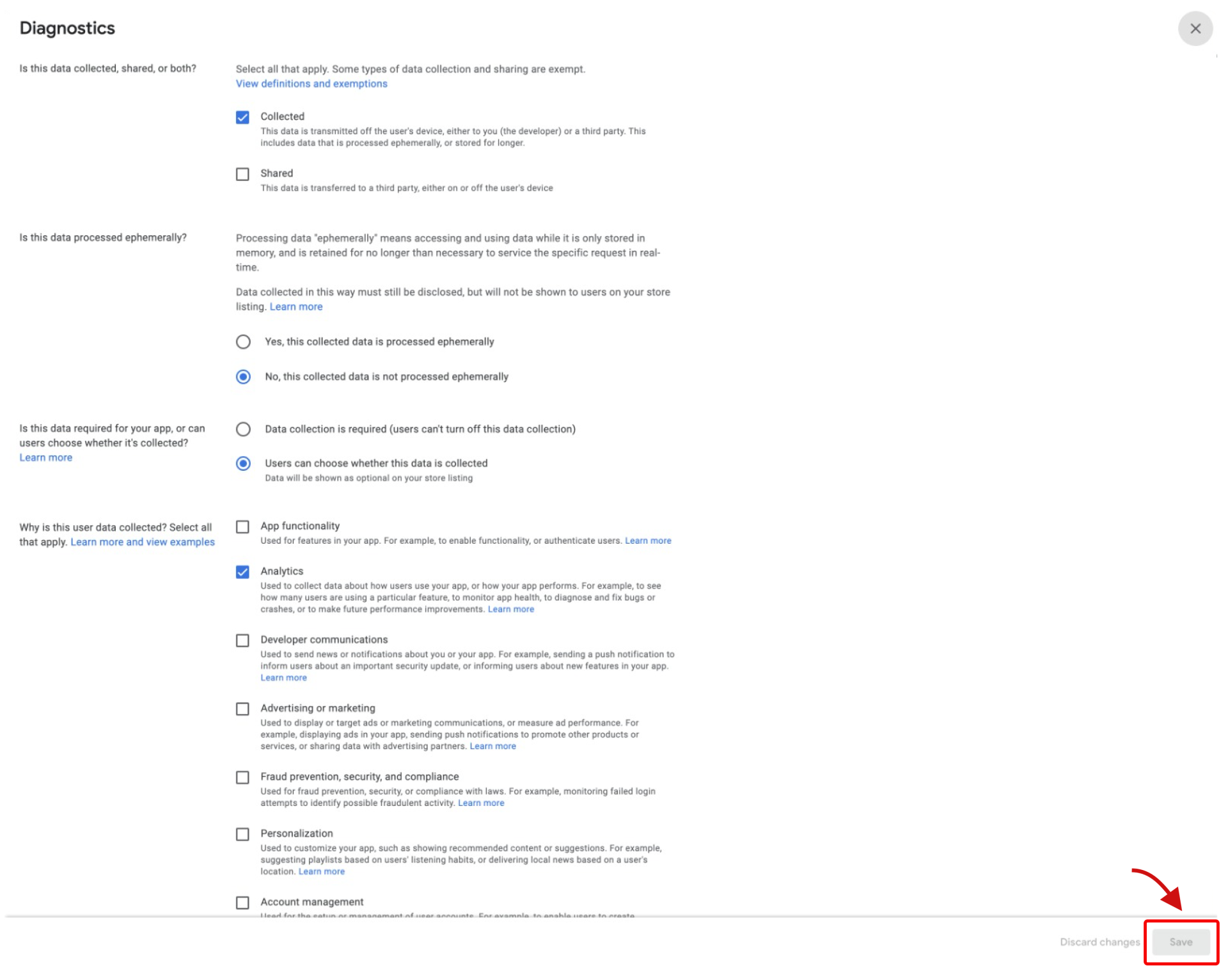
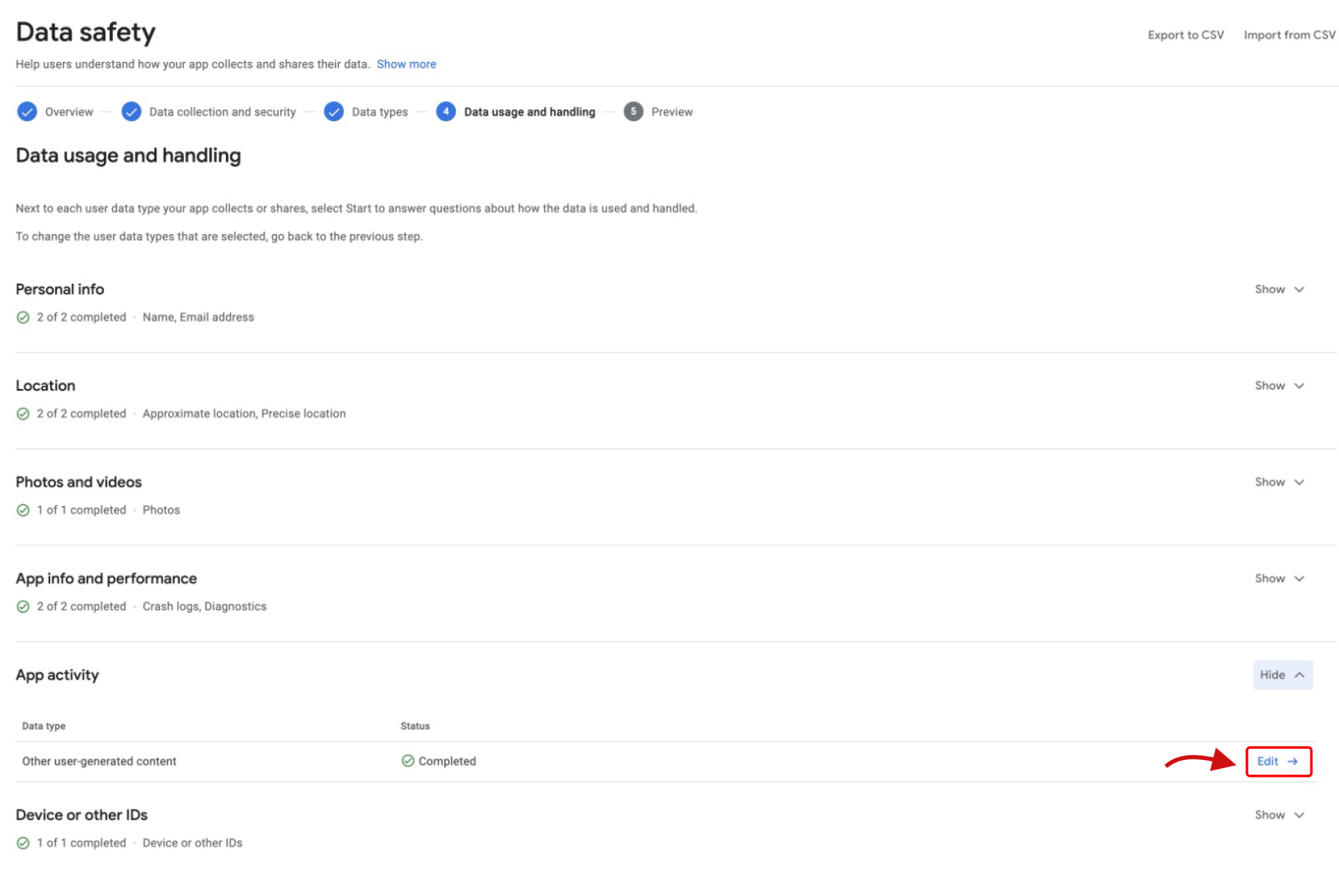
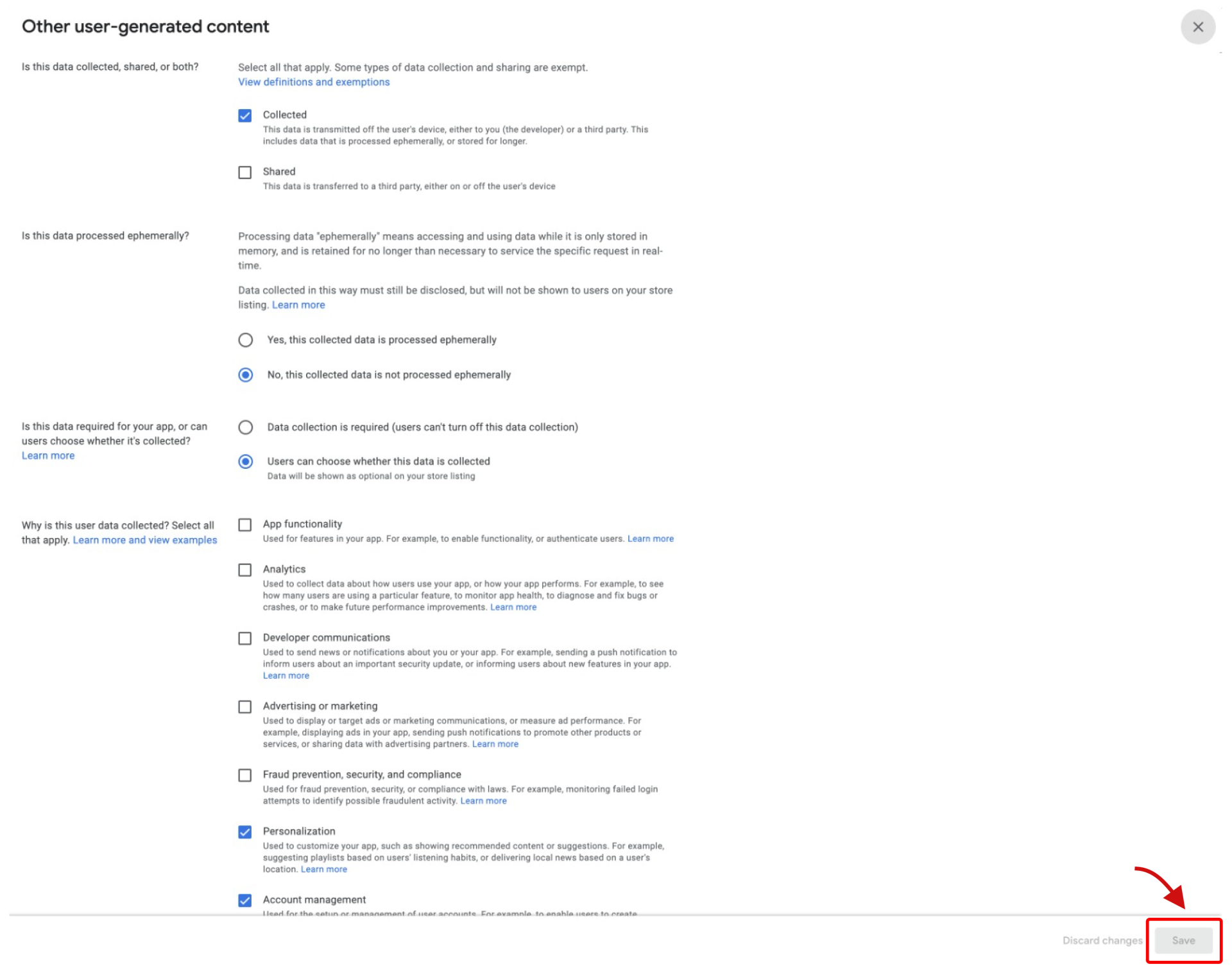
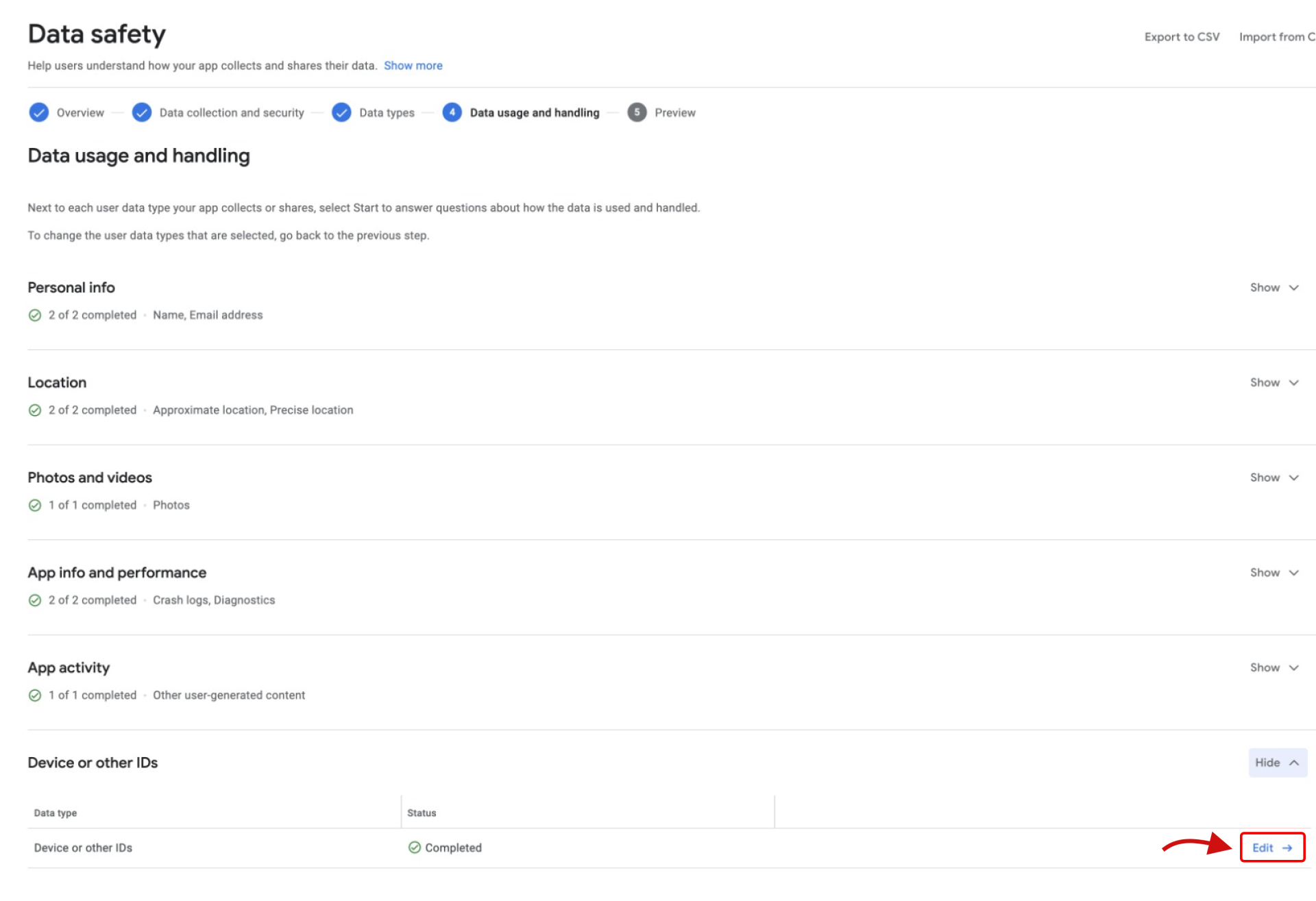
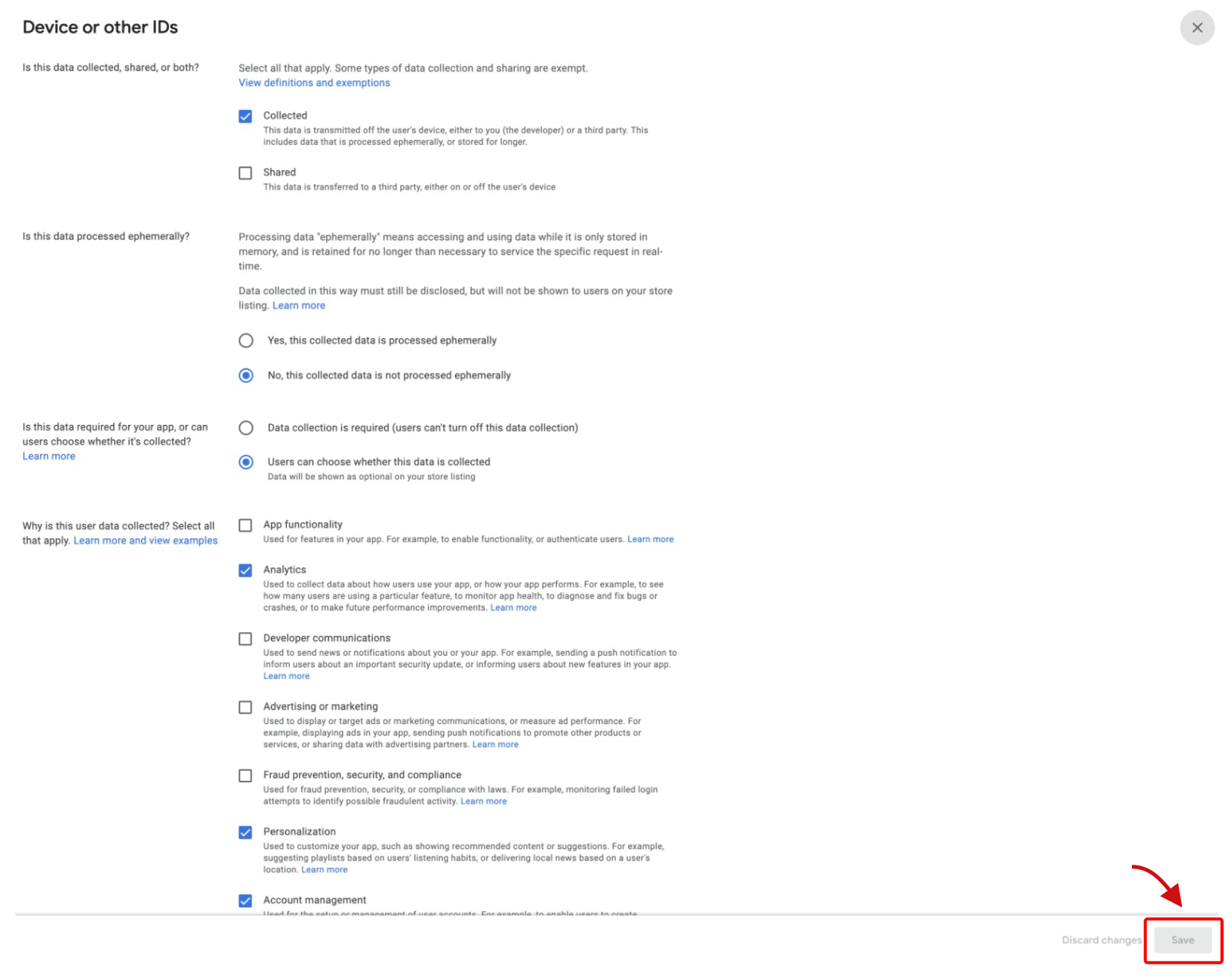
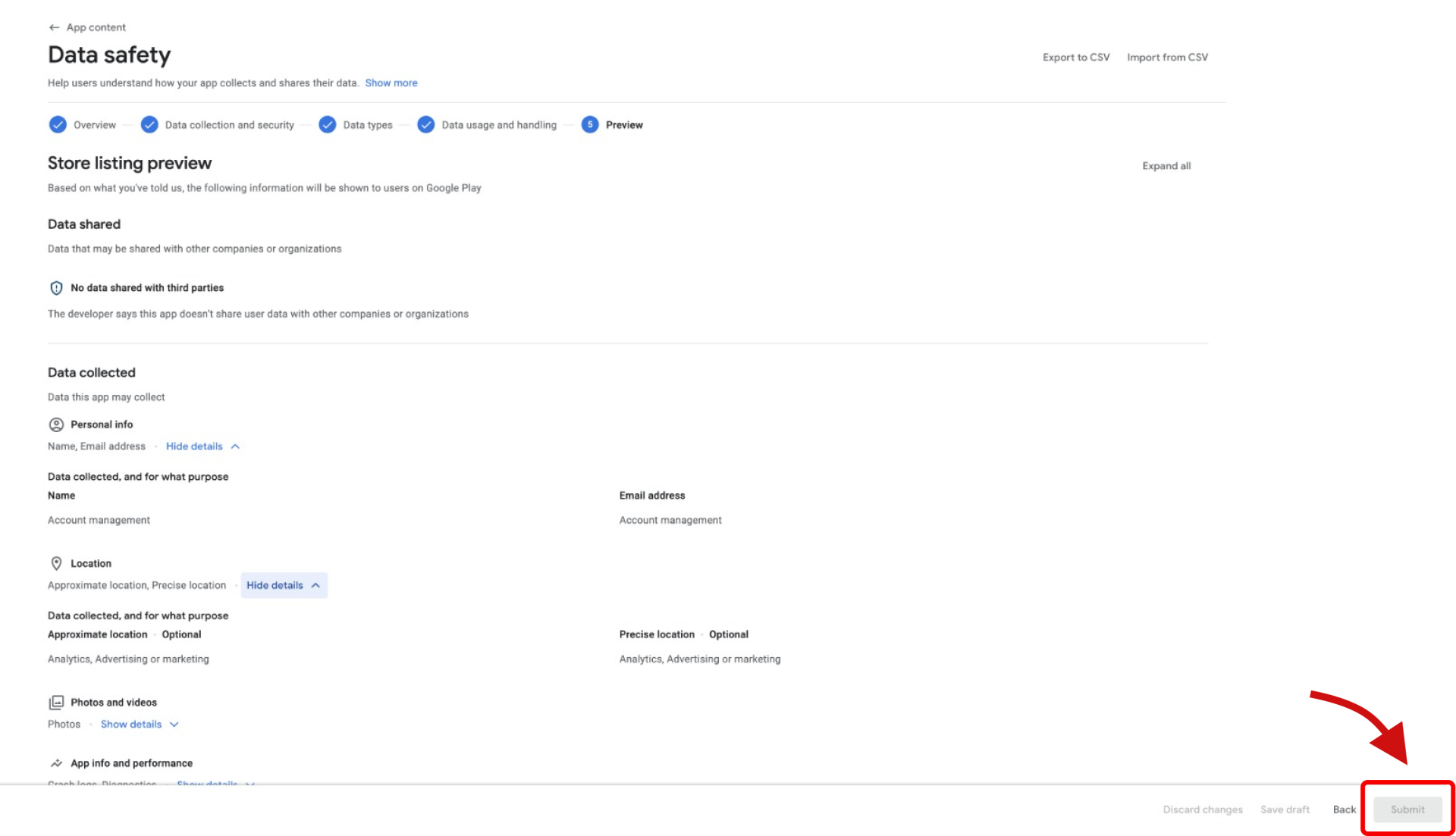
                <![CDATA[<ol><li>Go to your <b>Play Console</b> panel. Select your application from the application list.<br /><img src="https://support-hub--assets.s3.eu-west-2.amazonaws.com/assets/362/images/RHMdXBRAIH9e28OqNWrUvv0brA4v4xR5yAUp4dD9.png" style="width:100%;" alt="RHMdXBRAIH9e28OqNWrUvv0brA4v4xR5yAUp4dD9.png" /><br /></li><li>Click <b>"App content"</b> from the <b>"Policy and programs"</b> section on the left menu.<br /><img src="https://support-hub--assets.s3.eu-west-2.amazonaws.com/assets/362/images/Q2Eitn707PEvSiWn697Uo8yUANEl4HLRrrKFPkwX.png" style="width:50%;" alt="Q2Eitn707PEvSiWn697Uo8yUANEl4HLRrrKFPkwX.png" /><br /></li><li>On the page that opens, click the <b>"Manage"</b> button in the <b>"Data Safety"</b> section.<br /><img src="https://support-hub--assets.s3.eu-west-2.amazonaws.com/assets/362/images/mPJm37Vq8YEXwTerNydx2ErRj5qDYubiSXbPBiFT.png" alt="mPJm37Vq8YEXwTerNydx2ErRj5qDYubiSXbPBiFT.png" style="width:100%;" /><br /></li><li>Click the <b>"Next"</b> button without doing anything at this step.<br /><img src="https://support-hub--assets.s3.eu-west-2.amazonaws.com/assets/362/images/ePqG3ro6GmdCadjedfSDJ3vhRzIIUAxfsuSbmV2k.png" style="width:100%;" alt="ePqG3ro6GmdCadjedfSDJ3vhRzIIUAxfsuSbmV2k.png" /><br /></li><li>Select yes or no options and click the <b>"Next"</b> button.<br /><img src="https://support-hub--assets.s3.eu-west-2.amazonaws.com/assets/362/images/SMv6MMKRdBHYpbH1i7LXReyWuvylBqgKKfNfVzRY.png" style="width:100%;" alt="SMv6MMKRdBHYpbH1i7LXReyWuvylBqgKKfNfVzRY.png" /><br /></li><li>Click on the <b>"Show"</b> buttons. Check the checkboxes as in the screenshots.<br /><img src="https://support-hub--assets.s3.eu-west-2.amazonaws.com/assets/362/images/p5tEylQLKXYyKuxQTkqekl37Duf4PSDNHs7HvAyT.png" style="width:100%;" alt="p5tEylQLKXYyKuxQTkqekl37Duf4PSDNHs7HvAyT.png" /><br /><img src="https://support-hub--assets.s3.eu-west-2.amazonaws.com/assets/362/images/TYGU8nWVc0D5i3KFTn2kI77AjGB2EuLluZoefx4E.png" style="width:50%;" alt="TYGU8nWVc0D5i3KFTn2kI77AjGB2EuLluZoefx4E.png" /><br /><img src="https://support-hub--assets.s3.eu-west-2.amazonaws.com/assets/362/images/KtqrnaUufsfiHM9SrIu8vaqwoFsQH5milHCSl68W.png" style="width:50%;" alt="KtqrnaUufsfiHM9SrIu8vaqwoFsQH5milHCSl68W.png" /><br /><img src="https://support-hub--assets.s3.eu-west-2.amazonaws.com/assets/362/images/3Gc1wXwrw4F9WvNYWtUdWaQkVCZeuwjTTAfn0voH.png" style="width:50%;" alt="3Gc1wXwrw4F9WvNYWtUdWaQkVCZeuwjTTAfn0voH.png" /><br /><img src="https://support-hub--assets.s3.eu-west-2.amazonaws.com/assets/362/images/O4G6GivxCseAmnq4fK5P6khk1cELAq2Kwpg5S0Na.png" style="width:50%;" alt="O4G6GivxCseAmnq4fK5P6khk1cELAq2Kwpg5S0Na.png" /><br /><img src="https://support-hub--assets.s3.eu-west-2.amazonaws.com/assets/362/images/qtoWUNzUhSQAEyk5WziaJO6dhLH33yiK9iVWEFUV.png" style="width:50%;" alt="qtoWUNzUhSQAEyk5WziaJO6dhLH33yiK9iVWEFUV.png" /><br /><img src="https://support-hub--assets.s3.eu-west-2.amazonaws.com/assets/362/images/FiWNwLs7hHngJVgKSZi3Aa2t5pZPQ8nvP8n2d7l6.png" style="width:50%;" alt="FiWNwLs7hHngJVgKSZi3Aa2t5pZPQ8nvP8n2d7l6.png" /><br /></li><li>Click on the <b>"Edit"</b> buttons to the right of all the data types you have selected. Select the options as in the screenshots from the opened pages and click the <b>"Save"</b> buttons.<br /><br /><b>Personel Info</b><br /><img src="https://support-hub--assets.s3.eu-west-2.amazonaws.com/assets/362/images/tKVThzmU4W2EkLBTJhZwVJzjnGXD7Ludcy1kO90H.png" alt="tKVThzmU4W2EkLBTJhZwVJzjnGXD7Ludcy1kO90H.png" style="width:100%;" /><br /><b>* Name (Personel Info)</b><br /><img src="https://support-hub--assets.s3.eu-west-2.amazonaws.com/assets/362/images/271vq6YZ6rQInIXRiSCh46akPHTnoFKi3lOAystN.png" alt="271vq6YZ6rQInIXRiSCh46akPHTnoFKi3lOAystN.png" style="width:100%;" /><br /><b>* Email address (Personel Info)</b><br /><img src="https://support-hub--assets.s3.eu-west-2.amazonaws.com/assets/362/images/1d3tUmLXaGEOneiuOtqSeBQpXv6rswL5cL6crG02.png" alt="1d3tUmLXaGEOneiuOtqSeBQpXv6rswL5cL6crG02.png" style="width:100%;" /><br /><b>Location</b><br /><img src="https://support-hub--assets.s3.eu-west-2.amazonaws.com/assets/362/images/pkiY2NklUg0jmNsfltTJjyAjGj2kRx20usNI8mXT.png" style="width:100%;" alt="pkiY2NklUg0jmNsfltTJjyAjGj2kRx20usNI8mXT.png" /><br /><b>* Approximate location (Location)</b><br /><img src="https://support-hub--assets.s3.eu-west-2.amazonaws.com/assets/362/images/IImel5JWq946bHEvUN6YoPDljB15TmQgyY9cowd1.png" style="width:100%;" alt="IImel5JWq946bHEvUN6YoPDljB15TmQgyY9cowd1.png" /><br /><b>* Precise location (Location)<br /></b><img src="https://support-hub--assets.s3.eu-west-2.amazonaws.com/assets/362/images/mhb1l2JfsEXFCmnpmwcVrPopoaLdvdBqJEGY24uS.png" style="width:100%;" alt="mhb1l2JfsEXFCmnpmwcVrPopoaLdvdBqJEGY24uS.png" /><br /><b>Photos and videos<br /></b><img src="https://support-hub--assets.s3.eu-west-2.amazonaws.com/assets/362/images/nsrKDCC82eq12zYBEaJrcOUlvE4rVeQ3vSieweq5.png" style="width:100%;" alt="nsrKDCC82eq12zYBEaJrcOUlvE4rVeQ3vSieweq5.png" /><br /><b>* Photos (Photos and videos)</b><br /><img src="https://support-hub--assets.s3.eu-west-2.amazonaws.com/assets/362/images/c51Xyt3fh5RdtNi7jjyIrAZkcN0n2L0x5LsKG1n2.png" style="width:100%;" alt="c51Xyt3fh5RdtNi7jjyIrAZkcN0n2L0x5LsKG1n2.png" /><br /><b>App info and performance</b><br /><img src="https://support-hub--assets.s3.eu-west-2.amazonaws.com/assets/362/images/pZlVd6D8fIrGIyR3A6bl7q1T38jmoKXuzHXmueoj.png" style="width:100%;" alt="pZlVd6D8fIrGIyR3A6bl7q1T38jmoKXuzHXmueoj.png" /><br /><b>* Crash logs (App info and performance)</b><br /><img src="https://support-hub--assets.s3.eu-west-2.amazonaws.com/assets/362/images/X4TIgJ0CClE9B9JZEOAsnGQc6Wuwx95hCLnNsuqV.png" style="width:100%;" alt="X4TIgJ0CClE9B9JZEOAsnGQc6Wuwx95hCLnNsuqV.png" /><br /><b>* Diagnostics (App info and performance)<br /></b><img src="https://support-hub--assets.s3.eu-west-2.amazonaws.com/assets/362/images/Pi2hbQ6WpfBbW8PKboVA2PGOrT6SfuQSf969EiNi.png" style="width:100%;" alt="Pi2hbQ6WpfBbW8PKboVA2PGOrT6SfuQSf969EiNi.png" /><br /><b>App activity</b><br /><img src="https://support-hub--assets.s3.eu-west-2.amazonaws.com/assets/362/images/ipXcpZVjISsSF90vzBCTt85DPFwlXz4D0u1AgFfy.png" style="width:100%;" alt="ipXcpZVjISsSF90vzBCTt85DPFwlXz4D0u1AgFfy.png" /><br /><b>* Other user-generated content (App activity)<br /></b><img src="https://support-hub--assets.s3.eu-west-2.amazonaws.com/assets/362/images/U1kVY7W1K9KNLOoyTdbNjxGJfY74Np3HjOU7dncA.png" style="width:100%;" alt="U1kVY7W1K9KNLOoyTdbNjxGJfY74Np3HjOU7dncA.png" /><br /><b>Device or other IDs<br /></b><img src="https://support-hub--assets.s3.eu-west-2.amazonaws.com/assets/362/images/zdgULptDcs8Ey52wi31kZjzAdCsXDeL78XRDoDaJ.png" style="width:100%;" alt="zdgULptDcs8Ey52wi31kZjzAdCsXDeL78XRDoDaJ.png" /><br /><b>* Device or other IDs<br /></b><img src="https://support-hub--assets.s3.eu-west-2.amazonaws.com/assets/362/images/MHEOsQjgsnLorFxrEnLgjGlN4iC0eoXKdNlcFdYJ.png" style="width:100%;" alt="MHEOsQjgsnLorFxrEnLgjGlN4iC0eoXKdNlcFdYJ.png" /><br /></li><li>Click the <b>"Submit"</b> button and complete.<br /><img src="https://support-hub--assets.s3.eu-west-2.amazonaws.com/assets/362/images/ln6V5ToT8UfJsVm30E4tFEppuCzKQCSw0PVGZBVq.png" style="width:100%;" alt="ln6V5ToT8UfJsVm30E4tFEppuCzKQCSw0PVGZBVq.png" /><br /><br /></li></ol>
<table class="table table-bordered"><tr><td><b>
<span>← </span>Previous Section</b><br /></td><td><b>Next Section <span>→</span></b></td></tr><tr><td><a href="https://fyncode.support-hub.io/articles/creating-application-apk-and-downloading-1378">Creating Application (APK) and Downloading</a></td><td><a href="https://fyncode.support-hub.io/articles/frequently-asked-questions-1379">Frequently Asked Questions</a></td></tr></table>]]>
            </summary>
                                    <updated>2022-12-18T00:38:41+00:00</updated>
        </entry>
            <entry>
            <title><![CDATA[Frequently Asked Questions]]></title>
            <link rel="alternate" href="https://fyncode.support-hub.io/articles/frequently-asked-questions-1379" />
            <id>https://fyncode.support-hub.io/1379</id>
            <author>
                <name><![CDATA[Fyncode Tech]]></name>
            </author>
            <summary type="html">
                <![CDATA[<ol><li><b>Can I use the product on my multiple websites if I purchase Regular License?</b><br />With Regular Licence, you can use the product only on one of your websites. If you want to use the product on more than one website, you should purchase separate Regular Licence for each website.<br /><br /></li><li><b>I just purchased the product, what to do now?<br /></b>Thank you for purchasing our product. You can check the <a href="https://fyncode.support-hub.io/knowledgebase/685/collections/354" target="_blank" rel="noreferrer noopener">Documentation</a> and make your app ready.<br /><br /></li><li><b>Are the apps created with Flink Wordpress App Builder native or hybrid? </b><br />It is developed as native.<br /><br /></li></ol><table class="table table-bordered"><tr><td><b>NOTE: Frequently Asked Questions page will be updated on a regular basis. You can also check regularly.</b></td></tr></table><br /><br /><table class="table table-bordered"><tr><td><b>← Previous Section</b></td></tr><tr><td><a href="https://fyncode.support-hub.io/articles/play-console-data-safety-form-2696">Play Console Data Safety Form</a></td></tr></table>]]>
            </summary>
                                    <updated>2022-12-17T21:38:03+00:00</updated>
        </entry>
    </feed>